---
title: "Find a community"
description: "Browse communities, ask to join one, reserve a place in a pickup game, and pay for it."
canonical_url: "https://docs.hustlx.com/communities/find-a-community"
---
# Find a community
> Browse communities, ask to join one, reserve a place in a pickup game, and pay for it.
Communities are local pickup scenes on HustlX: neighborhood runs, alumni groups, and open play nights. Each one has its own pickups, players, teams, and leaderboard. Joining a community and reserving a place in a pickup are separate steps.
Anyone can browse communities. To join one or reserve a pickup, you need a signed-in HustlX account with a verified email.
## Before you start
- [Create your account](https://docs.hustlx.com/get-started/create-your-account) and verify your email.
- Add your first and last name to your profile. Online pickup payment needs both.
## Join a community and reserve a pickup
### Find a community
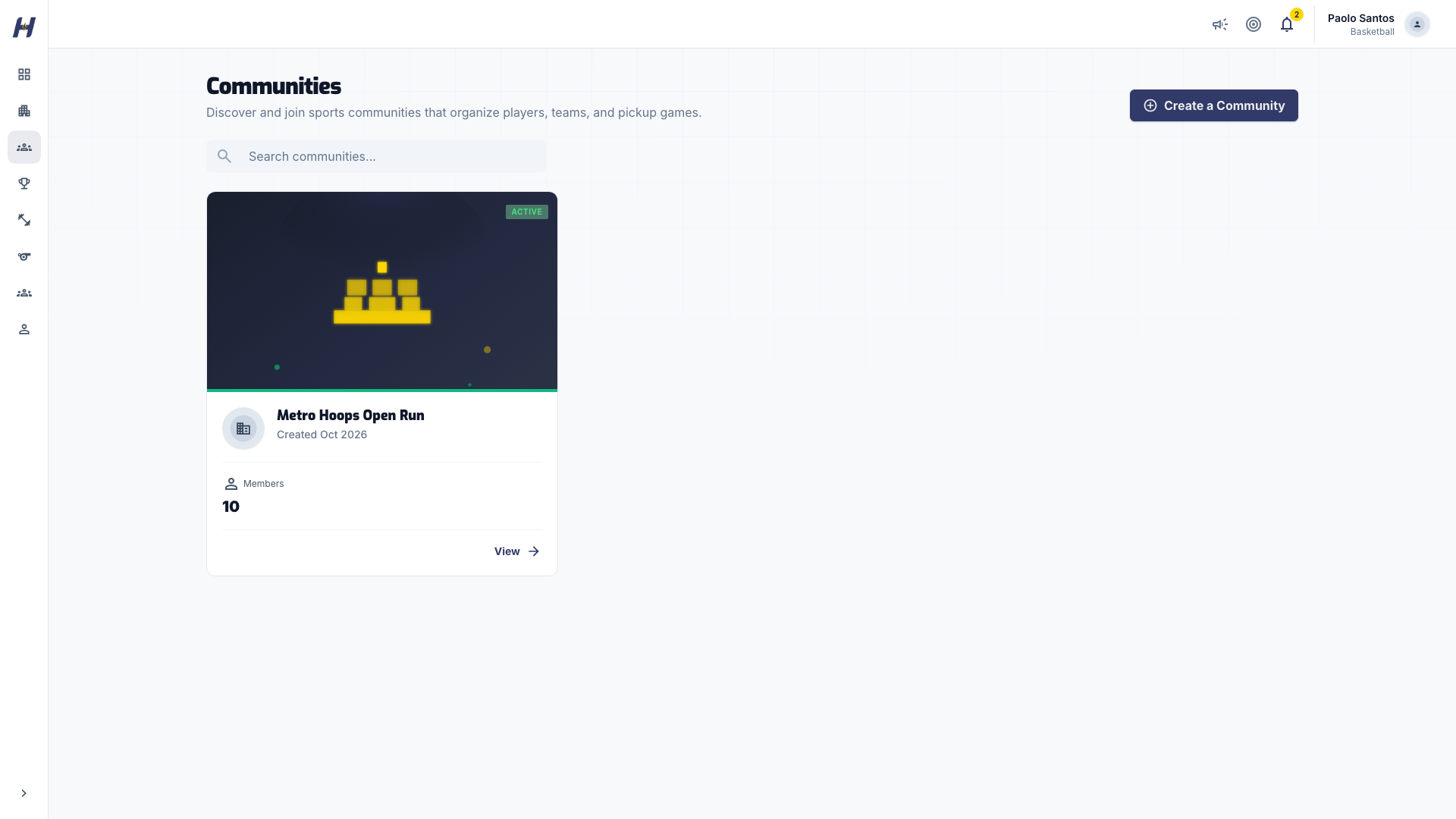
Open **Communities**. Type a name in **Search communities...** or browse the cards, and use the arrows at the bottom of the list to see more. Open a card to see the community's **Overview**.
### Ask to join
Select **Request to Join**. The button changes to **Request pending** until a community admin approves you.
If the community shows **Invite only**, you need an invitation from one of its admins. Accept it from [Invitations and notifications](https://docs.hustlx.com/account/invitations-and-notifications).
### Open a pickup
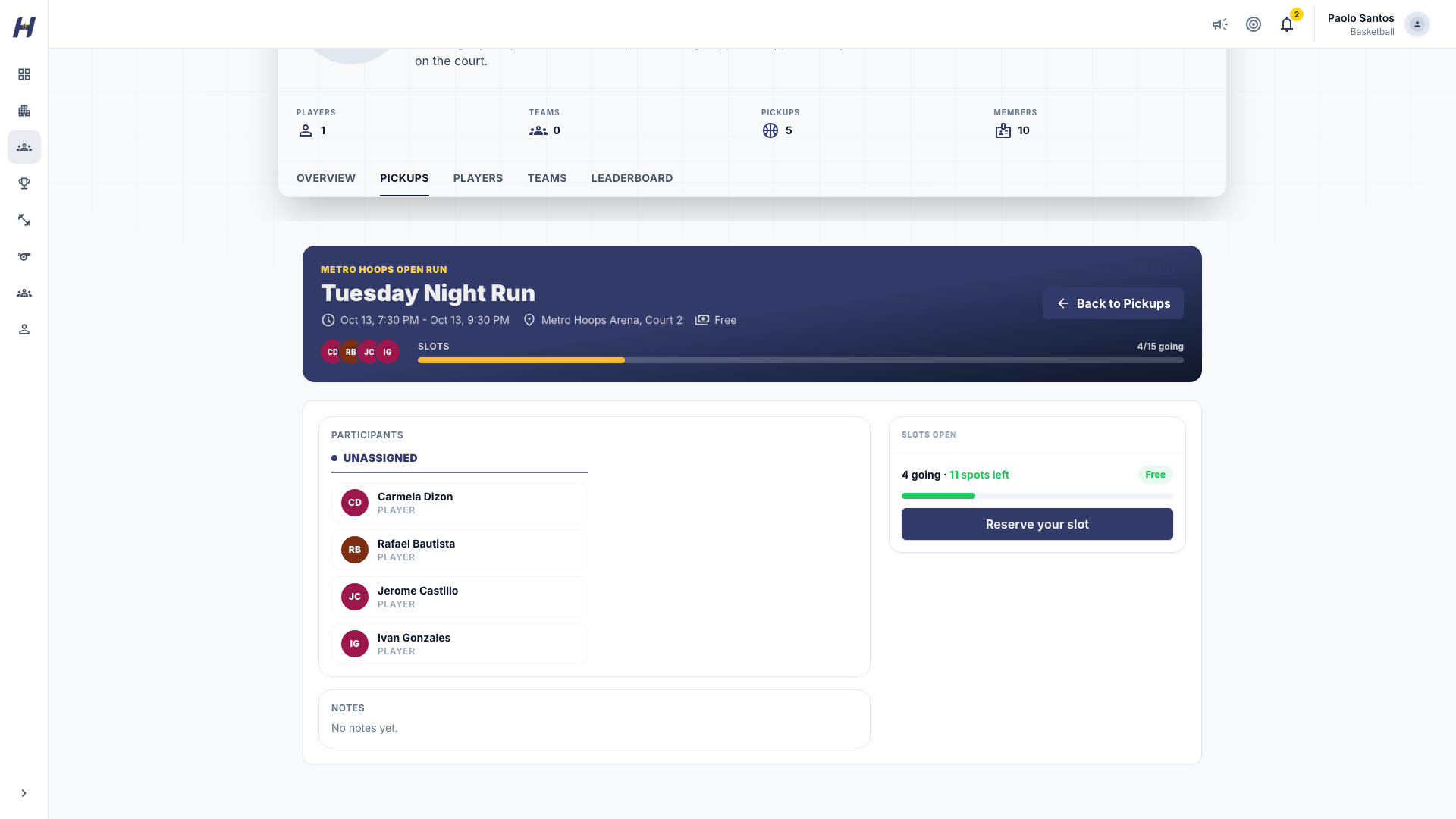
Select **Pickups** and open a game. The page shows the schedule, venue, roster, and how many places are left. For a volleyball pickup with role booking, choose a position (such as Setter or Libero) to see its fixed price and remaining places.
### Reserve your place
Select **Reserve your slot**. If you are not a member yet, the button reads **Join community to reserve**. If the game is full, select **Join waitlist** instead. A waitlisted volleyball player waits for the position they picked.
Some pickups confirm your place right away. Others wait for a community admin to approve it.
### Pay for a paid pickup
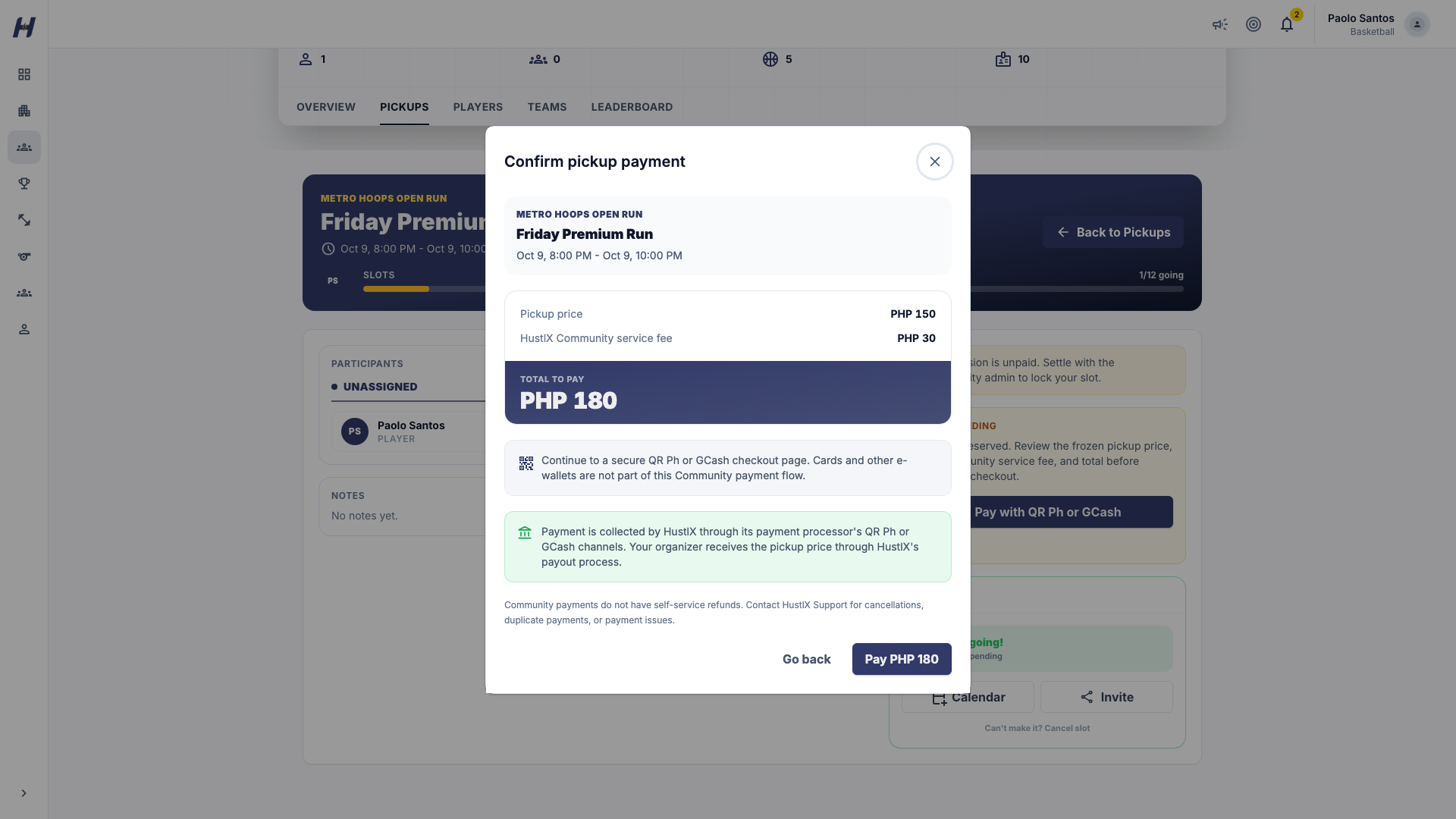
When the pickup has a fee, select **Pay with QR Ph or GCash**. Review **Confirm pickup payment**: the **Pickup price**, **HustlX Community service fee**, and **Total to pay**. Select **Pay** with the total to go to the secure checkout page, or **Go back** to stop.
### Check that payment went through
Return to the pickup page. While it shows **Payment verification in progress**, wait for the result or select **Refresh payment status**. Your place is paid when the page shows **Payment confirmed**.
## What happens next
- On game day, the organizer adds you to a group and records the score. You see the final totals and top performers on the pickup page.
- Your paid time runs through the scheduled end of the pickup, followed by a two-hour grace window. After grace ends, you leave the live rotation. The organizer can open a renewal so you can pay again. A pending renewal does not count as paid, and paying again does not put you back on court automatically, so ask the organizer to add you to the next group.
- Completed games count toward the community **Leaderboard**. Basketball ranks **Points** and **Games**, football and futsal rank goals, assists, and saves, and volleyball shows activity. Pickleball shows singles and doubles ratings. Other racquet sports record side results only.
- HustlX does not send a reminder before a community pickup starts. Check the pickup page for the schedule.
## Your community player record
Communities often add player records before those players join HustlX. Only a community administrator can select the HustlX account for a community player record. There is no claim button for players on the public page.
The connection is irreversible, so the administrator must confirm your identity first. After it is connected, the record's stats show on your profile. If your name is on a community roster, contact the community admin and share enough detail to identify your account. Never share your password.
## Troubleshooting
### My payment failed or I cancelled checkout.
Select **Try Again** on the pickup page. If an older payment was started with Maya, the button reads **Retry Maya Payment**. Do not reserve a second place while a payment is still being verified.
### The page asks for a payment reference instead of checkout.
That community uses manual payment review. Follow its payment instructions, enter the **Payment Reference**, and select **Submit Reference**. The page shows **Payment under review** until an admin checks it.
### I see the community but not its players or teams.
The community is private. Rosters, players, and teams are visible only to approved members. Ask to join, or contact the community admin.
### I was charged twice or need a refund.
Community payments have no self-service refunds. Contact [Support and contact](https://docs.hustlx.com/help/support-and-contact).
### My stats are missing after the admin connected my account.
Refresh your profile. If they still do not appear, or the wrong account was connected, contact HustlX Support. A community admin cannot undo the connection.
## Related guides
- [Run community pickups](https://docs.hustlx.com/communities/run-community-pickups)
- [Your profile](https://docs.hustlx.com/profile/your-profile)
- [Book a court](https://docs.hustlx.com/courts/courts-and-bookings)
- [Follow a league](https://docs.hustlx.com/leagues/follow-a-league)
## Sitemap
See the full [sitemap](https://docs.hustlx.com/sitemap.md) for all pages.