---
title: "Manage invitations and join requests"
description: "Invite teams to your league, review join requests and payment proof, and confirm the field before you build the schedule."
canonical_url: "https://docs.hustlx.com/leagues/invitations-and-requests"
---
# Manage invitations and join requests
> Invite teams to your league, review join requests and payment proof, and confirm the field before you build the schedule.
Teams enter a league in two ways. You can invite them, and an authorized team leader accepts. Or, in an open league, a team applies and you approve it. Both happen in the league's **Requests Hub**.
Organization owners and members who can manage the league invite teams and review requests. Team admins, coaches, and managers respond to invitations for their team.
## Before you start
- Set the league's **Join Mode** and fees. See [Set up registration and fees](https://docs.hustlx.com/leagues/registration-and-fees).
- Make sure each team you plan to invite plays the league's sport. See [Manage teams and rosters](https://docs.hustlx.com/organizations/teams-and-rosters).
- You can invite teams while the league is **Draft** or **Active**.
## Invite teams
### Open the Requests Hub
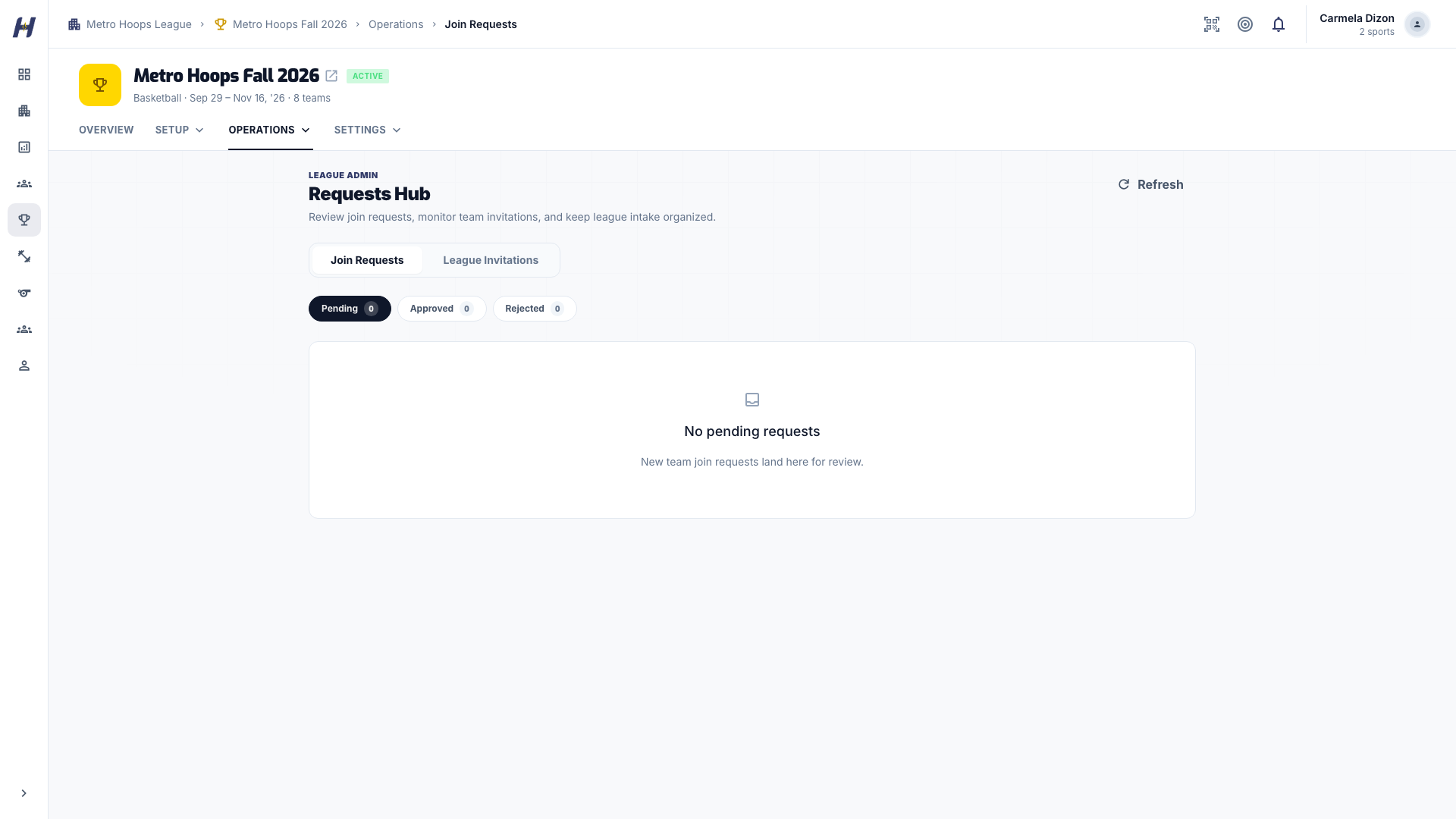
Open the league, select **Manage**, then **Operations** > **Join Requests**. The **Requests Hub** has two tabs: **Join Requests** and **League Invitations**.
### Select the teams
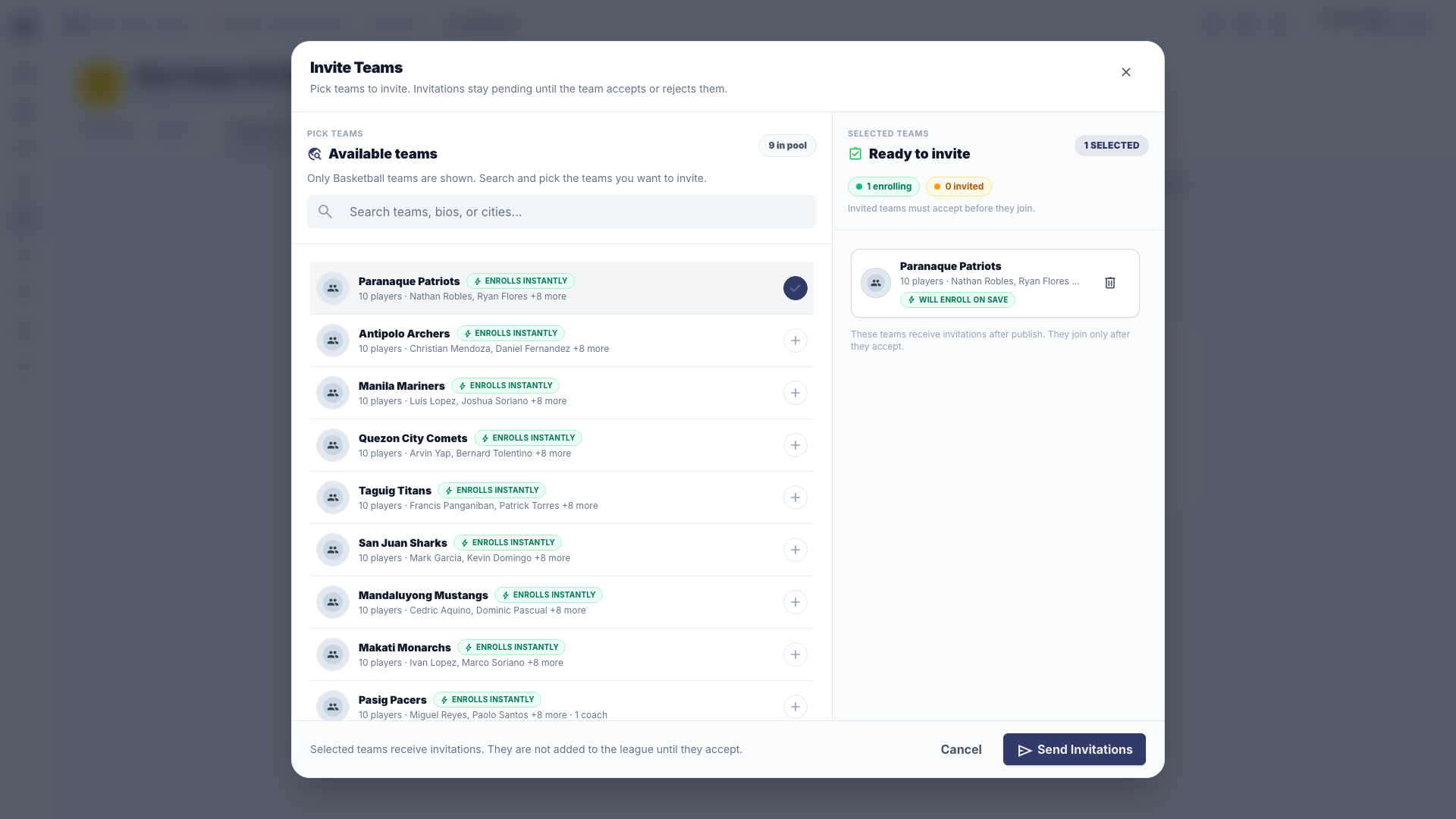
On **League Invitations**, select **Invite Teams**. Search the team pool, select every team you want, and review any eligibility messages.
### Send the invitations
Select **Send Invitations**. Each invitation stays pending on **League Invitations** until the team responds. Sending an invitation does not enroll the team.
## Respond to an invitation (team leaders)
The invited team sees a league invitation in its notifications. An authorized team admin, coach, or manager opens the bell menu, finds the invitation for the right league and team, and selects **Accept** or **Decline**. Marking the notification as read does not answer it. See [Invitations and notifications](https://docs.hustlx.com/account/invitations-and-notifications).
## Review a join request
### Open pending requests
In the **Requests Hub**, select **Join Requests**, then **Pending**.
### Check the request
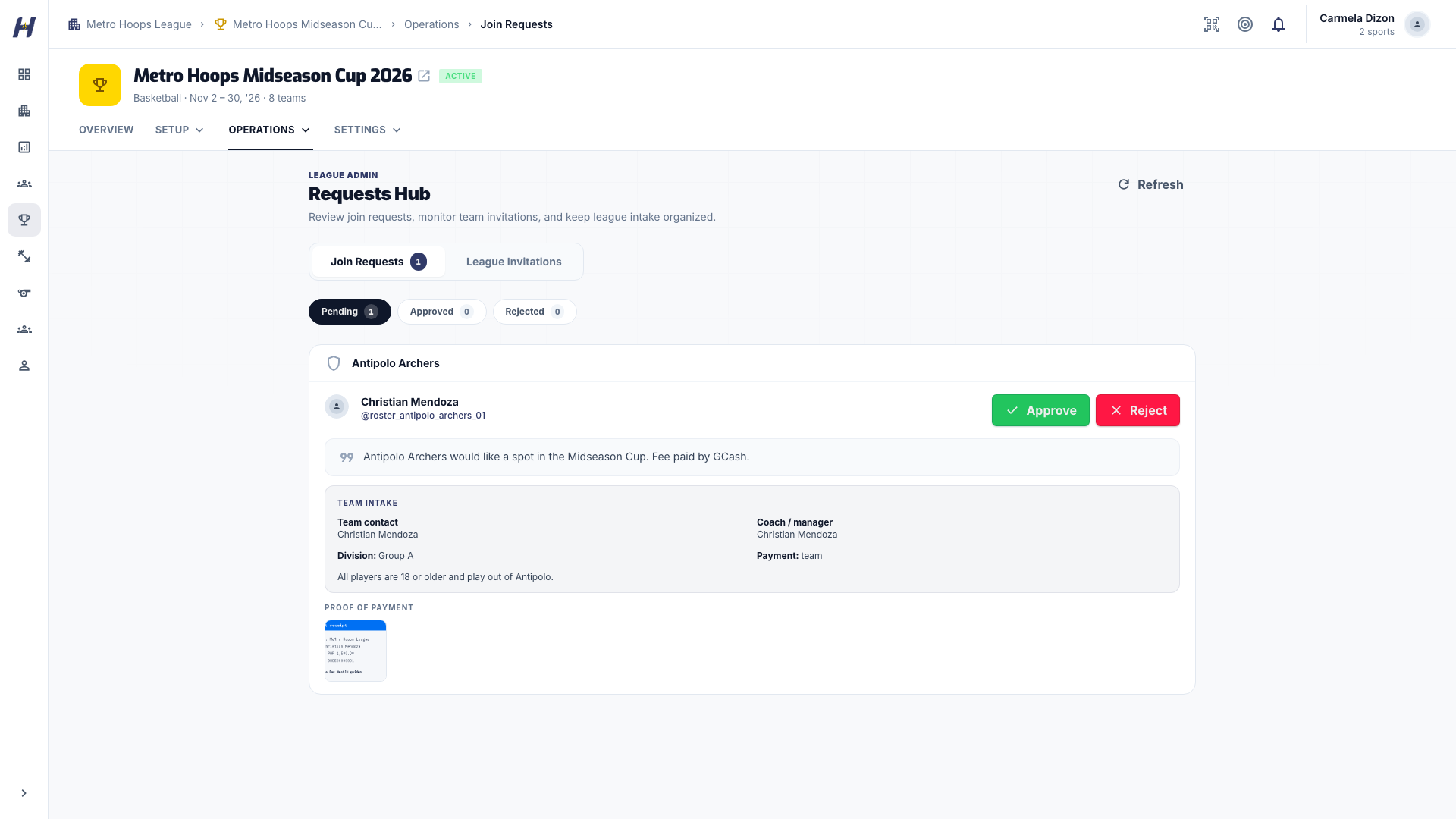
Read the team and submitter details, the message, and any **Team intake** answers. Eligibility warnings, such as age or roster size, are advisory. For a manual payment, select the proof thumbnail to open the receipt.
### Approve or reject
Select **Approve**. To turn a team away, select **Reject**, enter a **Reason for rejection**, and select **Confirm Rejection**. The request moves to **Approved** or **Rejected**.
Approving enrolls the team under the league's admission rules. It does not create fixtures. Online checkout requests are confirmed by verified payment, so you cannot approve around an unfinished checkout.
## How a team applies
For an open league, a team captain or manager:
1. Opens the league's **Overview** and selects **Register & Join**.
2. Reviews **How to Pay** when the league has a fee.
3. Selects the team, or uses **Register a new team** when that option appears. The **I will play on this team** switch decides whether the person registering joins as a player or as Team Manager.
4. Completes the contact and intake fields.
5. Pays online when asked, or uploads **Proof of Payment** for a manual payment.
6. Submits the request. A submitted request shows **Pending Approval**. If online payment was interrupted, **Continue payment** appears on the league page.
If a receipt upload fails, the team re-uploads it from its request. It does not need to apply twice.
## Confirm the field before scheduling
1. Open **Operations** > **Teams & Players** and check the enrolled teams.
2. Return to **League Invitations** for invitations still waiting on a reply.
3. Complete any league team admission the published league needs.
4. Build the schedule. See [Create and schedule matches](https://docs.hustlx.com/leagues/create-and-schedule-matches).
To close signups, change **Join Mode** to **Invite only** in **Manage** > **Details** and save. Pending requests are not rejected automatically, so decide each one.
## Troubleshooting
### "League has reached maximum number of teams."
Raise **Max Teams** in **Manage** > **Details**, or enter 0 for no limit.
### "Teams can only be invited to leagues with Draft or Active status."
The league is **Ongoing**, **Concluded**, or **Inactive**. Move an inactive league back to **Active** from **Settings** > **League Status** first.
### "Team has already been invited to this league."
The invitation is still waiting for a reply. Check its status on **League Invitations**.
### A player is already rostered on another team in this league
One player cannot be on two teams in the same league. Remove the player from one team, then try again. **Roster Audit** lists these conflicts.
### "Only pending join requests can be approved."
Another admin already decided the request. Refresh and check **Approved** or **Rejected**.
### "This action is unauthorized." when adding a team to a published league
Team admission checkout needs league management plus subscription purchase authority. Ask the organization owner or a billing admin.
## Related guides
- [Set up registration and fees](https://docs.hustlx.com/leagues/registration-and-fees)
- [Run the season](https://docs.hustlx.com/leagues/run-the-season)
- [Match readiness](https://docs.hustlx.com/leagues/match-readiness)
## Sitemap
See the full [sitemap](https://docs.hustlx.com/sitemap.md) for all pages.