---
title: "Work as an official"
description: "Set up your official profile and availability, join associations and organizations, and respond to the matches you are assigned."
canonical_url: "https://docs.hustlx.com/officials/officials-guide"
---
# Work as an official
> Set up your official profile and availability, join associations and organizations, and respond to the matches you are assigned.
Referees, scorers, timekeepers, and other match officials use **HustlX Officials** at [officials.hustlx.com](https://officials.hustlx.com). It is a separate site from the main HustlX app. Organizers staff their matches from the main app, and the offers they send land in your officials inbox.
Anyone with an official account. Pages such as **Assignment inbox**, **Affiliations**, and **Availability** only appear when your account is registered as an official.
## Before you start
- Use an email address you can verify. HustlX sends a verification email before onboarding continues.
- Know the sports you officiate and the roles you can fill for each one.
## Set up your official account
### Create an official account
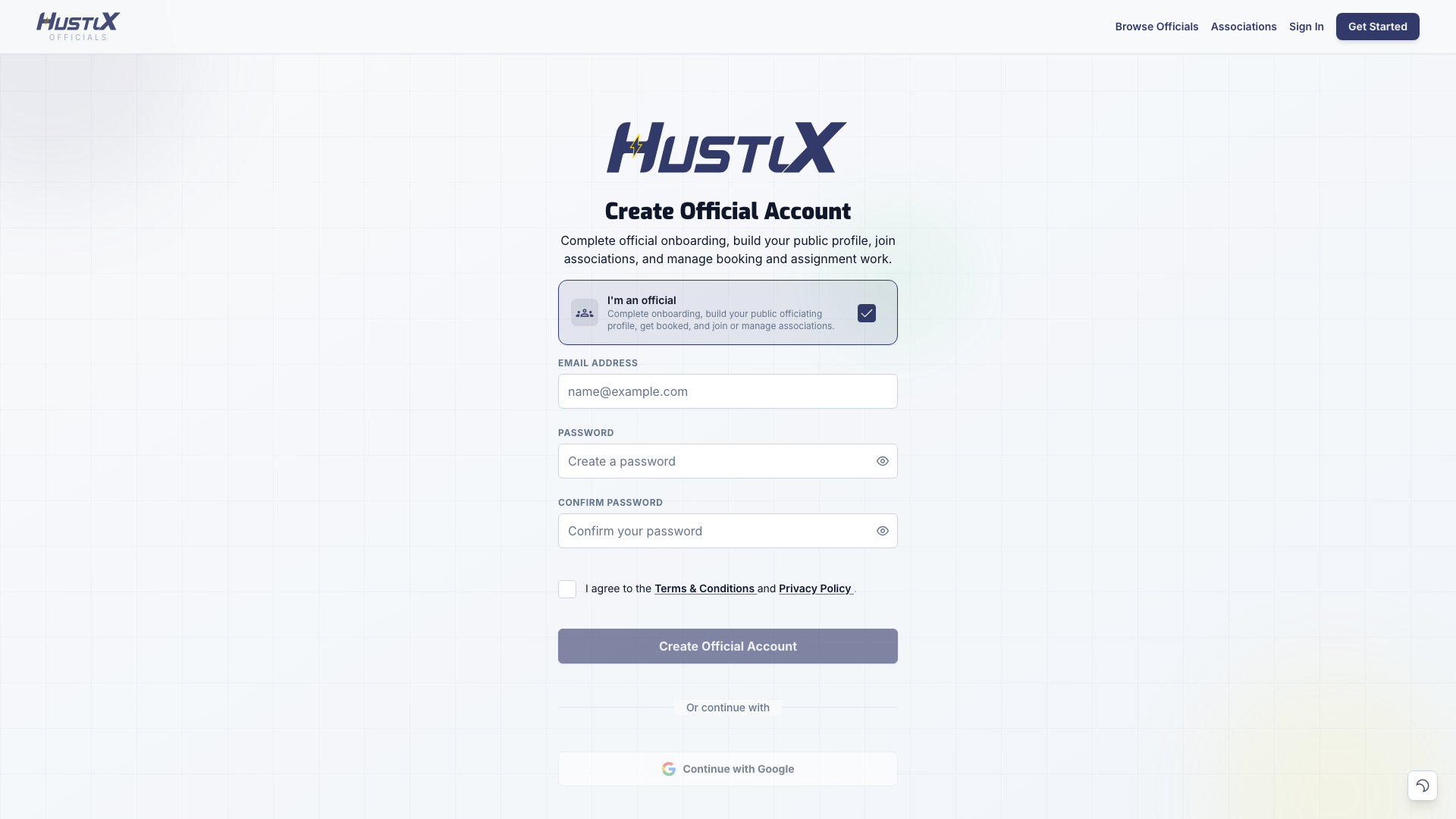
Open [officials.hustlx.com](https://officials.hustlx.com) and select register. Turn on **I'm an official**, enter your **Email Address**, **Password**, and **Confirm Password**, then select **Create Official Account**. Verify your email from the message HustlX sends.
### Tell HustlX who you are
The first onboarding step asks for your **First Name**, **Last Name**, **Username**, and **Date of Birth**, the sports you officiate, and your **Official roles**. Pick a **Primary sport**, a **Primary Role**, and your **Years of Experience**, then select **Continue**.
### Set when you can be booked
Add the weekly hours you are open to officiate. Start from a preset such as **Weekday evenings**, **Weekends**, or **Any day**, adjust each day, then select **Save & Finish**. Associations can only dispatch you inside these hours.
## Keep your profile current
Open your account menu and select **Settings**. The **Overview** links to every part of your official record:
- **Profile**: your public summary, including display name, bio, primary sport and role, working level, and governing body.
- **Booking contact**: the **Booking email** and **Booking mobile** people use to reach you, each with **Public** or **Private** visibility.
- **Experience**, **Match logs**, and **Certifications**: leagues you worked, notable games, and credentials you upload yourself.
Your public profile at **My profile** shows **Overview**, **Seminars & Trainings**, **Associations**, and **Match Logs**. Records you add yourself are labeled **Self-reported**. Certificates issued by a program and matches recorded through HustlX carry a verified label instead.
## Manage your availability
Go to **Settings** > **Availability**.
1. Set **Booking readiness** to **Open for bookings**, **Limited availability**, or **Unavailable**.
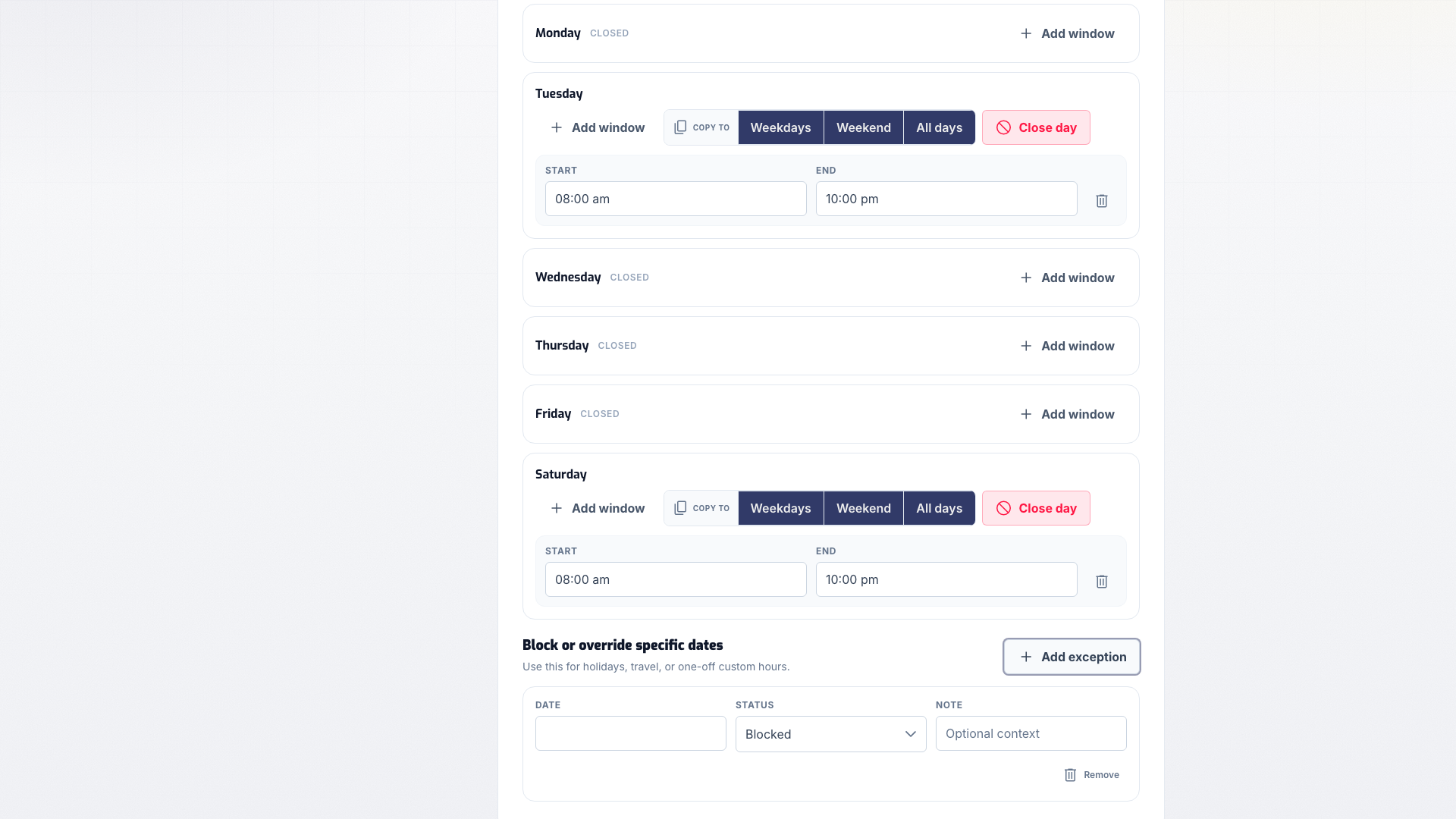
2. Under **Recurring hours**, add or remove time windows for each day.
3. Under **Block or override specific dates**, select **Add exception** for a holiday, trip, or one-off change. Choose a **Date**, a **Status** of **Blocked** or **Custom hours**, and an optional **Note**.
4. Select **Save**.
Association managers can see member availability, but they cannot change your calendar.
## Join associations and organizations
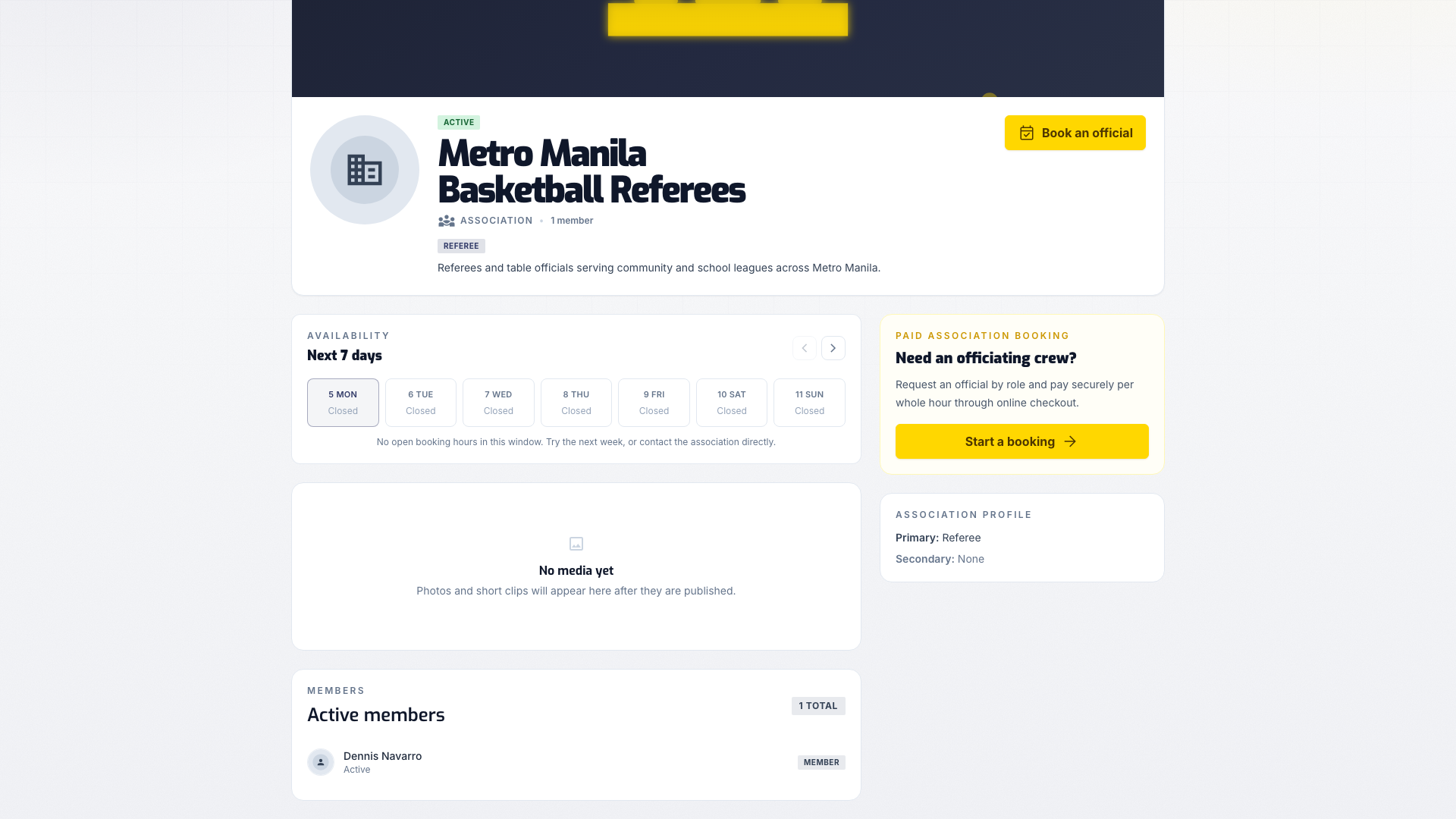
**Associations** are officiating groups that take paid booking requests and dispatch their members. Each association shows its **role coverage** (for example referees, scorers, or timekeepers) and a public booking calendar. To join one, open **Associations** in the top navigation, open the association, and select **Request to join**. The button changes to **Request pending** until the association responds.
The association's public booking calendar reflects real dispatch capacity. Operating hours alone are not enough: at least one dispatchable member must have personal availability that overlaps those hours, or the calendar shows **Closed**.
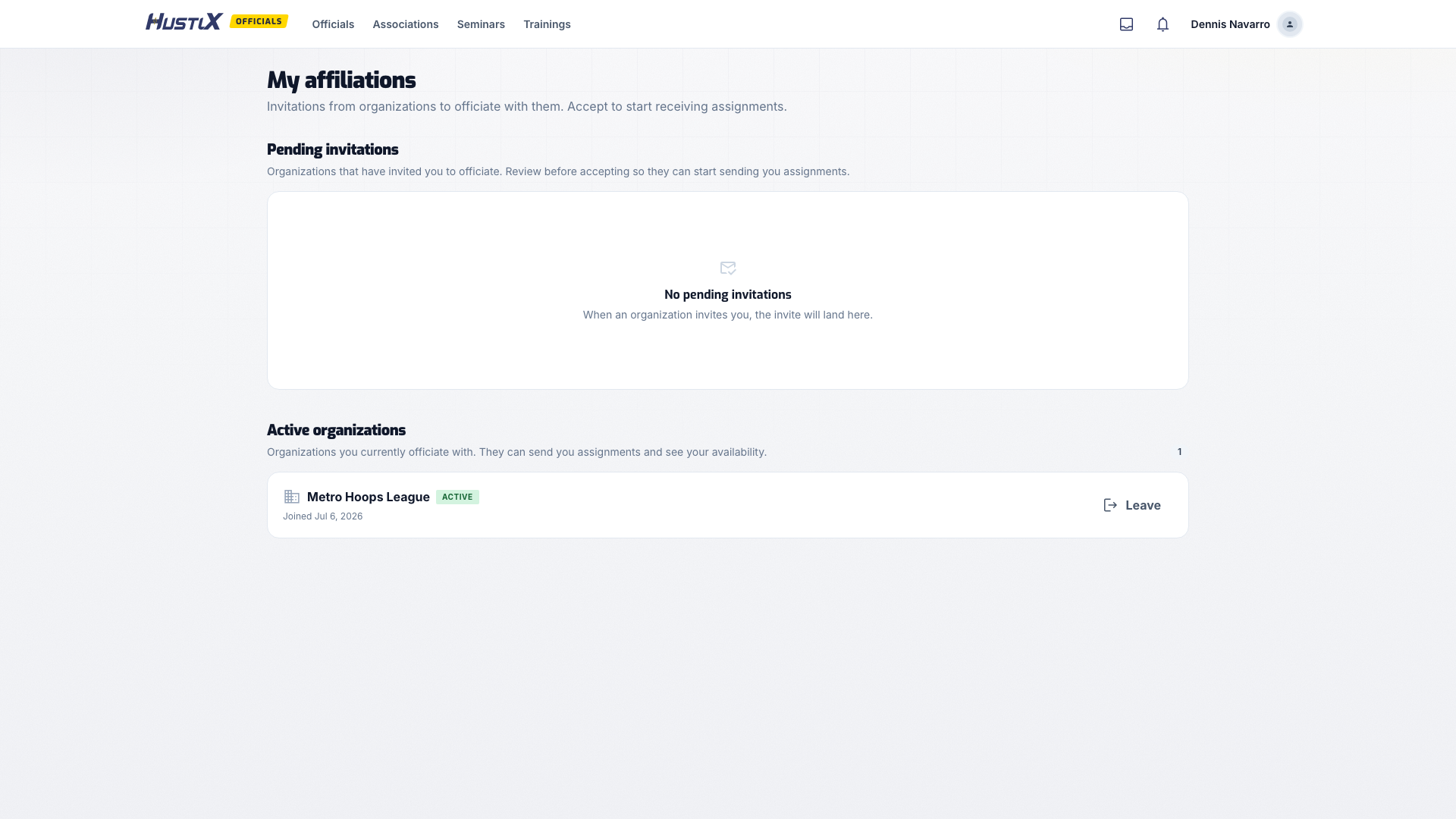
**Organizations** that run leagues invite officials to their roster directly. Their invitations appear in **Affiliations** in your account menu:
- Select **Accept**, then **Accept invitation**, to join. You can then receive match assignments from that organization.
- Select **Decline**, then **Decline invitation**, if you do not want to work with them.
- Select **Leave** beside an active affiliation, then **Leave organization**, to end it.
## Respond to match assignments
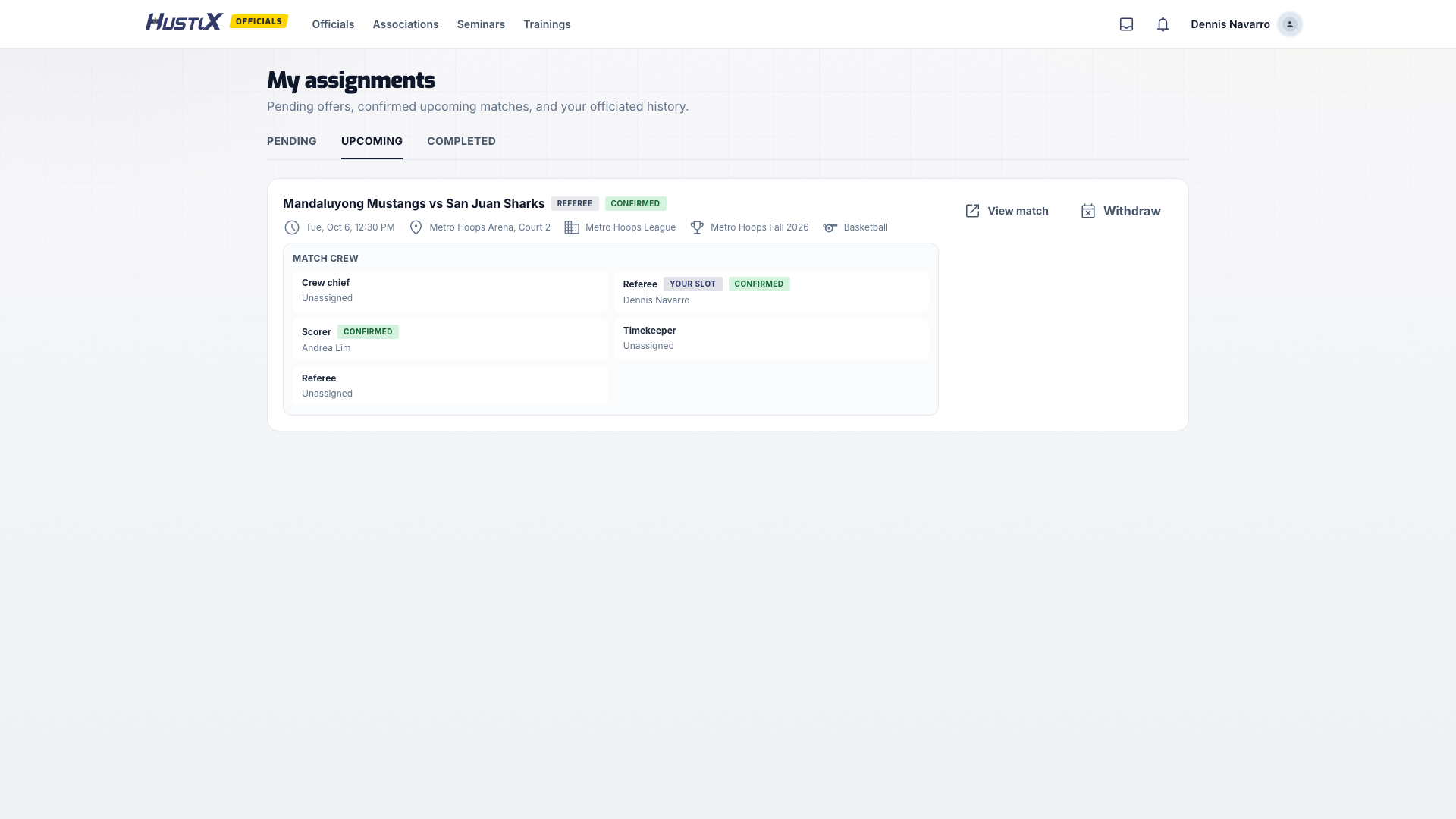
When an organizer places you on a match, it appears in **Assignment inbox** in your account menu. The inbox has three tabs: **Pending**, **Upcoming**, and **Completed**.
### Review the offer
On the **Pending** tab, check the match, date, venue, your role, and the rest of the crew.
### Accept or decline
Select **Accept**, then **Accept assignment**. The organizer is notified and the assignment moves to **Upcoming** as **Confirmed**.
To turn it down, select **Decline**, add an optional **Reason (optional)**, then select **Decline assignment**.
### Withdraw if plans change
If you can no longer work a confirmed match, select **Withdraw** on the **Upcoming** tab. A **Reason (required)** of at least three characters is needed, then select **Withdraw**. The organizer is notified so they can find a replacement.
After the match, the organizer marks your assignment completed or records a no-show. A completed assignment can publish a verified match log on your profile. See [Assign officials to matches](https://docs.hustlx.com/officials/assignment-board#completion-and-match-log-proof) for when that happens.
## Association assignments
When an association dispatches you to a paid booking, it appears in **Settings** > **Association assignments**. Check the **Schedule**, **Venue**, and **Rate**, then select **Accept assignment** or **Decline**. In a crew booking with several positions, each official accepts or declines only their own assignment position. Your answer does not confirm anyone else.
**Booking history** keeps a read-only record of past booking requests. Direct freelance booking of individual officials is paused while paid association booking launches, so new requests go through associations.
### Payments and reserve protection
- While a payment or refund is being checked with the payment provider, the booking, refund, and support case can remain pending until HustlX can reconcile provider records. Keep using the same booking and support thread, and do not treat a pending refund as completed.
- Association payouts remain a manual Finance operation. Completing a booking or resolving a refund does not trigger an automatic transfer.
- **Reserve Protection**: some association bookings are backed by a bond reserve. When a protected booking is confirmed, part of the available reserve is locked for that booking. A normal completion or cancellation releases it. A disputed no-show goes to review first, and the locked amount is forfeited only after the association confirms the no-show.
## Seminars and trainings
Officiating seminars and trainings are listed under **Seminars** and **Trainings** in the top navigation. Open a program and select **Apply to this program**. Add an **Optional note**, then select **Submit application**. Your status shows as **Pending** until the organizer reviews it, then **Approved** or **Rejected**. Some programs charge a fee and send you to an online checkout.
Programs that award a certificate issue it after you complete them. See [Completion certificates](https://docs.hustlx.com/officials/certificates).
## Track confirmed work and money
- **Assigned match history** lists confirmed match-day roles from accepted bookings and organizer assignments, with a link to the printable box score when one exists.
- **Finance** (from the **Settings** overview, **Open ledger**) tracks your compensation, expenses, and payout status. If you keep a bond reserve, it shows the **Available**, **Locked**, and **Approved** amounts.
## Troubleshooting
### Assignment inbox or Affiliations is missing from my menu
Those pages only appear for official accounts. Register with **I'm an official** turned on, or finish official onboarding.
### An organization says it invited me, but nothing is in Affiliations
Ask the organizer to search for the name or email on your official profile. Invitations only reach the account they were sent to.
### An association cannot dispatch me
Check that your recurring hours cover the booking time. A **Blocked** date exception removes that day from your open hours. The association's public calendar shows **Closed** when no dispatchable member has hours that overlap its operating hours.
### A worked match is not on my profile
The organizer must mark your assignment completed after the match concludes. Walk-in referees entered by name have no linked profile and never get a match log.
## Related guides
- [Assign officials to matches](https://docs.hustlx.com/officials/assignment-board)
- [Completion certificates](https://docs.hustlx.com/officials/certificates)
- [Match readiness](https://docs.hustlx.com/leagues/match-readiness)
- [Scorekeeper guide](https://docs.hustlx.com/game-day/scorekeeper-guide)
## Sitemap
See the full [sitemap](https://docs.hustlx.com/sitemap.md) for all pages.