---
title: "Create an organization"
description: "Register an organization account, set up its profile, offerings, and sports, then continue with the free setup or Annual Registration."
canonical_url: "https://docs.hustlx.com/organizations/create-an-organization"
---
# Create an organization
> Register an organization account, set up its profile, offerings, and sports, then continue with the free setup or Annual Registration.
An organization is the workspace you use to run teams, leagues, trainings, and communities on HustlX. Organization registration is free, and setup takes a few minutes.
Prefer to watch first? The [create an organization video](https://docs.hustlx.com/organizations/video-guides/create-an-organization-video) walks through registering, verifying your email, the setup steps, and the free plan in under three minutes.
Anyone with a verified HustlX account. One account owns one organization; if you already own one, HustlX sends you back to your organizations list instead of the create form.
## Before you start
- Use an email address you can open right away. You need it to verify the account.
- Have the organization name and a short bio ready. A logo and cover image are optional. You can add or change these later.
- Decide which programs you will run (leagues, trainings, or both) and which sports.
## Create the organization
### Register as an organization
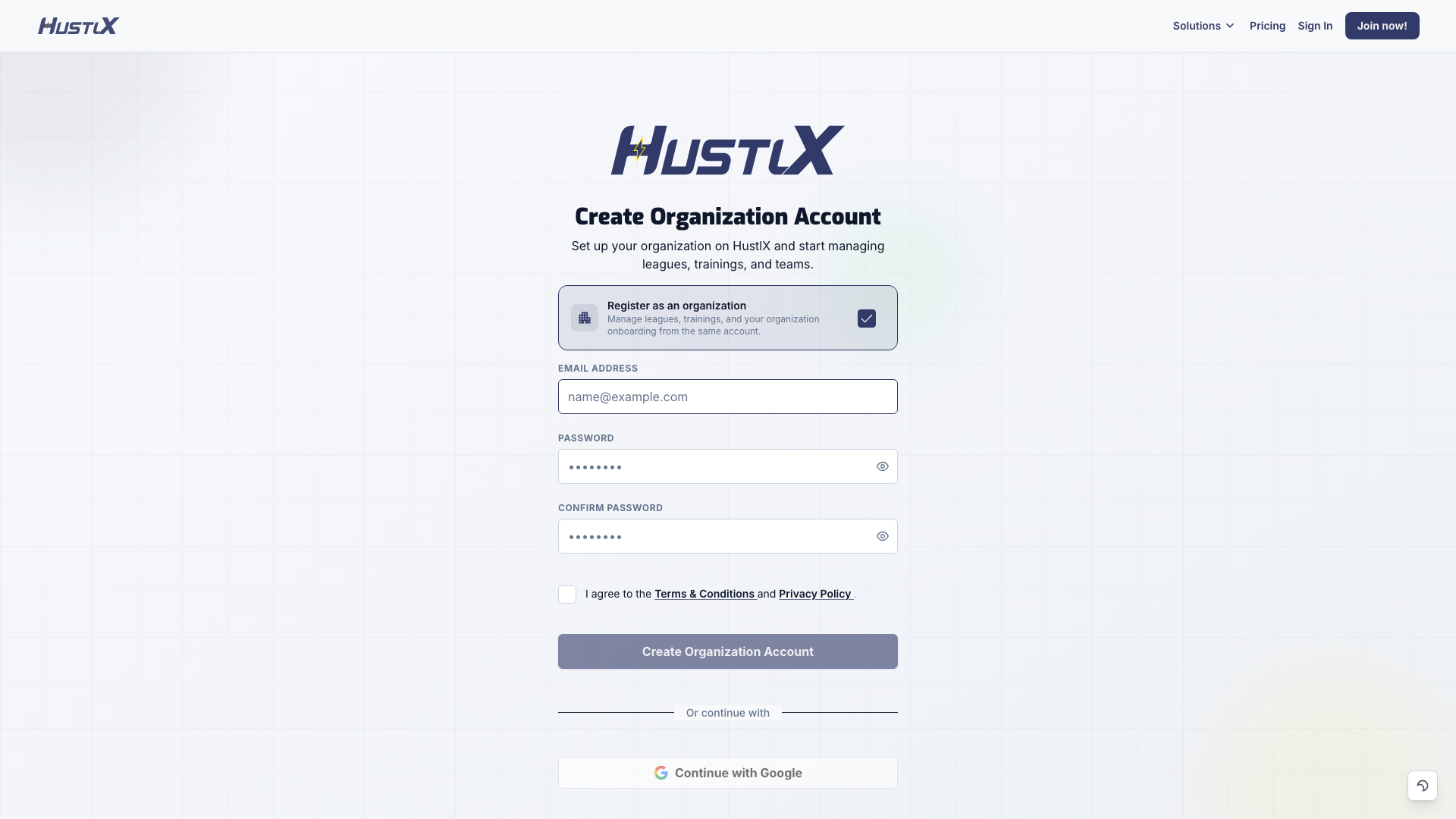
Go to [www.hustlx.com/register](https://www.hustlx.com/register) and select the **Register as an organization** card so its checkbox is ticked before you submit the form. The page heading changes to **Create Organization Account**. Players and organizations use the same registration page.
### Verify your email
Enter the 6-digit verification code that HustlX emails to you, then select **Verify Email**. If the code has expired or did not arrive, select **Resend code** on the same screen.
### Add your admin details
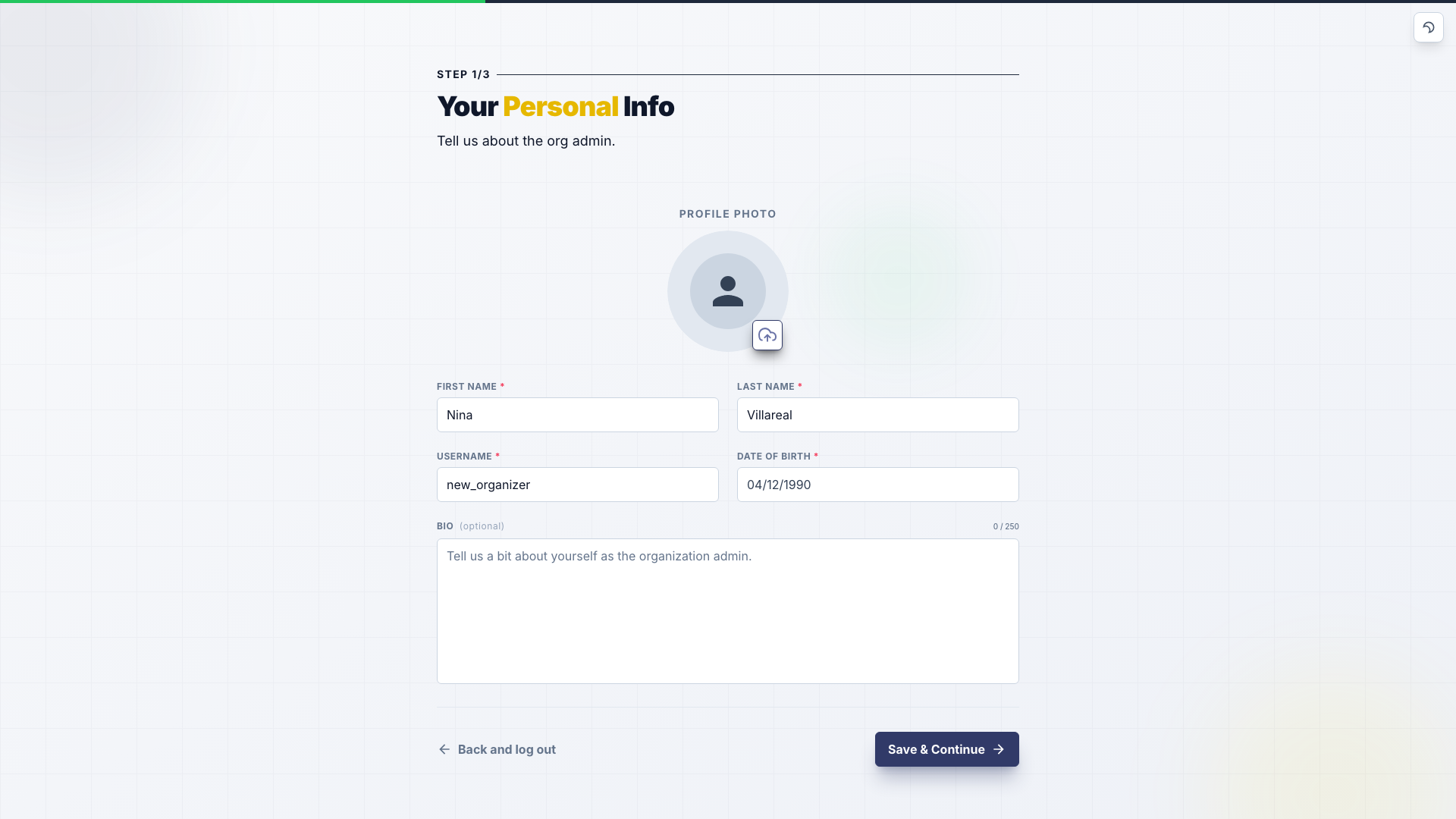
HustlX asks for the organization admin's personal details first: **First Name**, **Last Name**, **Username**, and **Date of Birth** are required. A **Bio** and a profile photo are optional.
### Add the organization details
Enter the **Organization Name** and a **Bio**, then select **Continue**. Both are required. The bio needs at least 10 characters; at least 120 helps your public profile qualify for search discovery. The URL slug is derived from the name. The **Organization Logo** and the cover image (1920x1080px recommended, PNG or JPG) are optional.
### Choose offerings and sports
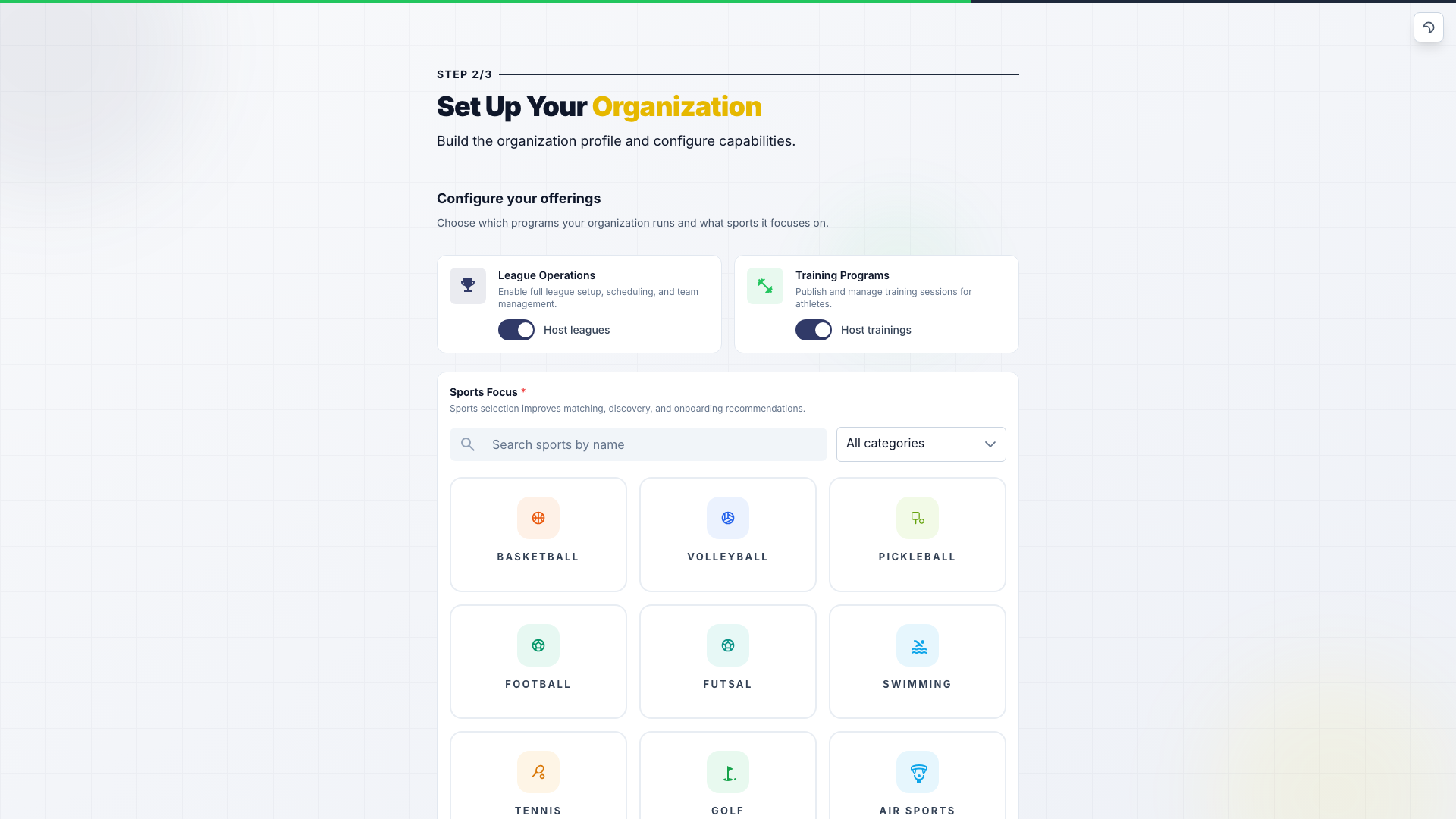
Under **Configure your offerings**, choose what the organization runs:
- **League Operations** turns on league setup, scheduling, and team management.
- **Training Programs** turns on training programs and sessions.
Both switches start on during this setup. Then pick at least one sport under **Sports Focus**. Sports drive matching, discovery, and which leagues and trainings you can create. Select **Create Organization** when you are done.
### Choose the free setup or Annual Registration
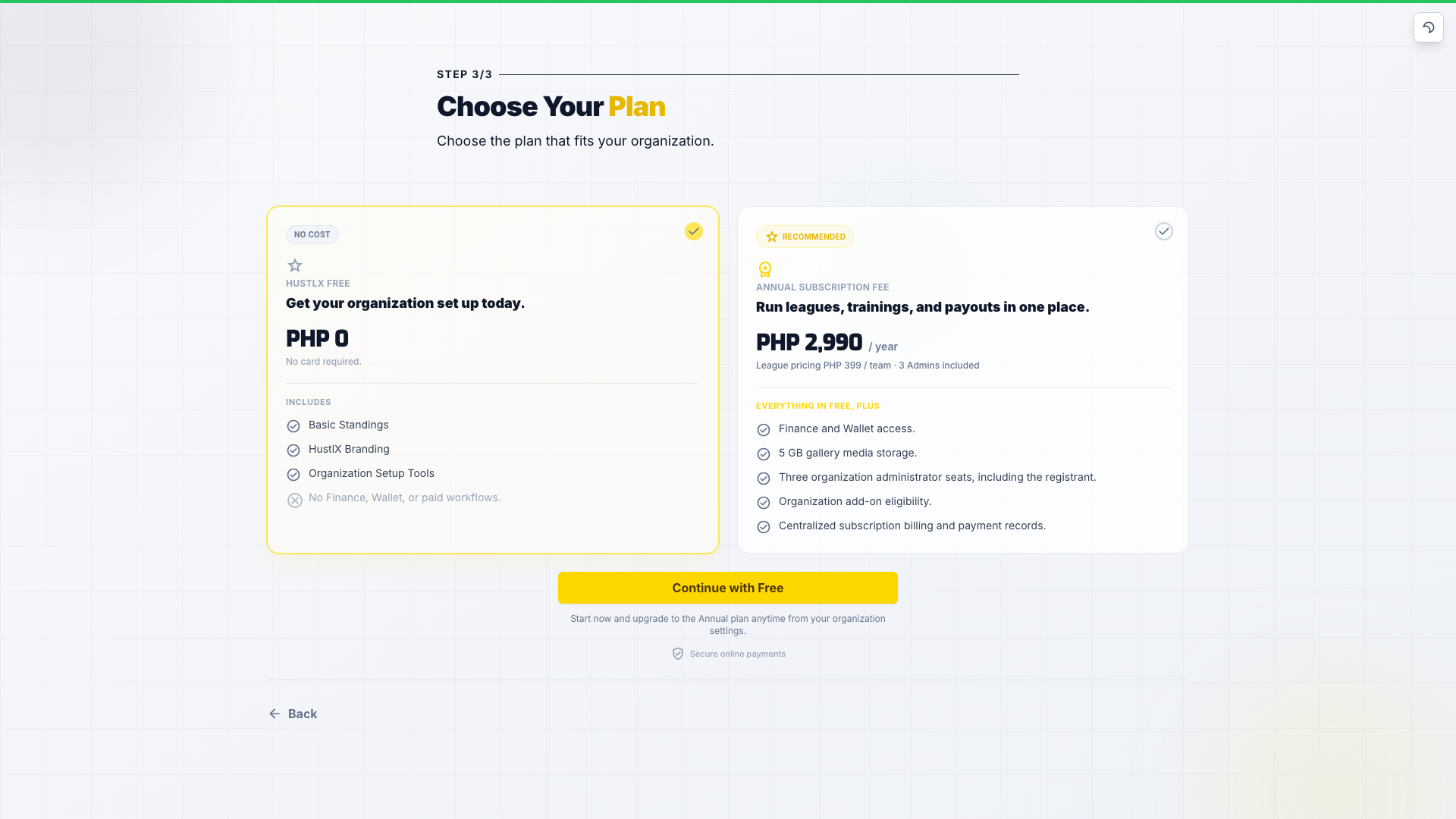
HustlX creates the organization and shows the plan choice. The annual card is selected first.
- **Free setup**: select the **HustlX Free** card, then **Continue with Free**. No card is required. The free setup includes the owner seat only, and Finance, Wallet, and paid workflows stay off.
- **Annual Registration**: select the annual card, then **Continue to Checkout**. Review the summary and any add-ons, then continue to secure hosted checkout.
## What happens next
- HustlX reviews every new organization. Until then the organization page shows **Pending Approval**, and you cannot create leagues or trainings yet. After approval the badge changes to **Active**, and **Manage** shows **Create league** and **Create training**.
- With the free setup, HustlX finishes onboarding and opens your organization. You can buy Annual Registration later from **Manage** > **Billing** > **Wallet & Subscription**.
- With Annual Registration, the hosted checkout page shows the final amount and payment channels. Returning to HustlX from the browser is not proof of payment. Annual access starts only after HustlX receives verified payment confirmation from the payment provider. While verification is pending, select **Finish setup** to open your workspace.
- Active Annual Registration raises the organization to three owner-inclusive administrator seats: you plus up to two more. See [Manage settings and members](https://docs.hustlx.com/organizations/settings-and-members).
- League team admission is not part of onboarding. It starts later, from a published league, when a team needs admission for that season.
## Troubleshooting
### Why can't I create leagues or trainings?
Check **Manage** > **Advanced** > **Capabilities**. League tools appear only when **League Operations** is on, and training tools only when **Training Programs** is on. A new organization also needs HustlX approval first; until then its page shows **Pending Approval**. An organization created from **Create New Organization** (outside first-time onboarding) starts with both switches off.
### Why does the create form send me back to my organizations?
Your account already owns an organization. Use that organization, or contact [Support & Contact](https://docs.hustlx.com/help/support-and-contact) if you need a second one.
### Checkout finished but Annual Registration is not active yet
Wait for the payment provider to confirm the payment, then refresh **Wallet & Subscription**. Use **Finish setup** to keep working in the meantime.
## Related guides
- [Manage settings and members](https://docs.hustlx.com/organizations/settings-and-members)
- [Manage teams and rosters](https://docs.hustlx.com/organizations/teams-and-rosters)
- [Annual Registration](https://docs.hustlx.com/payments/annual-registration)
- [Create a league](https://docs.hustlx.com/leagues/create-a-league)
## Sitemap
See the full [sitemap](https://docs.hustlx.com/sitemap.md) for all pages.