---
title: "Join a training"
description: "Find a training, register yourself or your child, pay when there is a fee, and use your access pass, feedback, and certificate."
canonical_url: "https://docs.hustlx.com/training/join-a-training"
---
# Join a training
> Find a training, register yourself or your child, pay when there is a fee, and use your access pass, feedback, and certificate.
Anyone can browse trainings and read their details without an account. You sign in, or create an account inside the registration window, only when you are ready to register.
Players register themselves. Parents and guardians register a managed child from their own account: the child is the participant, and you are the person who submits the request.
Prefer to watch first? The [join a training video](https://docs.hustlx.com/training/video-guides/join-a-training-video) walks through finding a training, registering yourself or your child, paying, and your access pass in under three minutes.
## Before you start
- Check the training's dates, location, age range, fee, and number of sessions on its page.
- To register a child you have not added yet, you can add them during registration, or first under **Settings** > **Family**.
## Register for a training
### Find the training
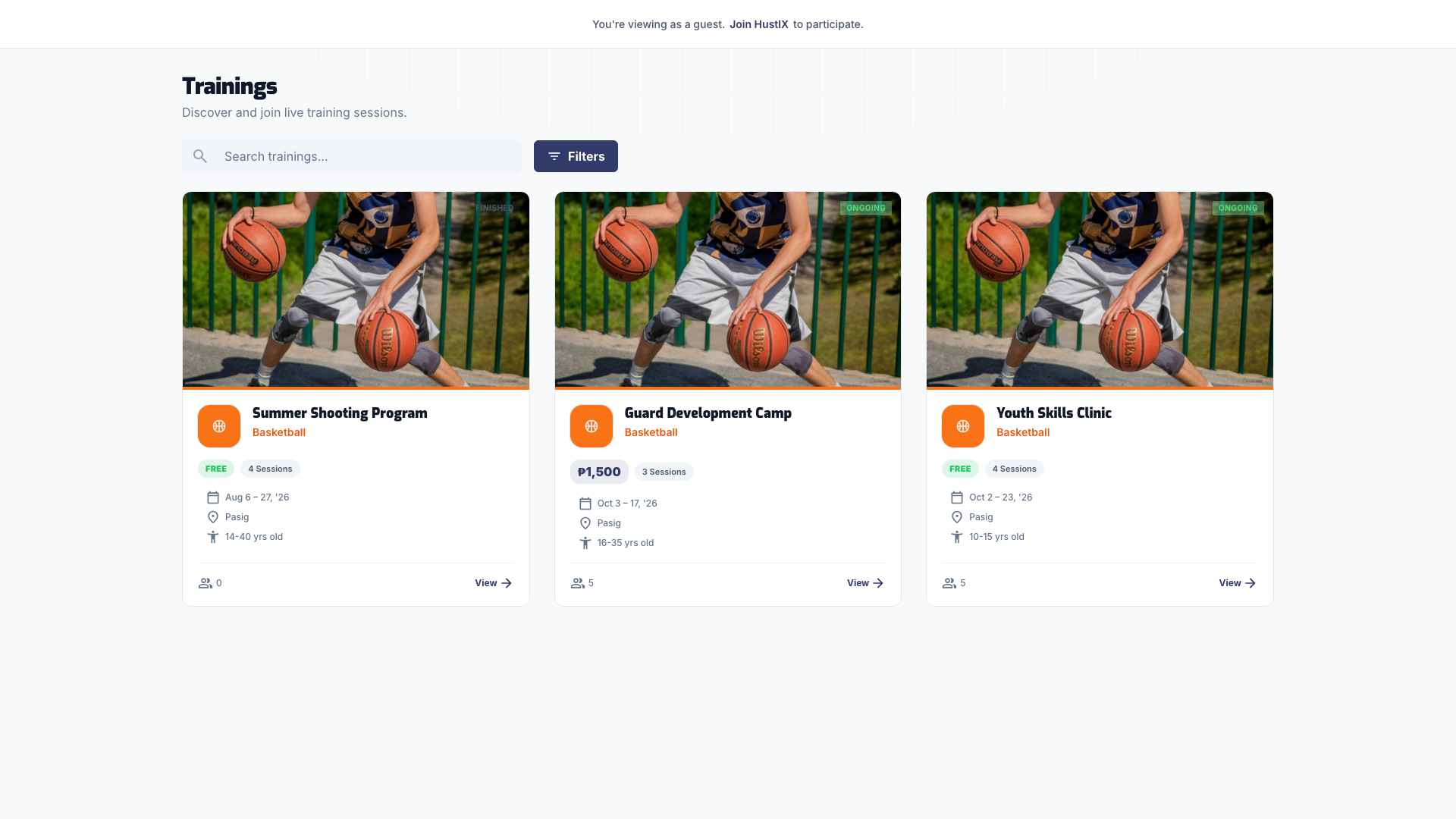
Select **Trainings** in the app's left rail, or go to `www.hustlx.com/trainings`. Search, or use **Filters** to narrow by sport. Each card shows the sport, organization, fee, number of sessions, dates, and location.
### Open it and select Register
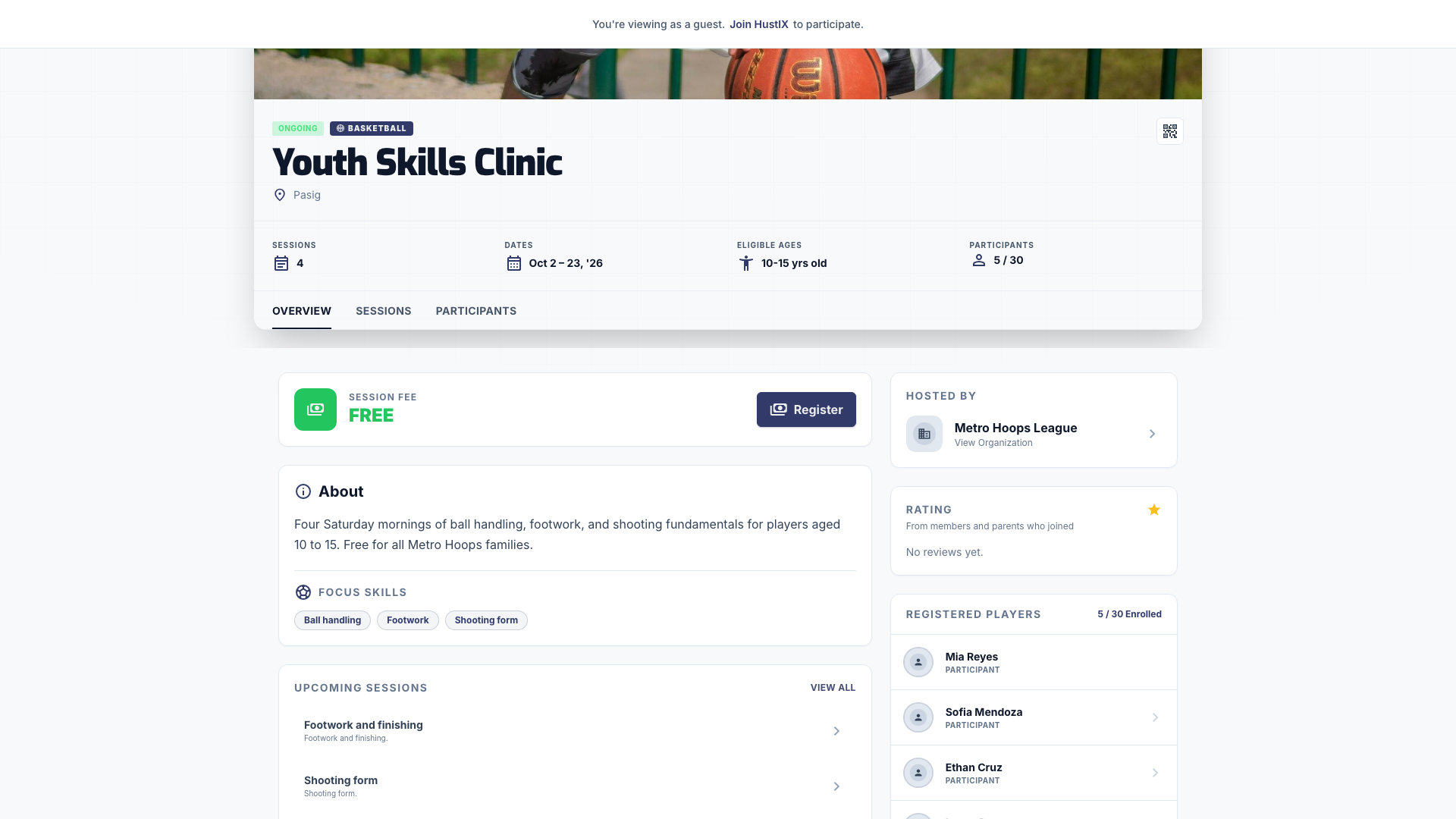
The training page has **Overview**, **Sessions**, and **Participants** tabs. Select **Register** for a free training or **Register & Pay** when there is a fee.
### Sign in or create an account
If you are not signed in, the window starts with **Create your HustlX account**. Fill in your details and accept the terms, or switch to log in with an existing account. Verify your email if asked, then select **Continue to registration** (or **Continue to payment**).
### Choose who you are registering
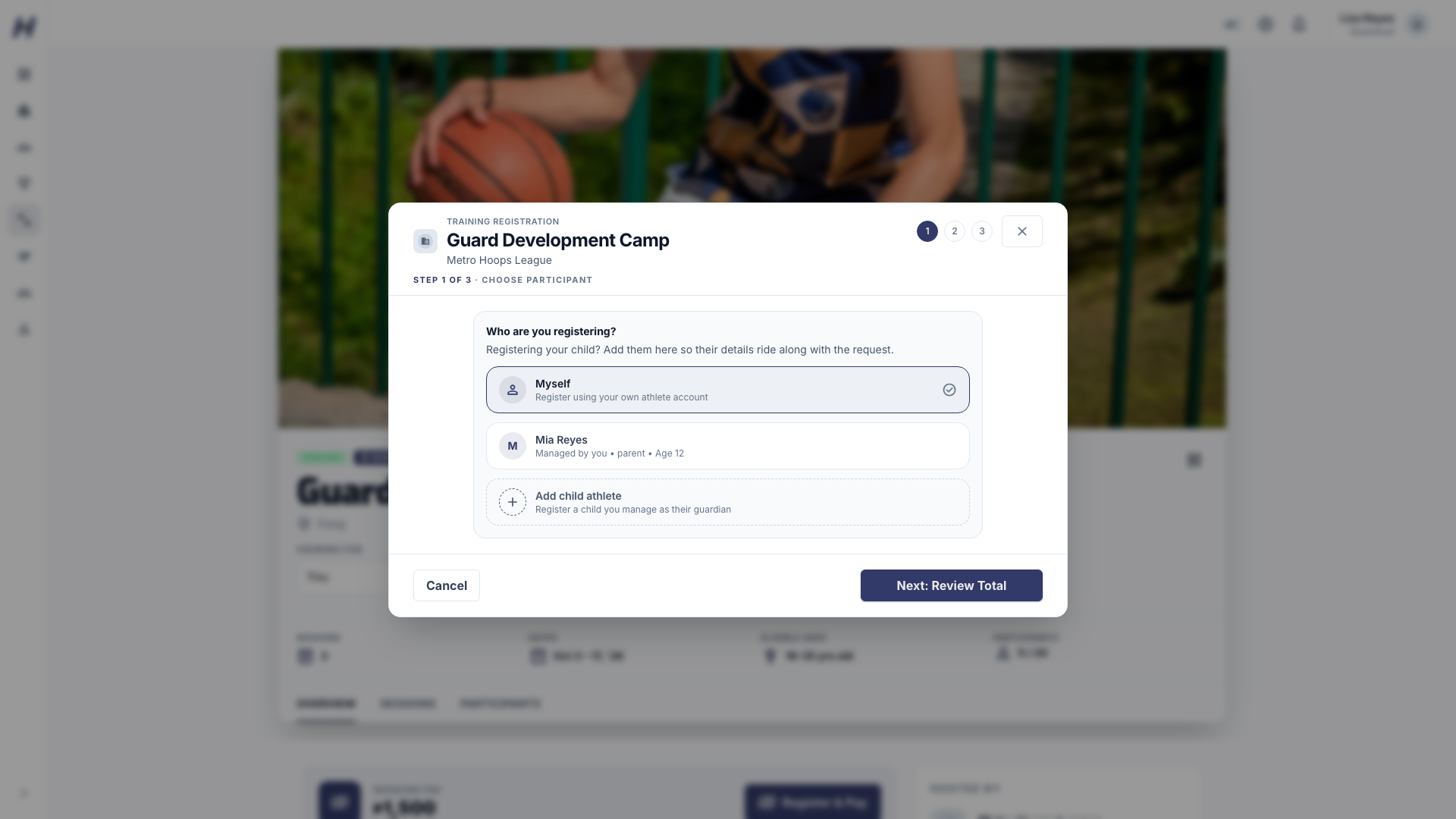
Under **Who are you registering?**, select **Myself**, one of your children, or **Add child athlete** to add a child without leaving registration.
### Review the total and pay
For a training with a fee, **Review Your Total** shows your **Total due**. To use a code, select **Have a promo code?**, enter it in **Promo or coupon code**, select **Apply**, and check the **Training fee**, the discount, and **Total due**. The organization decides how you pay; you do not pick the method here:
- **Online checkout**: after you submit the form, a secure checkout page opens. Your spot is confirmed when the payment is verified. If the organization offers a two-part plan, choose **Pay in full** or **Pay in 2 parts**.
- **Pay the organization directly**: when the organization collects payments itself, you send GCash or a bank transfer to its accounts, and it verifies your payment. If it offers installments, choose **Pay in full** or the installment option (for example, **Pay in 3 installments**) as soon as registration opens.
When organization-collected payments are enabled, both full payment and installments go directly to the organization. Hosted checkout is unavailable for new registrations in that organization. Otherwise, online checkout depends on what the organization and HustlX have turned on. If you see **Paid registration unavailable**, online payment is not open for this training yet; contact the organization instead of paying another way. Select **Next: Fill Registration Form**.
### Complete the form
Confirm the participant, **Email**, and **Mobile number**, and any guardian details asked for. Depending on the training, you may also:
- Choose the weekly days you can attend. Keep at least one day; your package keeps its full session count by continuing on your chosen days.
- Pick a **Preferred start date** for a package training. HustlX starts your sessions on or after that date.
- Choose a **Preferred upcoming training session window**.
Add a **Message** if needed. When paying the organization directly, you can attach your proof of payment here or later. Select **Register**, then follow any checkout that opens.
If you join a package training after it has started, HustlX tells you how many sessions are left before you confirm.
## Check your registration status
The button on the training page shows where you are:
Button
What it means
Pending Approval
The organization has not reviewed your request yet.
Continue payment
Your payment still needs action.
View Access Pass
You are approved and can open your QR access pass.
Joined
You are a member of the training.
Requests that need review stay pending until the organization decides. With online checkout, only a verified payment confirms your place; returning from the payment page alone does not. If you are paying in installments, use **View installments and upload proof** on the training page.
To track everything, open your profile's **Trainings** tab. **Training Requests** at the top lists requests still waiting for a decision, and your training history is below it.
## Use your access pass
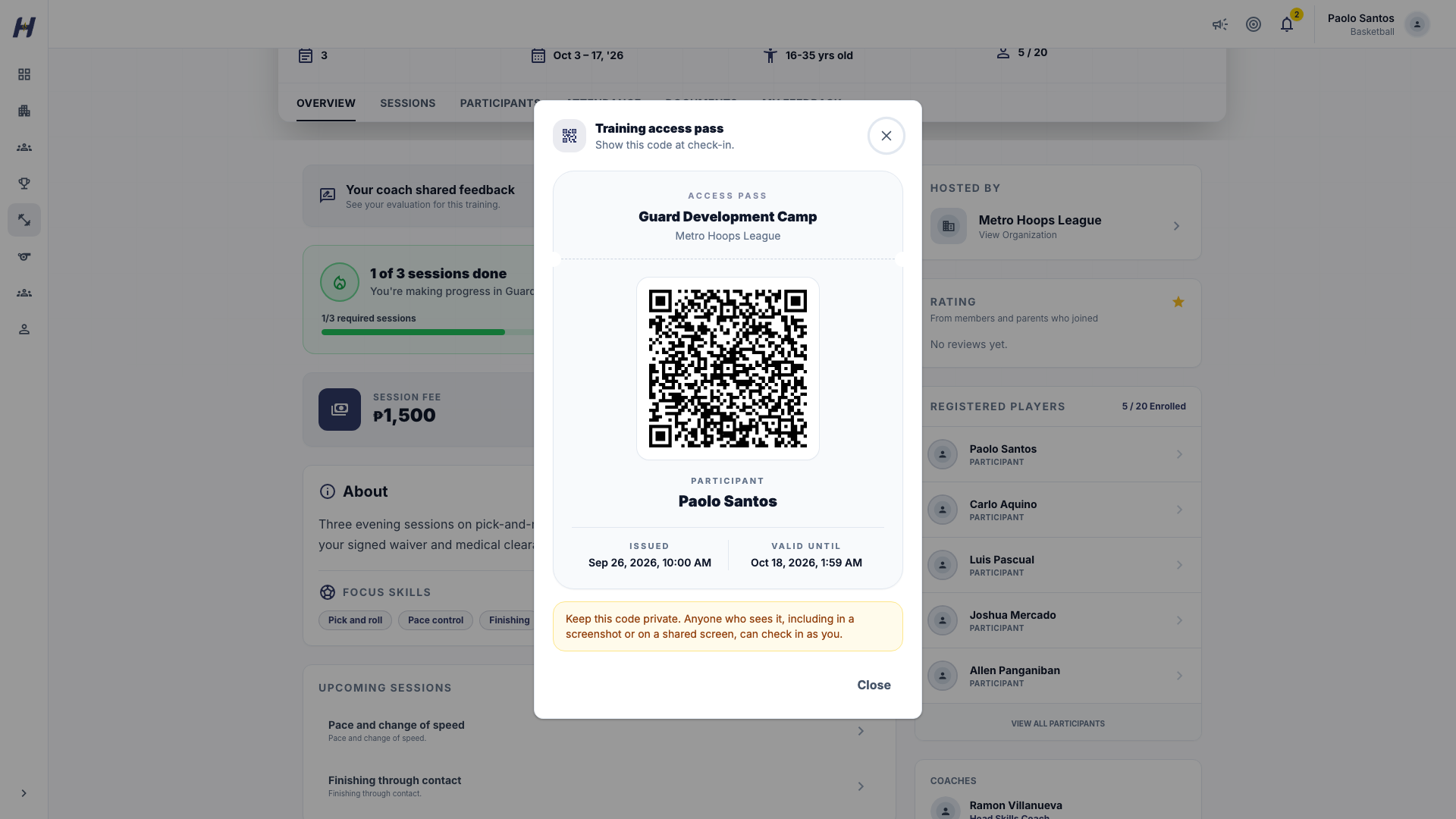
After approval, **View Access Pass** opens a QR pass when the organization uses access passes. Show it at the door so staff can scan it and record your attendance. Keep the pass private and never post it.
## After you join
- **Sessions**: RSVP to upcoming sessions. See [RSVP and join a waitlist](https://docs.hustlx.com/training/rsvp-and-waitlist). If the organization changes a weekly schedule and drops a day you picked, a **Schedule changed** prompt asks you to choose new days; your session count stays the same.
- **Documents**: approved participants may need to upload waivers or forms on the **Documents** tab. See [Require training documents](https://docs.hustlx.com/training/documents-and-waivers#submit-a-document).
- **My Feedback**: when a coach shares an evaluation, open **My Feedback** to read your ratings and your coach's comment. Feedback is read-only, and drafts stay private until they are shared.
## Share your training or an attended session
On the **You're in!** card, select **Share** (after you finish, **Share that you finished**). Choose a story or square format and a background, then share or download the card. To share one session, find a session marked **Present** in your **Reserved session schedule** and select **Share session**. Share the public link or card, never your access pass.
If the organization issues completion certificates, yours is attached to your completion email, and **Download certificate** on the training page gets a copy while that run is the one shown.
## Troubleshooting
### My request is missing
Check that you are signed in to the account that submitted it. For a child, the request belongs to the child you selected.
### My promo code does not apply
Check the spelling and ask the organization whether the code is active and has uses left. Enter it in the promo field, not in **Message**.
### My Feedback is missing
It appears after a coach shares an evaluation. Refresh and check the selected participant.
## Related guides
- [RSVP and join a waitlist](https://docs.hustlx.com/training/rsvp-and-waitlist)
- [Require training documents](https://docs.hustlx.com/training/documents-and-waivers)
- [Score players and share feedback](https://docs.hustlx.com/training/feedback-and-evaluations)
## Sitemap
See the full [sitemap](https://docs.hustlx.com/sitemap.md) for all pages.