Manage your account settings
Settings holds your personal account details. Each settings page saves on its own, so you can change one thing without touching the rest.
Before you start
- Create your account and verify your email. HustlX asks for a verified email before saving sensitive changes such as adding a child athlete.
Find your settings
Select your avatar in the top navigation, then select Settings. Settings opens on Profile, and the side navigation lists every page.
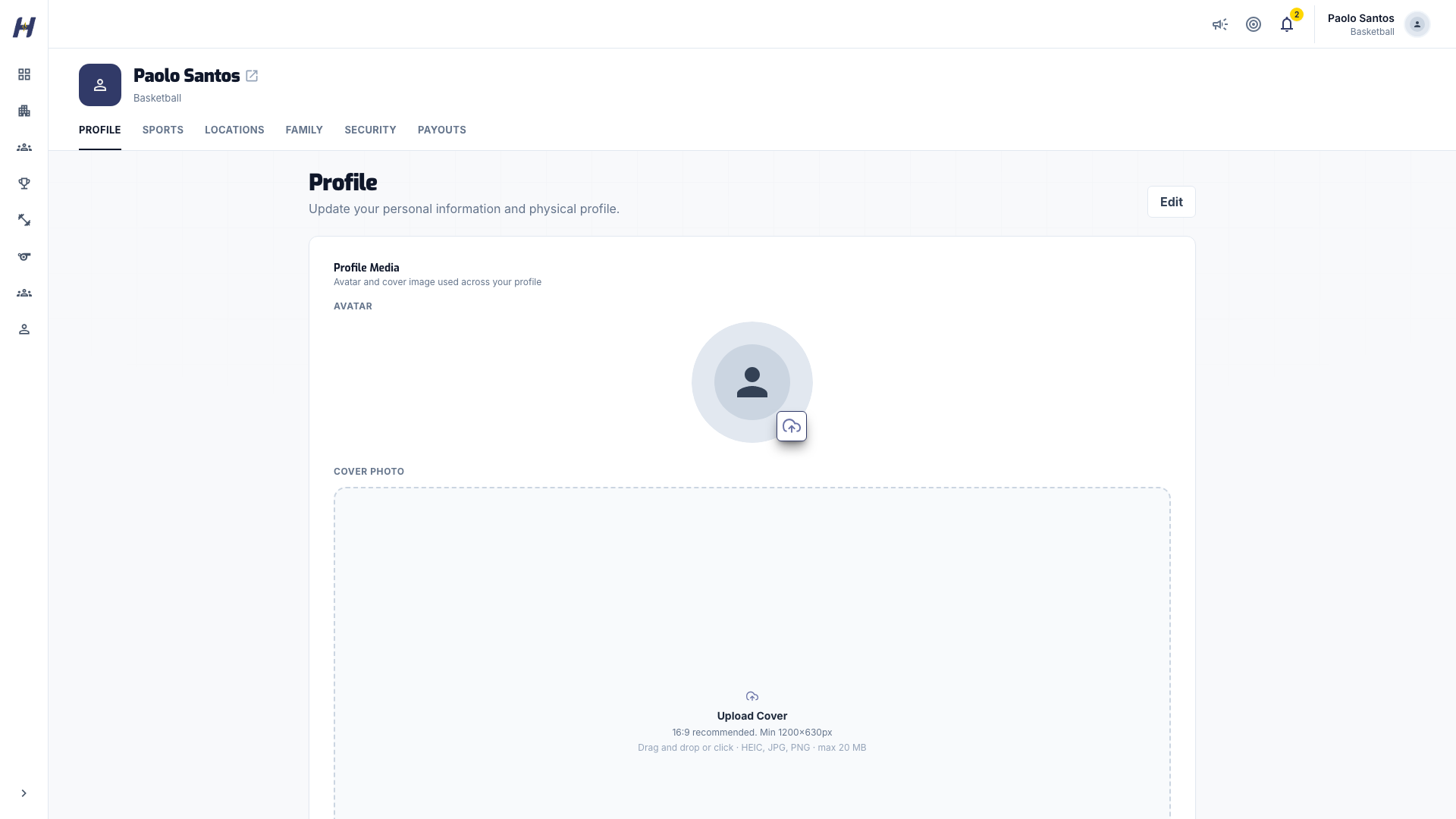
| Page | What you change |
|---|---|
| Profile | Avatar, cover photo, name, display name, username, date of birth, gender, timezone, bio, and physical profile |
| Sports | Your sports with their positions, roles, and skills |
| Locations | Your primary location for events and leagues |
| Family | Child athletes you register on their behalf |
| Security | Your password, and the Delete account link |
| Payouts | The destination HustlX uses to forward tryout fees you collect |
Most pages start locked. Select Edit, make your change, then select that page's save button, such as Save Changes, Save Sports Details, or Save Location. Select Cancel to discard your edits.
For profile and sports details, see Set up your player profile.
Change your password
Start the change
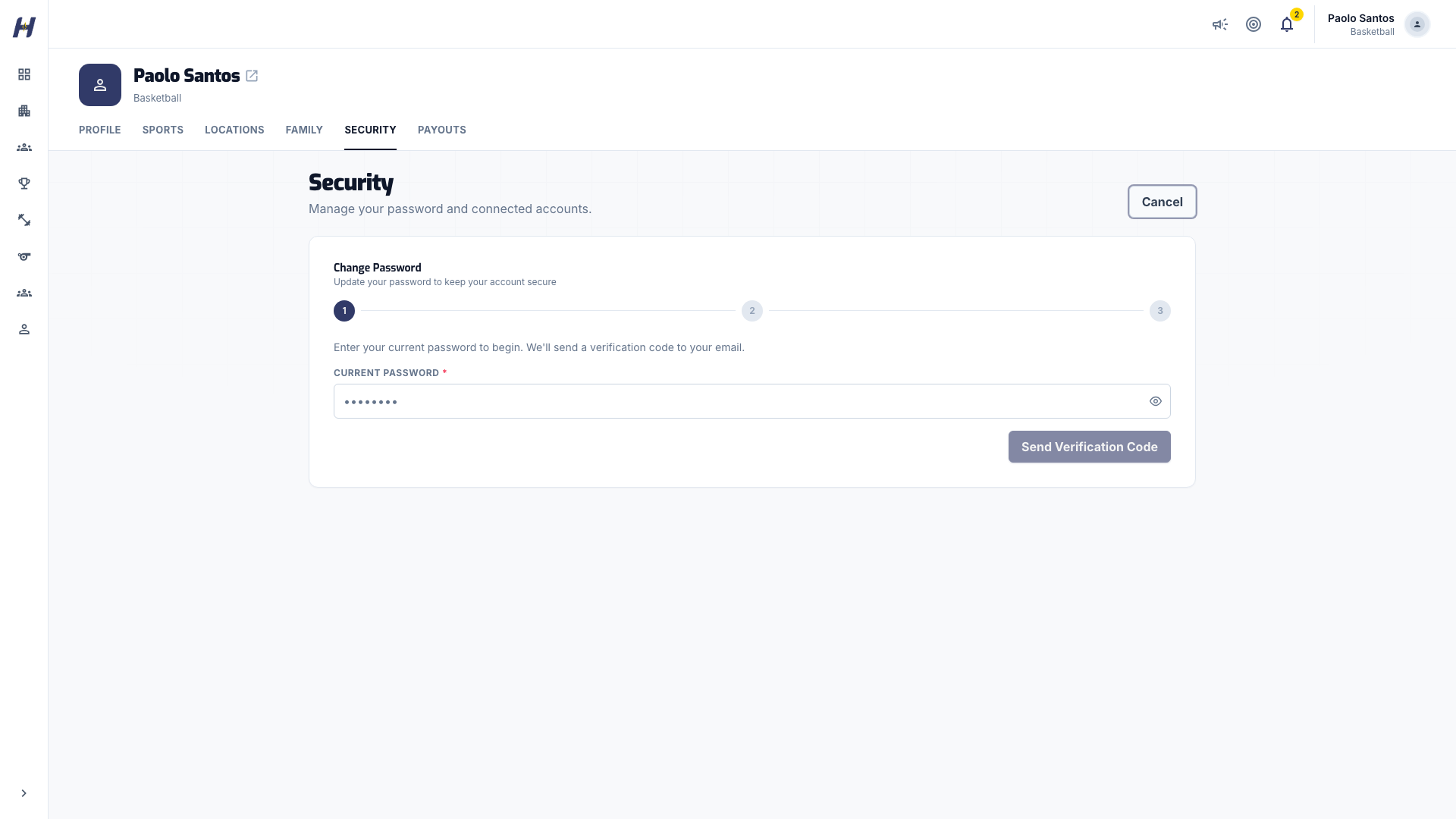
Go to Settings > Security and select Edit. Enter your Current Password and select Send Verification Code.
Verify the code from your email
HustlX emails you a 6-digit code. Enter it and select Verify Code before the timer runs out. Codes expire after 10 minutes; select Resend code if yours expires.
Set the new password
Enter your New Password and Confirm New Password, then select Change Password. You have 15 minutes to finish this step.
After the change, HustlX signs you out. Log in again with your new password.
If your account was created with a temporary password, Security asks you to choose a new one before you continue.
Confirm a deletion
HustlX asks you to confirm who you are before deleting an organization, league, training, event, or community:
- If your account has a password, enter it in Confirm your password.
- If your account signs in without a password, select Send code. HustlX emails a 6-digit code; enter it to confirm. Select Resend code if it expires.
The code comes only to your own email. Never share it with anyone.
Deleting an organization, league, or training removes it from public view while keeping its records, relationships, media, booking and attendance history, and payment evidence. Deleting an organization also hides its leagues and trainings. Only a platform Super Admin can restore these records; contact HustlX Support if you need a restoration. An originally active record can become public again when restored.
If deletion is blocked by active participants, an ongoing competition, pending registrations, an outstanding balance, or an unresolved checkout, follow the reason shown and resolve that work first. Deletion does not cancel bookings, approve registrations, refund payments, or settle balances for you. Historical completed bookings and settled payments remain retained.
Add a child athlete
Parents and guardians can create managed profiles for children they register for trainings.
Open Family
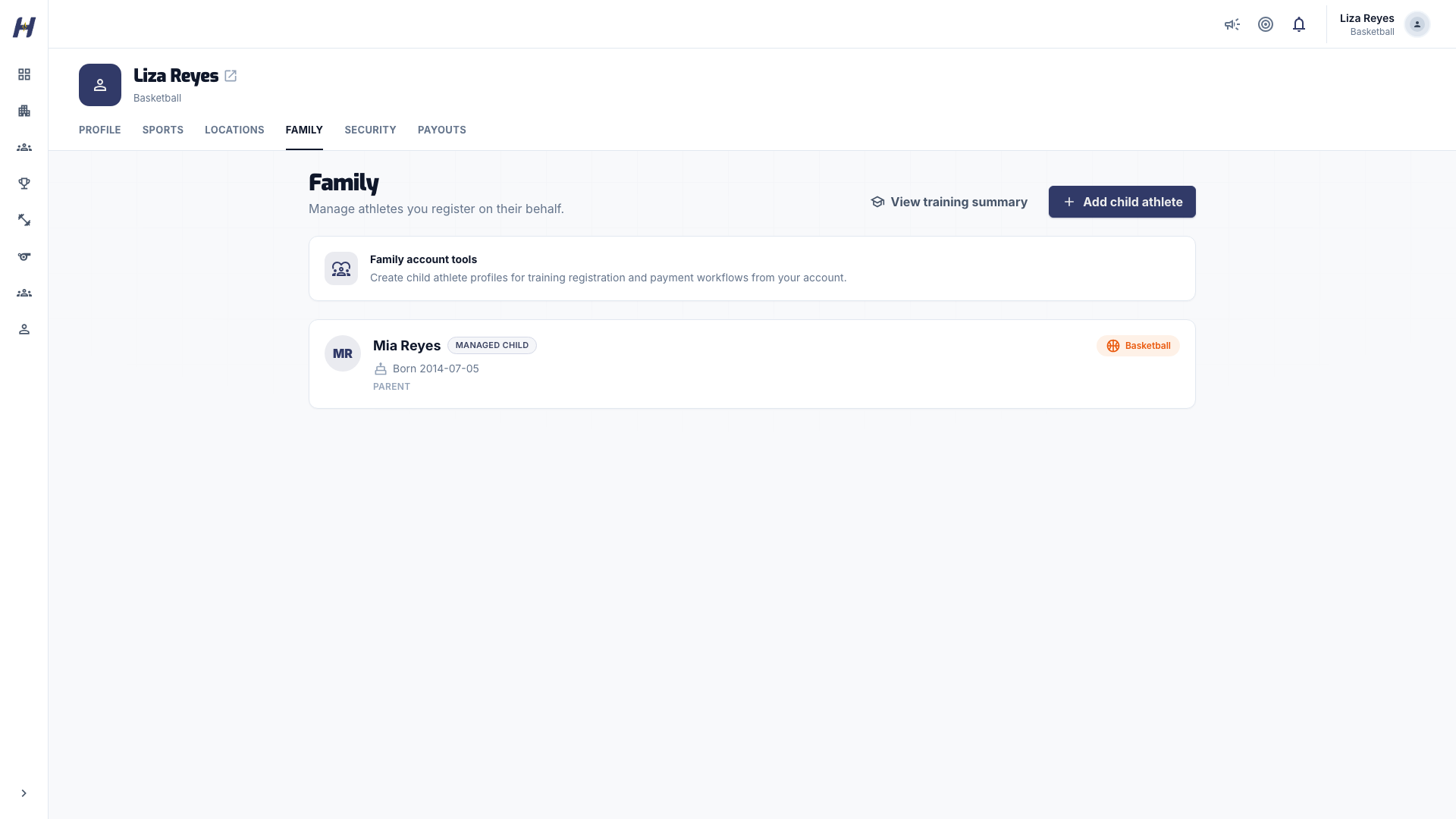
Go to Settings > Family and select Add child athlete.
Enter the child's details
Fill in First name, Last name, Birth date, and Relationship (Parent, Guardian, Mother, Father, or Relative). Email (optional) is optional.
Choose sports and save
Pick the sports your child plays, add skills, positions, and roles for each one, then select Save child athlete.
The child appears on Family as a Managed child. Choose them when you register for a training, and select View training summary to see their trainings. Child profiles cannot be edited or removed from this page yet; contact Support if a detail is wrong.
See Parents for the full parent workflow.
Switch light and dark mode
Select your avatar, then select Dark Mode or Light Mode. The theme changes right away.
Privacy settings
Settings > Privacy opens from its own address and is not in the side navigation. Its toggles are a preview and are not saved yet. Player, organization, team, and league profiles are currently public by default. To hide individual records on your profile, use the visibility controls in Share your profile and activity.
When sponsor placements are active, this page also shows Sponsor reach measurement. Turning it off removes the anonymous measurement ID from that browser. HustlX may still count aggregate impressions and clicks.
For the full privacy terms, read the Privacy Policy.
To close your account, see Delete your account.
Log out
Select your avatar, then select Log Out. On a shared device, log out before you close the browser.
Troubleshooting
Fields are greyed out
Select Edit at the top of the page first.
"Current password is incorrect"
Check your password and try again. If you have forgotten it, use Forgot Password? on the login page.
"Invalid or expired verification code"
Select Resend code and enter the new code from your email.
I cannot change my email
Your email is shown on Profile for reference and cannot be changed in Settings. Contact Support for help.