Create and schedule matches
Matchmaking is where you create league games. Add a single matchup yourself, or let HustlX build a round robin or knockout bracket, preview it, and publish the games teams should see.
Before you start
- Confirm the enrolled field in Manage > Operations > Teams & Players. An invitation still waiting for a reply is not an enrolled team.
- Complete any league team admission the published league needs. See Set up registration and fees.
- Choose your structure. See Choose a competition format.
Build the schedule
Open Matchmaking
Open the league, select Manage, then Operations > Matchmaking. The matchmaking home shows how many teams are enrolled, how many games exist, and the most useful next step. Select Show me how for a short guided tour.
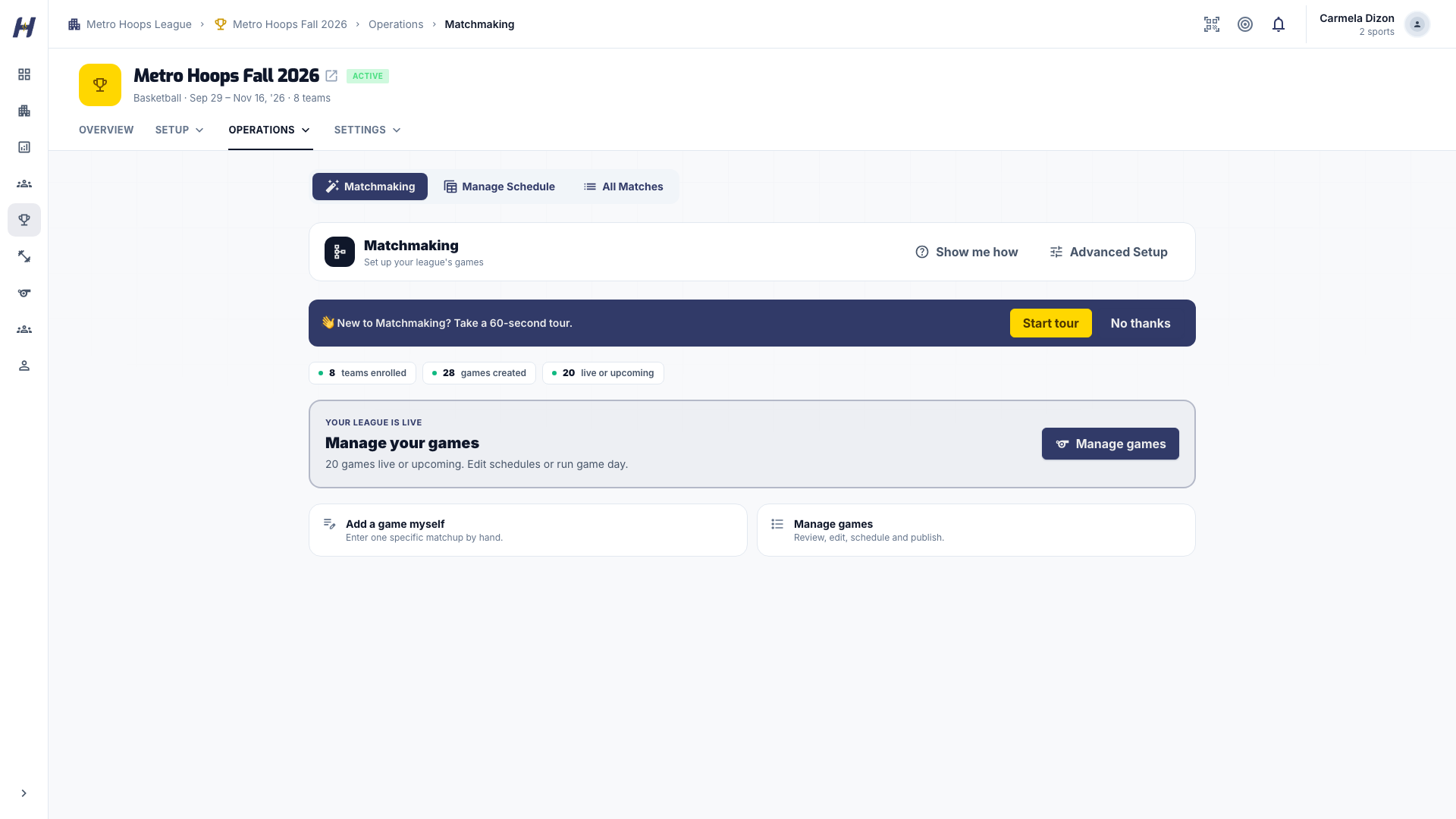
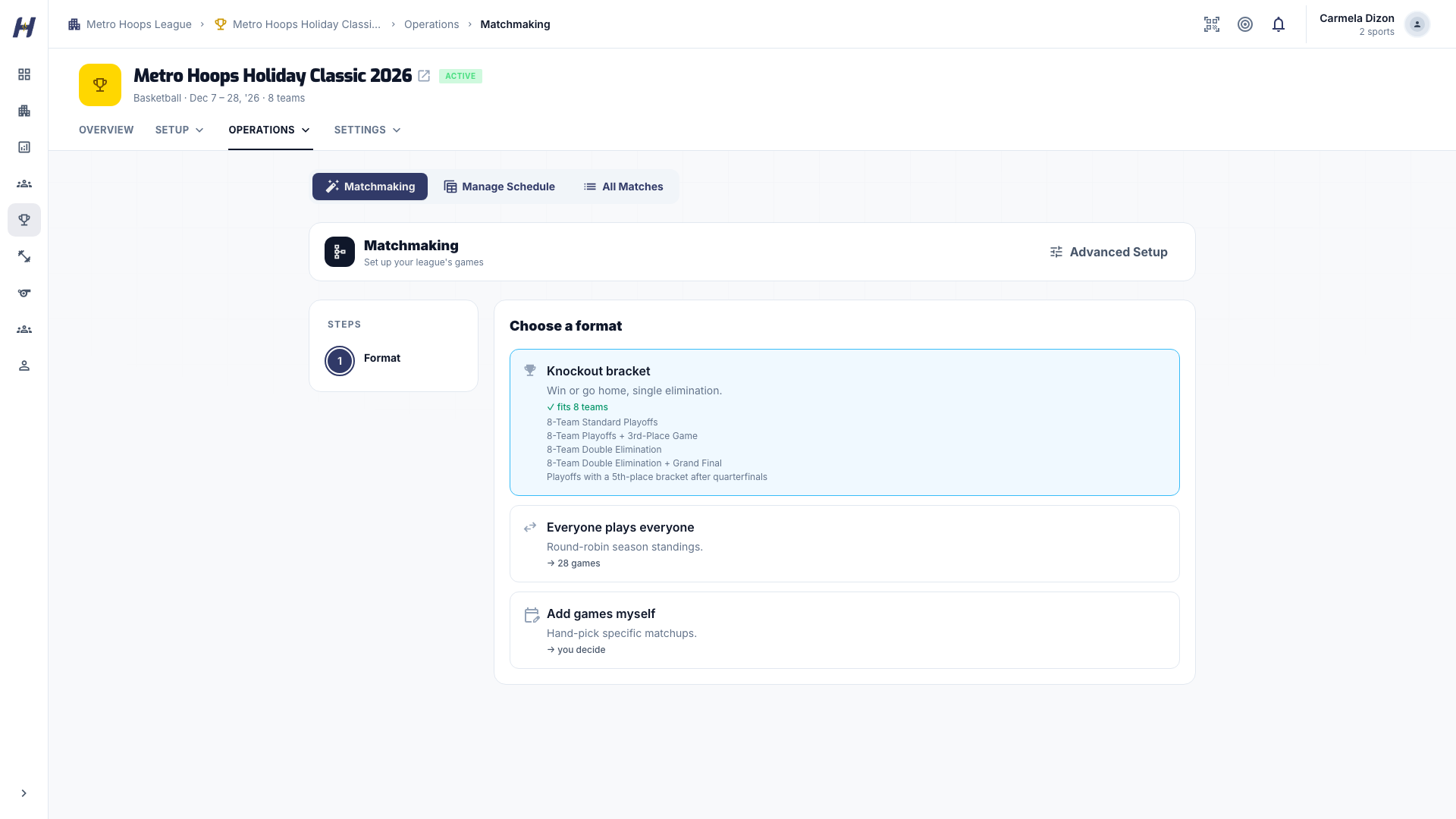
Choose a format
Select Create games, then pick a format:
- Knockout bracket: single elimination. Choose a preset that fits your team count, then arrange Teams & seeds and select Create bracket.
- Everyone plays everyone: a single round robin. The Review step shows the team and game counts before you select Create games. For 8 teams that is 28 games.
- Add games myself: the manual path described below.
Automated formats depend on your organization's access and team count. If a format is unavailable, read the message on the page or use Add games myself.
Preview the games
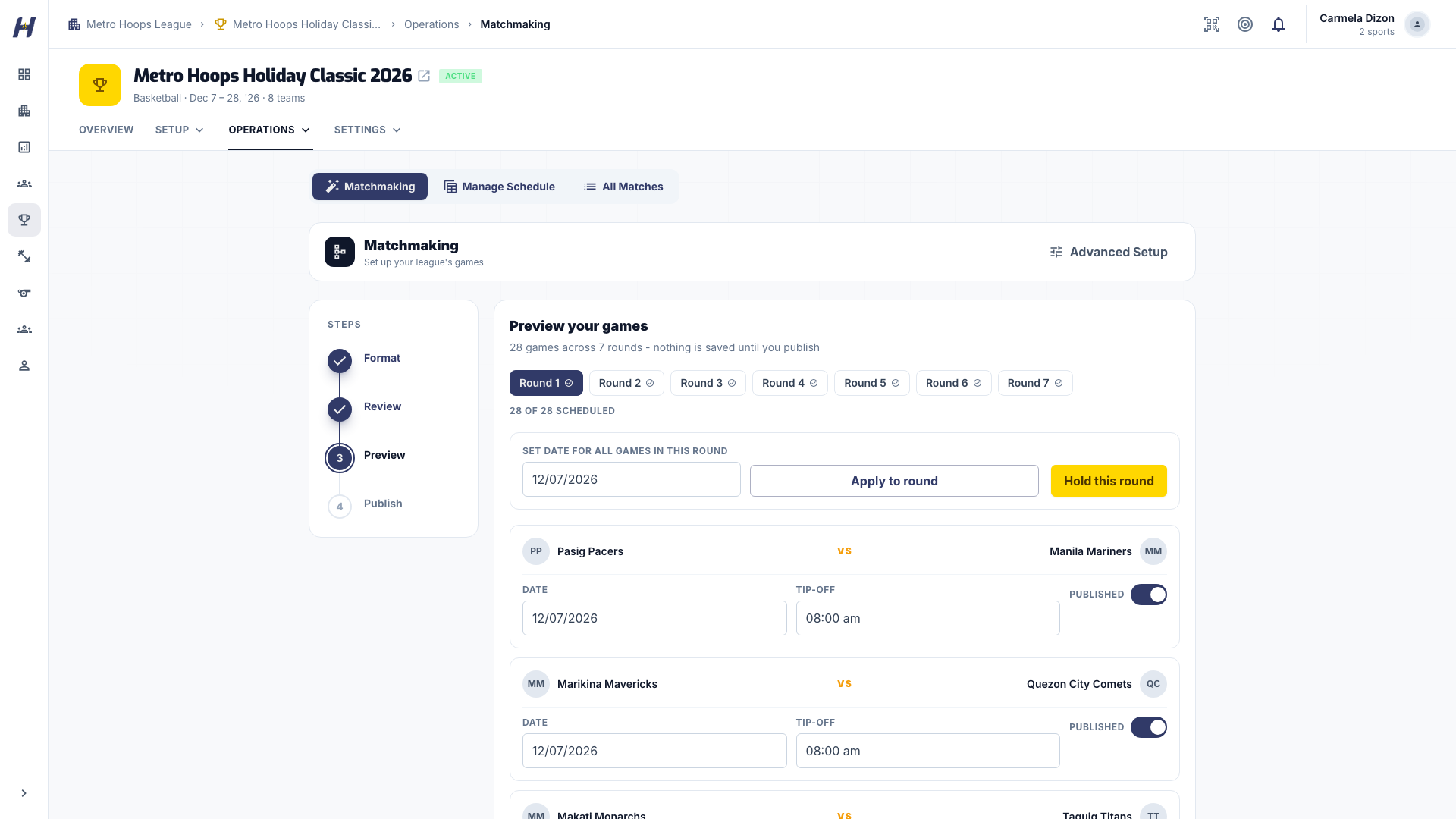
On Preview, switch between round tabs to check the pairings. Set each round's game day and game times where you know them, and choose which games go public. A round-robin preview has not saved anything yet. Knockout games are already saved as drafts.
Publish
On Publish, check Going public, Staying draft, and Unscheduled. Select Publish with the game count, then confirm Publish in the dialog. For saved knockout drafts, Keep as drafts lets you finish later. For an unsaved round-robin preview, Close preview leaves without creating games.
Add one game yourself
- On the matchmaking home, select Add a game myself.
- Choose the Home and Away teams. They must be different teams.
- Set Type: Regular, Elimination, Quarterfinals, Semifinals, or Finals.
- Enter When and Venue. If a confirmed court booking applies, select it under Court.
- Use Add Game or Add 5 for more rows. Rows without both teams are not ready to submit.
- Choose Save as draft to keep the games private, or Publish live and confirm to add them to the public schedule. Use Add More Games to start another batch.
Publishing a game puts it on the schedule. Live scoring starts separately in Game Day.
Change a date, venue, or status
- From the matchmaking home, select Manage games. You can also select Manage Matches on the league's Matches tab.
- Find the game with the team search, round filter, or status filter. The default Active & draft view hides finished games; choose Concluded or All statuses to see them.
- Select Edit and change Date & Time, Location, or Court booking.
- Draft changes save automatically. For a published game, select Save.
Edit a single game instead of rebuilding the whole schedule, especially after results exist.
Open Game Day
Open the match from the league's Matches tab and select Start Game Day. The league must be published and a draft match activated first. HustlX opens the controller for the match's sport. See Game Day overview.
Troubleshooting
A team is missing from the selector
Check the league's enrolled teams, pending invitations, admission status, and the team's sport. Do not create a replacement team to work around an unfinished entry.
Players cannot see a game
It is probably still a draft. Saving a draft does not publish it.
The page warns that a playoff series is already clinched
Check the series result before you select Create game anyway. Add the game only if it is part of your intended schedule.
I changed the field after building the schedule
Rebuild before you share the schedule widely. Once results are recorded, edit individual games instead.