Run sessions and attendance
Once a training is live, you keep its schedule current and record who attended each session. Attendance drives each participant's progress and completion.
Before you start
- Publish the training with at least one session. See Create a training.
- Approve the participants you expect. See Review join requests and participants.
Manage the schedule
Open Sessions
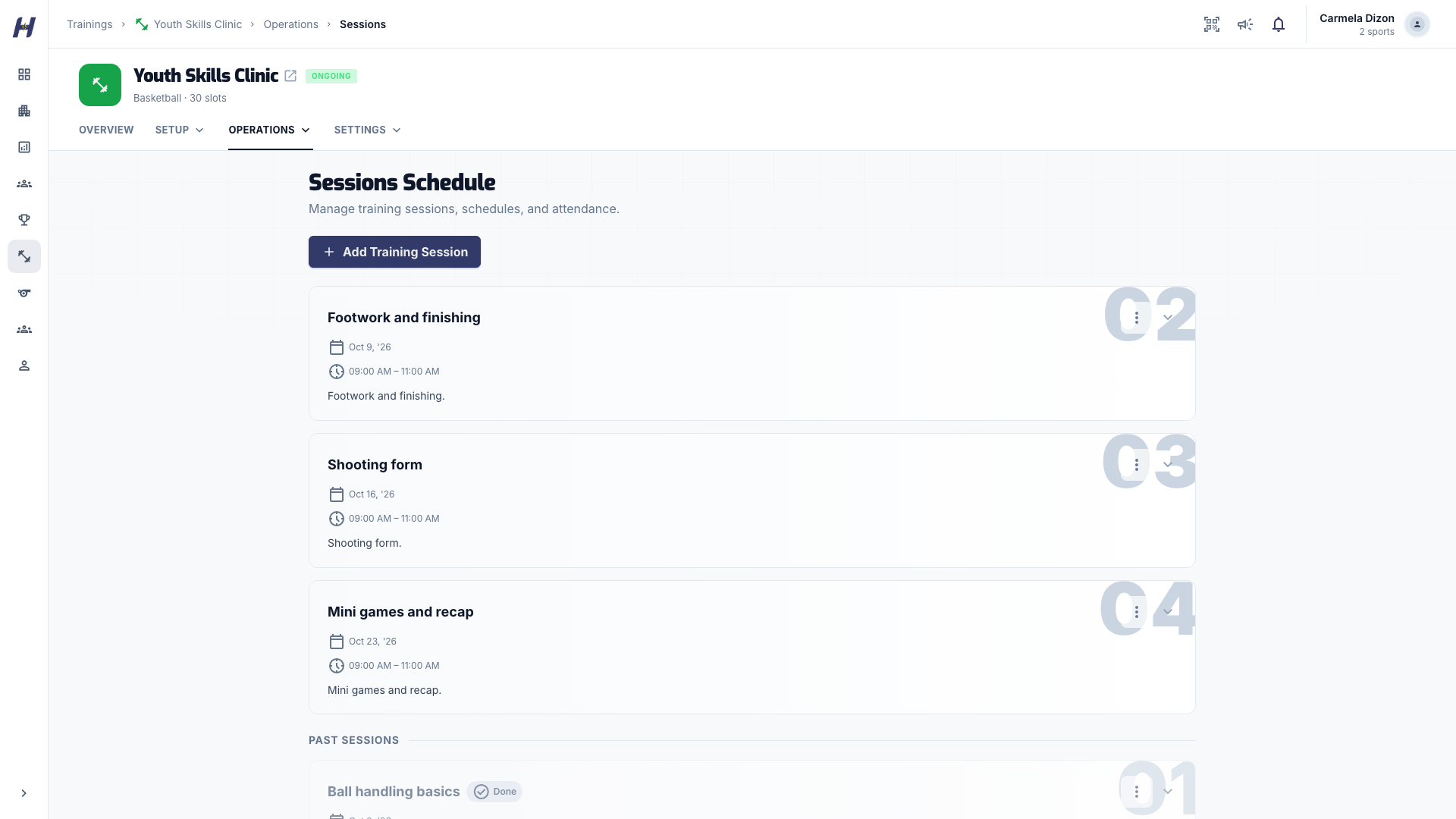
Open the training, select Manage, then Sessions under Operations. The page is titled Sessions Schedule.
Add or edit a session
Select a session heading to expand it.
- Curriculum: select Add Training Session for another class, or edit a class's title, date, and time.
- Number of sessions: the program uses one repeating session. Edit it to change the days or times instead of adding new sessions.
To skip a date such as a holiday, add it under Schedule breaks in the session's edit form. A schedule break is not part of the schedule, so it never takes attendance or RSVPs.
Step through weekly dates
A weekly session stays one entry in your list. Attendance and RSVPs are kept per date (each occurrence), and RSVPs start fresh each week. The session opens on this week's date. Use the previous and next date arrows to review other weeks.
When you edit a recurring schedule, the new pattern applies right away. HustlX refreshes the generated schedule sentence in the description only when you have not written your own description.
Move or cancel one date
For a weekly session, use the actions on the date you are viewing:
- Reschedule opens Move this occurrence?. Pick Move to, then review the impact preview, which shows who holds a slot on that date and what changes. Confirm with Move occurrence, or Move and notify plus the member count when members are affected.
- Cancel occurrence opens Cancel this occurrence?. Enter a Reason for cancellation, review the impact, and confirm with Cancel occurrence (or Cancel and notify plus the member count). You can cancel only a future date, and not the last remaining date of the session.
Affected members get an announcement and email, and reminders for the old date are cancelled. If someone changes the schedule while the dialog is open, HustlX asks you to review the updated plan and confirm again.
Record attendance
Open Attendance
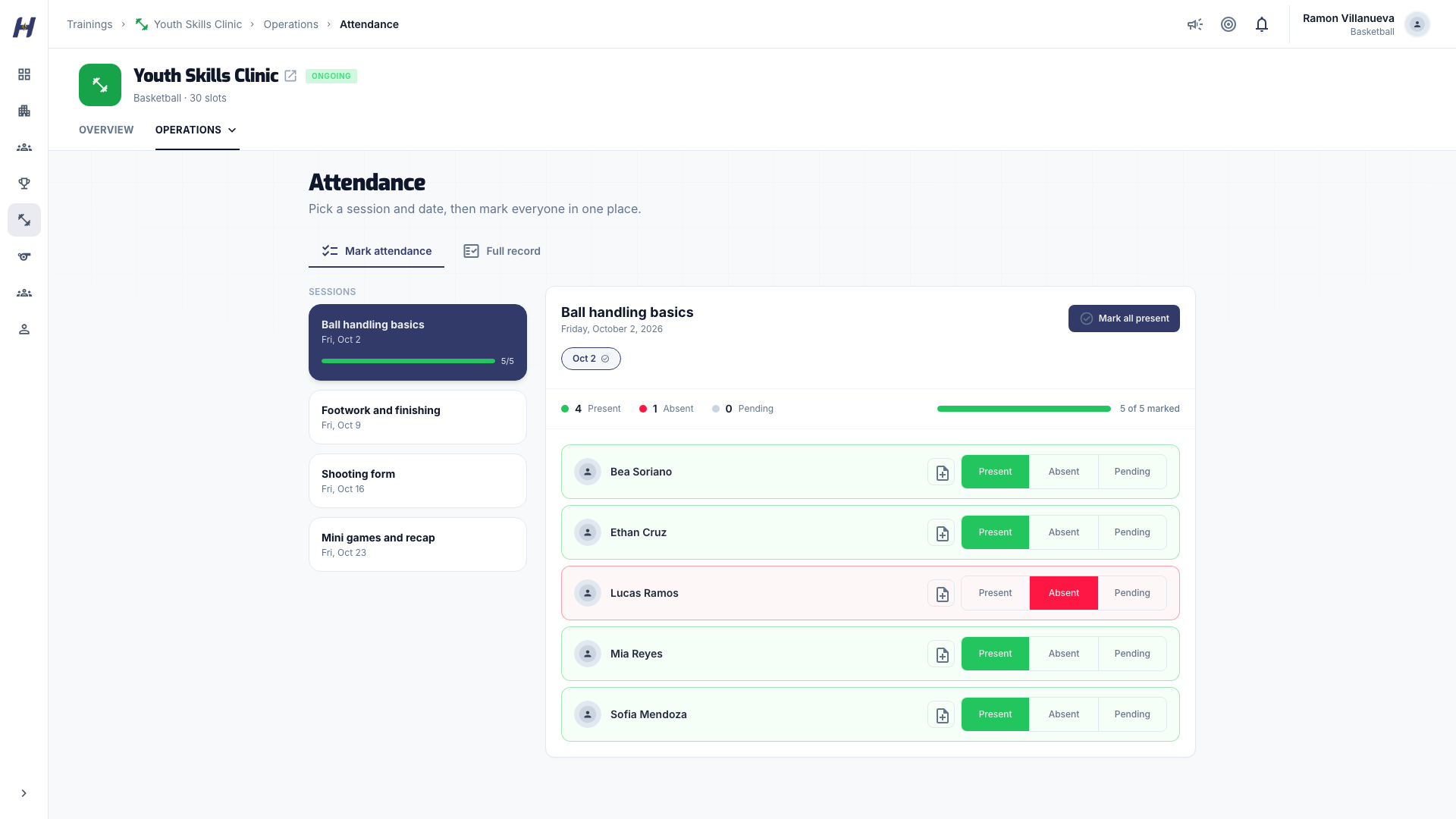
Select Manage, then Attendance under Operations. Coaches and staff see two tabs: Mark attendance and Full record.
Mark the session
On Mark attendance, choose the session and date. Every active participant is listed. Choose Present, Absent, or Pending on each row, or use Mark all present and then change the exceptions. You can add a coach note on a row.
Correct an earlier date
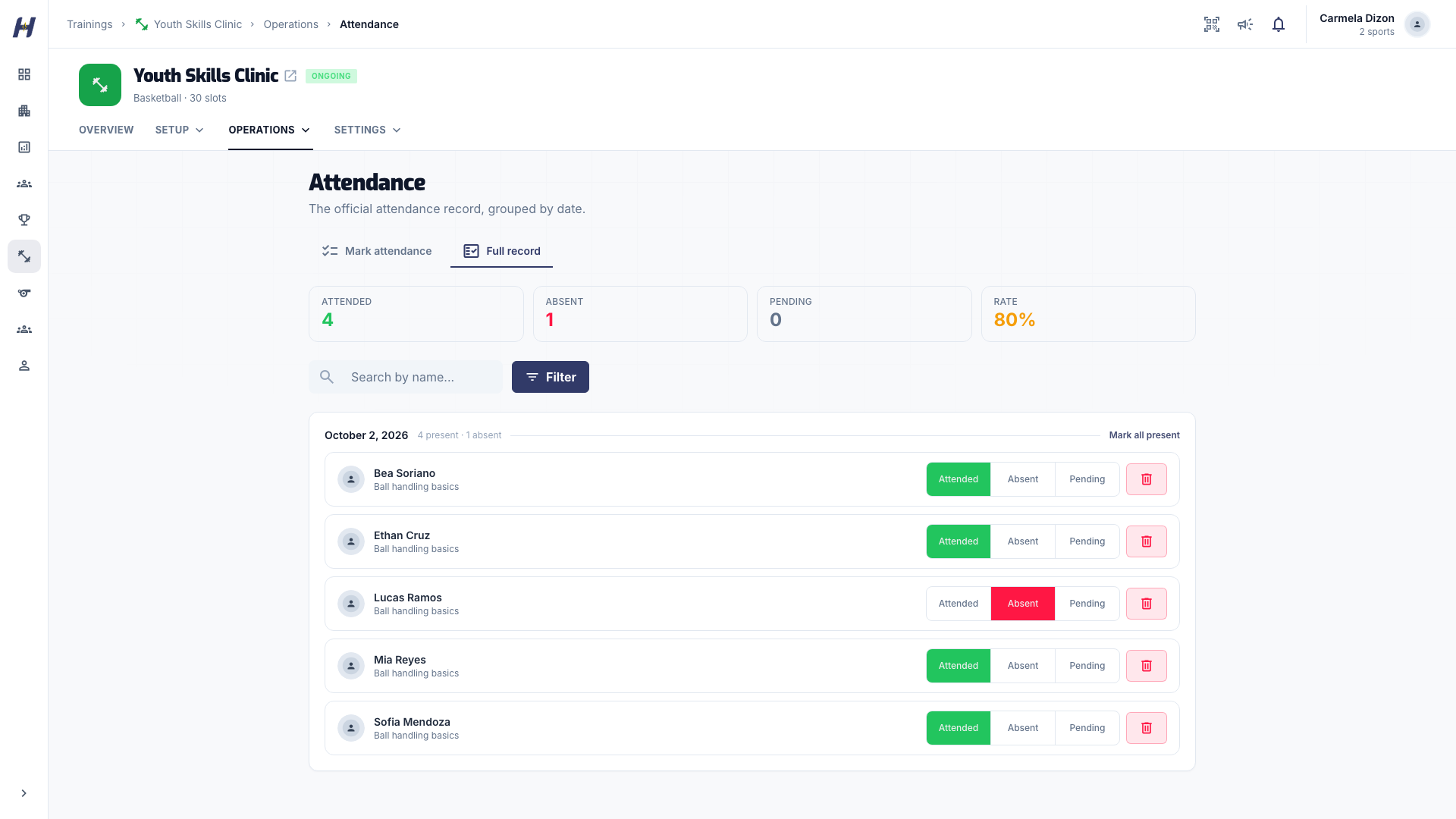
Open Full record to see attendance grouped by date. Filter by Date, Session, or Status, then change a row to Attended, Absent, or Pending. A correction stays on its original date and participant.
The Sessions page shows each session's attendee list for reading and coach notes only. Record attendance on the Attendance page.
Automatic attendance
You do not have to mark every session. After a participant's reserved session ends, HustlX records Attended for them if nobody recorded anything. Change it to Absent if they did not come. A status you already set is never overwritten.
For curriculum programs, a participant who joins late is recorded Absent for the sessions held before they joined. Change any of those to Attended if needed. Package programs (Number of sessions) skip this, because a late joiner's package starts from their join date.
Check players in with access passes
Approved participants get a QR access pass from View Access Pass on the training page. To check them in at the door:
- In your organization's Manage area, open Training check-in under Operations.
- Select Start scanner and point the camera at the pass, or use Or scan from an image.
- Review the scanned participant and session, then confirm attendance.
- Select Scan next participant for the next player.
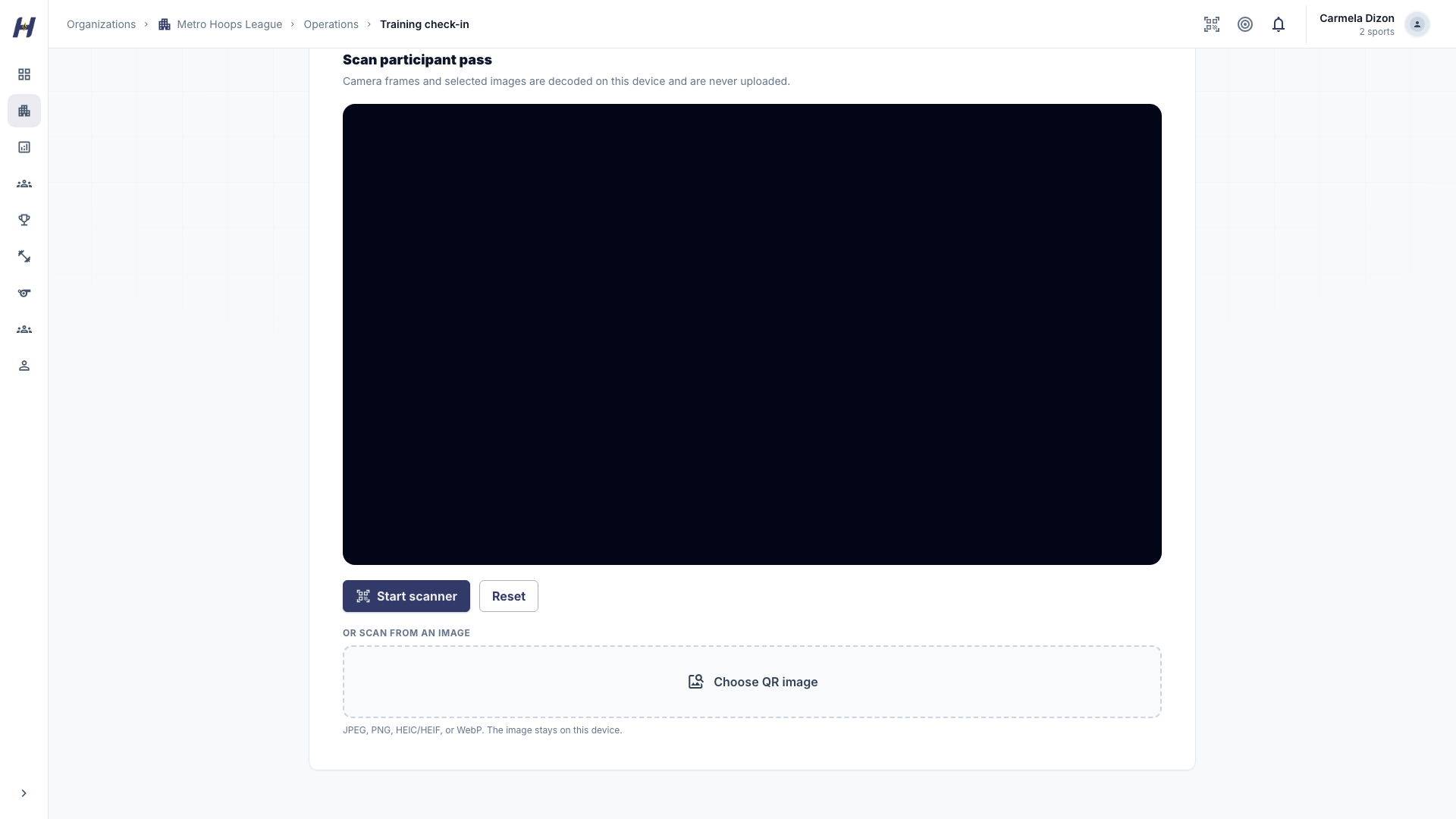
Camera frames are read on your device and never uploaded. A confirmed check-in records attendance for that session.
What happens next
- A participant completes the training once they attend every session that counts toward completion: the sessions marked required, or every scheduled session when none are marked required. See Review join requests and participants.
- Coaches can score attendees after attendance is recorded. See Score players and share feedback.
Troubleshooting
Why can't I mark a future date?
Attendance opens for the current date and past dates only. Select the correct date first.
Why is Cancel occurrence missing?
It appears only on a future date of a weekly session that has other dates left. Cancelled sessions and past dates do not show it.
Why is Training check-in missing?
It needs training management access in that organization, and access passes must be available for your account.
A participant is missing from Mark attendance
Only active participants are listed. Check their status on Participants and approve any pending request first.