Track finances and request payouts
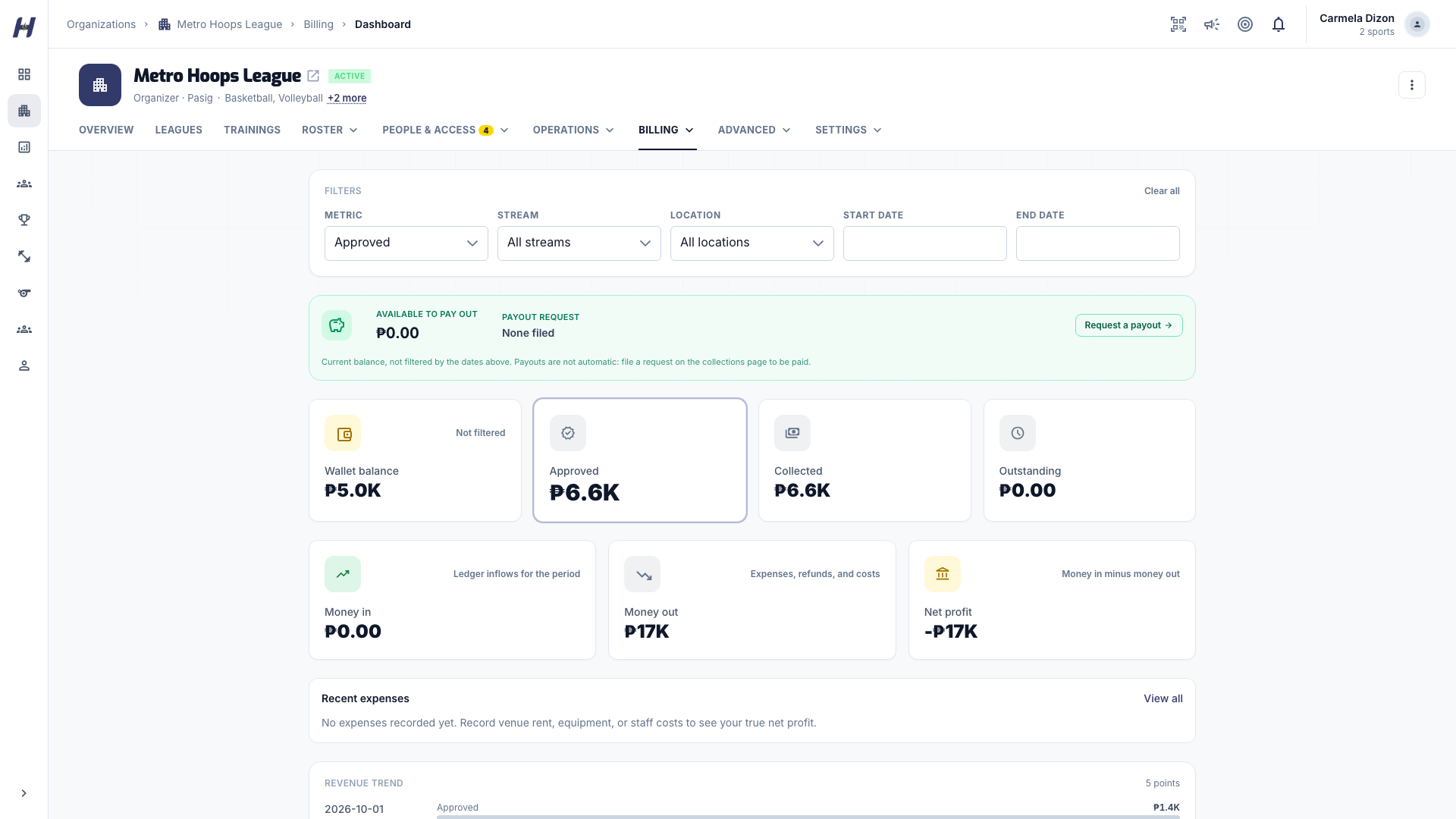
The Billing tab in your organization's Manage area collects your money pages in one place: revenue, collections, transactions, expenses, reports, payouts, and payment methods. Which pages you see depends on your role and your organization's plan.
Before you start
- For the full finance pages, make sure Annual Registration is active. See Buy Annual Registration and add-ons.
- To request payouts, have your organization's bank, GCash, or Maya account details ready.
The Billing pages
| Page | What it shows |
|---|---|
| Dashboard | Money in, Money out, and Net profit, wallet balance, Approved, Collected, and Outstanding totals, and Training revenue, League revenue, and Court revenue breakdowns |
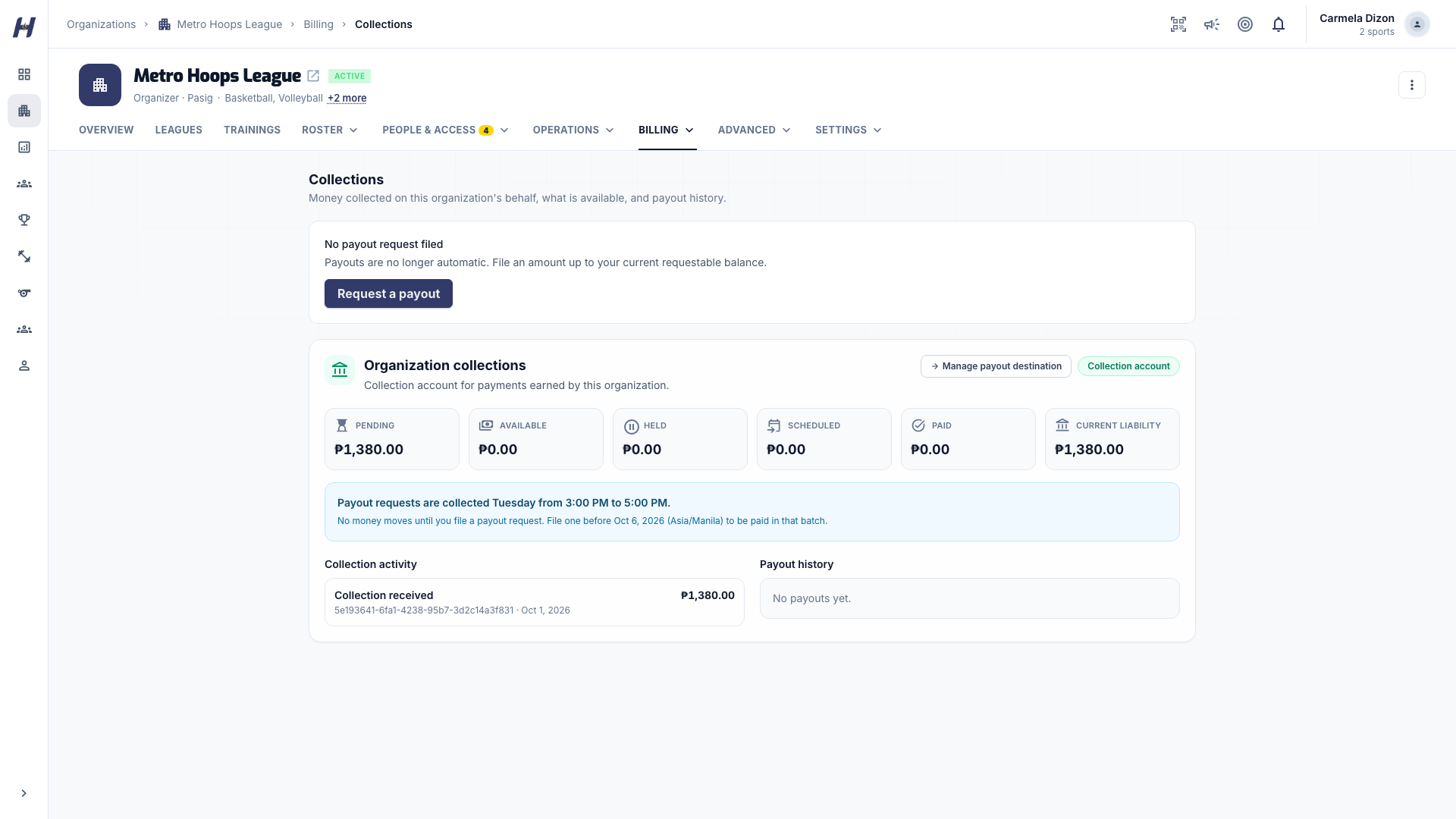
| Collections | Money collected online on your organization's behalf, what is requestable, and Collection activity |
| Transactions | One feed of collections, wallet entries, top-ups, and payouts, with a filter and reference search |
| Expenses | Money going out that you record yourself |
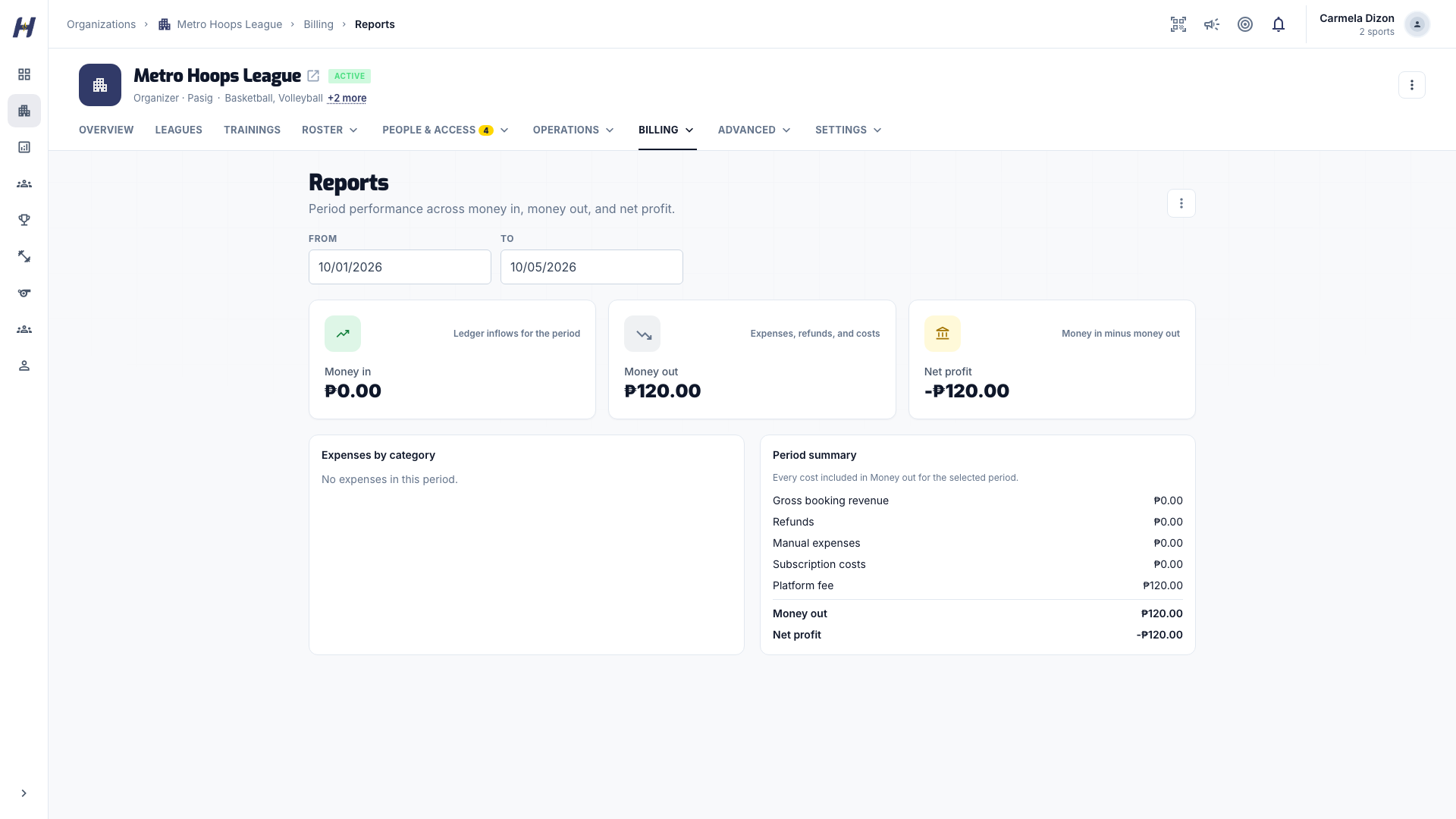
| Reports | Money in, money out, and net profit for a date range, with downloads |
| Payouts | Your payout destination, when online payments are enabled for your organization |
| Payment Methods | Your organization's own accounts that teams and players pay directly |
| Wallet & Subscription | Wallet balance and top-ups. See Manage the wallet and top-ups |
Request a payout
Money that teams and participants pay through HustlX online checkout goes to your organization's collection account. Payouts are not automatic: no money moves until you file a payout request.
Add a payout destination
Go to Billing > Payouts, or select Manage payout destination on Collections. Under Payout destination, pick a Destination channel (Bank account, GCash, or Maya), fill in the account details and Registered account holder, and select Submit for review. HustlX reviews each destination by hand, and account numbers are masked afterward.
Check your requestable balance
Open Billing > Collections. The page shows your collection account, the next submission date, and Collection activity for each payment.
File the request
Select Request a payout, enter an Amount to request up to your requestable balance, and submit. You can select Cancel request until HustlX adds the request to a payout batch.
Transfers are submitted on the scheduled date shown on the page. Arrival timing depends on the destination bank or e-wallet.
Record an expense
Open Expenses
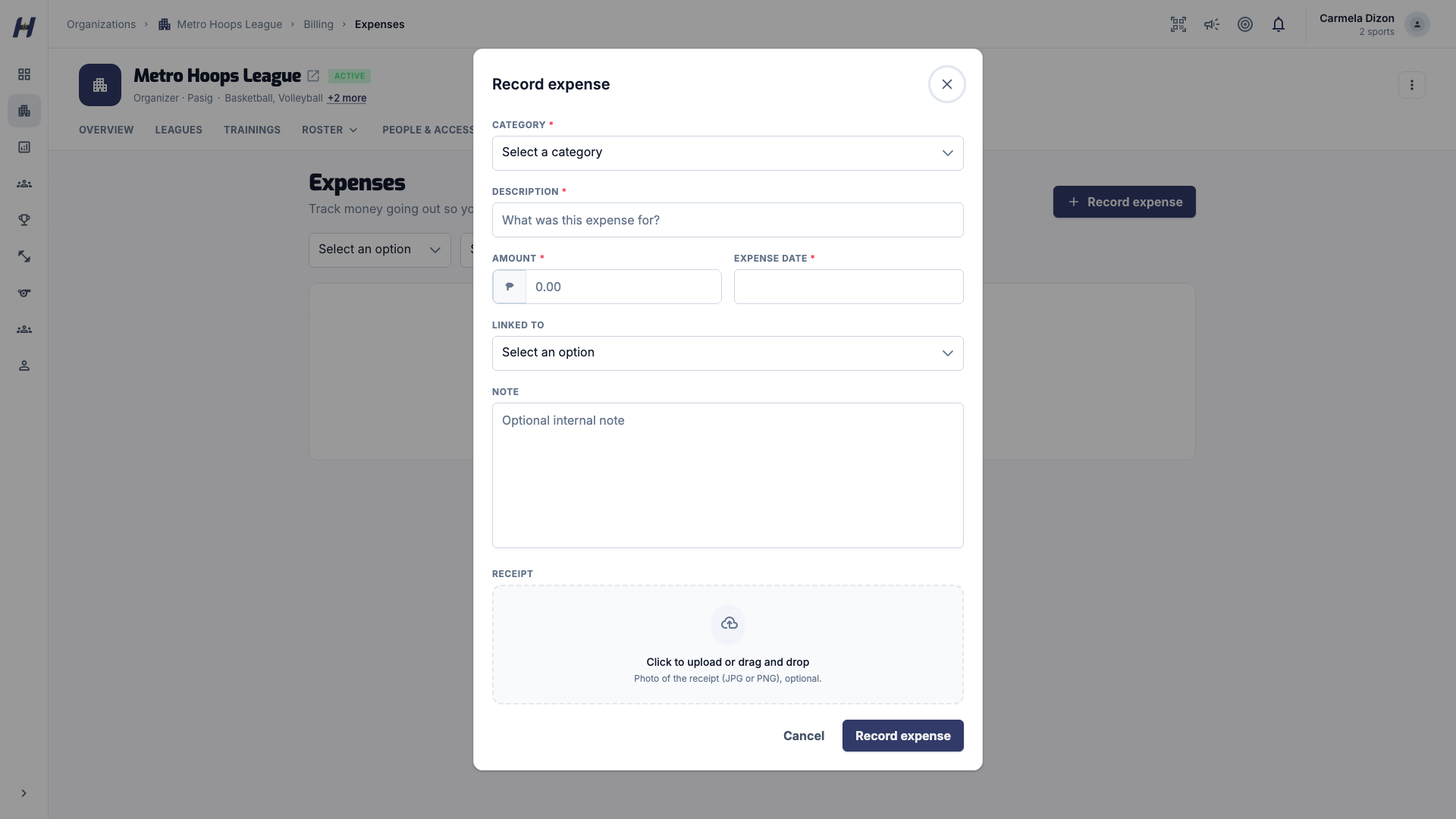
Go to Billing > Expenses and select Record expense.
Fill in the details
Enter the Amount, Category, Description, and Expense date. Optionally choose what it relates to under Linked to, add a Note, and attach a Receipt.
Save it
Select Record expense. To fix a mistake later, use Edit expense. To cancel one, use Void expense and give a Void reason. Voided expenses stay in the history.
Download a report
Open Billing > Reports and set From and To. The page shows Money in, Money out, Net profit, and an expense category breakdown for the period. Open the actions menu to Download revenue CSV, Download expenses CSV, or Print report.
Payment methods and manual payments
Payment Methods lists your organization's own bank and e-wallet accounts. HustlX shows them to teams registering for a league that accepts your payment methods, and to players paying for community pickups and court bookings.
Money paid straight to these accounts is recorded as organization revenue only. It never enters your collection account, so it never appears in a payout request.
Troubleshooting
Why can I see Collections but not Dashboard or Reports?
The full finance pages need active Annual Registration and finance access. Collections and payout requests stay available either way.
Why doesn't Money in on Reports include my league collections?
Reports summarize your finance ledger. Money collected online on your behalf is tracked on Collections as money HustlX holds for you until you request a payout.
Payouts is missing from Billing
Payouts appears only when online payments are enabled for your organization and you can manage payment methods. You can still reach the destination form from Collections.
I cannot submit a payout destination
Organizations still pending approval cannot manage payouts. Wait for approval, then try again.