Add players without an account
Kids, walk-ins, guest players, and the parent who says "just put my son down" all need to be on a roster before anyone signs up. HustlX handles this with not-claimed player records: a name on a roster that is not a login account, has no password, and cannot sign in. It can still sit on a team, appear in a lineup, attend a session, and collect statistics. When the athlete later creates an account, you link the record to it and the history follows them.
Creating a not-claimed player never creates an email address, a password, or a HustlX account for that person. Nothing is sent to them until you start a claim, or until you import their email in a CSV with invitations turned on.
Choose the right record
Where you add the person decides which record HustlX creates.
| You want to | Go to | HustlX creates |
|---|---|---|
| Build an organization roster ahead of a season | Manage > Players | An organization roster player, reusable across your teams, leagues, and trainings |
| Fill out a team your organization owns | Manage roster on the team card | An organization roster player on that team |
| Fill out a personal team you run | Team Manage > Members | A guest player that belongs only to that team |
| Add someone to a community roster | Community Manage > Players | A community player |
| Register and pay for a training participant | Training Join Requests | An organization roster player plus a paid registration |
Create an organization roster player when the athlete will show up in more than one place.
Add a player to your organization roster
Open your organization, select Manage, then Roster > Players, and select Add Player.
- Player Name is required. It appears on rosters, lineups, and box scores.
- Sport is required.
- Contact Email is optional. See Collect the contact email later.
- Status, Tags, the player photo, and Upload Cover Image are optional.
Select Save Player. Set jersey numbers and positions on each team roster, because the same athlete can wear different numbers on different teams. For a spreadsheet, use Roster Imports & Claims instead.
Add a guest player to a team
For a team your organization owns, select Manage roster on its card in Manage > Roster > Teams and add players from your organization roster.
For a personal team you run:
Open the member list
Open the team, select Manage, then Members. Your players are listed under Team Members.
Look for an account first
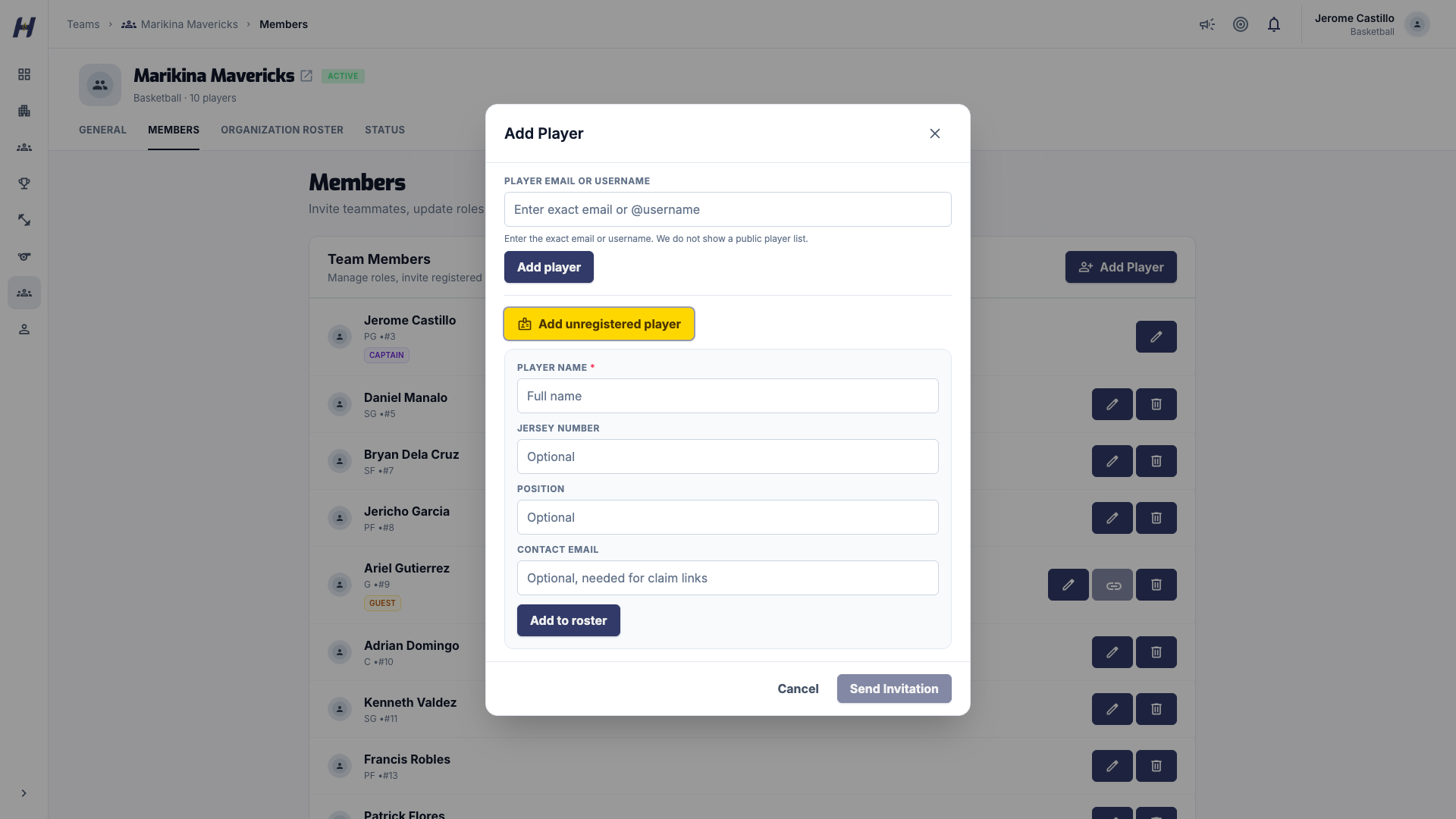
Select Add Player and enter the player's exact email or @username under Player email or username. If they have an account, invite them.
Add them as a guest
With no match, add a guest instead: Player name, which is required and is the only way the guest is identified, plus optional Jersey number, Position, and Contact email (needed only for a claim link later).
Guest rows show a Guest chip and have no team role or captaincy. A guest player belongs to that one team. It is not on any organization roster and cannot be reused elsewhere.
Add a player to a community
Open the community, select Manage, then Players, and select Add Player. Fill in Name and Sport, plus optional Jersey #, Position, Status, and a cover image. A community roster player has no account behind it and can be claimed later.
Walk-ins on community game day
On community game day, a walk-in is a community member who already has a HustlX account but is not on this pickup roster yet. You can sign them onto the side you are editing without leaving the console. For a volleyball position-booking pickup, select the player's volleyball position first. Someone with no account at all must be added to the community roster first.
Register a participant and pay for them
Training is the one flow where your organization can register someone with no account and settle the payment for them, for example a parent who does not want an account or a coach paying for a squad.
Open Join Requests
Open the training, then Manage > Operations > Join Requests, and select Add participant.
Choose the participant
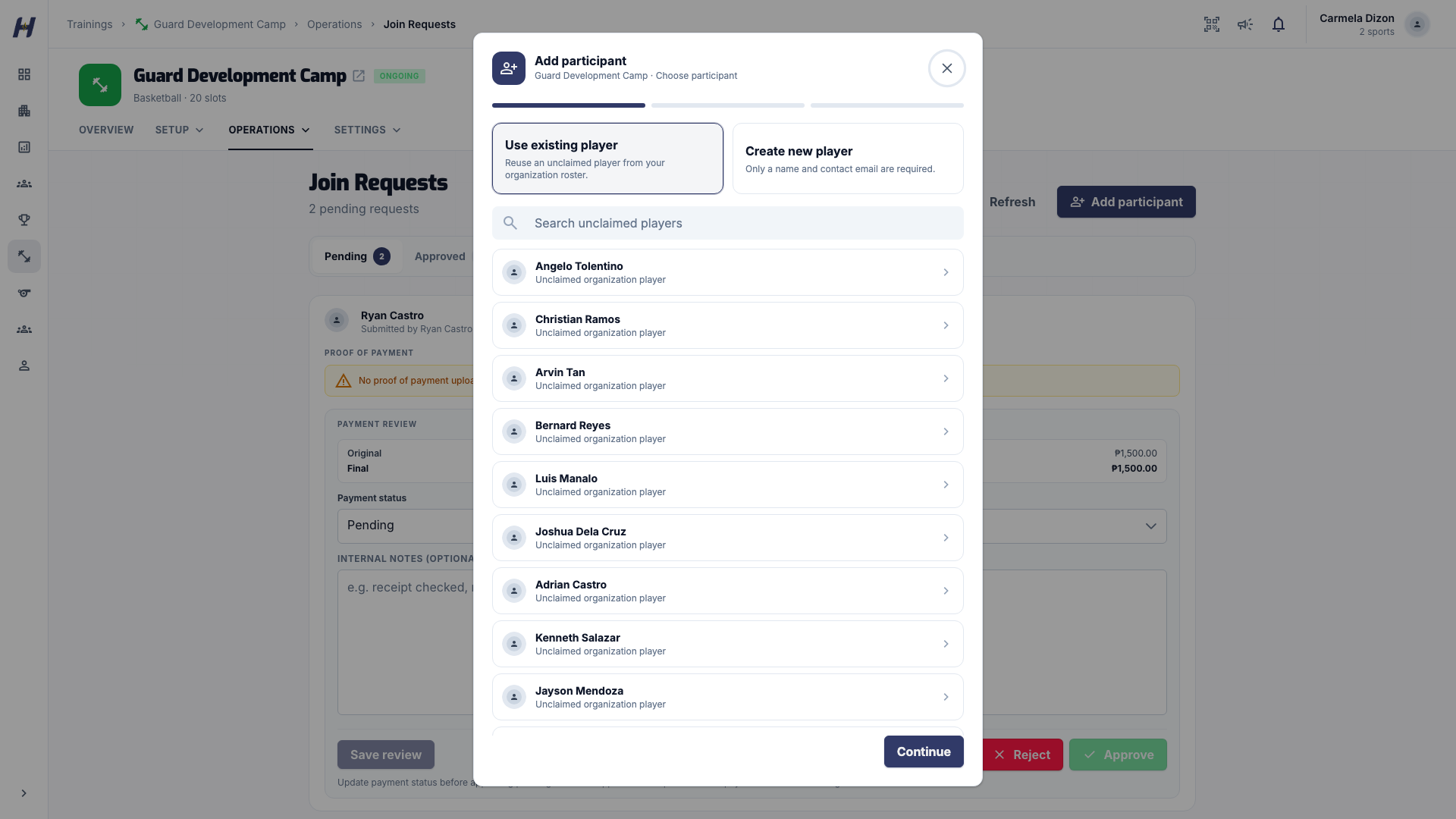
Pick Use existing player to reuse an unclaimed player on your organization roster, or Create new player. Reusing avoids a duplicate profile.
Enter the details
A new player needs a Player name and a contact email. A photo and cover image are optional. Choose training days if the training allows it.
Review and pay
The Participant row shows the player, not you. Apply a promo code if there is one, then check the fee, credit, and total.
A positive total opens secure hosted checkout, and the player sits under Awaiting payment until the provider confirms. An abandoned checkout does not add the player to the roster, reserve sessions, or allow attendance. A zero price, or a promo that covers the full amount, opens no checkout. Your organization stays the payer even after the athlete claims the player.
Collect the contact email later
You do not need an email address to create any of these records. Sign the player in today and get the email when there is time.
- Organization roster player: edit the player in Manage > Players and fill in Contact Email.
- Team guest player: edit the guest row on the member list.
- Community player: no email field, because a community administrator completes the claim.
The contact email stays private to authorized staff. It never appears on public pages, participant lists, or exports, and it may belong to a parent who covers several children. Nothing is emailed to that address until you start a claim.
Claim the record when the athlete joins
Claiming creates a one-way link between the roster record and one HustlX account. The roster, match, and statistic history stays attached. It is not a merge, and it must never join records that belong to two different people. Confirm the athlete's name and email with them first.
- Organization roster player: in Manage > Players, select Claim, choose the athlete's HustlX account, and select Send claim link. A team admin can also use Send claim link on the team's roster page, enter the Player email, and select Create link.
- Team guest player: use the claim action on the guest row. HustlX emails the link and also shows it so you can copy it into a chat.
- Community player: a community administrator opens Claim Player Profile, selects the account, and confirms. The link is made at once and is irreversible, with no email step.
For emailed links, the athlete signs in with their own verified account and accepts. You cannot accept for them. Links expire after 24 hours, and a record can have one pending claim link at a time. See Invitations and Notifications for the athlete's steps.
After a claim, roster spots, appearances, statistics, training requests, sessions, attendance, and progress show under the athlete's account. Payer, price, payment, refund, and finance records stay as they were, and the athlete's own photos replace the placeholder images.
Troubleshooting
The athlete did not get the link, or it expired
Check the email address, wait for the current link to expire, then send a new one. The athlete must sign in with the account that should own the record.
The account is already linked
One HustlX account can own one organization player record per organization. Use the existing record, and never delete a record as a workaround: deleting may remove match and statistic history.
The wrong account accepted
Do not delete either record. Contact HustlX Support with the organization, player, and account details.
The participant is stuck on Awaiting payment
The provider has not confirmed the payment. Retry from the join request row; only the manager who submitted or paid can retry.
Related guides
Roster imports
Add organization players by hand or from a CSV file, review possible matches, send claim invitations, and connect each roster record to the athlete's own HustlX account.
Join a team
Browse teams, read a team page, accept a team invitation, and create your own team when you cannot find one.