Score players and share feedback
Feedback is an evaluation of a player after a session. Your organization builds a reusable form, each training attaches one, and coaches score participants who attended. Players and their guardians see an evaluation only after it is shared.
Before you start
- Record attendance for the session you want to score. Only participants marked attended can be scored. See Run sessions and attendance.
Build and attach a form
Start from a template
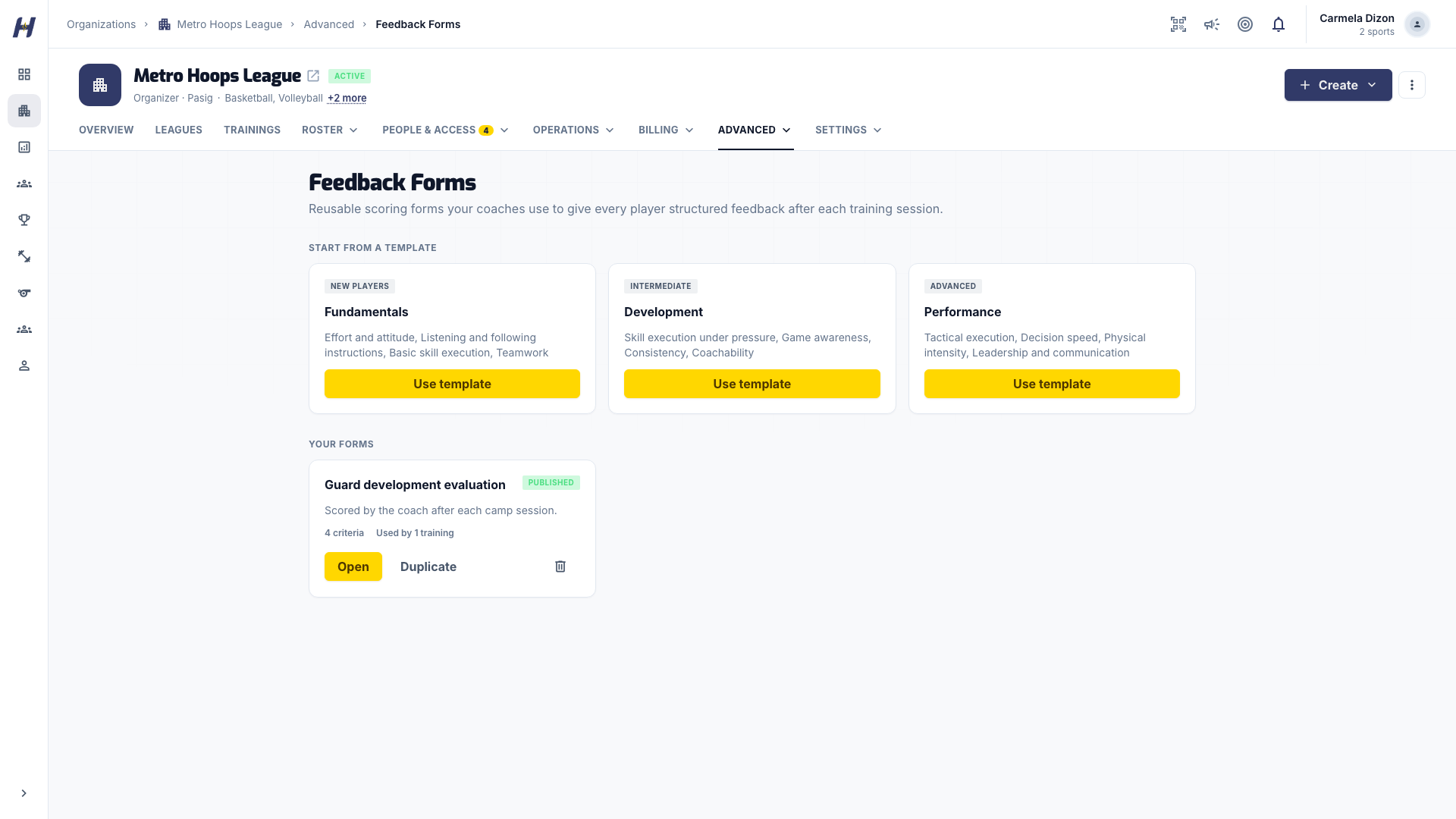
Open the organization, select Manage, then select Feedback Forms under Advanced in the management menu. Choose Use template on Fundamentals, Development, or Performance, which suit new, intermediate, and advanced players.
Edit and publish the form
Enter Form name and Description. Edit each rating criterion's label and help text, reorder it, or mark it required, and use Add rating criterion for more. Each criterion uses a 1 to 5 rating. Select Save changes to keep a draft. Click Publish form when it is ready and check that it shows Published.
Publishing makes the form available to attach. It does not attach it or send anything to players.
Attach it to the training
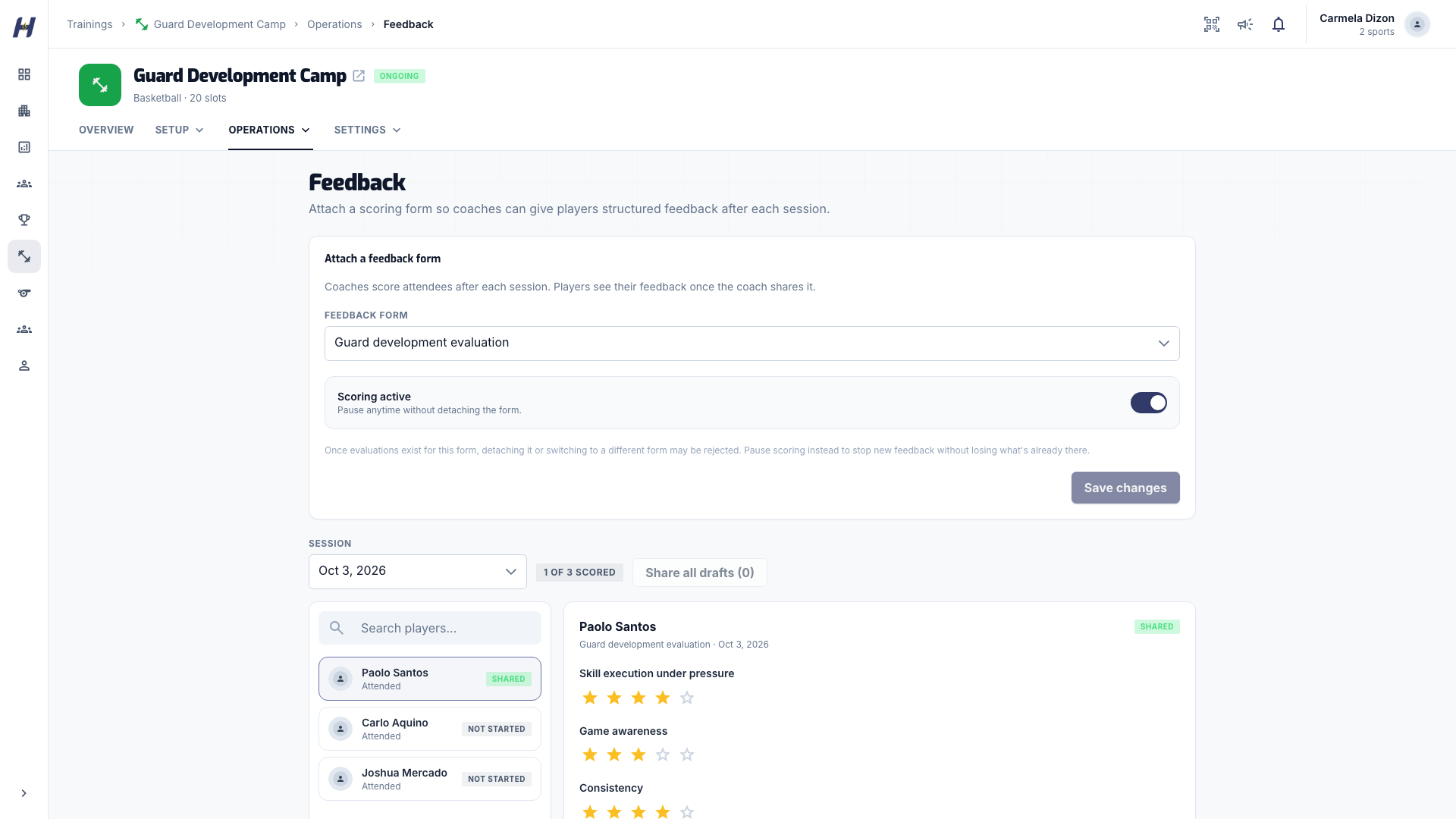
Open the training, select Manage, then select Feedback from the training management menu. In Attach a feedback form, choose the published form in Feedback form and keep Scoring active on. Click Save changes.
Score and share
Pick the session and player
On the training's Feedback page, choose the dated Session below the attachment card, then select a participant from the attendee list. For a weekly session, check the date so you score the right week.
Rate and comment
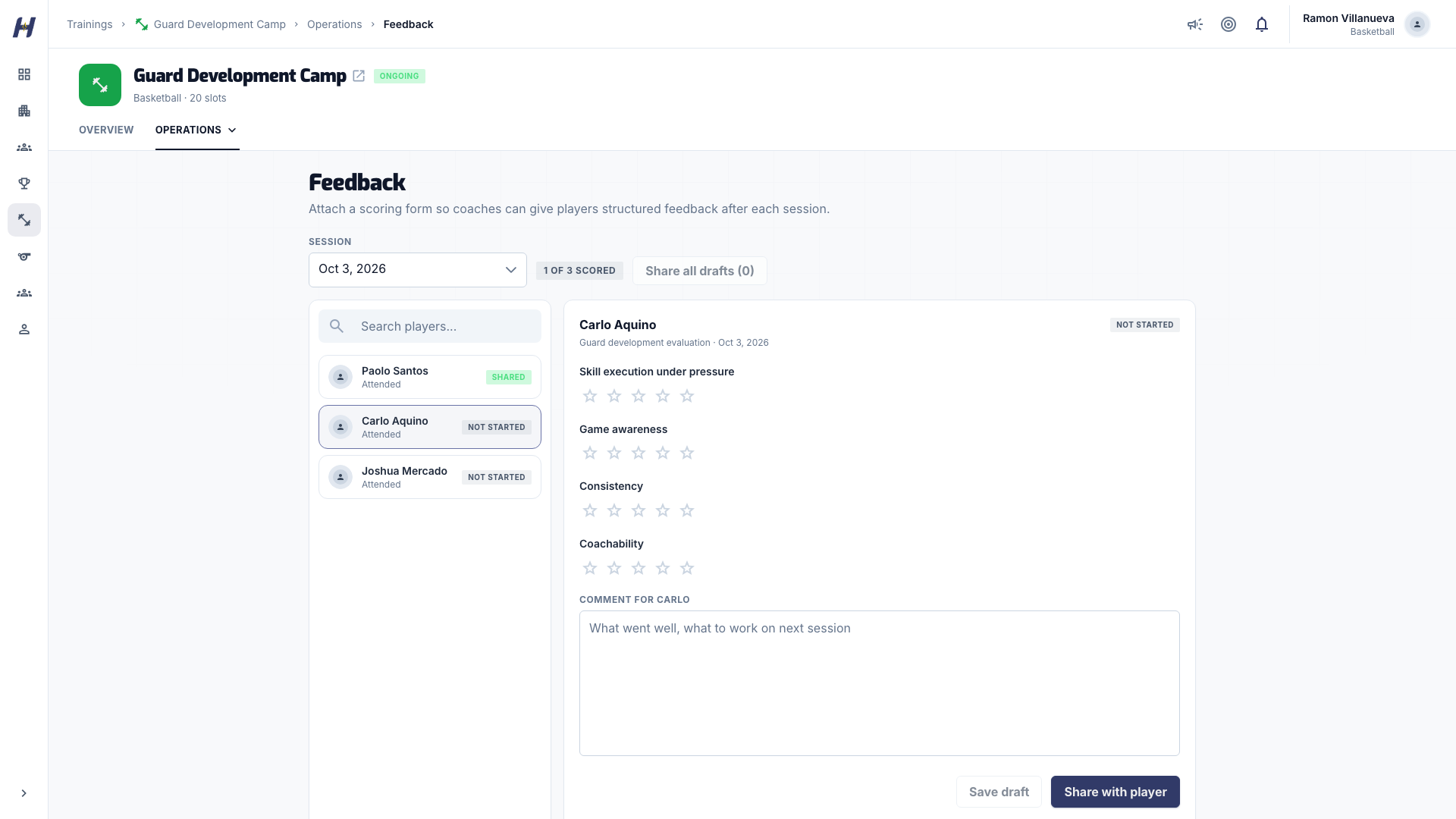
Select a star rating for each criterion and complete every required one. Add an optional Comment for the player with advice for their next practice. Select Save draft to keep it private to staff.
Share the evaluation
Select Share with player. The status changes from Draft to Shared. To release every saved draft for the session at once, use Share all drafts. Drafts missing required ratings are skipped, and the result says how many were shared.
A registration, a reserved session, or a Going RSVP does not put someone on the scoring list. Only attendance does.
Review team insights
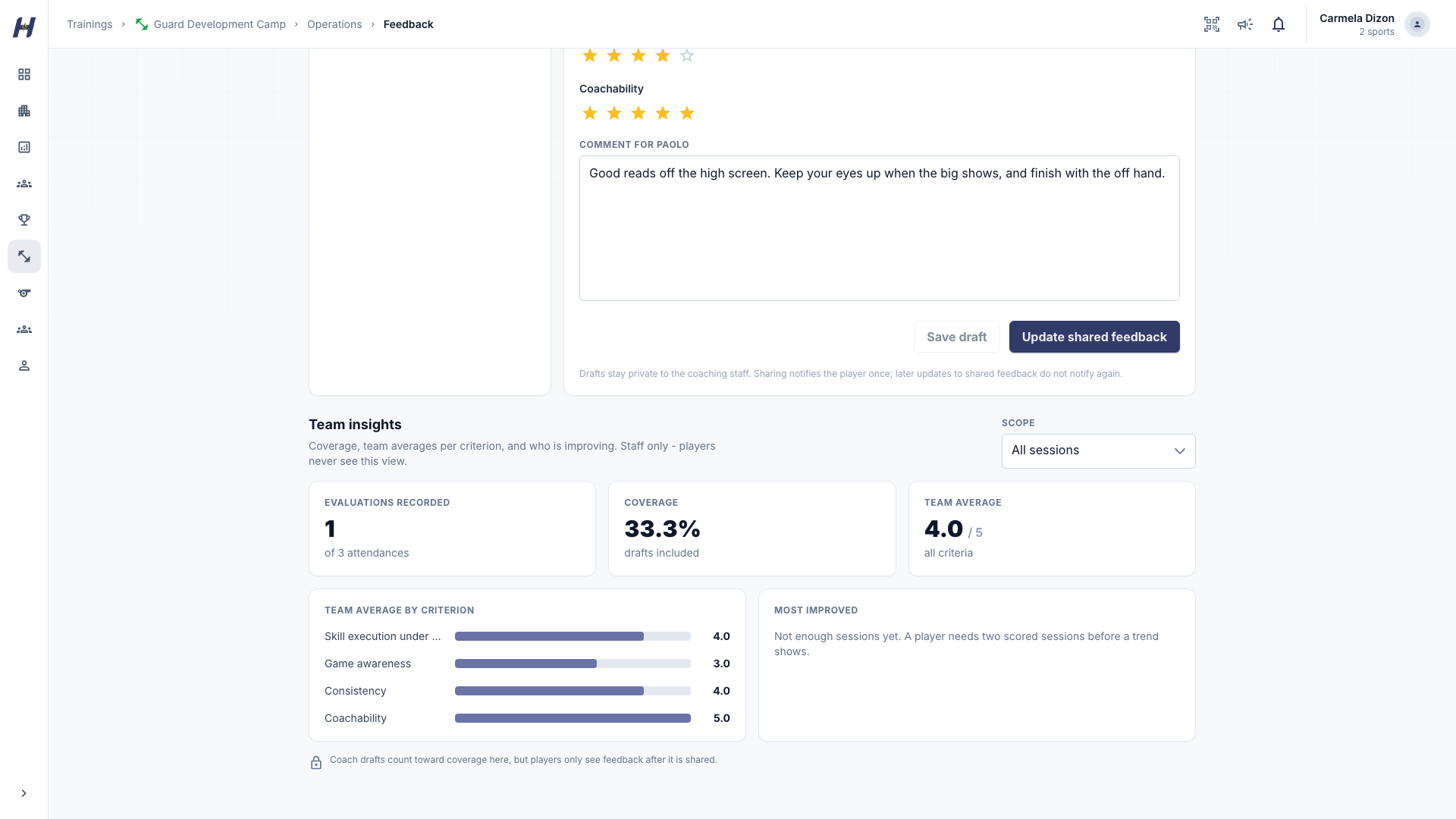
Scroll to Team insights on the same page and choose all sessions or one date. The cards show how many attendees were scored, feedback coverage, the team average, and averages by criterion. Most improved needs at least two scored sessions for a player. Drafts count toward these numbers even though players cannot see them.
What the player sees
Players and authorized guardians open the training and select My Feedback, or View feedback on the Your coach shared feedback card on Overview. Each evaluation shows its session date, the rating for each criterion, and the comment, labeled Feedback from your organization rather than an individual coach. Earlier evaluations appear under Previous Sessions.
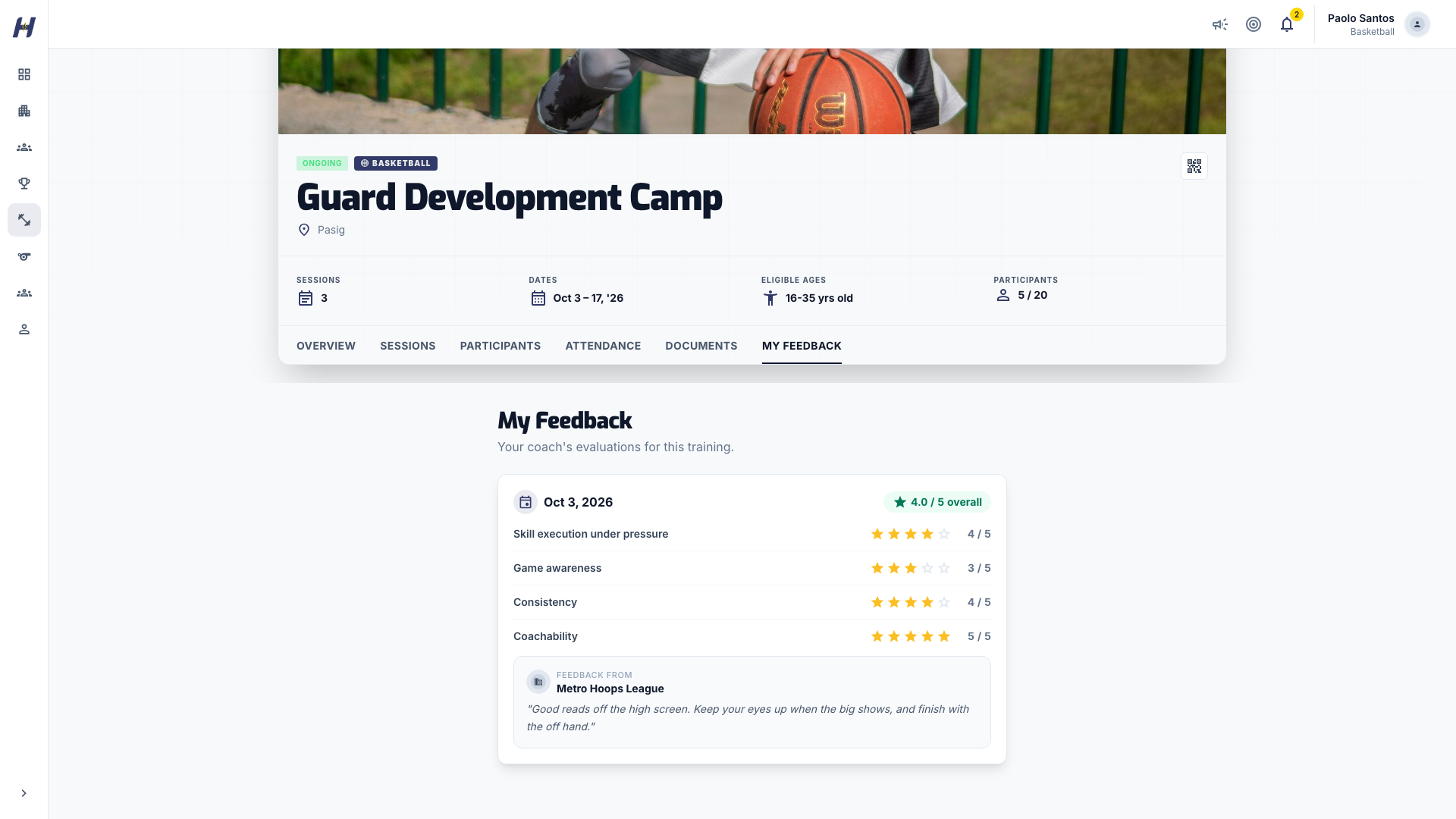
Shared ratings also feed the average rating on a completion certificate.
Pause scoring or change the form
To pause, turn Scoring active off on the training's Feedback page and select Save changes. The page shows Scoring is paused for this training. New scores and shares are blocked, and existing feedback stays visible to its readers. Turn it back on to resume.
Once feedback has been recorded with a form, its criteria are locked. Use Duplicate in the organization library to make an editable copy for future trainings. Replacing a form a training has already used may be refused; pause scoring instead.
Troubleshooting
No sessions appear in the picker
Record attendance for the session first, then refresh.
A player is missing from the list
Check the session date and that the player is marked attended.
Share is disabled
Fill every required rating and check that Scoring active is on.
A player cannot see their feedback
Check that the evaluation shows Shared, and that they are signed in to the right account with the right participant selected.