Run a basketball regular season
This walkthrough runs one complete basketball season so you can see how the league guides fit together. It uses an 8-team single round robin, the most common setup for a weekend, school, club, or barangay league.
The example season
| Detail | Example |
|---|---|
| League | Metro Hoops Fall 2026 |
| Teams | 8 basketball teams |
| Format | Basketball 5v5, single round robin |
| Expected games | 28 regular-season games |
This is an organizer workflow, not a rulebook. Your league's own rules for fouls, eligibility, period length, and tiebreakers apply.
Before you start
- Create the 8 teams and their rosters. See Manage teams and rosters.
- Make sure your organization can publish leagues. See Create a league.
Run the season
Create the league
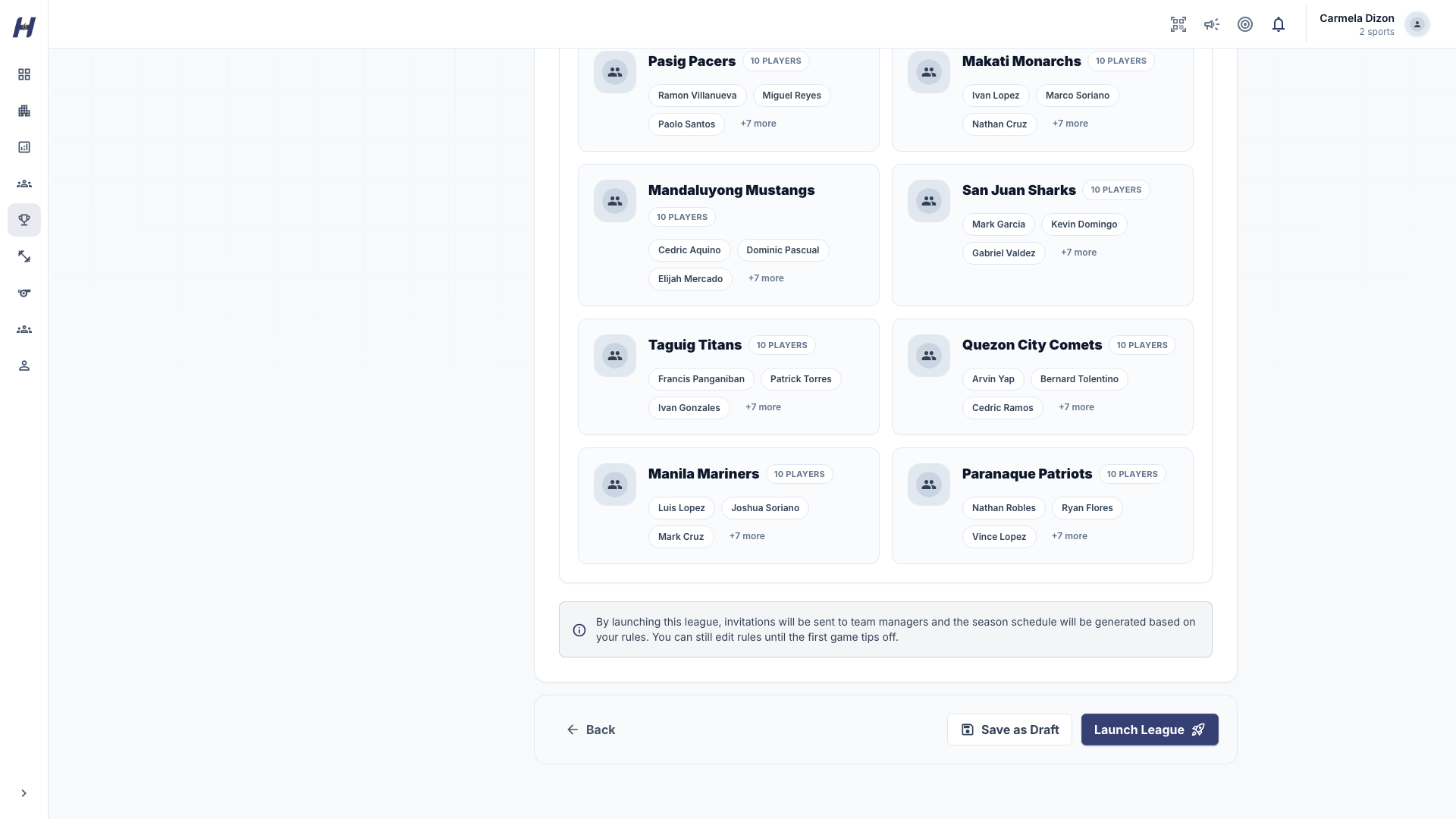
Open Leagues in Manage, select Create league, and choose Customized. In League, set the name, Basketball as the sport, Basketball 5v5 as the Competition Format, Max Teams of 8, the real season dates, and the Join Mode. In Format, keep Standard Table for one shared standings table. In Teams, select the 8 teams. On Launch, choose Launch League, or Save as Draft if the field is not final, and complete any team admission checkout.
Confirm the field
Open Manage > Operations > Teams & Players. Check that all 8 teams are enrolled, play basketball, and have completed admission, and that no invitation or join request is still pending. Review Roster Audit for age or roster-size warnings. Warnings never stop a team from playing; decide them with your coaches.
Build the round robin
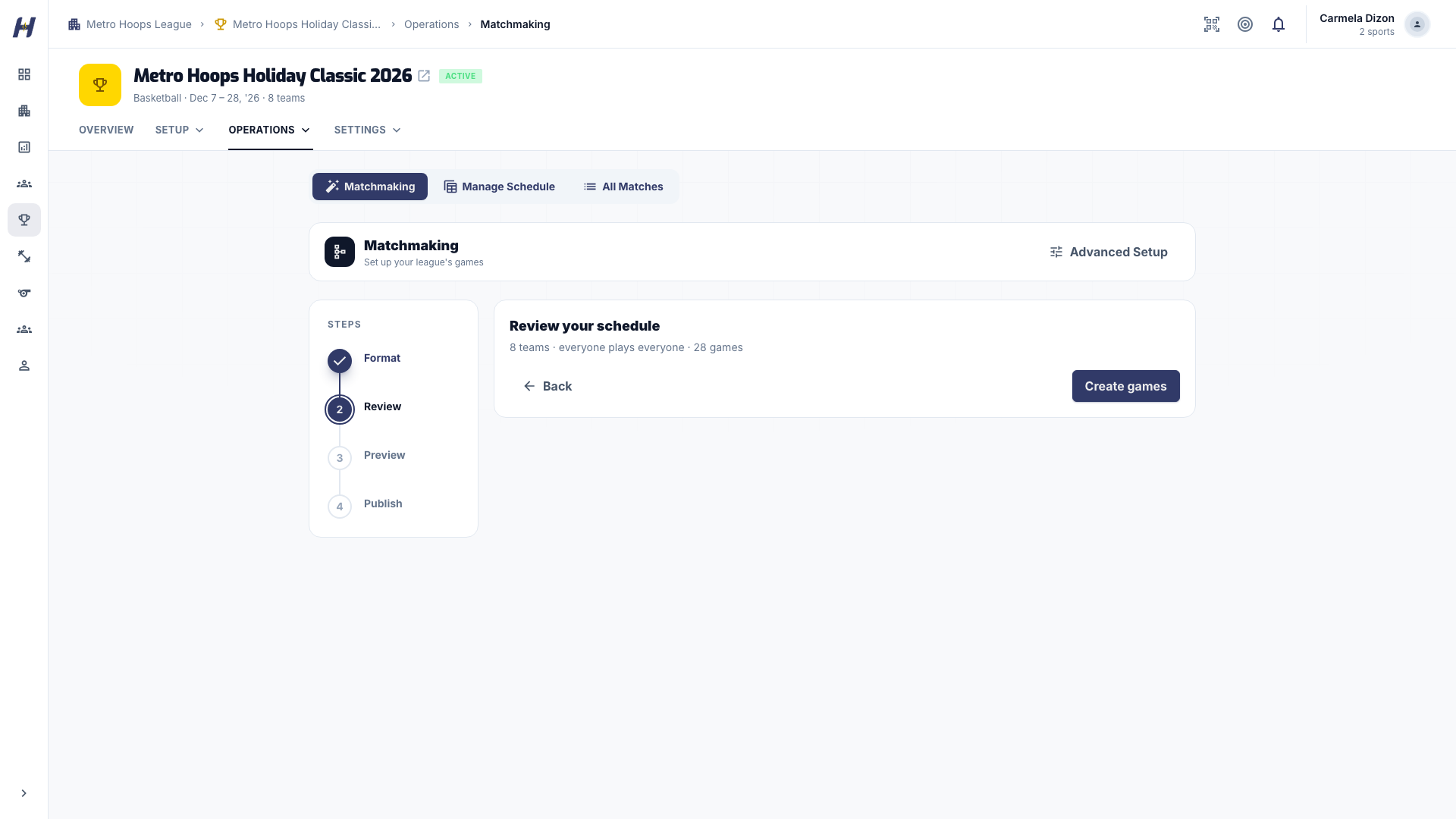
Open Operations > Matchmaking, select Create games, then Everyone plays everyone. Review shows 8 teams and 28 games (8 teams x 7 opponents / 2). Select Create games to open the preview. Nothing is saved yet.
Preview and publish
On Preview, check every round, set game days and times, and choose which games go public. On Publish, check Going public, Staying draft, and Unscheduled, then confirm Publish. Games without a confirmed time can stay as drafts.
Finish dates and venues
On the Matches tab, select Manage Matches. Edit each game's Date & Time and Location, and check that no team has an impossible back-to-back and that your officials can cover the slate.
Prepare each game
Open each upcoming match, select Show match ops, and work through Match readiness: venue, officials, table staff, equipment, team confirmations, and lineups. For basketball, confirm scorer, timekeeper, and shot clock coverage, and a charged scoring device.
Run Game Day
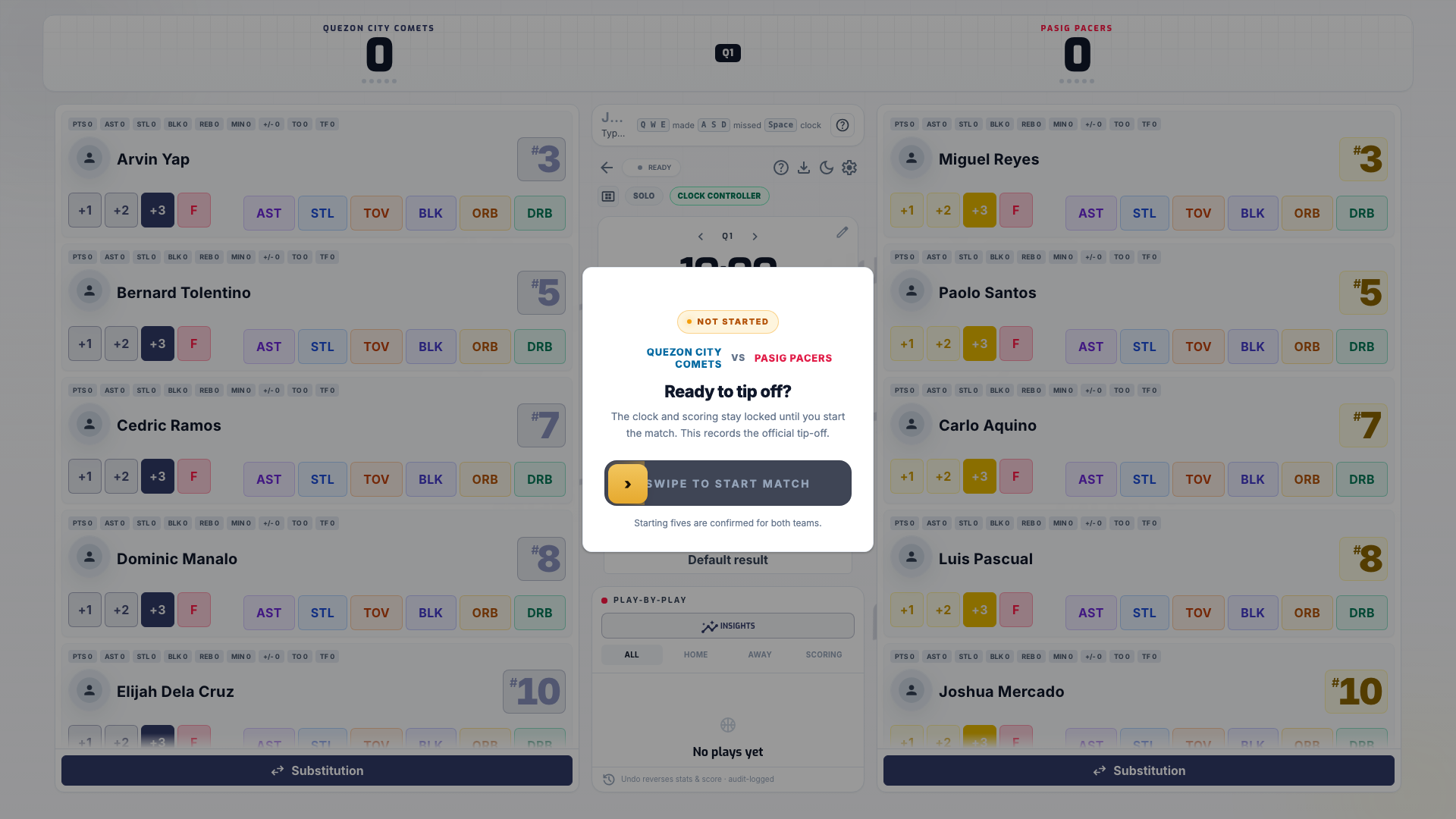
On the match page, select Start Game Day. The scorekeeper confirms the starting lineups, runs the clock, records scoring and stats, and ends the game once the final score is right. See Game Day overview.
Review the result
Return to the match page and check the final score, the Box Score, the play-by-play, and the player stats. Fix corrections now, before standings and awards depend on them.
Follow the table
As games conclude, check Standings (select Rules for the points and tiebreakers), Leaderboard, and Stats. The Structure view on Matches shows a Playoff Preview seeded from the current table.
Finish the season
When all 28 games are concluded, either generate playoffs with Advance top 8 in Manage Matches, or go straight to awards. Assign the podium and individual honors in Manage > Awards, then move the league to Concluded in Settings > League Status. See Standings, playoffs, and awards.
Share the record
Every concluded game feeds the public record. Point players, families, and sponsors to:
- the public league page, with Standings, Matches, Leaderboard, and Awards
- each team's page and its roster
- player profiles, which collect their games, stats, and awards
- finished match pages, with the box score and share cards
What you should see at each stage
| Stage | What the app shows |
|---|---|
| After creation | The league page with basketball tabs and 8 enrolled teams |
| After Create games | An unsaved preview with 28 proposed games |
| After publishing | Saved public and draft games in Manage Matches |
| Before tip-off | Match readiness no longer Pending |
| During the game | The Game Day controller for that match |
| After each game | Updated results, box score, standings, and leaderboard |
| After the final | Saved awards and a league you can conclude |
Troubleshooting
The game count is not 28
Check that exactly 8 teams are enrolled. Everyone plays everyone is a single round robin; a double round robin from Advanced Setup produces 56 games.
I need to move one game
Edit it in Manage Matches. Do not rebuild the schedule after results exist.
Related guides
Video guide
Watch one basketball league go from Quick setup and a CSV of teams to a published schedule, live stats on game day, and share cards in about three minutes.
Tournament
Build a direct 8-team basketball bracket, or advance the top teams from a regular season into quarterfinals, semifinals, and the final.