Respond to invitations and notifications
Invitations and updates about your matches, leagues, trainings, and teams all arrive in Notifications. Use this page to answer invitations and to connect a roster profile an organization created for you.
Before you start
- Sign in and finish onboarding if HustlX prompts you.
- Verify your email. Claim links require a verified account.
Accept or decline an invitation
Open Notifications
On desktop, select the bell in the top navigation, then View all notifications. On a phone, the bell opens the Notifications page.
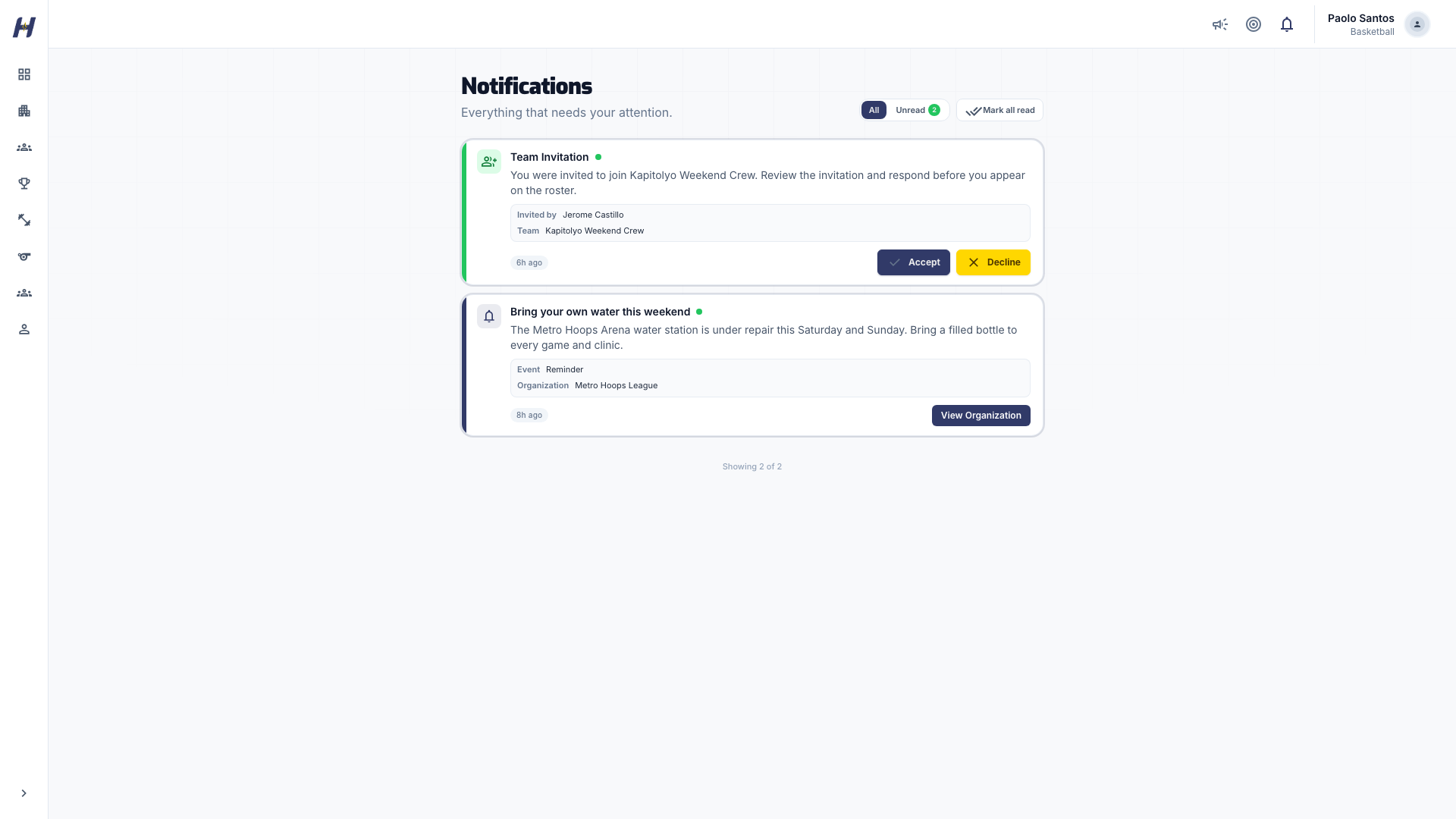
Find the invitation
Select All to include notifications you have already read. Use Load more at the bottom for older items. Check who invited you and the role offered before you respond.
Accept
Select Accept. Your response is sent right away and you see Invitation accepted!.
Or decline
Select Decline. Add a Reason (optional) if you want to explain, then select Confirm Decline. Select Cancel to go back without responding.
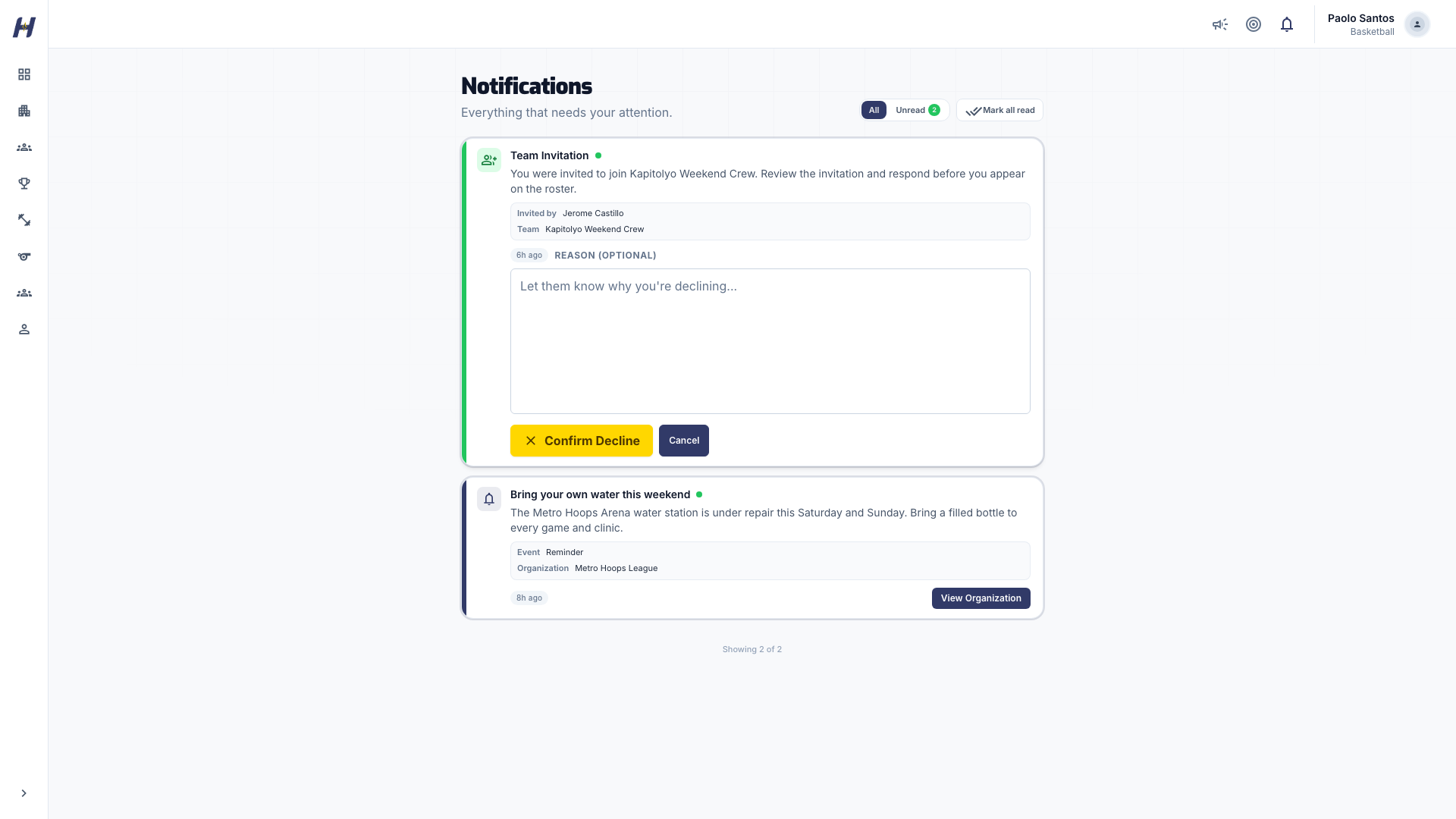
An answered invitation shows Accepted or Declined instead of the buttons.
Mark all read changes only the read status. It does not accept or decline anything. A pending invitation can still be answered after it is read; if it disappears from Unread, switch to All.
Invitation types
Organization invitations
An organization admin invites you to join their club, academy, or league workspace with a role.
League invitations
A league organizer invites a team you manage to join a league. Accepting confirms the team's participation before it appears in the competition.
Team invitations
A team invites you to its roster or to a team role. If you are waiting for team access, check All before assuming the invitation was never sent.
Community and association invitations
Communities invite players to become members, and officials associations invite officials to join. You answer both the same way, from Notifications.
Claiming an organization roster profile
An organization may create a roster profile for you before you join HustlX. The claim preview shows the Organization and Roster profile as separate identities so you can check both before connecting them.
Open the claim link
Open the claim link in the email sent to the HustlX account the organizer selected.
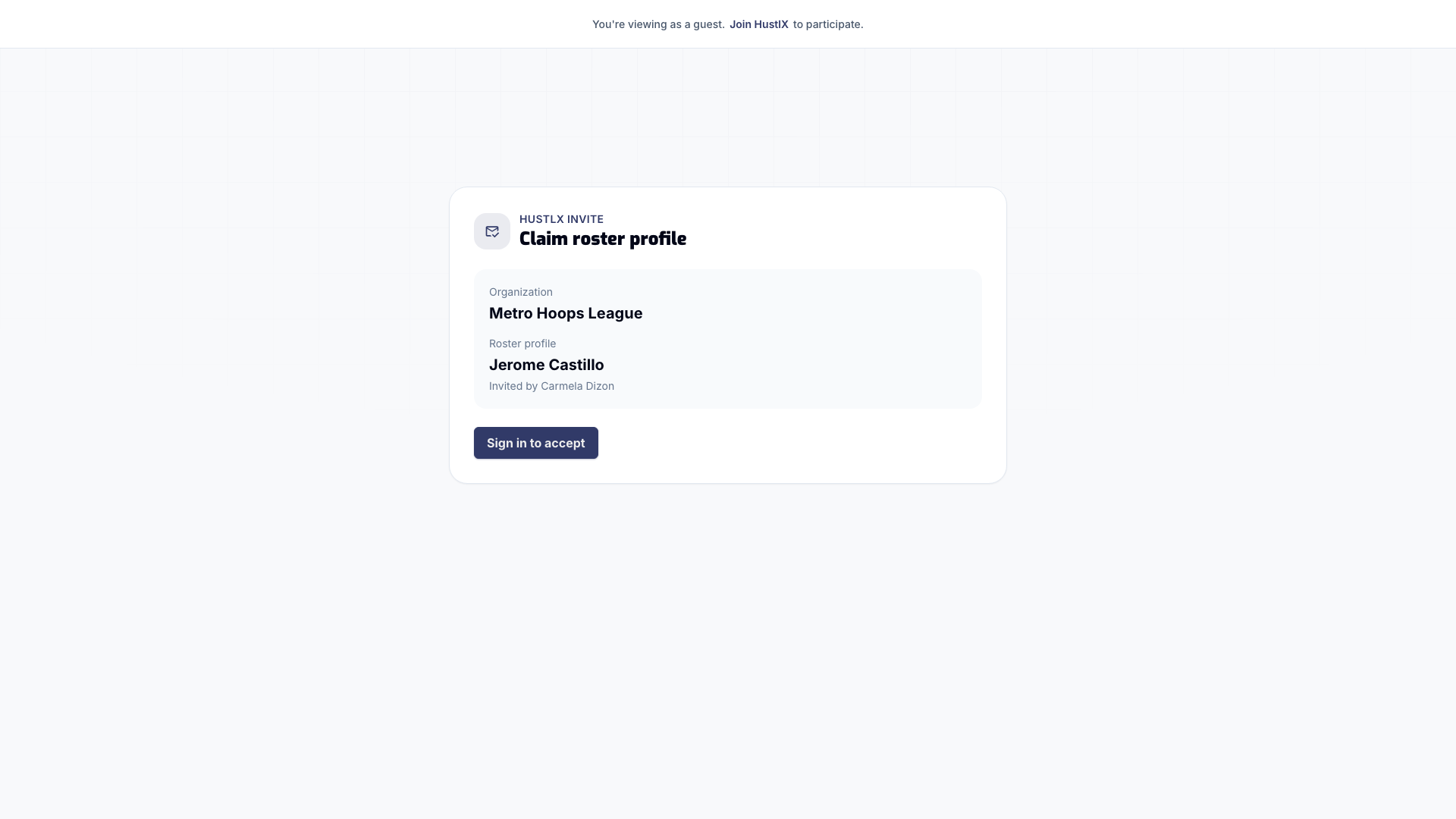
Check the details
Check the organization name and roster profile name. If either is wrong, close the page and contact the organizer.
Sign in or create your account
Select Sign in to accept if you already have an account. Normal sign-in may return you to the claim; if it does not, reopen the claim email and use its link again.
Select Create your account (Create account on some older links) if you need one. If registration, email verification, or onboarding opens, finish setup, then reopen the claim email and use its link again.
Accept the roster profile
Connecting the roster profile is a one-way and irreversible link. Verify the Organization, Roster profile, and signed-in account, then select Accept roster profile.
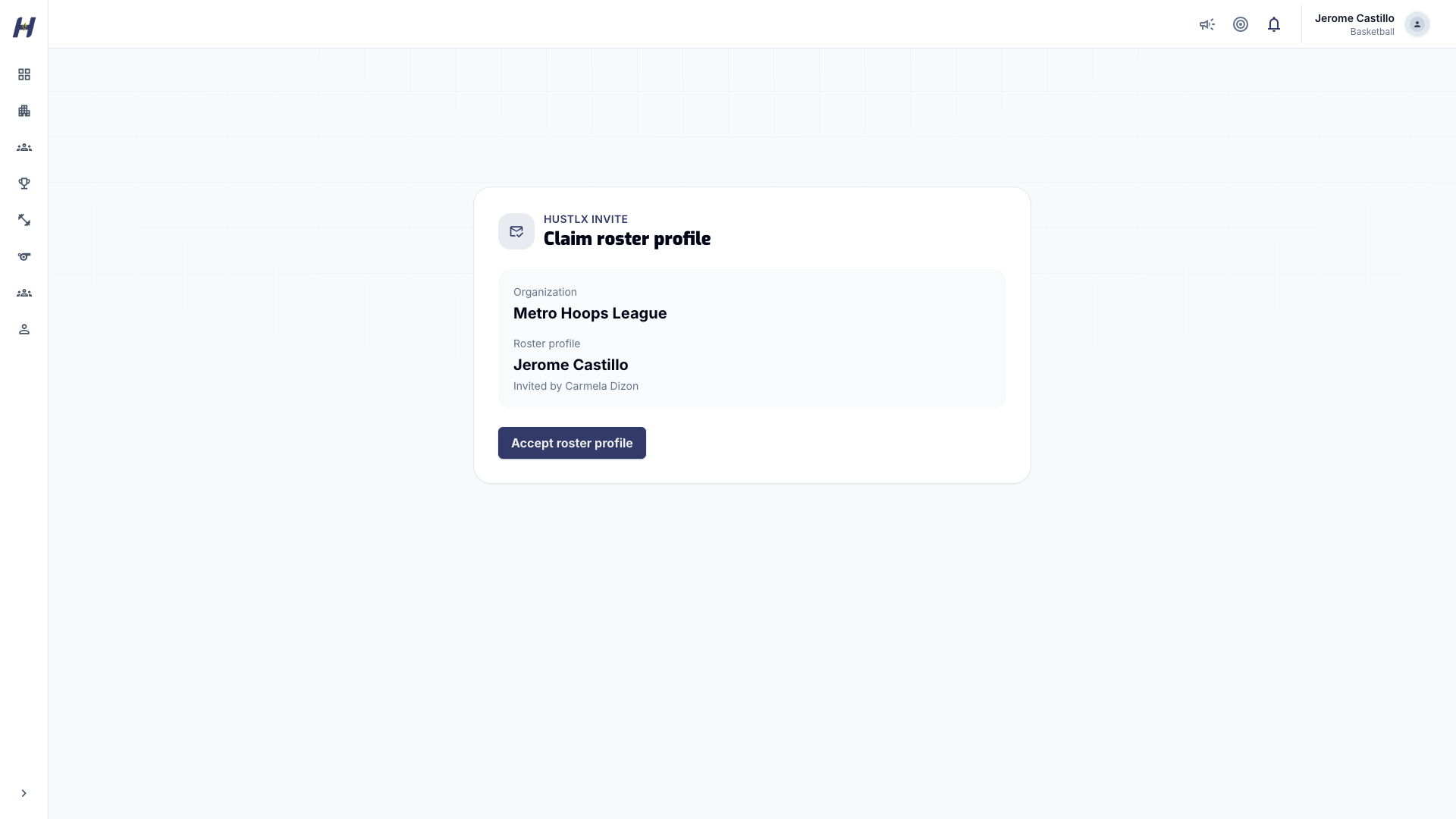
Wait for the success message
Wait for the connected success message before you close the page. Your organization roster history now belongs to your HustlX profile.
Complete these steps from your own verified account. Keep your password and sign-in details private.
Invalid or expired links
If HustlX says the link is invalid or expired, ask the organization administrator to send a new claim link. Open the new email and sign in with the intended HustlX account before accepting.
If you are signed in to a different account than the one invited, select Sign out and continue with the invited address shown on the page.
If you discover the wrong account after accepting, do not delete or recreate records. Contact HustlX Support with the organization, roster profile, and account details.
Coach profile links work the same way and end with Accept coach profile.
How notifications reach you
Each notification type has a fixed delivery setting; there are no personal notification preferences to change.
- In-app: most notifications appear in Notifications, and new ones can pop up while you are using HustlX.
- Email: most notifications, including every invitation, are also emailed. The email and the in-app card show the same key details.
- Codes: verification and deletion codes are sent by email only.
Some cards include an action button that opens the related league, match, training, or request page. Opening a notification is not proof that a registration, payment, or invitation is complete. Check the page it opens.
Troubleshooting
I cannot find an invitation
Select All, then Load more. Confirm you are signed in to the account the invitation was sent to, then ask the sender to check its status.
My response failed
Read the error, reload Notifications, and try again. If the buttons are gone, the invitation was already answered or withdrawn; ask the sender.
Unread is empty
Switch to All. Read notifications are hidden from Unread.
Related guides
Account settings
Change your profile, sports, location, family athletes, and password, confirm deletions safely, and switch the app theme.
Delete your account
Request deletion of your HustlX account from the web, the iOS or Android app, or the public deletion page, and learn what the 30-day window keeps and removes.