Run the season
Once a league exists, its Manage area is where you run it day to day. This guide covers the routine: keeping the field and rosters right, moving the league through its statuses, and closing out the season.
Before you start
- Create the league and set up registration.
- Read Competition formats and brackets if you have not chosen a structure yet.
Find your way around Manage
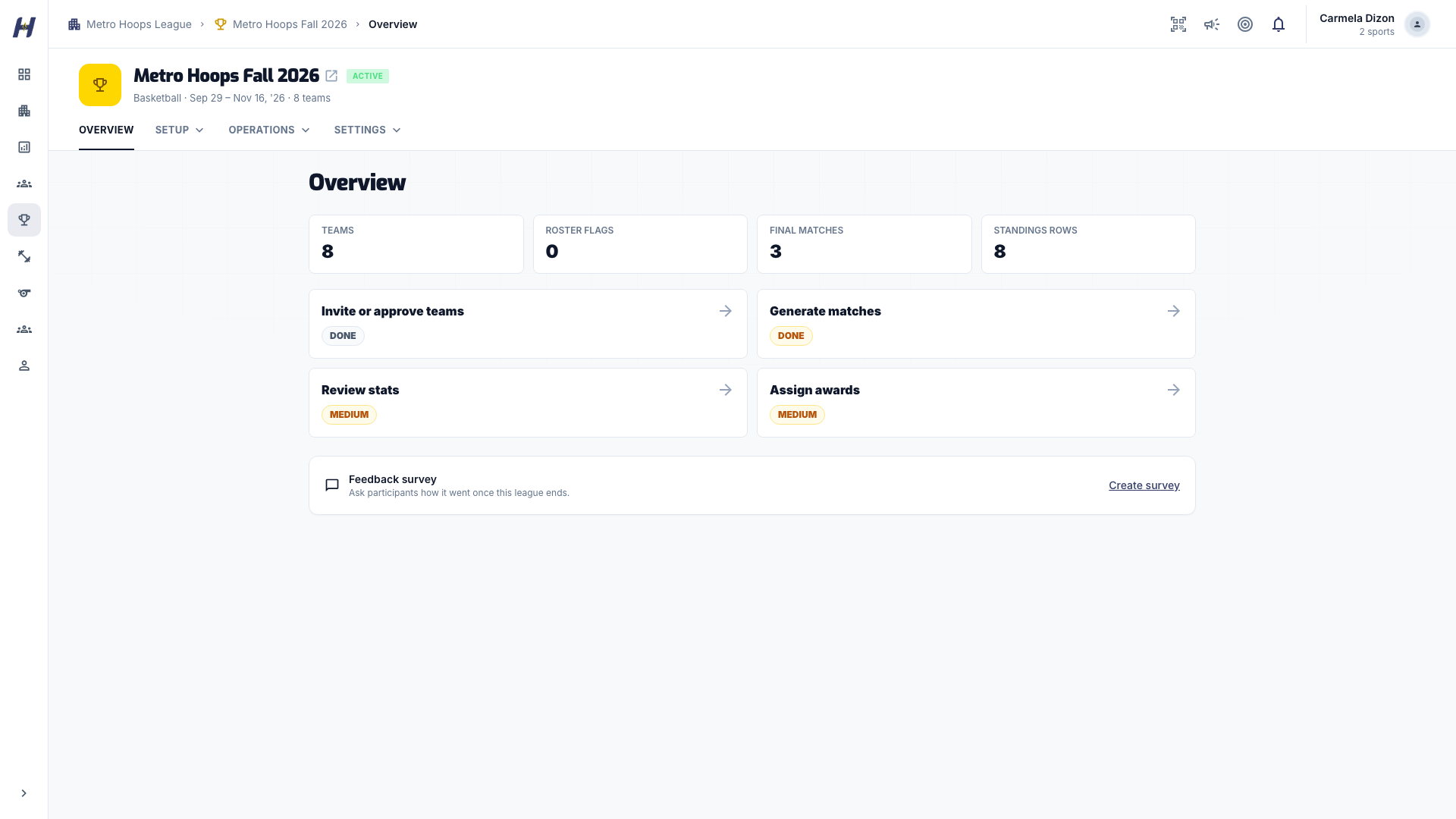
Open the league and select Manage. The header keeps Overview visible and groups the rest into three menus. Select the league name in the header to return to the public league page.
| Menu | Pages |
|---|---|
| Setup | Details, Rules & Scoring, Teams & Roster (or Entrants for pickleball and racquet leagues) |
| Operations | Matchmaking, Teams & Players, Roster Audit, Join Requests, Awards, Announcements |
| Settings | League Status, Payment Plan, Templates, Danger Zone |
Run the season
Confirm the field
Open Operations > Teams & Players to see every enrolled team and its league roster. Check Join Requests for applications and invitations that still need an answer. Open Roster Audit to see age, roster-size, and duplicate-player warnings for enrolled teams. Warnings are advisory: they never stop a team from playing.
Add a player after a team joins
Add the athlete to the organization team first. Then open Setup > Teams & Roster, select Add players on that team, choose the athlete, and confirm Add players. This changes this league's roster only. Repeat it in any other league where the team should include the athlete.
Build and publish the schedule
Open Operations > Matchmaking and follow Create and schedule matches. Build the schedule after the field is final so you do not rebuild it later.
Keep the schedule current
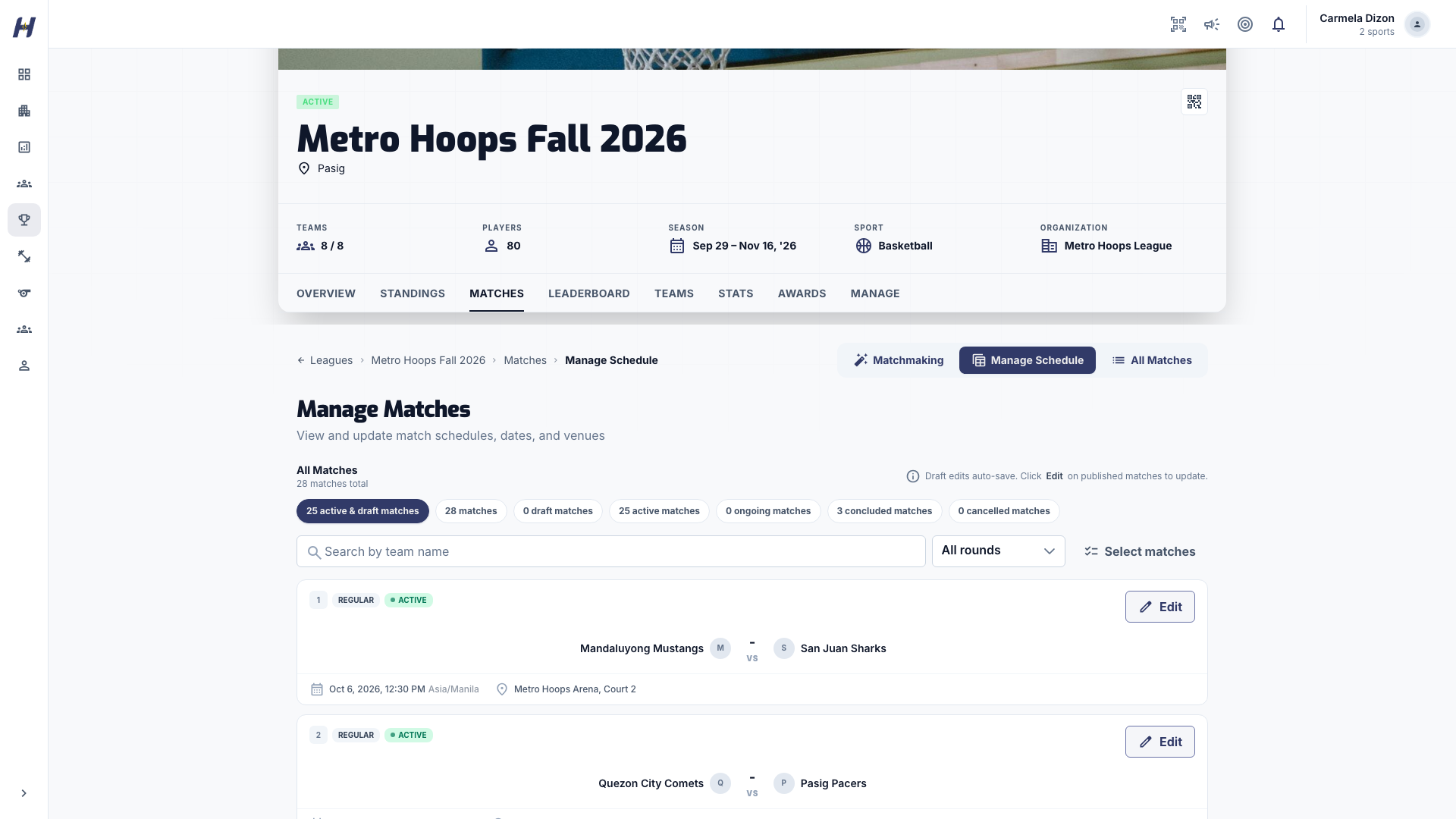
On the league's Matches tab, select Manage Matches. Find a game with the team search, round filter, or status filter, select Edit, and change Date & Time, Location, or Court booking. Draft changes save automatically. For a published game, select Save.
Prepare and run each game
Before each game, check Match readiness. On game day, open the match and select Start Game Day. See Game Day overview.
Track results
The public league tabs update as games are concluded: Standings, Matches, Leaderboard, Stats, and Awards. Use Print Boxscore on a finished match when you need a paper copy. Printing does not change the result or standings.
Close out the season
Generate playoffs if your format has them, then assign season awards. See Standings, playoffs, and awards. When the final is decided, move the league to Concluded.
Change the league status
Open Settings > League Status. A league can move only along these paths:
| From | Can move to |
|---|---|
| Draft | Active or Inactive |
| Active | Ongoing, Inactive, Draft, or Concluded |
| Ongoing | Concluded or Inactive |
| Concluded | Inactive or Active |
| Inactive | Active or Draft |
- A league can move to Ongoing only after its schedule exists and at least one match is active or completed.
- A league can be concluded only after a finals match has a winner, or after a champion is saved in Awards.
- A concluded league hides Matchmaking. Move it back to Active to reopen it.
Fields that lock after publishing
A draft league can be edited freely. After that, Details and Rules & Scoring show a banner that says what is locked:
- Active, Ongoing, or Inactive: sport, competition format, start date, teams, and sport rules are locked. Everything else can still be saved.
- Concluded: only the name and description can be updated.
If you change a locked field anyway, a red banner lists it and the rest of the form still saves. To change a locked field, move an Active or Inactive league back to Draft, make the change, and publish again.
Reuse a season with templates and rollover
Open Settings > Templates:
- Save as Template keeps the setup shape: basics, fees, join mode, sport rules, bracket and playoff setup, schedule pattern, and checklist items.
- Rollover Season creates a new draft league from this one. It does not copy teams, rosters, matches, scores, receipts, invitations, named staff, court bookings, or uploaded media. Add the new season's teams on purpose so old rosters do not carry over.
The organization's Leagues page also has a Templates library, and the Create a league dialog offers Start from a saved template.
Troubleshooting
A team says it cannot join
Check Join Mode, Max Teams, the team's sport, and whether one of its players is already on another team in this league. Age and roster-size rules only add warnings.
"League cannot be moved to ongoing without generated matches."
Build the schedule in Matchmaking and start or finish at least one match first.
"League can be concluded only after a finals match has concluded with a winner..."
Finish the final, or save a champion in Manage > Awards, then conclude.
"Maximum teams cannot be set below the current team count."
Remove teams first, or enter 0 for no limit.
I cannot find a completed game in Manage Matches
The default Active & draft filter hides finished games. Choose Concluded or All statuses.