Create a training
A training is a program your organization runs for players, such as a weekly skills class or a four-week camp. Use Quick setup for an ongoing weekly program, or Customized when you need a fixed curriculum, age limits, or every setting at once.
Before you start
- Make sure your organization lists the sport you will teach. A training can only use one of your organization's Training-enabled sports.
- Decide the schedule style: a package of sessions from a weekly schedule, or a fixed curriculum of dated classes.
- Know your venue, dates, the number of players you can safely accept, and the fee (or ₱0 for a free program).
Choose the schedule style
| Schedule style | Use it when | What HustlX does |
|---|---|---|
| Number of sessions | Players get a package, such as 8 sessions from a Monday and Wednesday practice. | You add one weekly schedule and the included session count. HustlX reserves that many upcoming dates for each participant. |
| Curriculum | Every class is planned ahead with its own topic, date, and time, such as a camp. | You add each class as its own session. The fixed list becomes each participant's schedule. |
Quick setup always creates a Number of sessions program. Use Customized for a curriculum.
Create the training
Open the create dialog
In your organization's Manage area, open Trainings and select Create training. You can also use Create > Training in the Manage header, or Create Training in your dashboard quick actions.
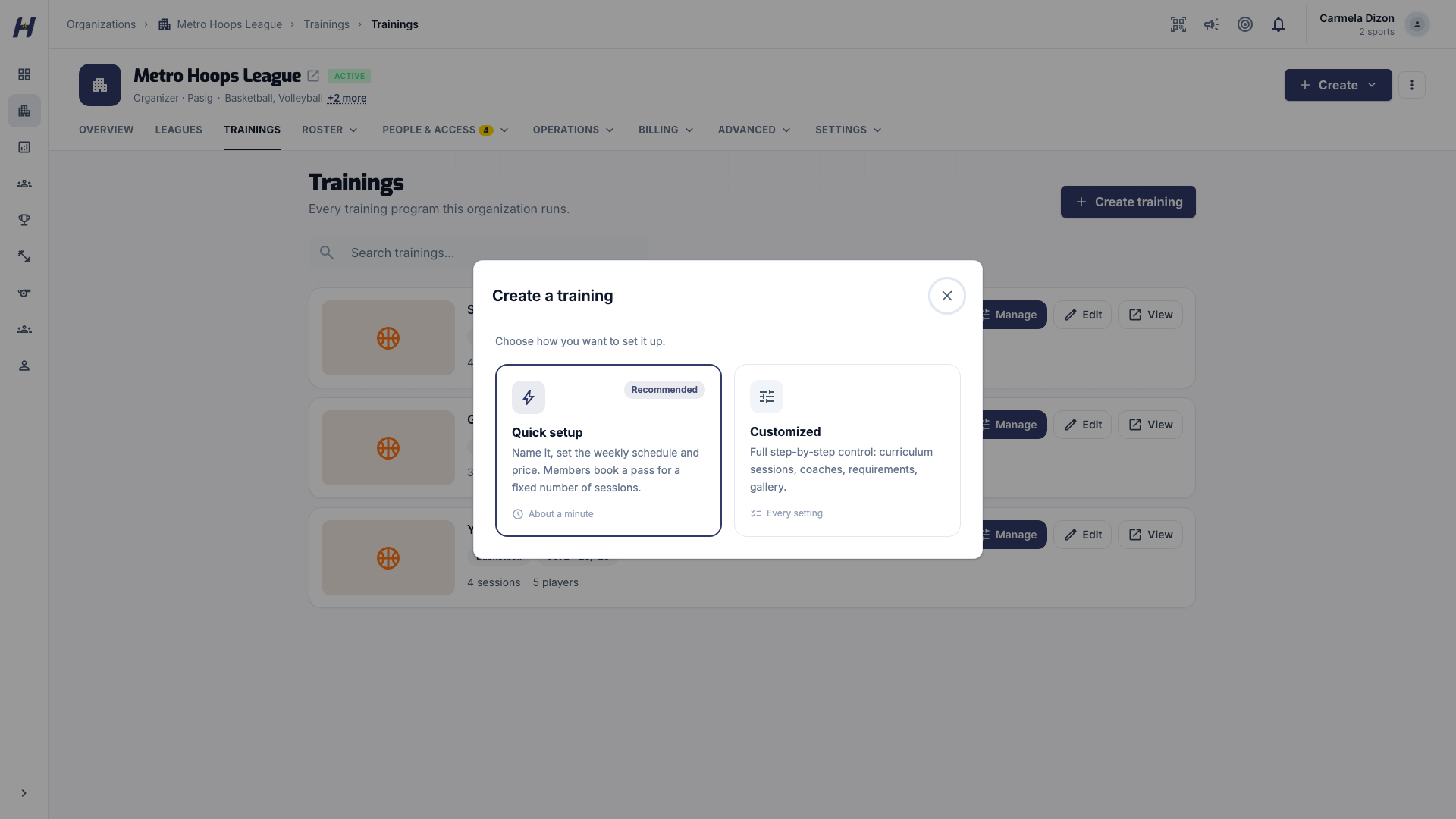
Choose Quick setup or Customized
- Quick setup (recommended): one short form for a weekly program where members book a pass for a fixed number of sessions.
- Customized: a five-step page with curriculum sessions, coaches, requirements, and a gallery.
Fill in the setup
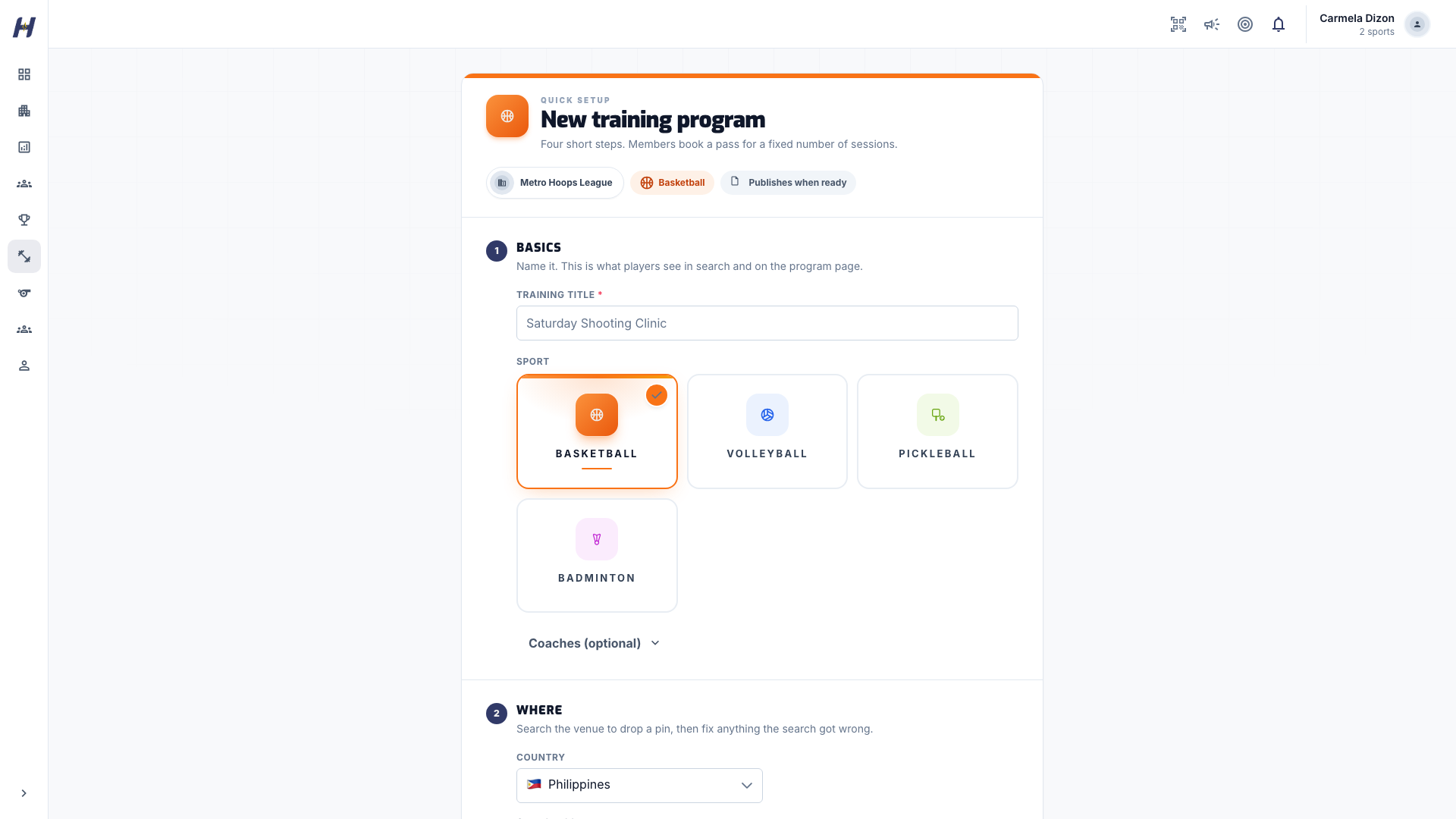
The New training program form has four sections:
- Basics: Training title, the sport, and Coaches (optional). Organization appears only when you manage more than one organization, and the sport cards appear only when your organization has more than one Training sport.
- Where: search the venue to drop a pin, then fix anything the search got wrong. Address Line 1, Region, City / Municipality, and the map pin are required.
- Weekly schedule: the repeat days, Starts at and Ends at times, the Starts date, and Ends (optional). Turn on Allow players to choose training days if players may attend only some of the days.
- Capacity & pricing: Max players (starts at 20), Sessions included (starts at 8), and Session Fee (starts at ₱0).
If the end date is too early for every included session, the form says how many sessions fit. Extend the end date, add repeat days, or lower Sessions included. HustlX writes the description from the schedule, for example "Runs Every Saturday, 8:00 AM to 10:00 AM. Members get 8 sessions."
Select Create training.
The Create New Training page has five steps in a left progress panel. Select Continue after each step, Back to correct one, or Save as Draft at any time.
- Basic Info: Select Organization, Title, sport, cover image, Description, and the Booking rules switch Allow players to choose training days. Sports with skill tags, such as football and futsal, also show Training Focus Tags. Issue a completion certificate is on by default.
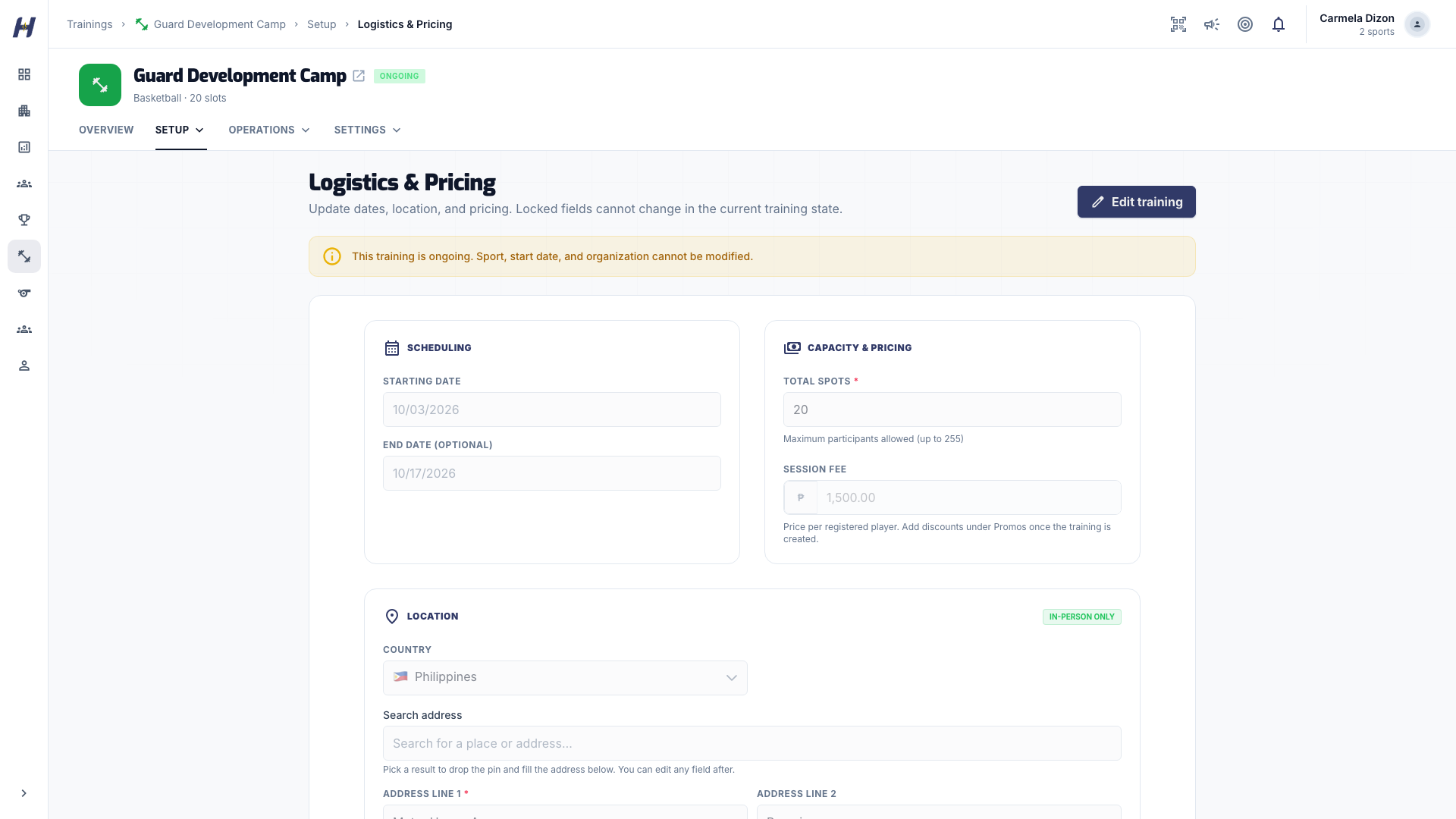
- Logistics & Pricing: Starting Date, End Date (optional), Total Spots, Session Fee (the price per registered player), and the location.
- Requirements & Prep: optional Min Age and Max Age. Max Age cannot be lower than Min Age.
- Training Sessions: choose the Session mode. For Number of sessions, enter Included sessions and add one weekly session with Add Session (later Edit template). For Curriculum, add each class with its own Session Title, date, and time.
- Review: check the summary.
Turning on player-chosen days needs a training with no end date. If you set an end date, HustlX asks you to Turn off player selection or Keep training ongoing.
Publish or save as a draft
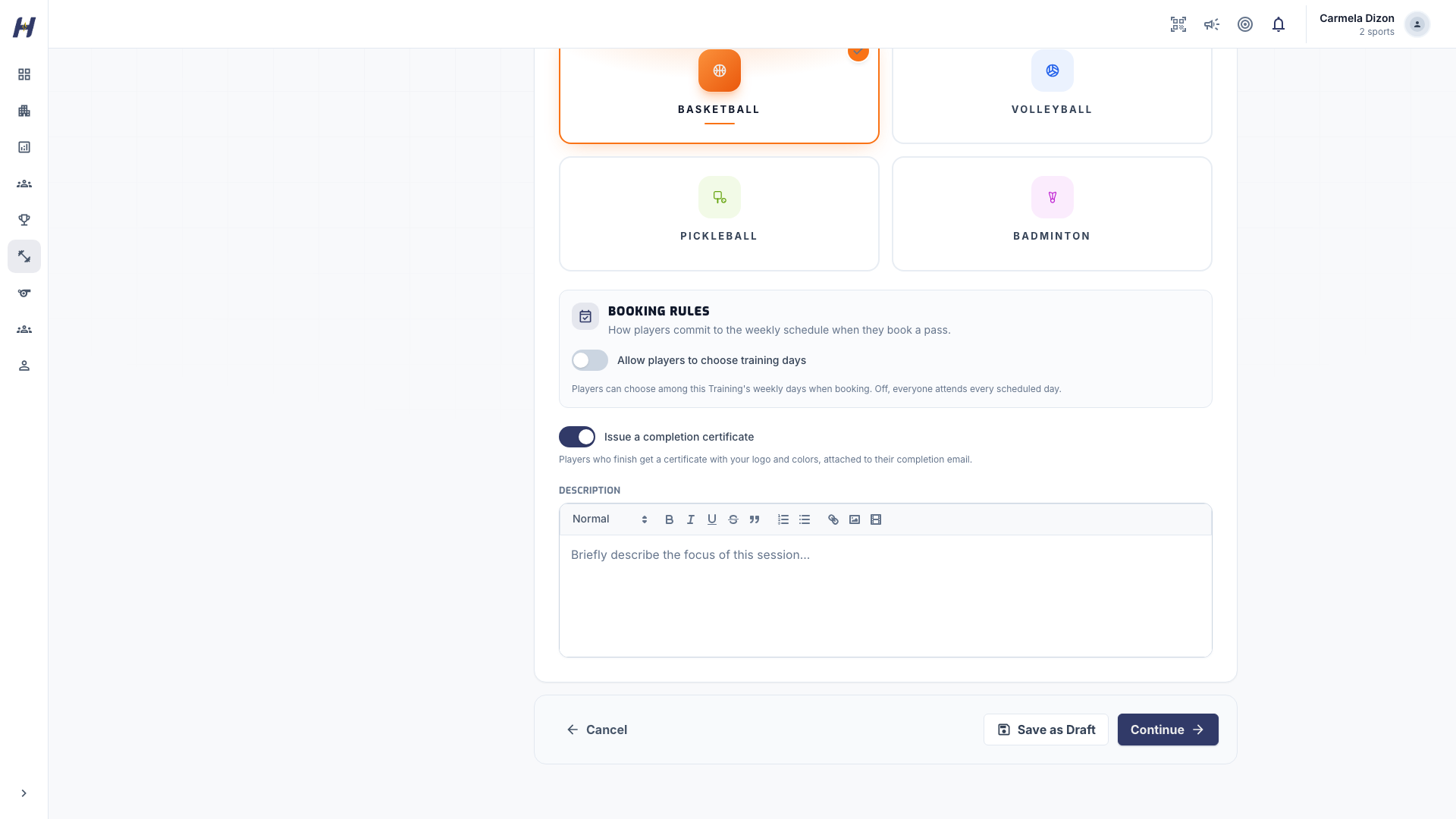
Quick setup saves the training and publishes it right away. On the Customized Review step, select Publish Training or Save as Draft.
If publishing is blocked, the training stays a draft and HustlX says what to fix. A draft with no sessions shows Add a Session Before Publishing on its page. Publish later from Manage > Settings > Training Status with Publish Training.
Change settings after you create it
Open the training and select Manage Training. The Setup group holds Basic Info, Logistics & Pricing, Requirements & Prep, and Training Path. Change the fee, dates, spots, or location under Logistics & Pricing.
Add discounts under Manage > Settings > Promos instead of lowering the fee. See Create training promos.
When a training has a fee, Manage > Settings > Payment Plan can offer Two-part payments through hosted checkout, or Organization-collected installments when HustlX has turned on direct payments to your organization. Neither option appears on every account.
For organization-collected installments, use calendar dates when everyone belongs to the same fixed batch. For an ongoing session package, choose participant session numbers: the first installment is paid at registration, and later installments are due before the selected session in each participant's own booked package. For example, a balance due before session 4 follows that participant's fourth booked session even when they join later. Session-based deadlines require registration to activate after the first verified installment.
Payment Plan changes apply to new registrations only. Existing participants keep their saved installment amounts and deadline rules.
Share a published training
- Open the published training and check its details, schedule, location, and registration state.
- Copy the public training URL from your browser's address bar.
- Paste the link into your message, email, or social post.
Players can browse the page without an account and select Register (or Register & Pay when there is a fee) when they are ready. Do not share a draft link, and never share a participant's access pass QR code: it is for entry only.
Paid Training Launch Gate
Paid Training remains disabled by default. It is not a launched public checkout or settlement product merely because pricing fields, payment-status records, or a generic payment handler exists.
Organizations may prepare paid Training drafts. Publication, payment acceptance, future-session additions, and price changes require all of the following:
- Training Payments enabled for the organization. HustlX turns this on.
- An active organization with the Training capability.
- An authorized organization user with the exact
manage_subscriptionauthority. - Current commercial terms acceptance recorded for the organization.
- Provider and legal approval of the paid-Training launch gate.
A verified settlement destination is not required for publication or eligible bookings. Payout setup and payment acceptance are separate.
Paid Training eligibility is independent of Annual Registration and organization payment-provider account readiness. HustlX does not create or require a separate organization payment-provider account for this flow.
When you publish a training with a fee, HustlX may first ask an authorized administrator to accept the current commercial terms. Until every requirement above is met, keep a priced training as a draft and do not collect money outside the payment options HustlX shows.
What happens next
- Players find the training on the public Trainings page and send join requests. Review them in Review join requests and participants.
- Run sessions and record attendance in Run sessions and attendance.
- Collect paperwork with Require training documents and coach players with Feedback Forms (see Score players and share feedback). Players read shared evaluations in My Feedback.
Troubleshooting
Why is Create training missing?
Check that the organization is approved, has Training turned on, has finished onboarding, and that your role includes training management.
Why can't I pick my sport?
The sport must be on your organization's profile and enabled for Training. Ask a platform admin to enable Training for that sport if none are listed.
Why did my training stay a draft?
A curriculum needs at least one session, and a priced training must meet every requirement in the launch gate above. Open the training to see the reason, fix it, and publish again.
Related guides
Game Day v2 keyboard
Watch one basketball game scored on Game Day v2 from the keyboard, from Start Game Day to the live match page and the MVP race, in under three minutes.
Sessions
Add and change training sessions, move or cancel one date of a weekly session, and record attendance by hand or by scanning access passes.