Run a match on Game Day
Game Day is the live scoring console for a league match. You open it from the match page, so HustlX loads the right teams, rosters, rules, and score. This page covers opening the console and finding your way around. The guides that follow walk through each phase of a match.
Before you start
- Create the fixture and set its date, time, and venue. See Create and schedule matches.
- Check both rosters. Claimed, unclaimed, guest, and imported players can all play and be scored. See Match readiness if your crew uses it.
- Use one signed-in device per operator, online, with the screen kept awake.
Open Game Day
Open the match
Open your league, go to Matches, and select the fixture. Check the teams, date, time, and venue.
Select Start Game Day
Select Start Game Day at the top of the match page. For a match that is still scheduled, HustlX asks Start game day for a scheduled match? and shows the date and time. Select Start Game Day again if it is the right fixture.
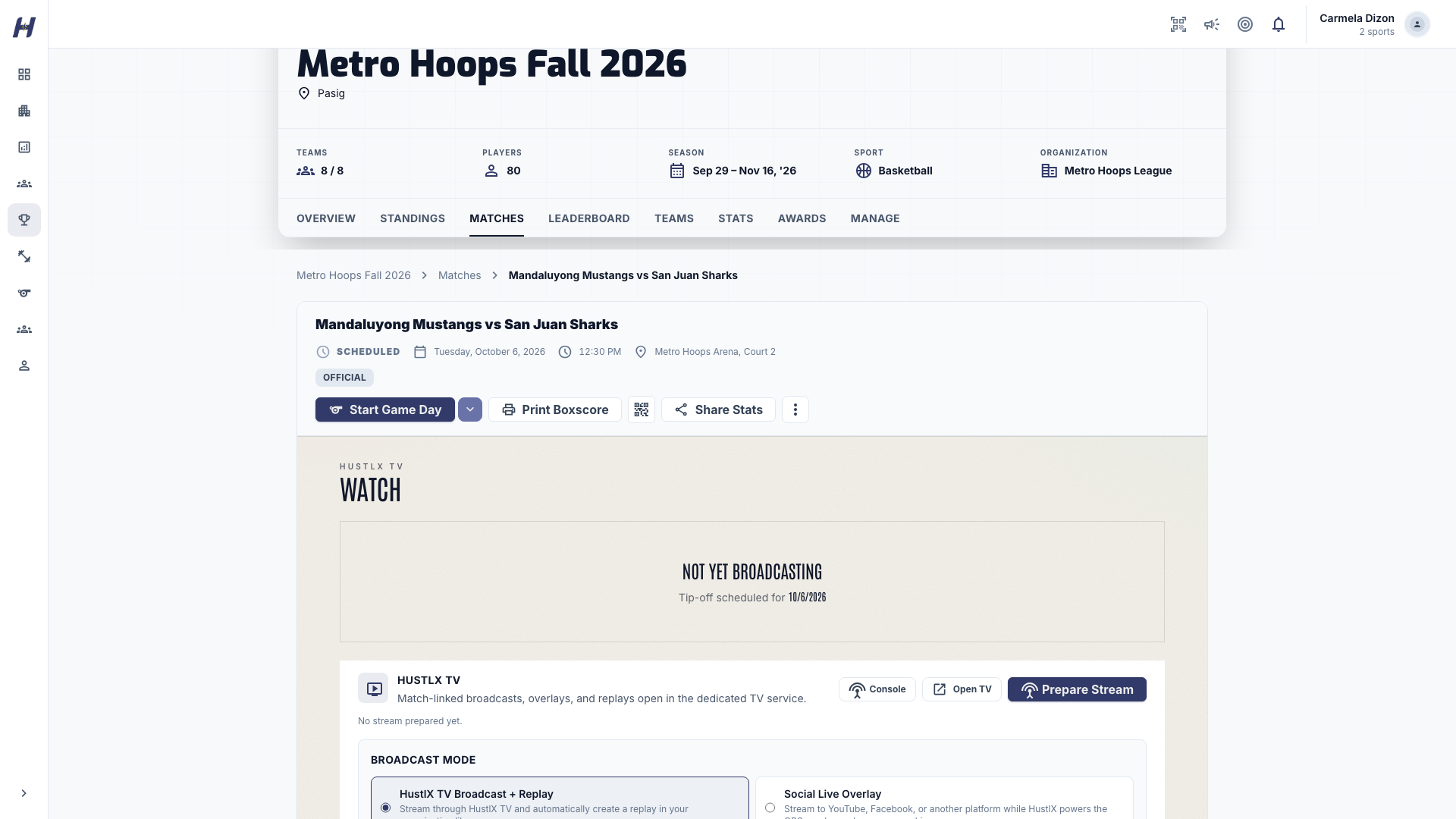
Choose a console layout (basketball only)
The arrow next to Start Game Day on a basketball match lets you pick Game Day (the classic console with buttons) or Game Day v2 (built for the keyboard: tap a player, then press one key). Both record the same match. If you are not sure, use Start Game Day, which opens the classic console. To see v2 in action, see Watch the Game Day v2 keyboard video.
Find your way around
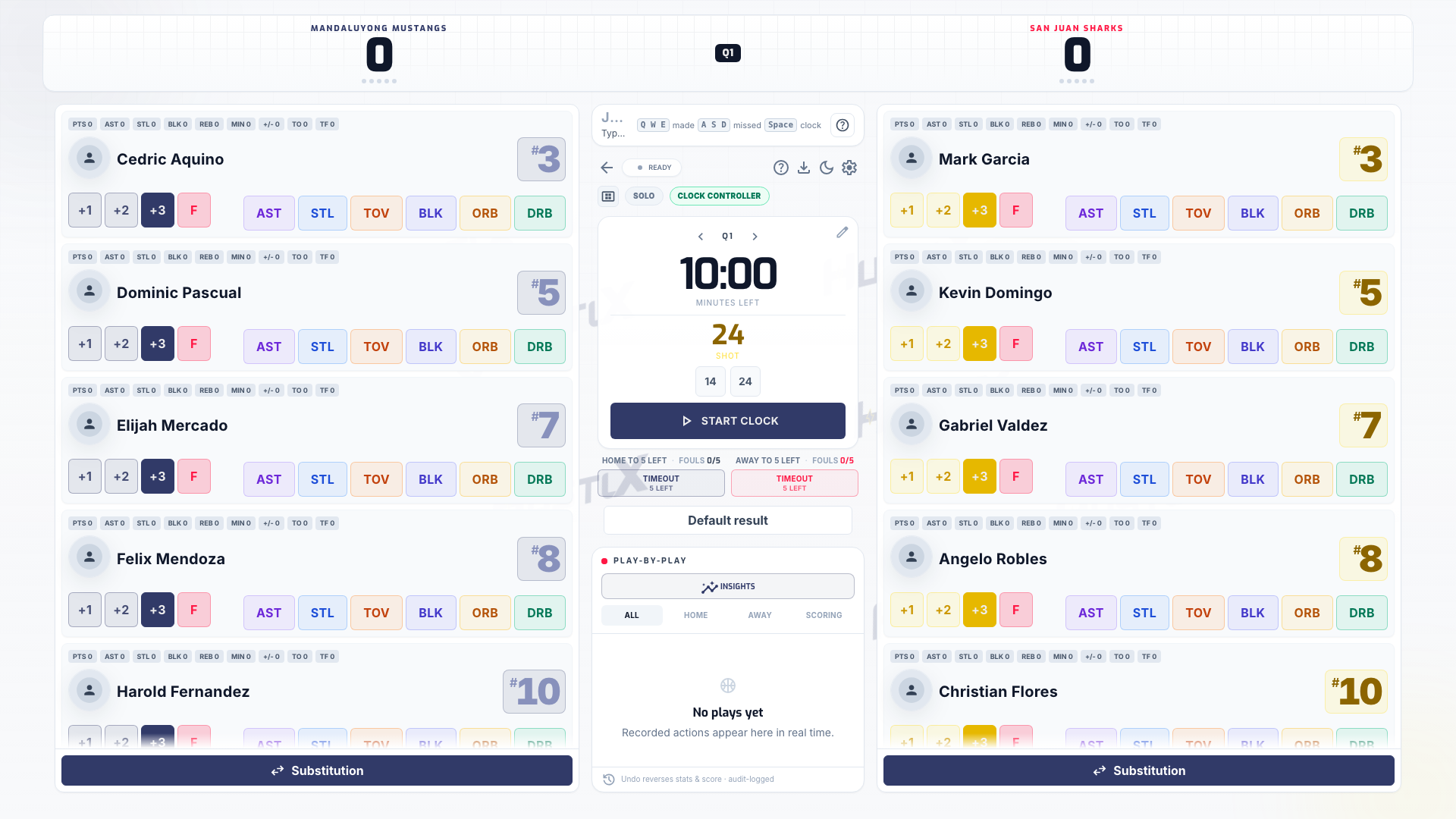
The console layout depends on the sport.
- Team panels: each team's players, with shot, stat, and foul buttons, plus Substitution.
- Scoreline: the score, possession, period, and team fouls.
- Clock: play and pause, the shot clock and its reset buttons, Previous period and Next period, timeouts, and the match action button (Start Match, Start Overtime, or End Match).
- Play-by-play: every recorded action, newest first, each with its own undo button.
- Header icons: the back arrow to leave Game Day, compact mode, the focus chip, the clock controller status, Open tutorial, Download CSV, light or dark theme, and settings. :::::
- Team panels: players with the action pad (Point, Kill, Ace, Block, Dig, Assist, Service Err, Attack Err), Timeout, Substitutions, Rotation error, More faults, and sanction cards.
- Court diagram: rotation positions and the current server.
- Set strip: set scores, Complete Set, and Conclude Match.
- Play-by-play: recorded rallies, Undo last, and an undo button on each row. :::::
- Workflow bar: match status, the score, Edit team sheets before kickoff, and Start Match or Conclude Match.
- Match clock: periods, stoppage time, and Edit match clock.
- Team actions and pitch board: goals, assists, shots, saves, fouls, cards, corners, offsides, substitutions, and possession. Futsal also tracks timeouts and accumulated fouls.
- Event timeline: every event with filters, an undo button on each row, and Undo last. :::::
Table Tennis opens its own scoring console with point buttons, game scores, service order and scorecard review. Optional point details record the rally outcome and length. You can score without those details. Default-result controls include retirement, walkover, no-show, default and disqualification; check the affected side in the confirmation before submitting.
If a Table Tennis command needs recovery, use Retry last command, Retry reload, or Reload official state as shown on the console. The pending command survives a reload in the same browser tab and operator session. Other writes stay disabled until recovery settles. Reloading or reconnecting does not establish that the server accepted a point; recovery reads or retries the saved command against the server. Keep using the console online.
Pickleball and badminton matches open their own scoring screen from the same Start Game Day button. See Pickleball leagues and Badminton leagues.
Share the table across devices
More than one operator can work the same basketball match, each on their own device.
- Focus: open settings (the gear icon) and choose the Focus tab. Pick a preset such as Solo, Lead Table, Clock, Team A Stats, Team B Stats, Team A Points, Team B Points, or Reviewer. Focus only shapes your screen. It is saved on your device for this match and never blocks another operator.
- Clock controller: one device runs the clock at a time. The header shows Clock controller on that device and Controlled by with the operator's name on the others. If you have the Clock or Lead Table focus and tap a clock control, you take over the clock right away, and both devices see a short notice such as You took the clock from the other operator.
For football and futsal, taking over a clock that another device is running asks Force clock takeover? first. Select Take over to continue.
The phases of a match
- Set lineups and start the match
- Record scores and stats
- Use subs, timeouts, and undo
- End a match and review awards
Troubleshooting
I do not see Start Game Day
Check that your role can manage leagues, that the league is not a draft, and that the match is scheduled or live. A concluded or cancelled match does not show it. Being on the match crew as a scorer does not add the button by itself.
The console says Session Expired, Invalid Session, or No Game Day Token
The console session lasts about four hours and must start from the match page. Select Go Back, return to the match, and select Start Game Day again.
The console says You Are Offline
Reconnect, then open the match on the same device. Actions you recorded offline stay on that device until they sync. See Use subs, timeouts, and undo.
The console says Game Ended or Match Concluded
The match is already final. Select View Results or View Match Result to review it.