List your court
Court owners and venue managers use HustlX Courts to take bookings for basketball and volleyball courts. A personal court belongs to you and lives in My Courts (/my/courts). A court run by an organization lives in that organization's courts workspace (/organizations/<your-org>/courts).
Before you start
- Create your account and verify your email.
- Have the court's address, hourly rate, weekly hours, and a verification document ready (a permit, lease, deed, or other proof of ownership).
- Have at least one way for bookers to pay you, such as GCash, Maya, or a bank account.
List a personal court
Start as a court owner
On courts.hustlx.com, select List your court. When you register, turn on I'm a court owner. The setup wizard then walks you through Payments, Court Details, and Review. If you already have an account, open My Courts and select Add Court instead.
Add a payment method
Choose a Type (GCash, Maya, Bank transfer, or Other), then enter a Label, Account name, and Account number. You can add a QR Code Image. Select Save Payment Method.
Enter the court details
Fill in the court form:
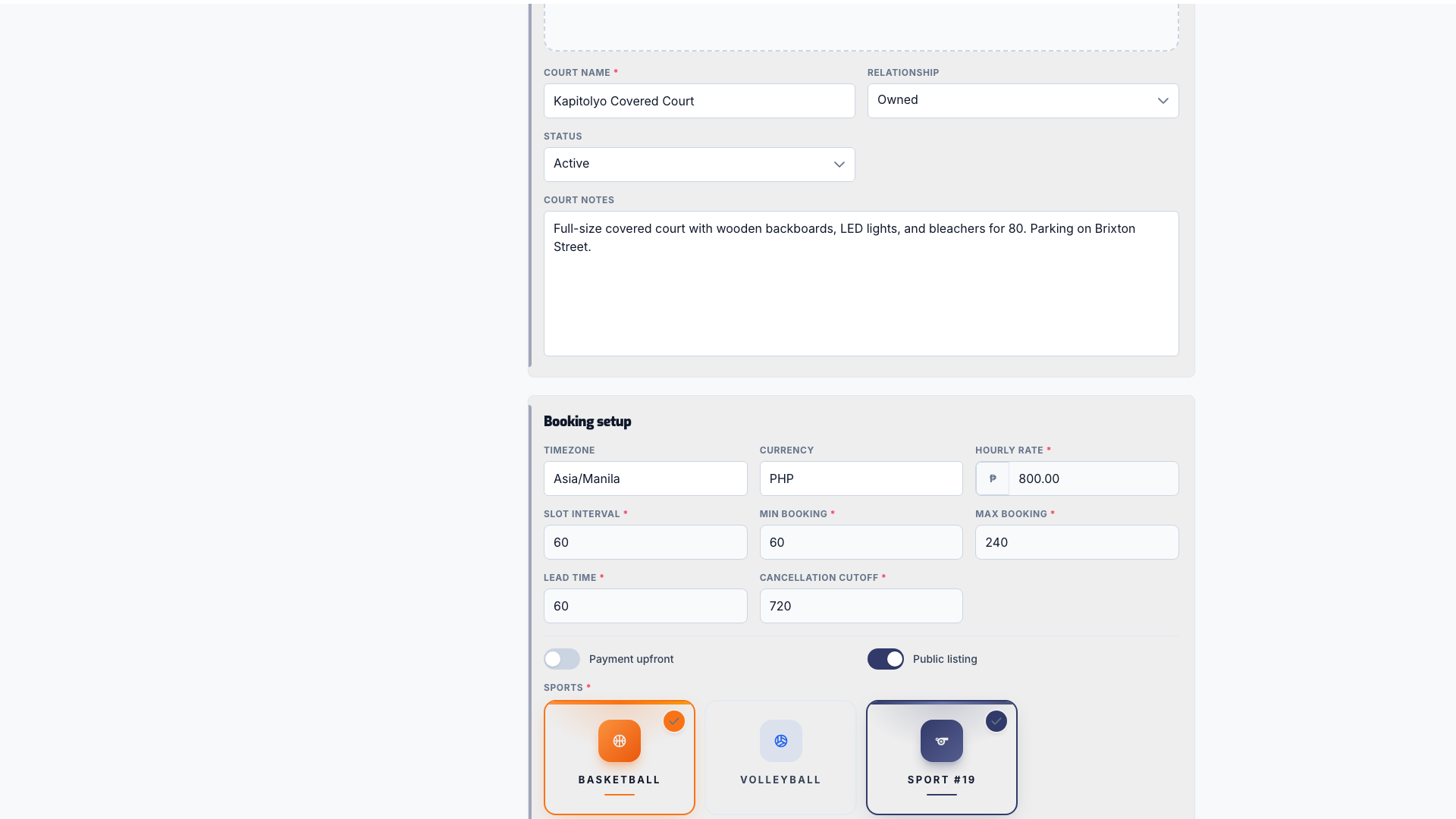
- Listing Details: Court name, Relationship (Owned or Affiliated), and Status.
- Booking setup: Timezone, Hourly rate, Slot interval, Min booking, Max booking, Lead time, Cancellation cutoff, Payment upfront, Public listing, the supported sports, Playable unit, and Surface.
- Location and Availability: add the address and at least one weekly window with a Day, Start, and End.
Upload verification documents
Add a Verification document and select Submit Court. You can add more later from your court's Documents page with Upload Documents.
Finish setup
On Review, select Go to My Courts. Your court is saved as a draft.
Get your court ready for bookings
A new personal court starts as a Draft, private, and pending verification. Saving a court does not make it public. Players can only find and book a court that is active, public, and verified.
Open the court from My Courts and check the readiness panel. It lists what is still blocking public booking:
- Set court active and Publish court (turn on Public listing)
- Submit verification, then wait for admin verification by the HustlX team
- Add a location, Add supported sports, Set a positive hourly rate, and Add availability
- Add a payment method when the court requires payment upfront
When every item is cleared, the panel shows Ready. You can preview a draft or private court with Preview, but other users cannot see it.
Manage your court
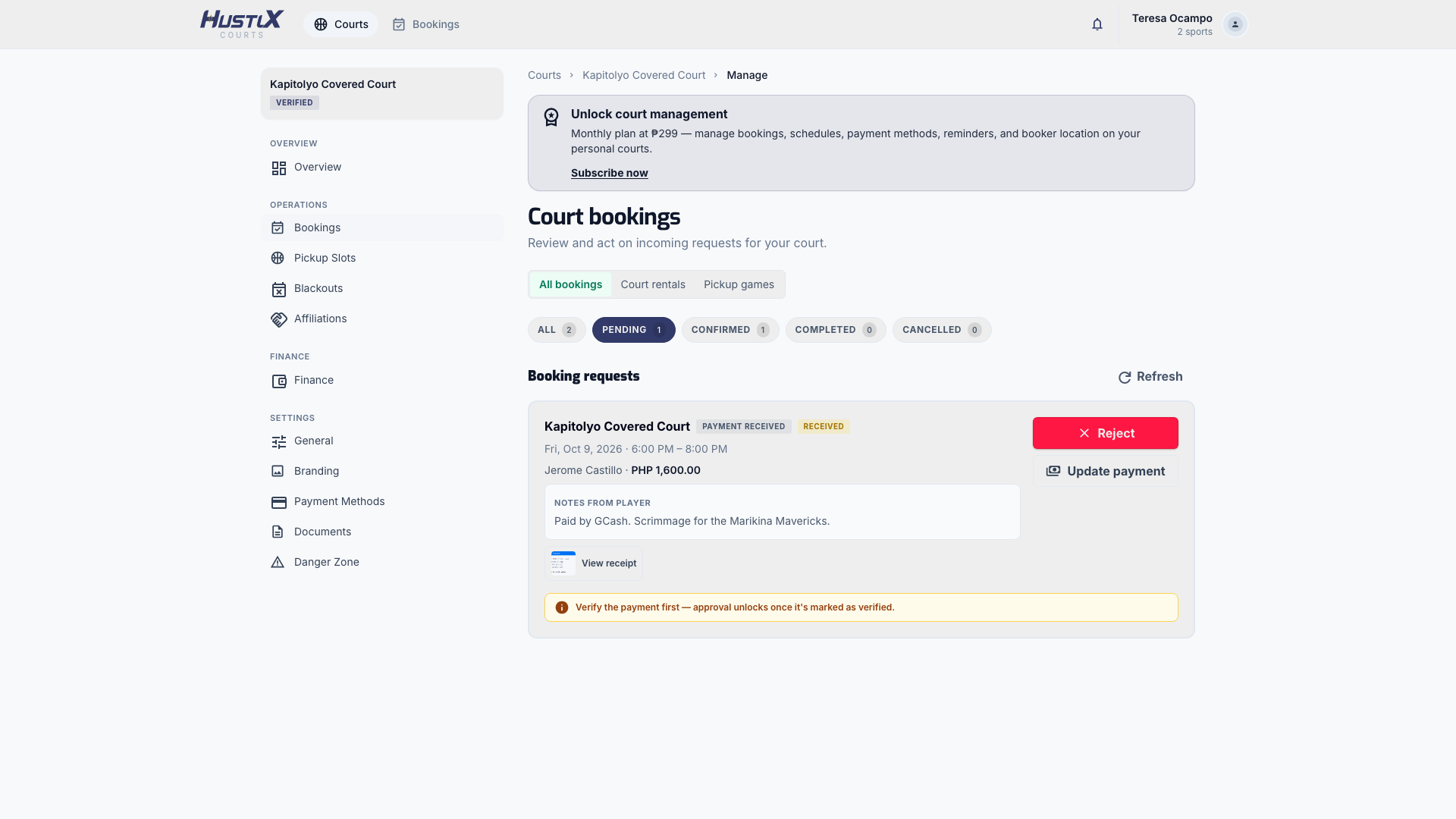
From My Courts, select Manage on a court. The sidebar has Overview, Bookings, Pickup Slots, Blackouts, Affiliations, Finance, General, Branding, Payment Methods, Documents, and Danger Zone.
Review booking requests
Open Bookings. For a request paid by receipt, select View receipt, then use Update payment status to mark it Verified. Approve booking unlocks only after a paid booking is verified. You can also Reject booking with a reason, Cancel booking, or Mark complete after play.
Bookings paid through online checkout confirm automatically once the payment is verified, so you do not approve them by hand. When you owe a refund, it appears under Refunds owed. Pay it back yourself, then select Mark refund sent.
Block out unavailable times
Open Blackouts and select Add blackout. Set Start, End, and an optional Reason, such as maintenance, then select Create blackout. Players cannot book those times.
Run open pickup games
Open Pickup Slots. Select New recurring pickup to set a weekly game with Days of week, Start time, End time, Seats, Fee per seat, and Max seats per booking. Under Run rules, set Min seats to run and Auto-cancel before (minutes). Under Payment & cancellation, set Payment hold (minutes) and Cancellation cutoff (minutes). Use New one-off pickup for a single date. Pause, resume, or archive a recurring pickup at any time.
Track court finances
Open Finance to see Gross Revenue, Net Profit, Expenses, Refunds, Subscription Cost, and Booked Time, plus ledger entries. Use Record expense to add an Amount, Source / Vendor, Description, and Date.
Court owner subscription
Some accounts need an active court owner subscription before a personal court owner can change bookings, availability, blackouts, payment methods, court details, or affiliations. Enforcement may not be turned on for every account. Browsing, booking, receipt uploads, and viewing your own manage pages always stay open, and organization courts are never affected.
To subscribe, open Settings > Court subscription on HustlX Courts. The plan is PHP 299 per month. Select Continue to checkout to pay online, or, when manual payment is shown, upload your proof of payment and select Submit for review. A manual request stays pending until the HustlX team approves it. HustlX notifies you when your request is acknowledged, activated, or rejected.
Organization courts
Organization staff work from the organization's courts workspace in HustlX Courts. Use the organization menu for Org Courts, Add Court, Calendar, and Booking Review. Organization courts use the organization's payment methods, and booking review works the same way as for personal courts.
To link a personal court to your organization for league scheduling, open Manage > Court Affiliations in the main HustlX app and send an invite. The court owner accepts or declines it under Affiliations.
What happens next
- Once verified and ready, your court appears in the public Courts catalog. See Book a court.
- HustlX notifies you when a new booking request arrives.
Troubleshooting
My court is saved but players cannot find it.
Check the readiness panel. A court must be active, public, and verified, with a location, sports, a positive rate, and availability.
I cannot approve a paid booking.
Mark the payment Verified first. Online checkout bookings confirm on their own.
An owner action says a court owner subscription is required.
Open Settings > Court subscription and subscribe, or wait for your pending request to be approved.