Manage invitations and join requests
Teams enter a league in two ways. You can invite them, and an authorized team leader accepts. Or, in an open league, a team applies and you approve it. Both happen in the league's Requests Hub.
Before you start
- Set the league's Join Mode and fees. See Set up registration and fees.
- Make sure each team you plan to invite plays the league's sport. See Manage teams and rosters.
- You can invite teams while the league is Draft or Active.
Invite teams
Open the Requests Hub
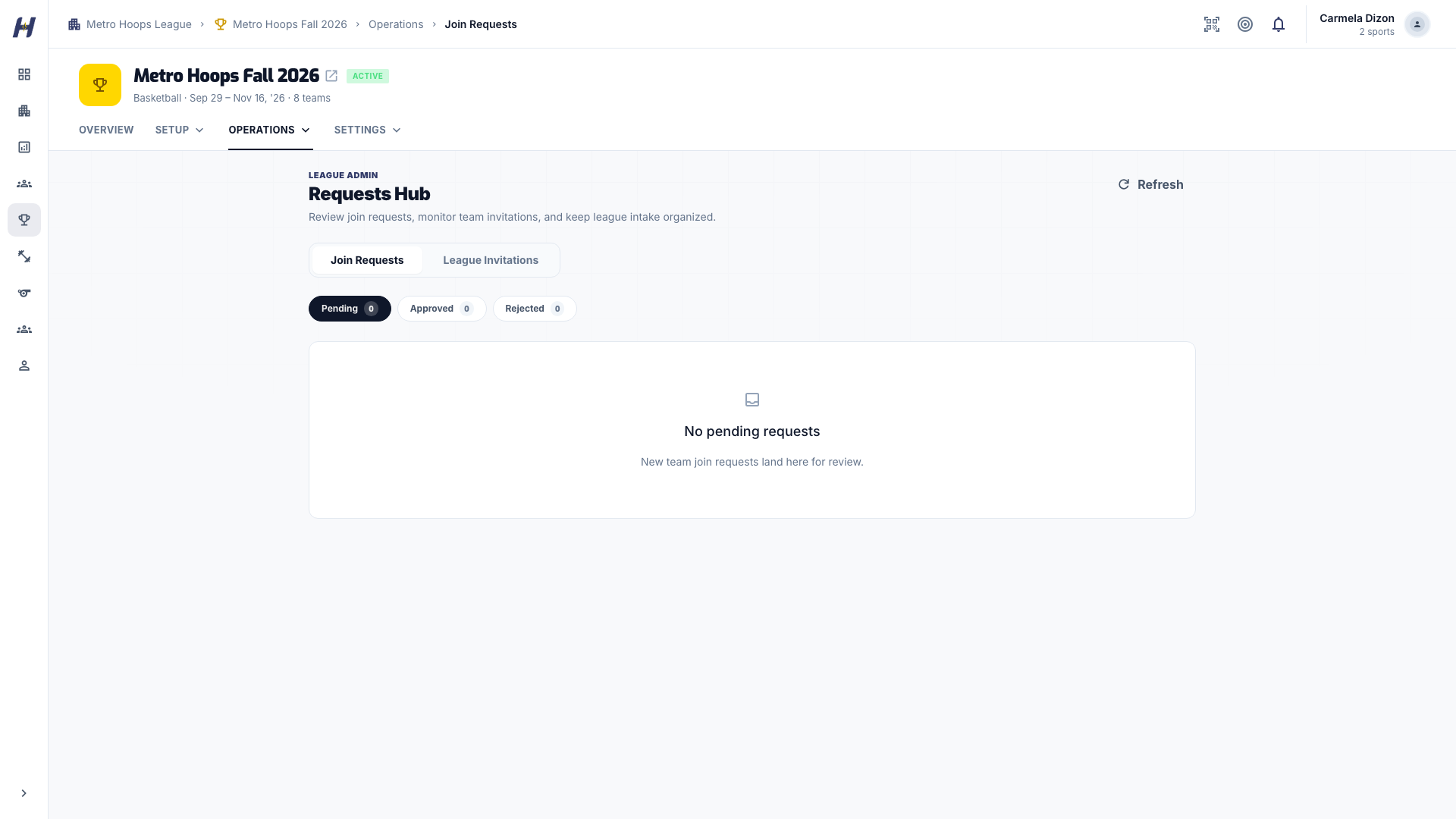
Open the league, select Manage, then Operations > Join Requests. The Requests Hub has two tabs: Join Requests and League Invitations.
Select the teams
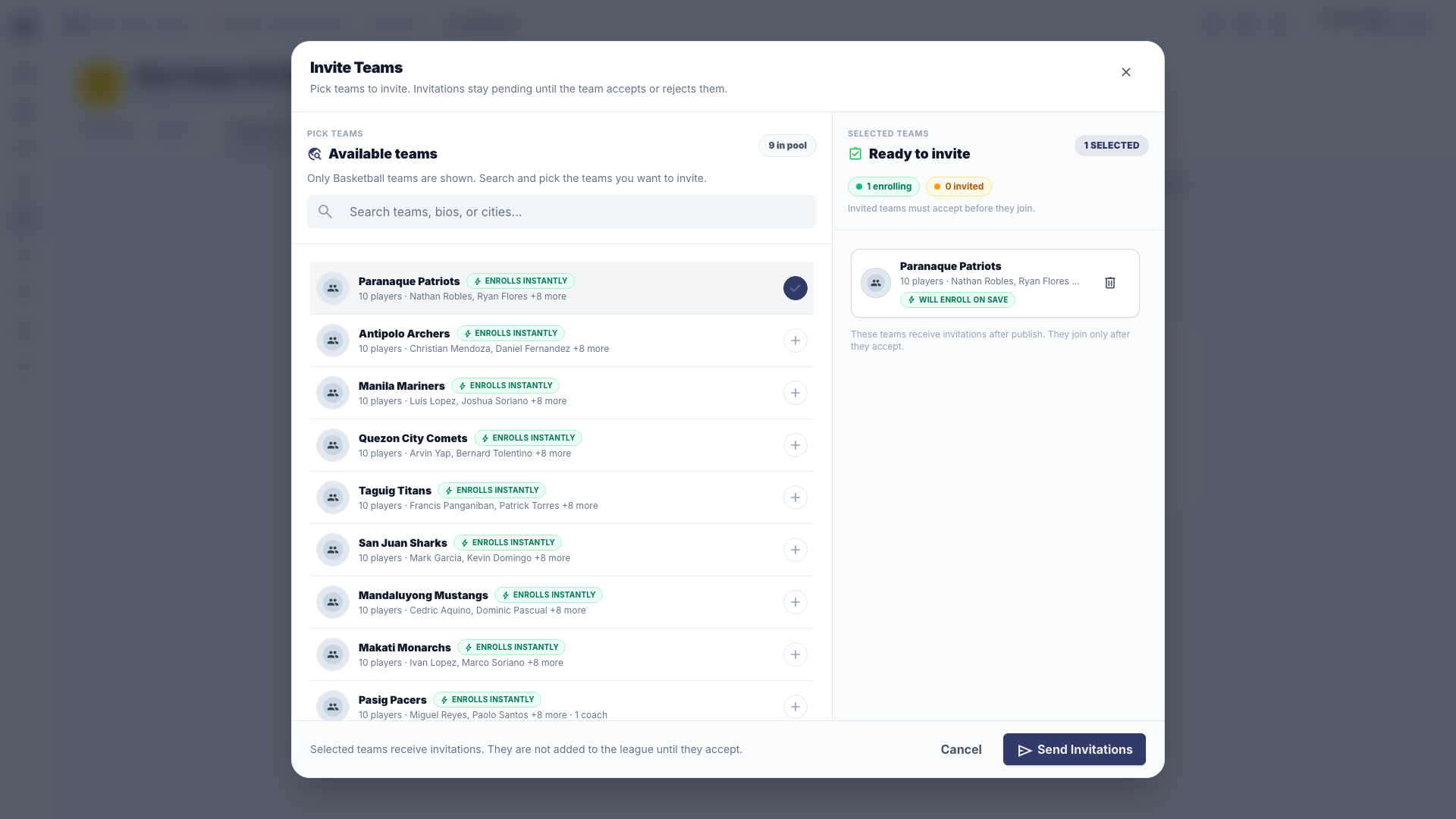
On League Invitations, select Invite Teams. Search the team pool, select every team you want, and review any eligibility messages.
Send the invitations
Select Send Invitations. Each invitation stays pending on League Invitations until the team responds. Sending an invitation does not enroll the team.
Respond to an invitation (team leaders)
The invited team sees a league invitation in its notifications. An authorized team admin, coach, or manager opens the bell menu, finds the invitation for the right league and team, and selects Accept or Decline. Marking the notification as read does not answer it. See Invitations and notifications.
Review a join request
Open pending requests
In the Requests Hub, select Join Requests, then Pending.
Check the request
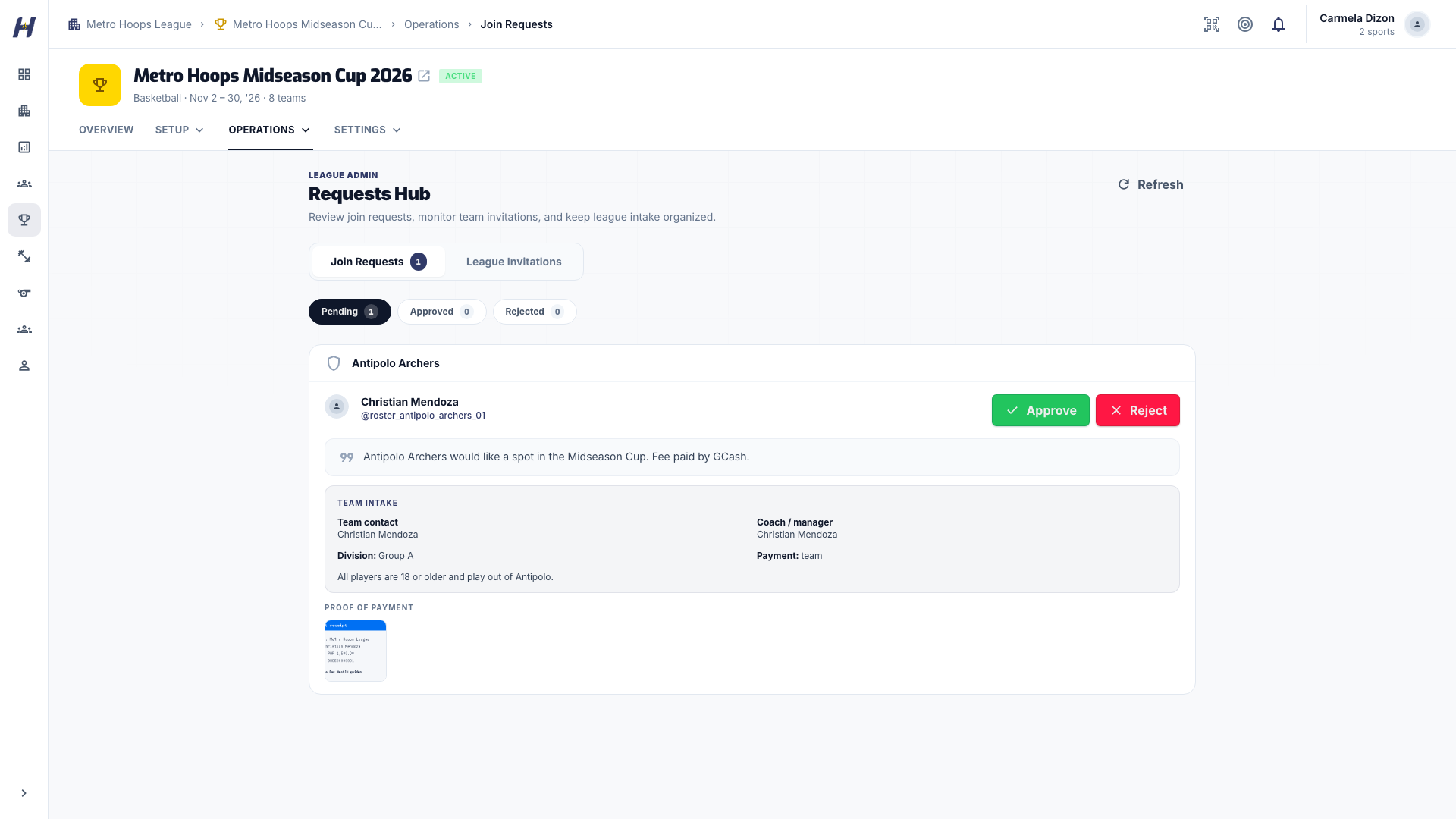
Read the team and submitter details, the message, and any Team intake answers. Eligibility warnings, such as age or roster size, are advisory. For a manual payment, select the proof thumbnail to open the receipt.
Approve or reject
Select Approve. To turn a team away, select Reject, enter a Reason for rejection, and select Confirm Rejection. The request moves to Approved or Rejected.
Approving enrolls the team under the league's admission rules. It does not create fixtures. Online checkout requests are confirmed by verified payment, so you cannot approve around an unfinished checkout.
How a team applies
For an open league, a team captain or manager:
- Opens the league's Overview and selects Register & Join.
- Reviews How to Pay when the league has a fee.
- Selects the team, or uses Register a new team when that option appears. The I will play on this team switch decides whether the person registering joins as a player or as Team Manager.
- Completes the contact and intake fields.
- Pays online when asked, or uploads Proof of Payment for a manual payment.
- Submits the request. A submitted request shows Pending Approval. If online payment was interrupted, Continue payment appears on the league page.
If a receipt upload fails, the team re-uploads it from its request. It does not need to apply twice.
Confirm the field before scheduling
- Open Operations > Teams & Players and check the enrolled teams.
- Return to League Invitations for invitations still waiting on a reply.
- Complete any league team admission the published league needs.
- Build the schedule. See Create and schedule matches.
To close signups, change Join Mode to Invite only in Manage > Details and save. Pending requests are not rejected automatically, so decide each one.
Troubleshooting
"League has reached maximum number of teams."
Raise Max Teams in Manage > Details, or enter 0 for no limit.
"Teams can only be invited to leagues with Draft or Active status."
The league is Ongoing, Concluded, or Inactive. Move an inactive league back to Active from Settings > League Status first.
"Team has already been invited to this league."
The invitation is still waiting for a reply. Check its status on League Invitations.
A player is already rostered on another team in this league
One player cannot be on two teams in the same league. Remove the player from one team, then try again. Roster Audit lists these conflicts.
"Only pending join requests can be approved."
Another admin already decided the request. Refresh and check Approved or Rejected.
"This action is unauthorized." when adding a team to a published league
Team admission checkout needs league management plus subscription purchase authority. Ask the organization owner or a billing admin.
Related guides
Run the season
Use the league Manage area to keep teams, rosters, schedule, and status current from opening day to the final, then roll the setup into next season.
Formats & brackets
Compare round robin, tournament shells, group brackets, second-chance paths, and advanced stages, then pick the setup that fits your field.