Manage the wallet and top-ups
The organization wallet holds funds your organization adds to HustlX. It is a local ledger of credits, debits, and adjustments, so its balance comes from HustlX ledger entries, not from any payment provider balance.
Before you start
- Make sure Annual Registration is active. See Buy Annual Registration and add-ons.
- Know the amount you want to add, in pesos.
What the wallet can pay for
You can use an existing wallet balance at subscription checkout for Annual Registration and annual add-ons. The Wallet option appears only when the balance covers the subtotal. League team admissions are paid through hosted checkout only, never from the wallet.
Wallet top-up and fixed-price entitlement checkout are separate flows. A top-up only adds funds; it never buys an entitlement by itself.
Open the wallet
Go to Wallet & Subscription
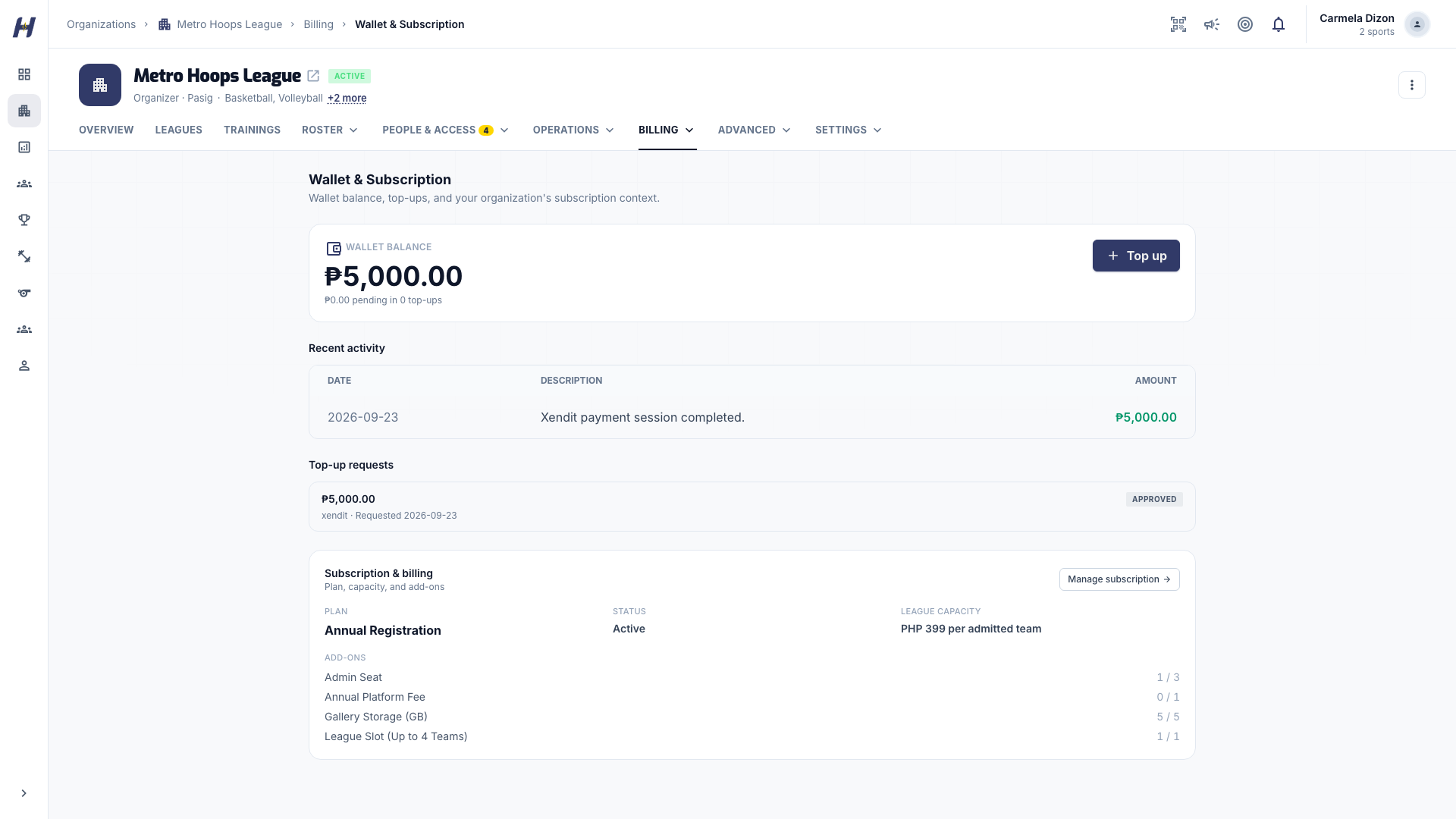
Open your organization's Manage area, then open Billing and select Wallet & Subscription.
Review your balance and activity
The page shows:
- Wallet balance, with the amount pending in open top-ups listed under it.
- Recent activity: date, description, and amount for each wallet entry.
- Top-up requests: each request with its amount, status, and request date.
Add funds
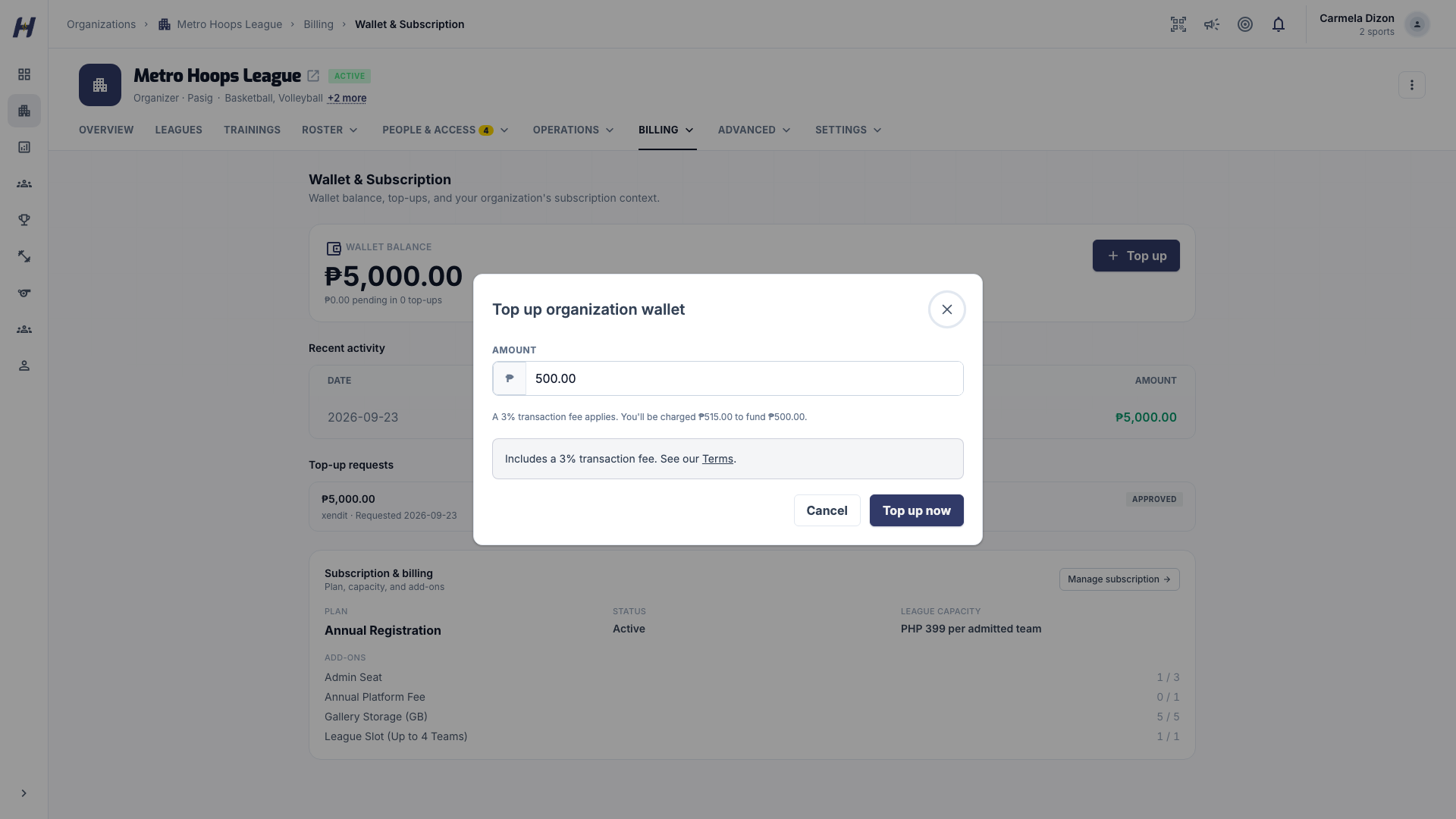
Select Top up to open Top up organization wallet. The dialog uses the path your organization is set up for. There is no selector between them: Top up now means online checkout, and Submit top-up means manual review.
New hosted checkout sessions use the HustlX master payment account. Your organization does not need its own payment account.
Enter the amount
Type the amount in Amount, for example 500 for PHP 500. If a transaction fee applies, the dialog shows the fee and the total you will be charged.
Pay through hosted checkout
Select Top up now once and complete payment on the secure hosted page.
Wait for the credit
Return to Wallet & Subscription. The verified webhook confirms the payment and posts the wallet credit; until then the request shows as pending.
Use this path only when the dialog shows Payment method and Proof of payment.
Choose a payment method
Enter the Amount and choose a Payment method. Check the recipient details shown for that method.
Transfer and record the payment
Send the exact amount through your bank or payment app. Enter the Payment reference and an optional Note for the reviewer.
Upload your proof
Under Proof of payment, upload a PNG, JPG, or HEIC receipt up to 20 MB. It should show the amount, recipient, date, and reference number.
Submit for review
Select Submit top-up. The wallet is credited only after a HustlX reviewer approves the request.
What happens next
- Pending: online checkout, payment confirmation, or manual review is still in progress.
- Approved: the credit is posted to your wallet balance.
- Rejected: the manual proof could not be verified, or the online checkout did not complete.
A success page after checkout is navigation only. Staff cannot replace verified payment confirmation with a manual approval.
Troubleshooting
I returned from checkout but the balance did not change
The balance updates after the payment is verified. Wait briefly and refresh. If the request stays pending, select Retry payment on it. This resumes the checkout, or cancels it and starts a new one.
I expected online checkout but see the manual form
Online payments are not enabled for your organization right now, so the dialog shows the manual path. Use it, or contact support if you need online top-up.
My manual request was rejected
Read the rejection reason, then submit a new request with a clearer receipt that shows the amount, recipient, date, and reference.
The Wallet option does not appear at subscription checkout
The balance must cover the full subtotal, and you must have wallet access. Otherwise, use secure checkout or top up first.
The balance differs from my records
Match the Recent activity entries by date and description, then contact support with the details.
Related guides
Annual Registration
Start your organization for free, then buy Annual Registration, admin seat and storage add-ons, and league team admissions through secure checkout.
Sponsor portal
Accept a sponsor invitation, read campaign delivery and conversion reports, and set up private CSV exports and scheduled reports.