Import rosters and claim players
Use this guide when your player list is in a spreadsheet, or when your athletes do not have HustlX accounts yet. You end up with organization player records, organization-owned teams, filled rosters, and a safe way for each athlete to take over their record.
An imported or hand-added player is a not-claimed player: a roster record, not a login account. It has no password and cannot sign in, but it can sit on a team, play, and collect statistics. For guest players on a personal team, community players, and paying for a training participant, see Anonymous Players & Walk-ins.
Add one player by hand
Open Players
Open your organization, select Manage, then Roster > Players. From here you can add, import, search, edit, and claim players.
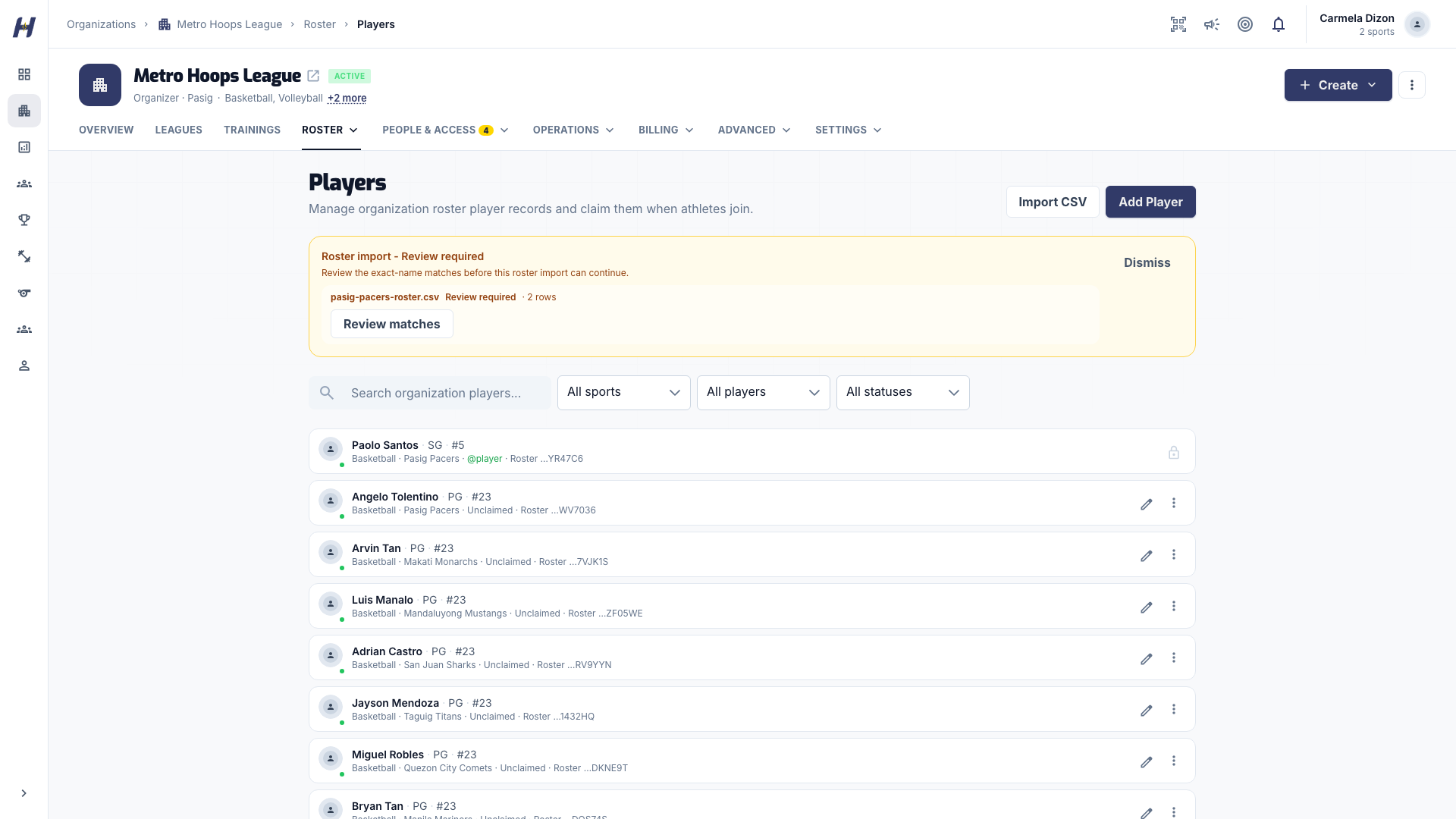
Fill in the player
Select Add Player. Player Name and Sport are required. Contact Email, Status, Tags, Player photo, and Cover image are optional.
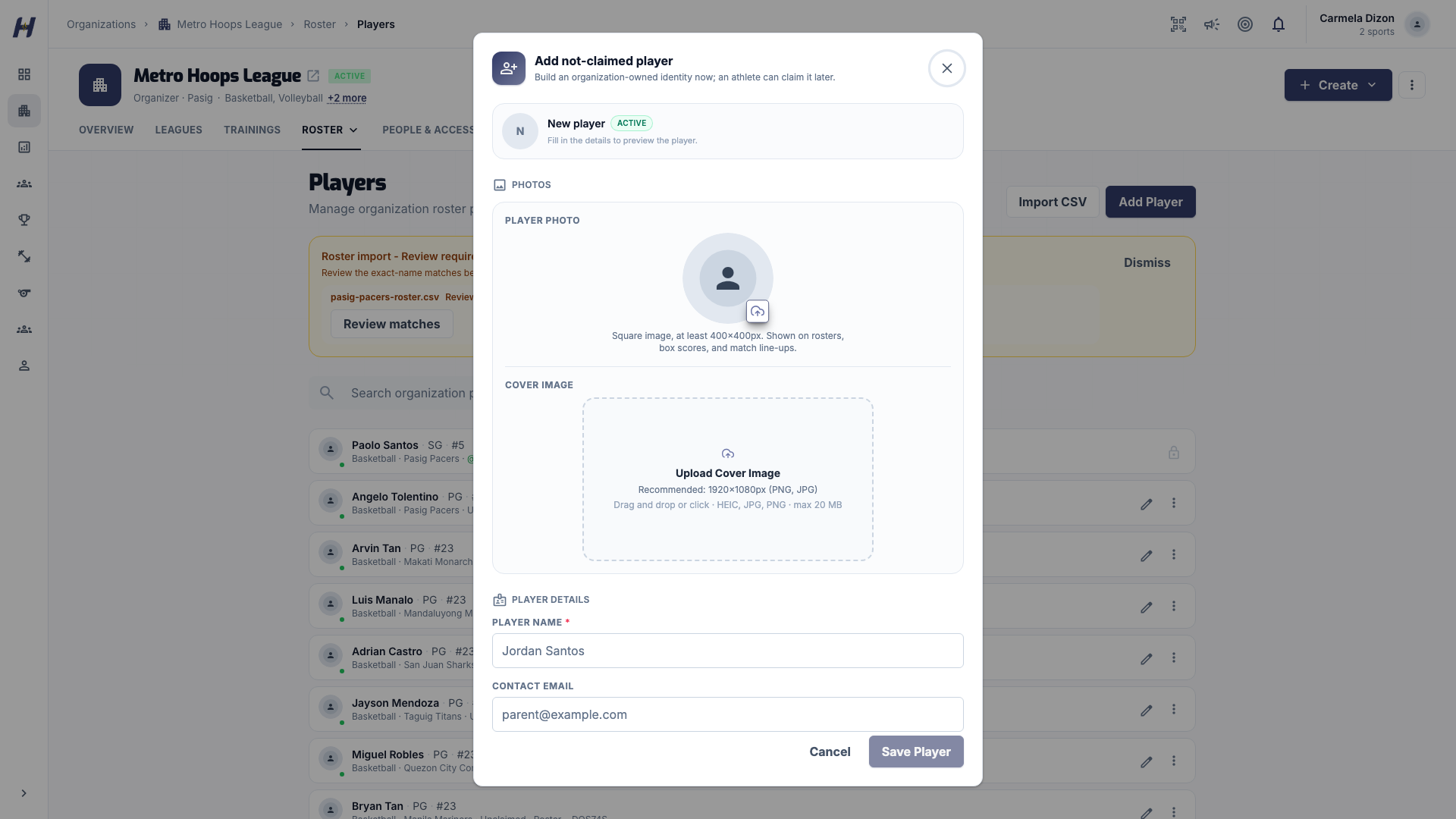
Save
Select Save Player. Save creates a not-claimed roster record, not a login account.
Leave Contact Email blank when you do not have it yet, then edit the player and add it later. The address stays private to authorized organization staff, and nothing is sent to it until you start a claim. Set the jersey number and position later on the team roster, because they can differ between teams.
Import players from a CSV file
Download the template
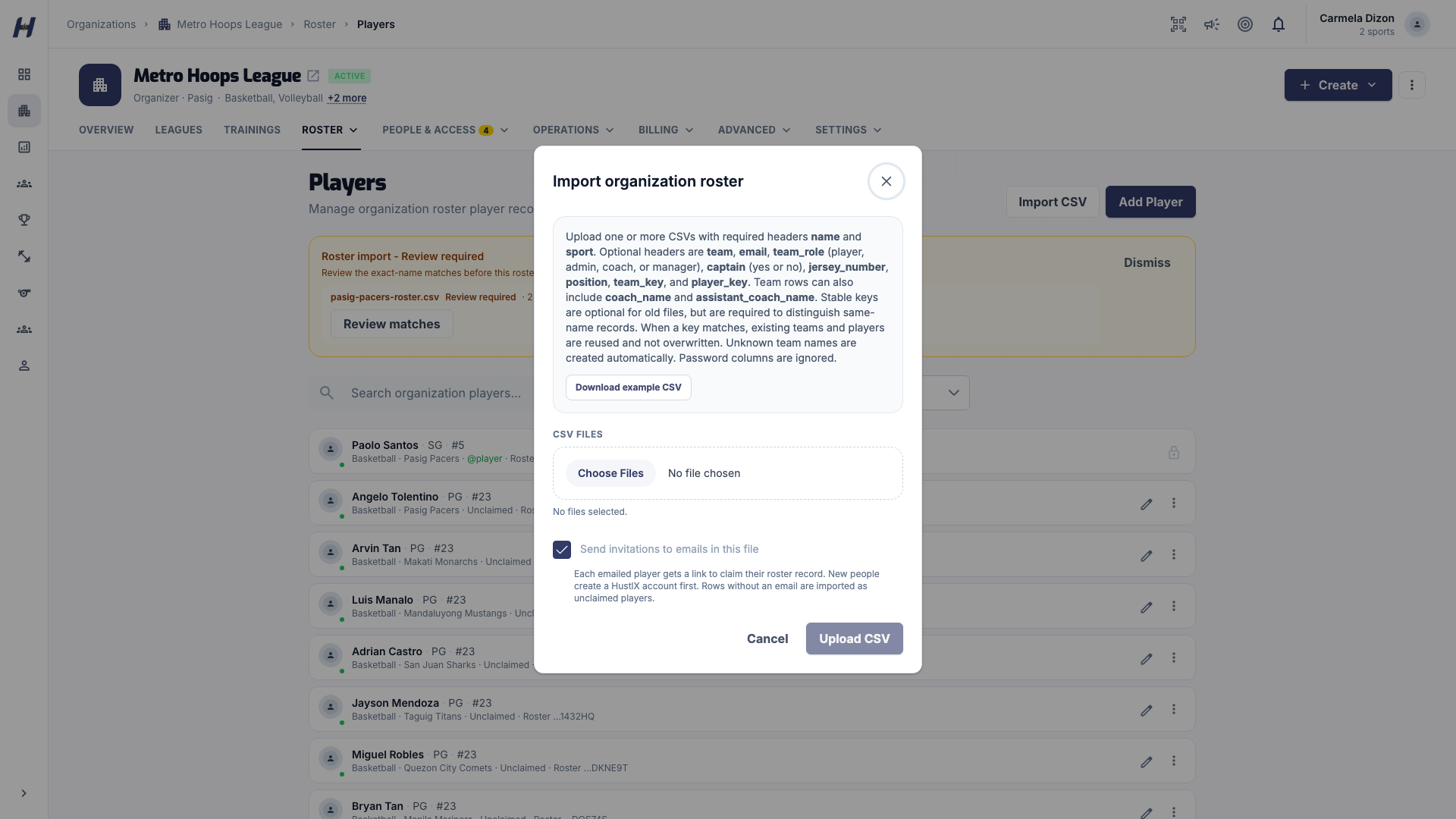
Select Import CSV, then Download example CSV to start from the accepted column layout.
Fill in the columns
Only name and sport are required. See CSV columns below for the optional team, key, email, and staff columns.
Choose whether to send invitations
Send invitations to emails in this file is on by default. After the import completes, each player whose row has an email receives a link to claim their record with their own account. Turn the checkbox off to import without sending anything.
Upload
Choose one or more files and select Upload CSV. Each file can be up to 5 MB and 1,000 rows; you can upload up to 10 files at once, 25 MB in total. You can keep working while HustlX checks each file.
CSV columns
| Column | What to enter |
|---|---|
name (required) | The player's full name |
sport (required) | A lowercase sport code, such as basketball or volleyball |
team | The organization-owned Team for the player |
tags | Team tags separated by a pipe, such as 18U|Blue |
team_key, player_key | Stable keys from an earlier roster file, when you have them |
email | Saved as the contact email and used for claim invitations |
team_role | player, admin, coach, or manager. Blank means player |
captain | yes or no (y, true, 1 and n, false, 0 also work) |
jersey_number, position | The player's number and position on that Team |
coach_name, assistant_coach_name, assistant_coach_name_2 | Staff names, used only when HustlX creates a new Team |
Rows with the same team, tags, and sport go to one Team, and HustlX creates a missing organization-owned Team. A row that sets team_key, jersey_number, position, tags, team_role, or captain also needs a team value. Stable team_key and player_key values identify the intended record even when names repeat; keep them in later versions of the file to reduce repeated review. The example CSV does not include the tags or assistant_coach_name_2 column, so add those headers yourself when needed. The import never creates login accounts, and it ignores password and unknown columns.
Review matches and finish the import
An import moves through these statuses: Queued, Checking roster, Review required (only when a name may match an existing record), Approved, queued, Processing, then Completed or Failed. At Review required, no roster changes from that file have been made yet. Imports are all-or-nothing: if any row is invalid, the whole file fails and nothing is written.
Open the review
On the status banner, select Review matches for the waiting file. Each item shows the imported value, its CSV row numbers, and the current roster details.
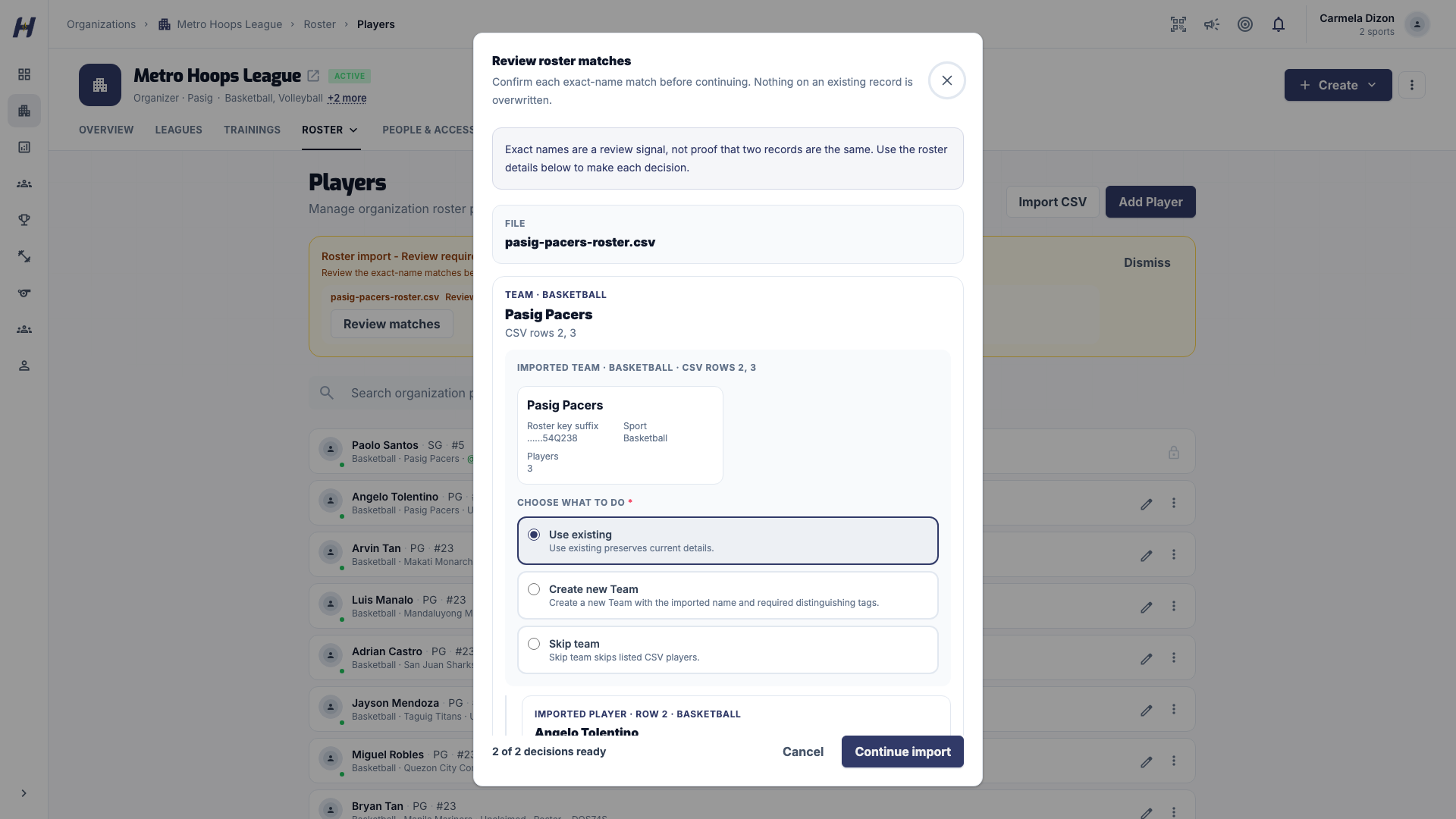
Decide each Team
Choose Use existing, Create new Team, or Skip team. Create new Team keeps the same imported name and needs at least one manually chosen tag, such as 18U. Skip team also skips the players listed under it.
Decide each player
Choose Use existing, Create separate player, or Skip player. Use Create separate player when two different people share the same name.
Continue
Select Continue import once every item has a choice. Use existing does not overwrite the current name, coaches, claim status, jersey number, position, or Team assignment. If the roster changes while you review, HustlX refreshes the matches and asks again.
Among organization-owned Teams in one organization and sport, each normalized exact Team name must use a unique tag combination. Tag comparison is case-insensitive and order-insensitive, so 18U, Blue conflicts with blue, 18u. User-owned and claimed Teams are never import candidates.
When the import completes, check the totals for created players, created teams, and team attachments. If invitations were on, the banner also shows a line such as "12 invitations sent · 2 skipped (1 already claimed, 1 without an email)". Invited players show Invited until they accept; import invitations expire after 7 days. A row is skipped when it is already claimed, already invited, has an account linked to a different player in this organization, is without an email, or is over the daily invitation limit of 1,000 per organization.
Check team rosters
Open Manage > Roster > Teams and select Manage roster on the team card. Confirm each player's jersey number and position, and add anyone missing. Rows with a consistent team and sport are already attached. If you created a same-name Team, both cards appear with their own tags and key suffixes.
Connect a player to their HustlX account
Claiming creates a one-way link between the roster record and one HustlX account. The roster, match, and statistic history stays attached. It is not a merge and must never combine records that belong to different people. Claim status never blocks game day.
Start the claim
In Manage > Roster > Players, open the player's actions menu and select Claim. The Send roster claim link window opens.
Pick and confirm the account
Select the correct HustlX account, then confirm the athlete's name and email address with them.
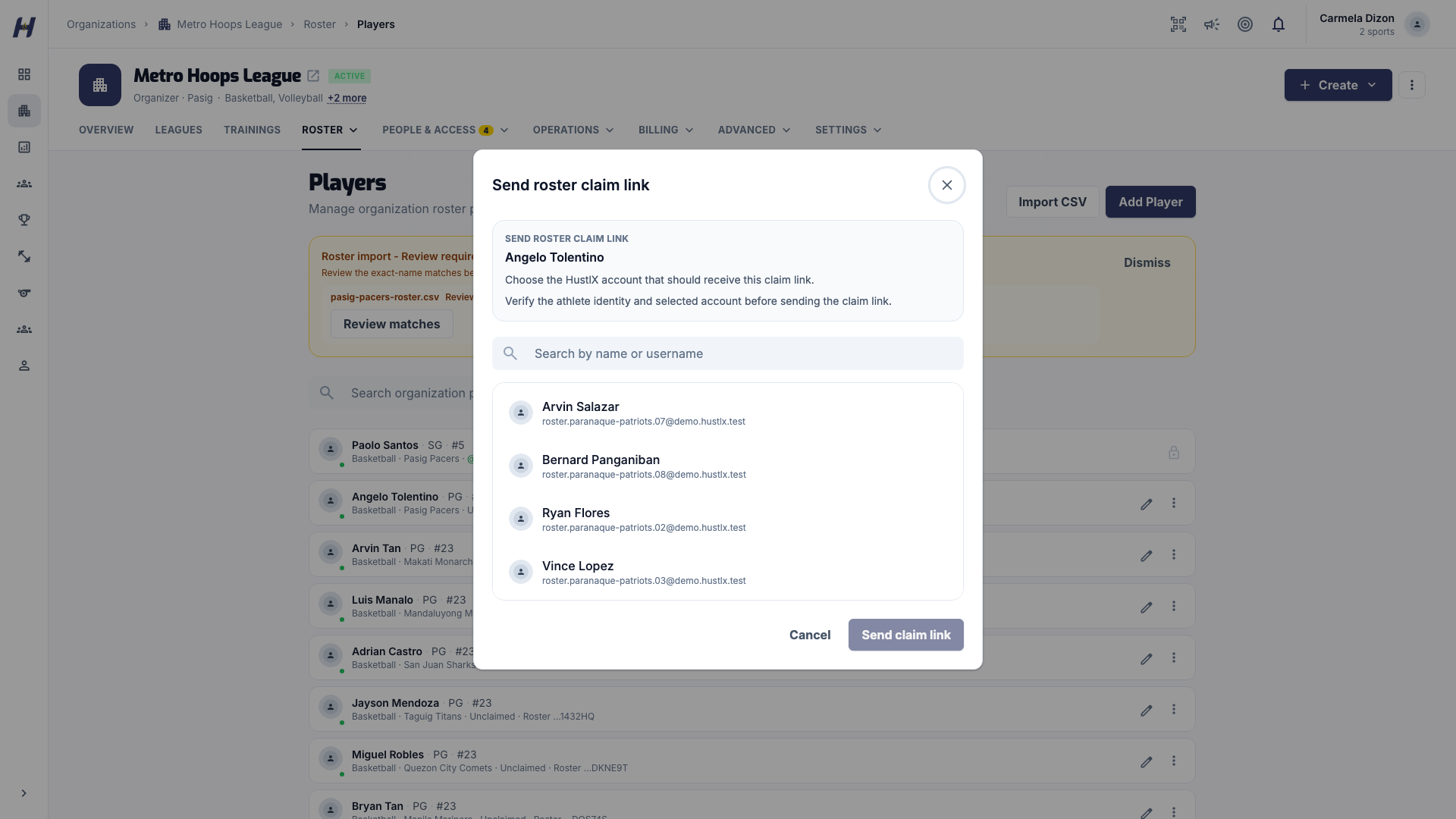
Send the link
Select Send claim link. The athlete opens the email and accepts the roster profile from their own verified HustlX account. You cannot accept for them.
Confirm the result
After the athlete accepts, confirm that the linked username belongs to them.
A claim link lasts 24 hours, and a record can have one pending claim link at a time. One HustlX account can own one organization-player record per organization. Claimed players are managed by the athlete and can no longer be edited or deleted from the roster tools. See Invitations and Notifications for the athlete's steps.
Troubleshooting
A failed file lists each problem as "Row N (field): message". Nothing from that file was created.
| What you see | What to do |
|---|---|
| A file count, 5 MB, or 25 MB limit message | Remove files, or split a large roster. |
| "Too many roster imports are already queued for this organization..." | Finish Review required files and wait for queued ones (25 unfinished at most). |
| The file must be a csv or txt file | Save as CSV UTF-8 with a .csv extension. |
| "Too many rows (1250). Maximum is 1000." | Split the roster into files of 1,000 rows or fewer. |
| "Unknown sport: Basketball." | Use the lowercase code, such as basketball. |
| "Team is required when ..." | Add the team value, or clear the team-only cells. |
| "This email is already on another roster record in this file. ..." | Keep the email on one row, or use the same player_key for one player. |
| "Replay of import #12. No changes applied." | Nothing to fix. The same file was already imported. |
The wrong account was selected
Close the window before sending and start again. If the wrong person already accepted, do not delete either record; contact HustlX Support with the organization, player, and account details.
The link is invalid, expired, or never arrived
Check the selected account's email, then send a new link once the current one expires. For CSV invitations, read the banner's skip reasons first.
The account is already linked
Use the existing linked record. Never delete a roster record as a workaround, because it may hold match and statistic history.
Related guides
Teams and rosters
Create organization teams, fill their rosters with jersey numbers, positions, and captains, add coaches, and create a team of your own from the Teams page.
Guests and walk-ins
Put athletes who have no HustlX account on rosters, register and pay for a training participant, add the contact email later, and hand the record over when the athlete joins.