Review join requests and participants
Every registration arrives as a join request. You approve the ones that fit, add players who do not have an account, and close out each participant when they finish.
Before you start
- Publish the training so players can find it. See Create a training.
- If the training uses paperwork, attach it first so new participants see it. See Require training documents.
Review join requests
Open Join Requests
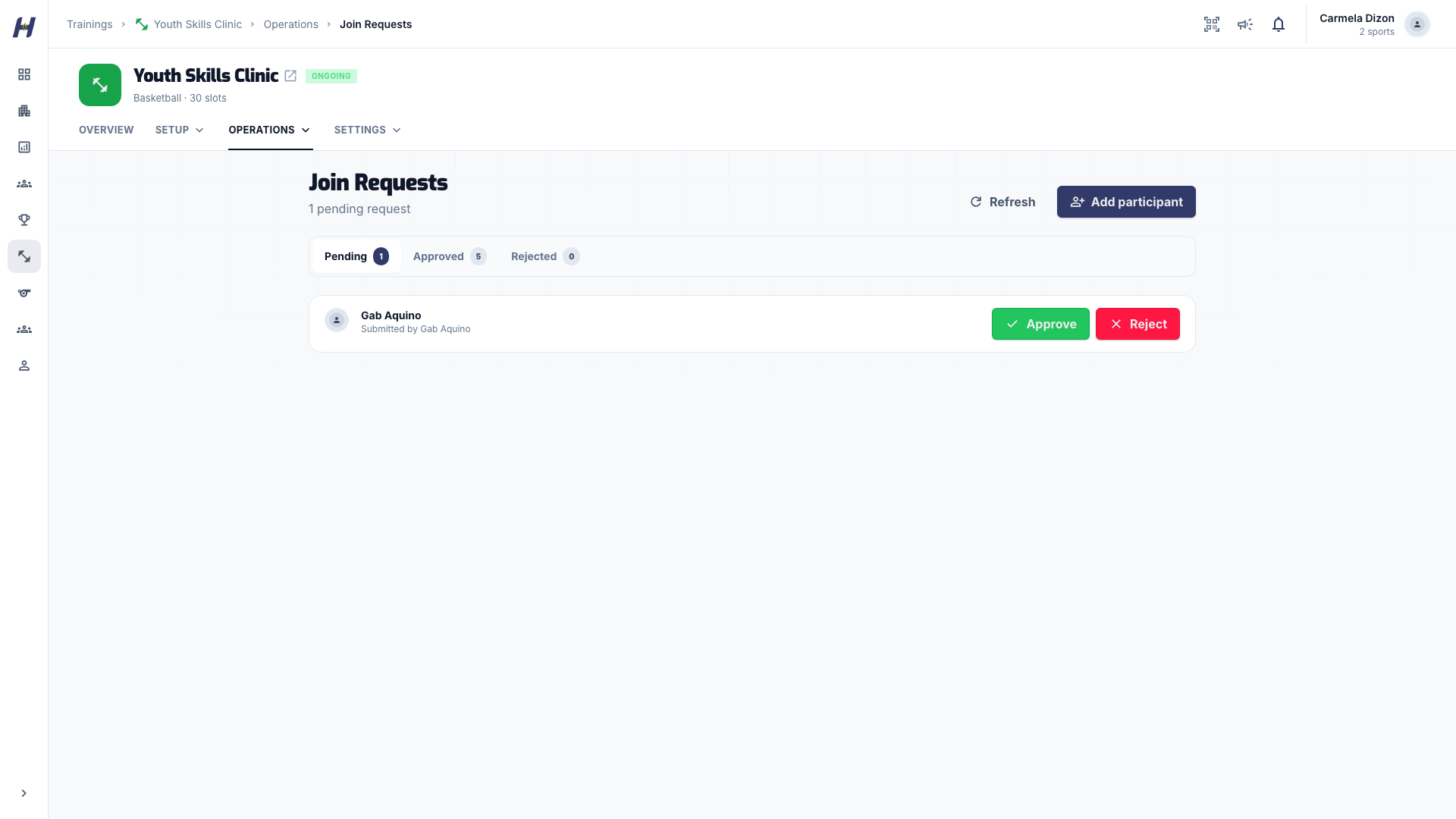
Open the training, select Manage, then Join Requests under Operations. The page shows how many requests are pending, with Pending, Approved, and Rejected tabs.
Check who the request is for
Read the participant's details and message. A parent or guardian can submit a request for a managed child: the participant is the athlete who will attend, and the submitter is the adult who sent it. Review attendance, eligibility, and documents against the participant.
Approve or reject
- Select Approve, then Confirm Approval.
- Select Reject, add an optional Reason for rejection, then select Confirm Rejection.
Every request starts as pending, including free ones. A free request waits for your approval.
Requests with a fee
How a priced request is decided depends on how the participant paid:
- Paid online: a request paid through hosted checkout is approved automatically once the payment is verified. You cannot approve or reject it by hand while checkout is open. A returned browser or an unfinished checkout is not a payment.
- Paid to the organization: when HustlX has turned on direct payments for your organization, a participant can pay you by GCash or bank transfer and upload proof. Open the proof, set Payment status to Verified once the money has arrived, select Save review, then Approve. For an installment plan, open each proof and select Verify installment with its number, or Reject proof with a note.
Money paid directly to your organization stays between you and the participant. HustlX does not hold it or pay it out.
Add a player who has no account
Use this for a player, or a family's child, who does not want a HustlX account yet.
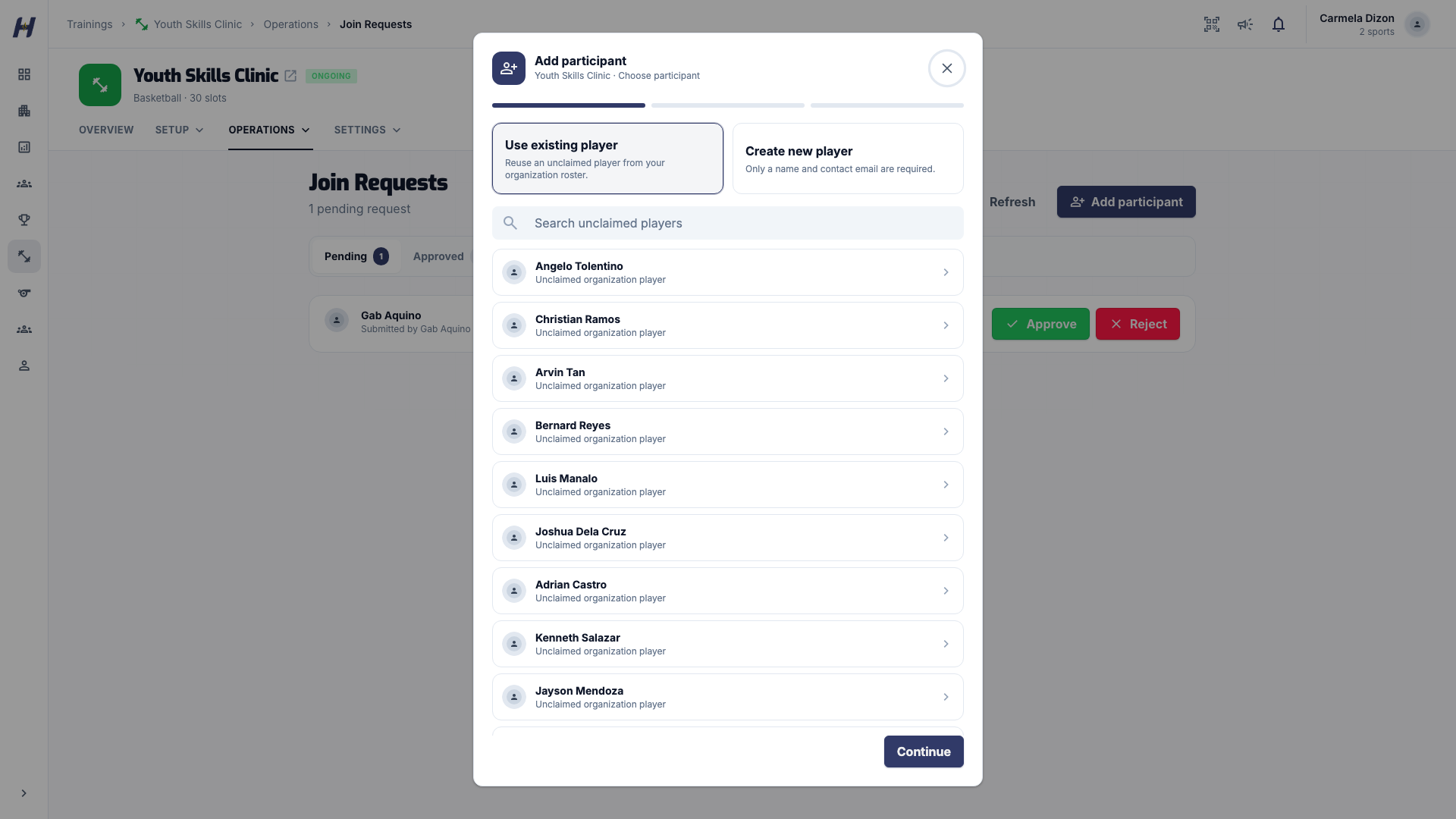
- On Join Requests, select Add participant.
- Choose Use existing player to reuse an unclaimed player from your organization roster, or Create new player and enter Player name and Contact email. You can add an optional photo and cover image.
- On Review and pay, check that Participant shows the player, not you. Apply a code with Enter promo code if you have one.
- Choose how the player is paying when asked, then select Add participant (or Continue to checkout for hosted checkout).
The contact email stays private to authorized staff and can belong to a parent. For a free training or a full discount, payment is not required and no checkout opens. With hosted checkout, the player stays under Awaiting payment until the provider confirms the payment. An unfinished checkout does not add the player to the roster, reserve sessions, or allow attendance.
The same unclaimed player can join other trainings in your organization. When they create an account later, send a normal roster claim; their training history moves to the claimed account. See Anonymous players and walk-ins.
Manage participants
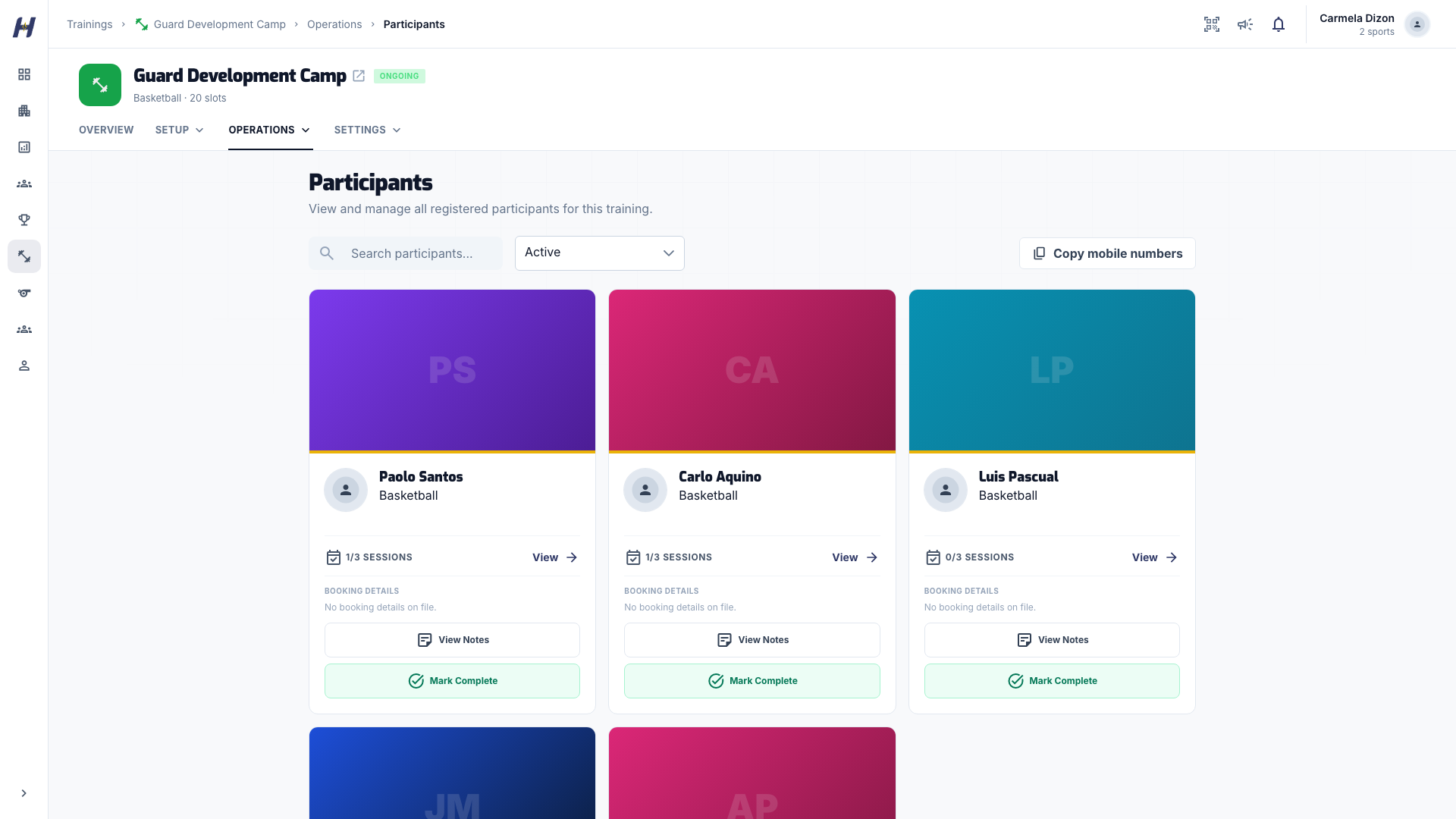
Open Manage > Operations > Participants. Filter by Active, Completed, Pending, Cancelled, Has balance, or All statuses, and search the roster. Each row can show the booking contact and manager actions such as View Notes.
Attendance is recorded on the Attendance page, not here. See Run sessions and attendance.
Complete a participant
A participant completes automatically once they attend every session that counts toward completion. You can also close their run yourself:
- On Participants, find the participant.
- Select Mark Complete and confirm.
- To reverse it, select Undo Completion.
Completion closes only that run. Completed participants can submit a new join request for a later run of the same training, and each run keeps its own price, payment, sessions, attendance, and completion record.
Completion certificates
When Issue a completion certificate is on (it is on by default for new trainings, under Basic Info), each participant who completes gets a PDF certificate with your logo and colors attached to their completion email. Select Download certificate on a completed participant's row to get a copy, including for players without an account.
The certificate shows sessions attended, total hours, training dates, the completion date, and the player's average rating when you have shared feedback with them. Ratings are credited to your organization, not a named coach.
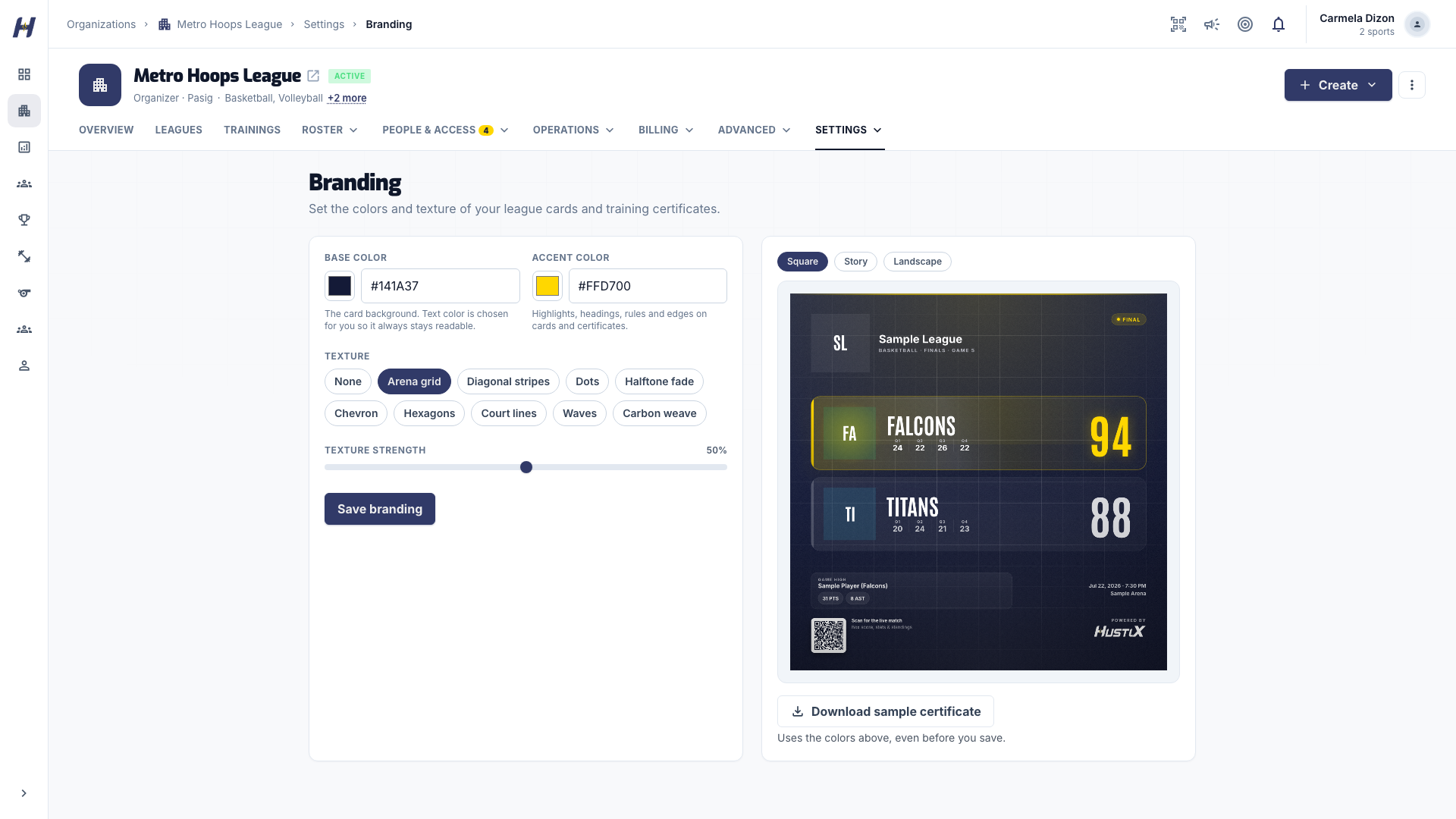
Set the certificate's colors and texture on your organization's Branding page, and use Download sample certificate to preview it.
Troubleshooting
Why can't I approve a paid request?
A request paid online is decided by the payment result. A request paid to your organization needs Payment status set to Verified first.
Why is Download certificate missing?
The training must have Issue a completion certificate turned on, and the participant must be completed.
A guardian says their child's request is missing
Check the participant name, not the submitter. The request belongs to the child they selected.