Assign officials to matches
The Officials Assignment Board is where an organizer staffs league matches. You invite officials to your roster, set the crew slate each match needs (referees, scorer, timekeeper, and so on), and assign people to each slot. Officials answer from their own HustlX Officials inbox.
Before you start
- The officials you want need a HustlX official profile. See Work as an official.
- Schedule the matches first. See Create and schedule matches.
- Assigning officials is optional. A match can start without a crew.
Build your officials roster
Open your organization, select Manage, then Officials. The board has three tabs: Roster, Assignments, and History.
Invite an official
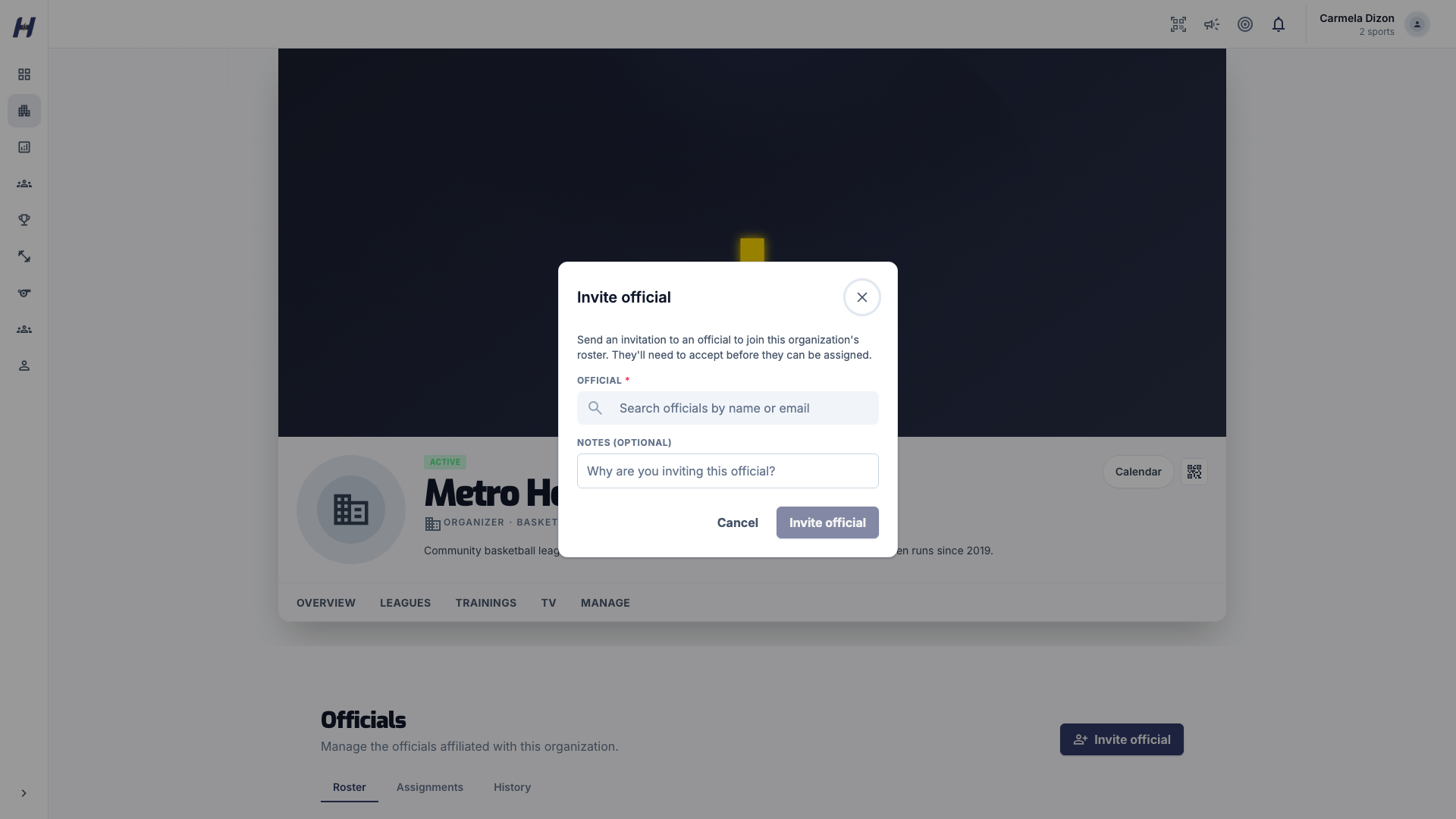
On Roster, select Invite official. In Official, search by name or email and select the right person. Add Notes (optional) if you want, then select Invite official. Wait for Invitation sent.
Wait for them to accept
The official accepts from Affiliations in their officials portal. Their status moves from Invited to Active. Only Active officials can be assigned, so invite people early.
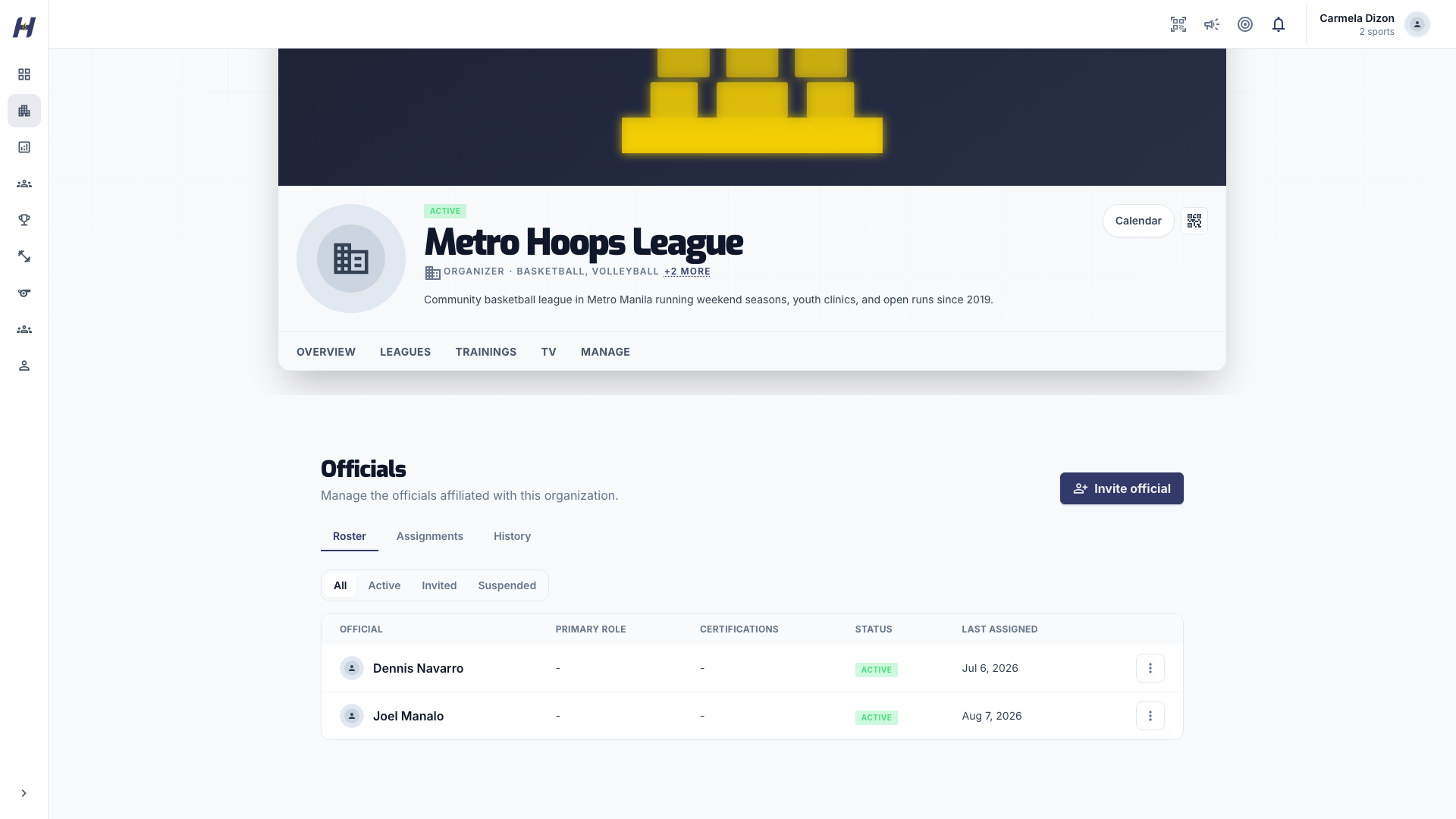
Filter the roster by All, Active, Invited, or Suspended. Use the actions menu on a row to Suspend an official (they stay on the roster but cannot be assigned), Reinstate them, or Remove them. An official can only hold one open affiliation with your organization, so a duplicate invitation is blocked.
Staff a match
Find the match
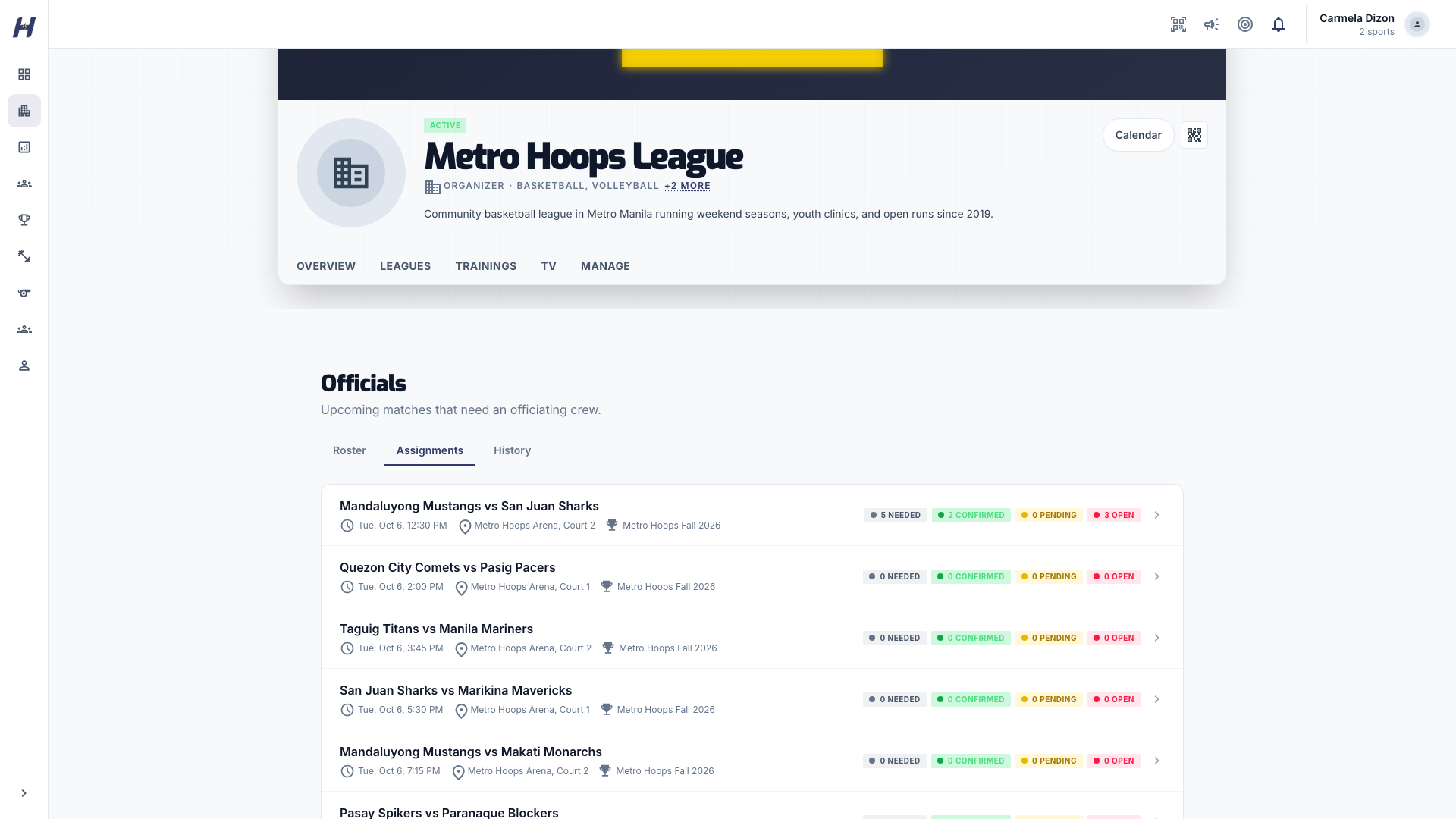
Select Assignments to see upcoming matches that need a crew. Each row shows the teams, date, venue, league, and counts of needed, open, pending, and confirmed slots. Select a match to open Match crew.
Check the crew slate
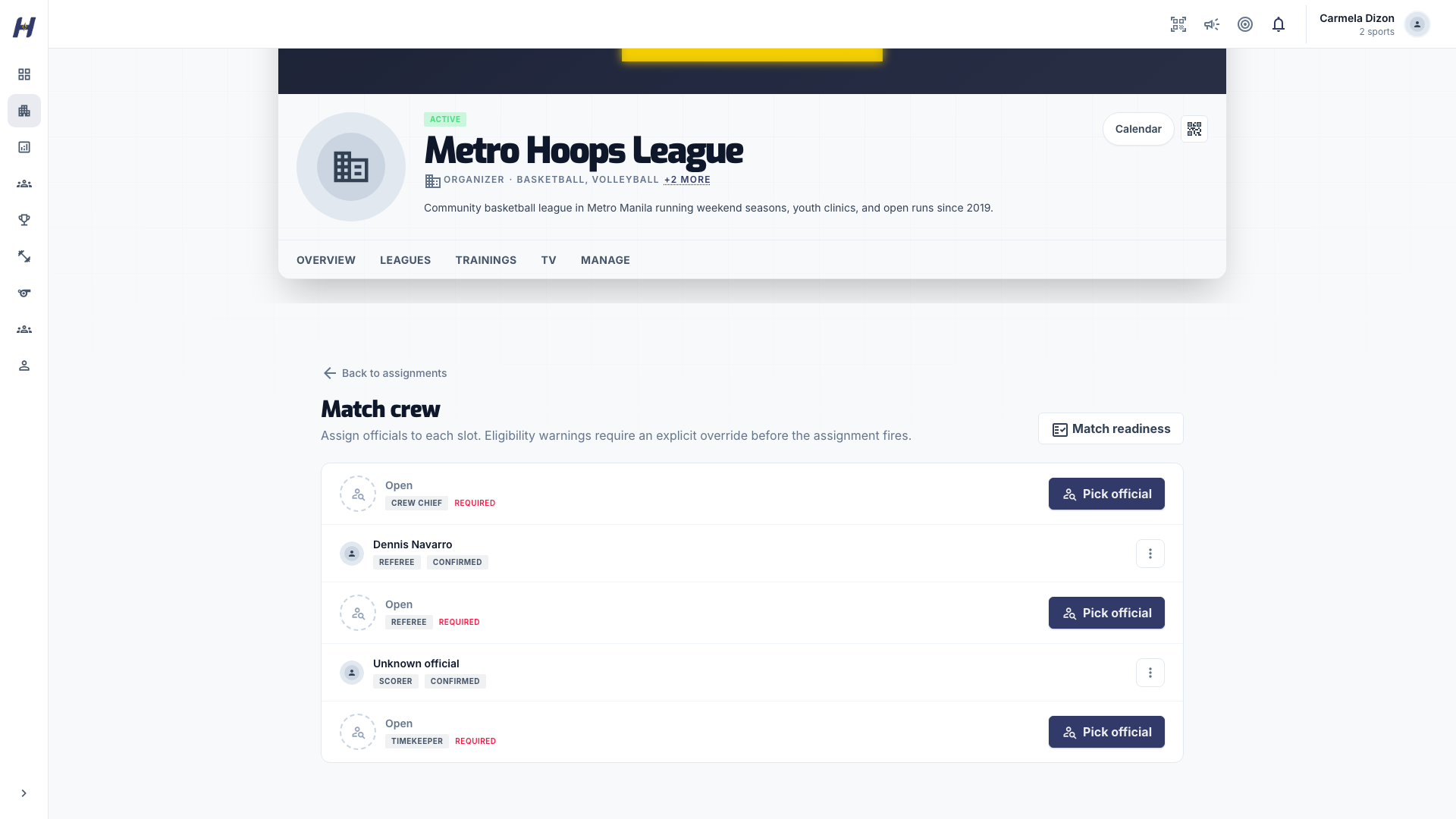
HustlX prepares the crew slate from the match's sport. Each slot is a role with a number (for example two referee slots) and is marked Required or Optional.
If the match has no slots, select Configure crew slots, pick a Crew template (Basketball crew, Volleyball crew, or Badminton crew), turn each Required switch on or off, and select Save crew slots.
Pick an official
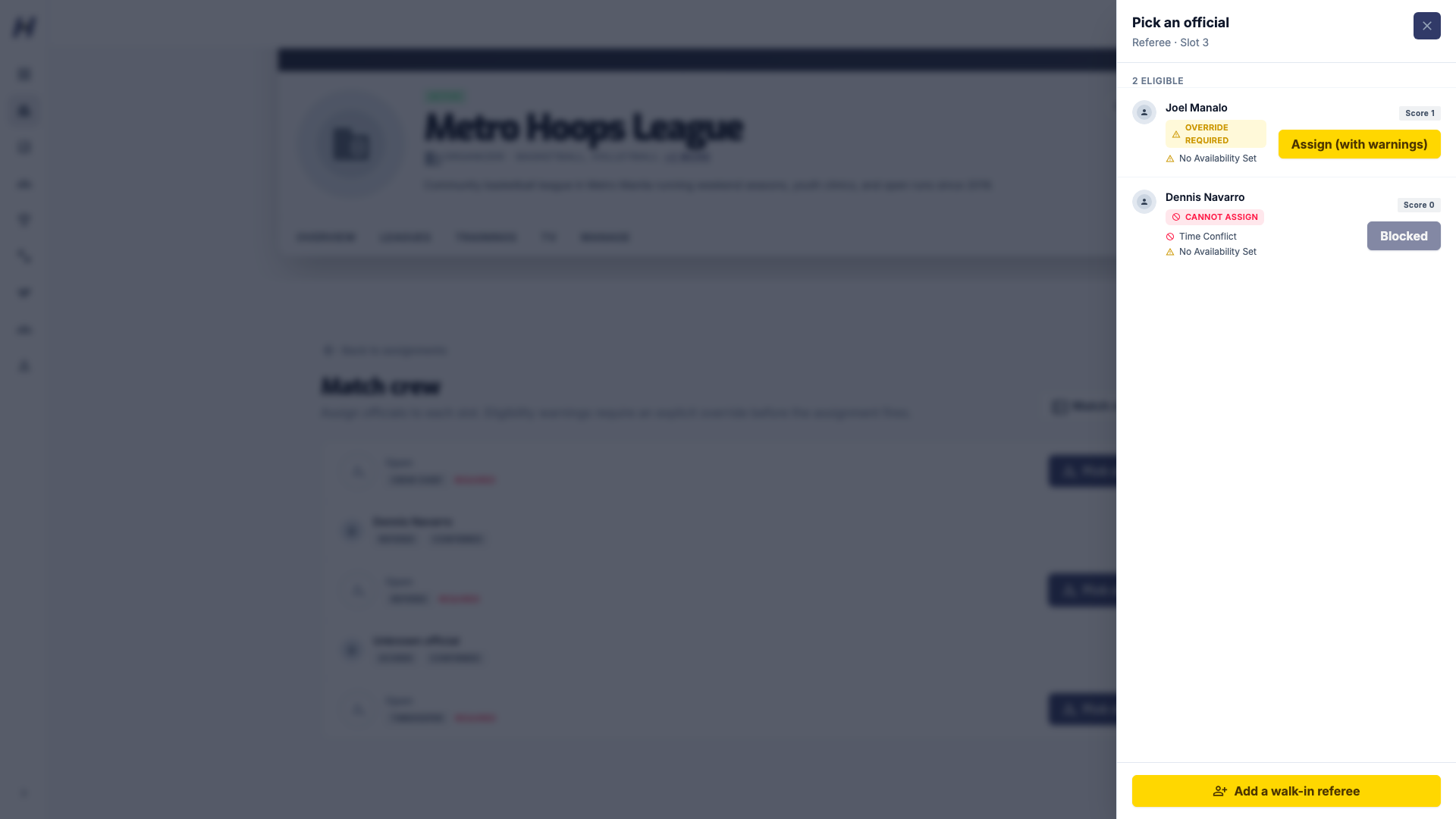
Select Pick official beside an open slot. Pick an official lists candidates checked against that slot and match:
- Eligible: select Assign.
- Override required: select Assign (with warnings). Read Override eligibility warnings?, then select Confirm and assign only if you accept the warnings. Cancel returns you without assigning.
- Cannot assign: the button reads Blocked and cannot be selected.
Add a walk-in referee if needed
For a referee with no HustlX account, select Add a walk-in referee in the picker, enter the Referee name, and select Assign. Walk-ins are recorded as confirmed and get no notification. Only referee slots offer this.
The official receives the offer and accepts or declines it. Until they accept, the slot shows as pending.
Eligibility checks
| Result | Reasons |
|---|---|
| Cannot assign | Not affiliated (no active affiliation with the organization that owns the league), or Time conflict (already assigned or confirmed on an overlapping match) |
| Override required | No availability set, Availability exception, Certification missing, No current certification record for this role and sport, Sport mismatch |
Clean candidates are listed ahead of candidates with warnings. Nothing is assigned until you confirm the override dialog.
Track and change assignments
Each profile-linked assignment moves through Assigned, Confirmed, and then Completed or No show. While an assignment is still open you can:
- Replace the official. The replacement goes through the same checks, and both officials are notified.
- Cancel offer to pull the official off the match and free the slot. This is only available before the match starts.
Officials can decline an offer or withdraw from a confirmed assignment. Either way the slot opens again and your organization's admins are notified.
You cannot remove a slot while an assigned or confirmed official fills it. Replace or cancel that assignment first.
Completion and match-log proof
After the match starts, a confirmed slot shows Mark completed and Mark no-show.
- Select Mark completed, add Organizer notes if needed, and select Confirm completed. Or select Mark no-show, then Mark no-show to record that the official did not show.
- A completed assignment creates an official match log for that official, tied to the match, league, role, and sport.
The match log is published as public proof only when the match has concluded and the assignment carried no eligibility warnings. If you complete an assignment before the match concludes, HustlX publishes the log when it does. A no-show never publishes proof.
History lists past matches and their officiating crews.
Troubleshooting
Officials is not in my Manage menu
Your role needs officials-management access, and the board must be enabled for the organization. Ask the owner to check both.
The board shows a permission error
Your account lacks officials-management access, or your email is not verified.
I cannot assign a candidate
The candidate has a hard block: they are not an active member of your roster, or they already have an overlapping assignment.
A worked match is not showing as proof
Check that the match is concluded, the assignment was marked completed, and it did not carry an overridden warning.
Related guides
Officials guide
Set up your official profile and availability, join associations and organizations, and respond to the matches you are assigned.
Certificates
Set up a completion certificate for an officials seminar or training, issue it to finished participants, and check a certificate on its public verification page.