Manage teams and rosters
HustlX has two kinds of teams. Organization teams belong to your organization and are managed from Manage. Personal teams are created by a player, coach, or parent from the main Teams page and managed by their own team admins. Both can enter leagues.
Before you start
- To fill rosters quickly, add your players first under Manage > Roster > Players, or import them from a spreadsheet. See Roster Imports & Claims.
- For people with no HustlX account, see Anonymous Players & Walk-ins.
Add an organization team
Open Teams
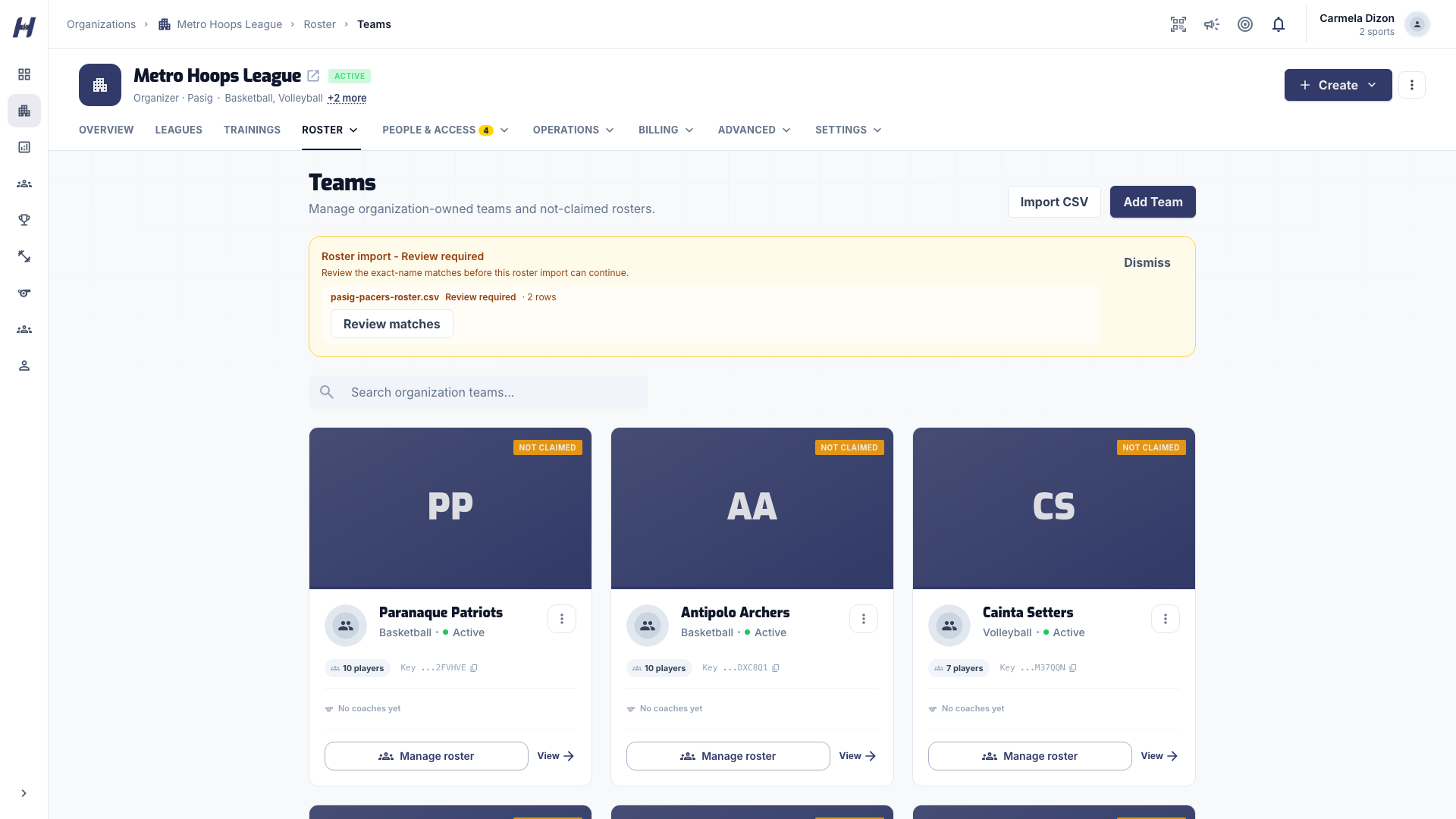
Open your organization, select Manage, then Roster > Teams. Each card shows the team's claim status, player count, tags, roster key, and coaches.
Fill in the team details
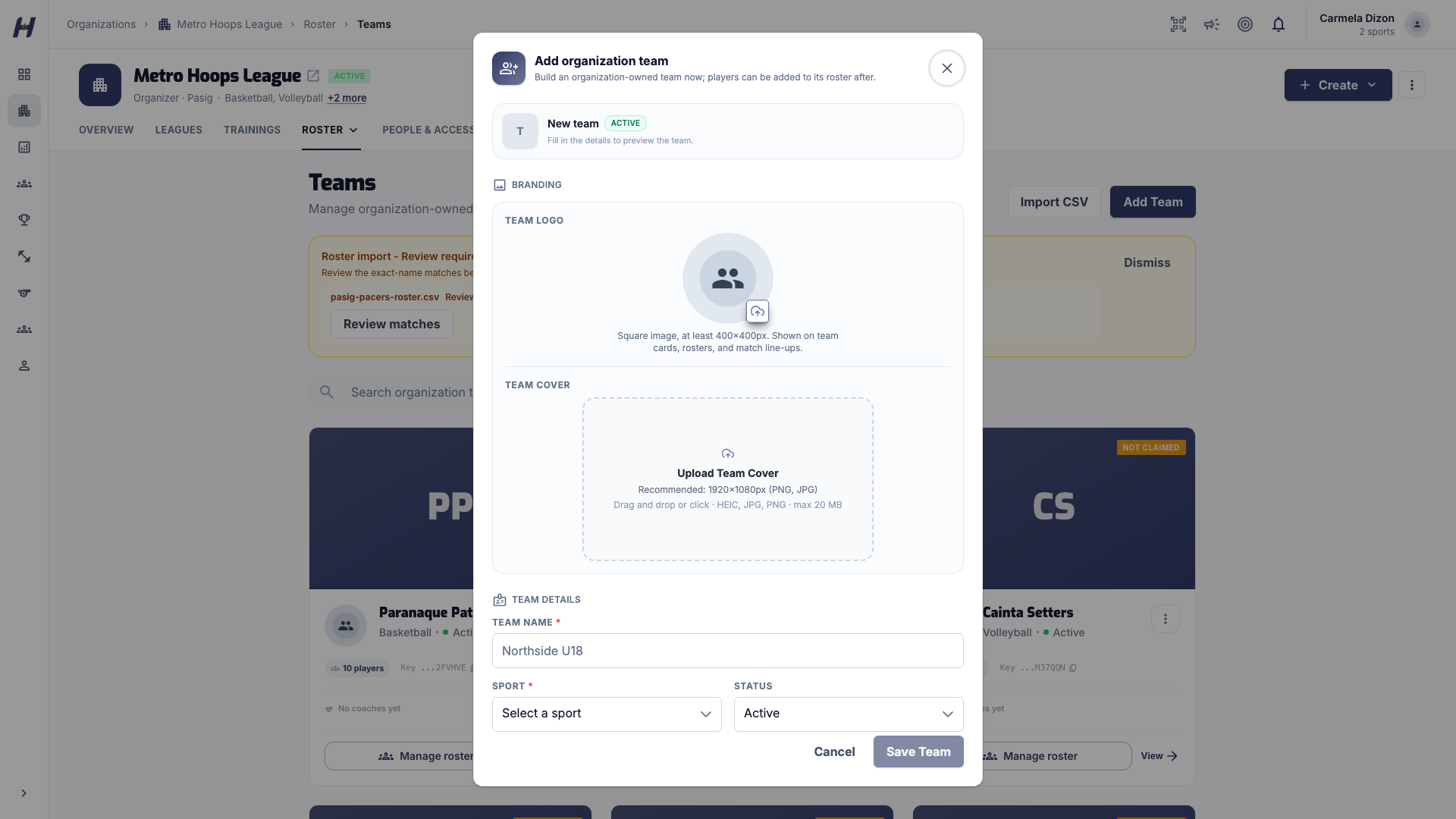
Select Add Team. Enter the Team Name and Sport, then add a logo, a cover image (Upload Team Cover), Tags, a Head Coach, and an Assistant Coach as needed. Set Status to Active, Inactive, or Draft.
Save the team
Select Save Team. The new card appears on the Teams page, ready for players.
Tags are optional labels such as 18U, Blue, or Varsity, separated by commas. Use them to tell apart teams that share a name, for example your 18U and 15U squads. A team can carry up to 8 tags of up to 30 characters each. Two of your organization's teams with the same name and sport need different tag combinations.
Build the roster
Open the roster
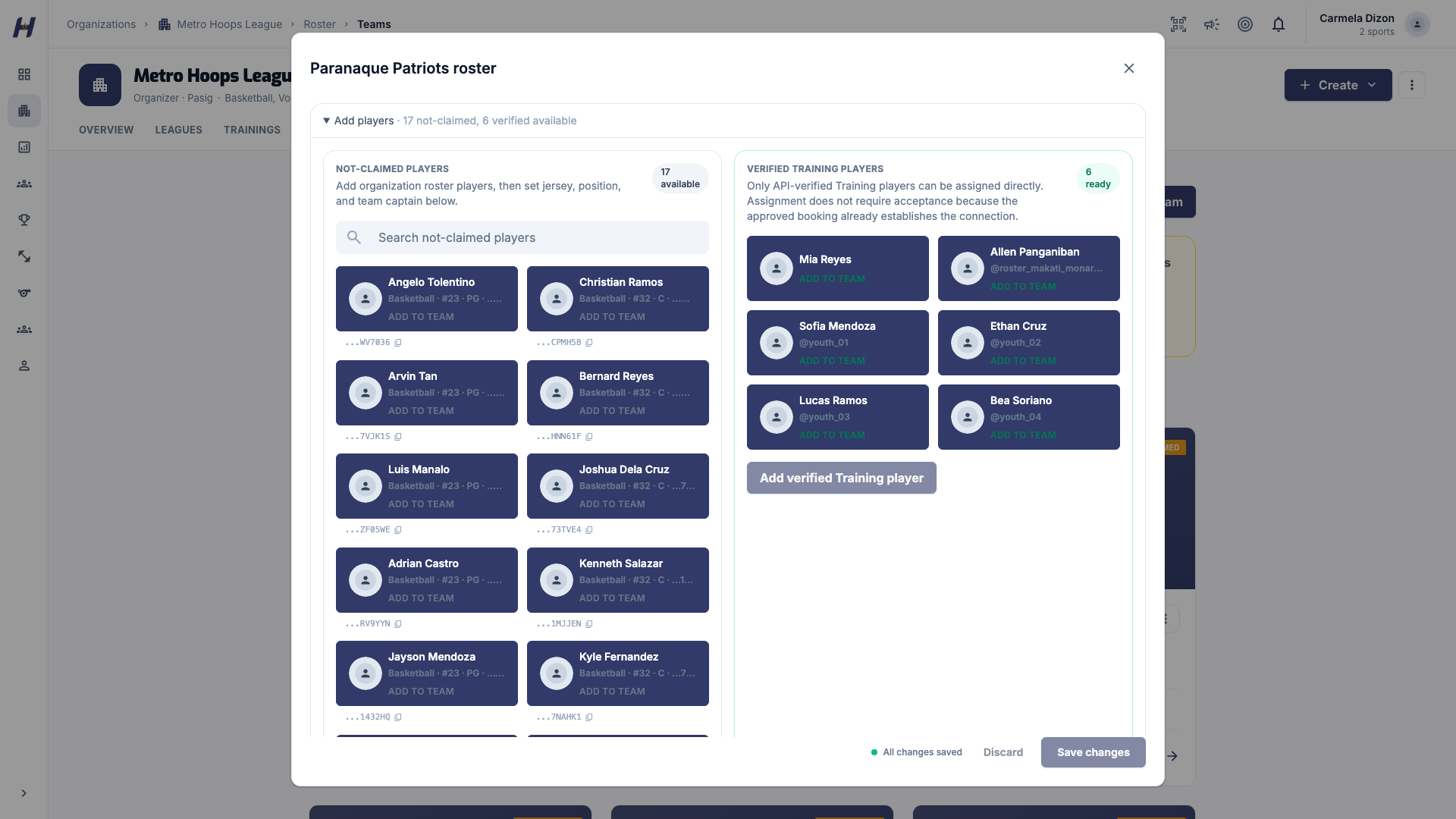
Select Manage roster on the team card. The roster window lists the current players at the bottom.
Add players
Expand Add players. Pick from Not-claimed players (your organization roster) or Verified Training players (athletes with an approved training booking), then select the add button under each list. To also put the selected players on a league roster, choose leagues under Add selected players to Leagues. No league is selected automatically.
Set numbers, positions, and captains
For each player, set the jersey number, position, and the captain checkbox. Use a row's actions menu for Edit player or Remove from team.
Save your changes
The footer counts your edits. Select Save 1 change (or Save N changes) to keep them, or Discard to drop them.
Players added by hand or from a CSV are not-claimed roster records until they connect to a HustlX account. Claim status never limits game day: claimed, not-claimed, and guest players can all be on lineups and record statistics. Jersey numbers set the default order on rosters.
Add organization coaches
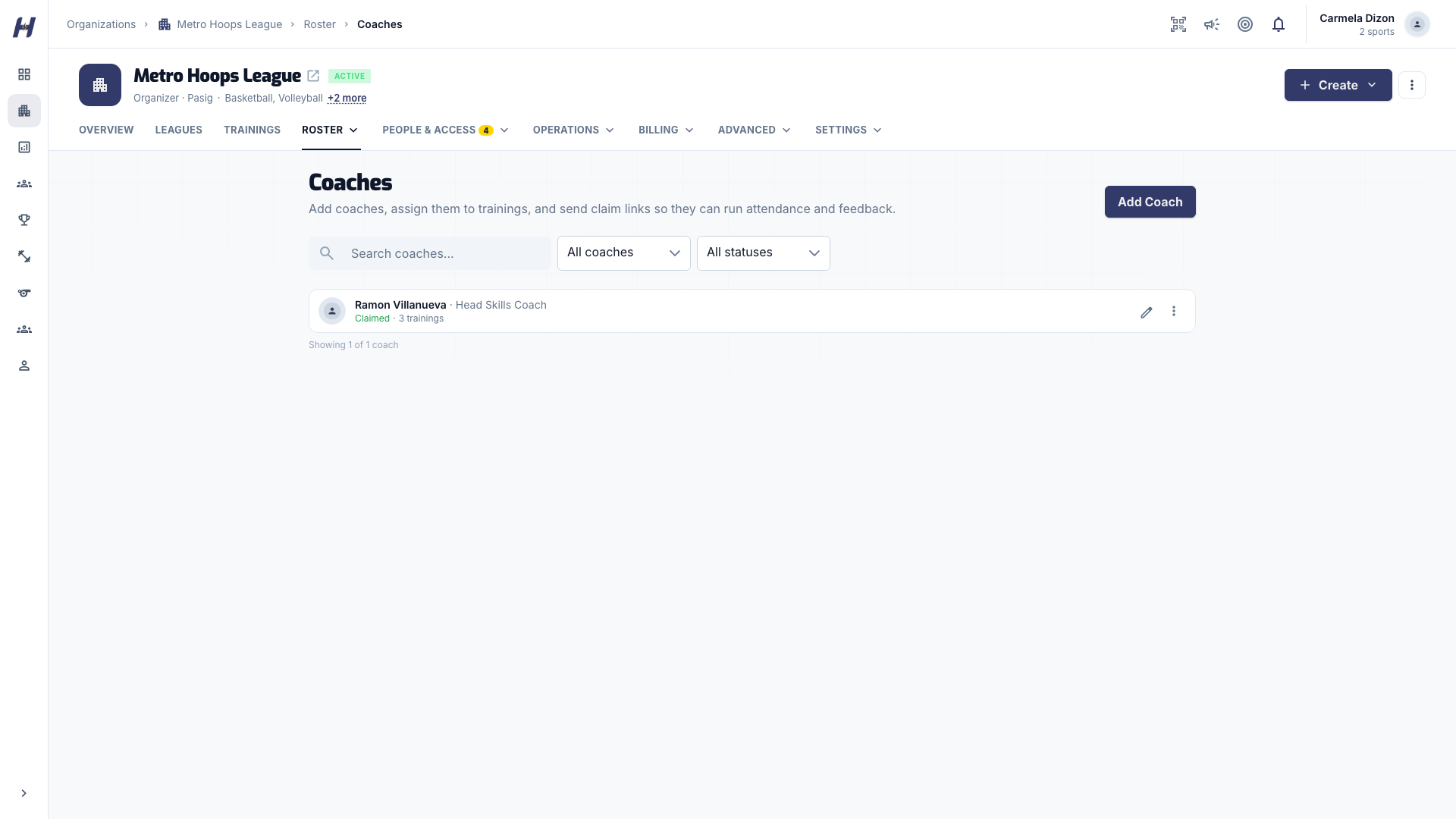
Open Manage > Roster > Coaches and select Add Coach. Enter a Name and optional Title, Email, Bio, and Status, then select Add coach. Assign coaches to trainings from the training itself. To let a coach run attendance and feedback, use Send claim link on their card and send it by Email or to a HustlX account. Claiming links the coach profile to that account; nothing is merged.
Edit, print, or delete an organization team
Open a team card's actions menu:
- Edit reopens the team form. Save with Save Team.
- Print lineup opens a print-friendly sheet with team details, names, jersey numbers, positions, and blank slots for check-in or the scorer's table. Team members can print their own team's lineup, and League Managers can print teams they manage. Printing changes nothing.
- Delete removes the team after you confirm.
A personal team that joined your organization roster also shows Remove from organization.
Create a personal team
Use this when you run a team yourself rather than through an organization.
Start a new team
Open Teams in the sidebar and select Create New Team.
Enter basic info
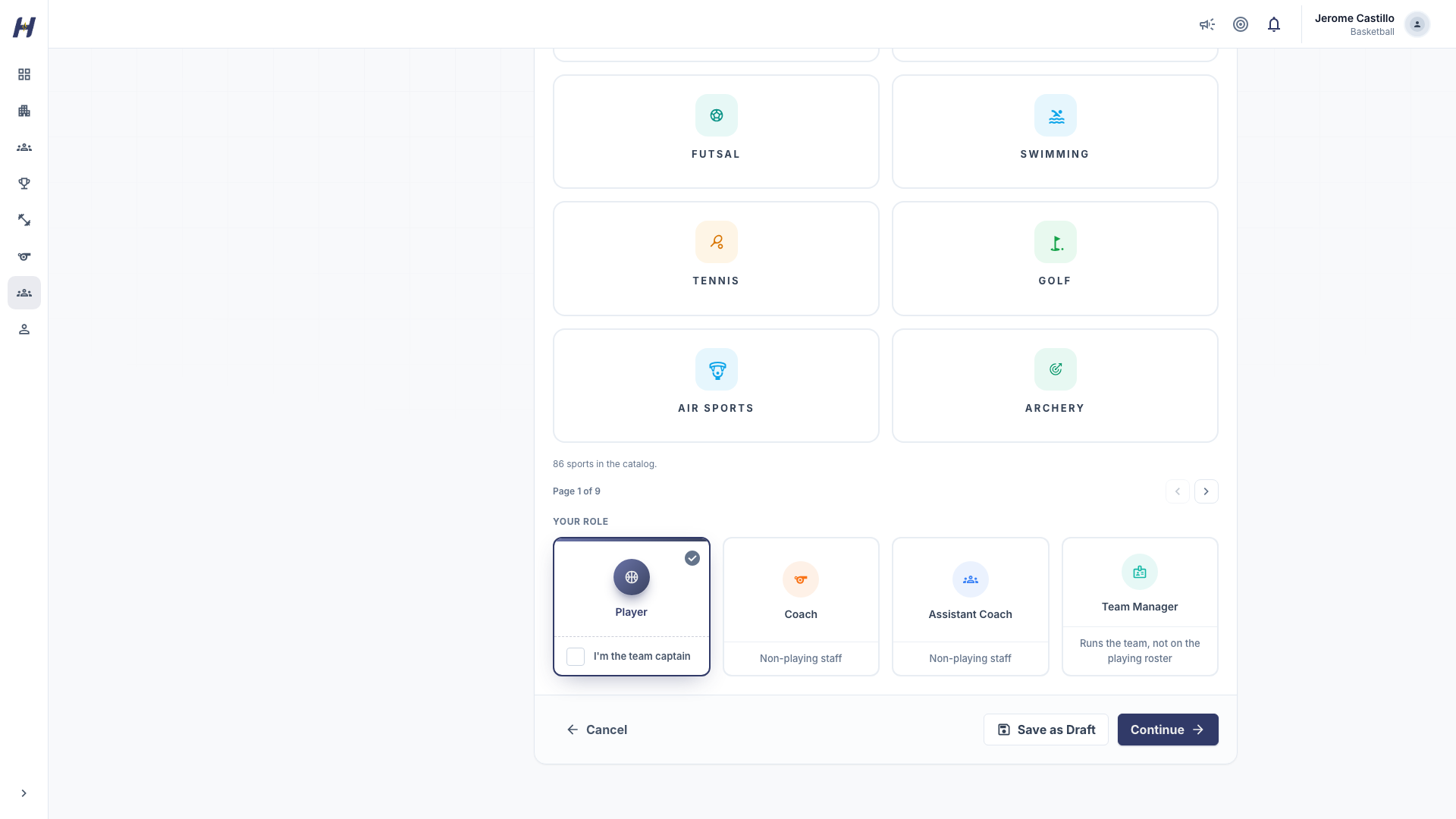
Add the Team Name, sport, optional Tags and Bio, a logo, and a cover image (1920x1080 recommended). Under Your Role, choose Player, Coach, Assistant Coach, or Team Manager. Players can also turn on I'm the team captain.
Add a roster and create
Add the players you have now; you can invite more later. Review the details and select Create Team, or use Save as Draft to finish later.
Coach, Assistant Coach, and Team Manager are non-playing roles: they are not on the playing roster and carry no jersey, position, or captaincy. Pick Team Manager if you run the team but will not play, for example as a parent registering your child's team. A team can have one coach and up to two assistant coaches.
To join an organization's roster with a personal team, open the team's Manage > Organization roster, pick the organization, and select Request roster affiliation.
Troubleshooting
| What you see | What to do |
|---|---|
| "Add at least one tag to distinguish this same-name Team." | Your organization already has a team with this name and sport. Add a tag such as 18U, or use the existing team. |
| "That tag combination already exists for a same-name Team in this organization and sport." | Tags are compared without regard to case or order. Choose a different combination. |
| "This team already has a coach." or "...the maximum of two assistant coaches." | Change an existing staff member's role first. |
| Manage roster is missing on a card | The card is a personal team managed by its own admins, or your role cannot manage rosters. |
Related guides
Settings & members
Update your organization profile and branding, invite staff with the right role, manage admin seats, and change which programs the organization runs.
Roster imports
Add organization players by hand or from a CSV file, review possible matches, send claim invitations, and connect each roster record to the athlete's own HustlX account.