Create training promos
Promos discount the fee of one training. A Coupon code works when a participant types it in; an Automatic offer applies on its own during price review.
Before you start
- The training must have a fee. See Create a training.
- A saved promo never turns on checkout. Check the training's payment requirements before inviting anyone to pay.
Create a promo
Open Promos
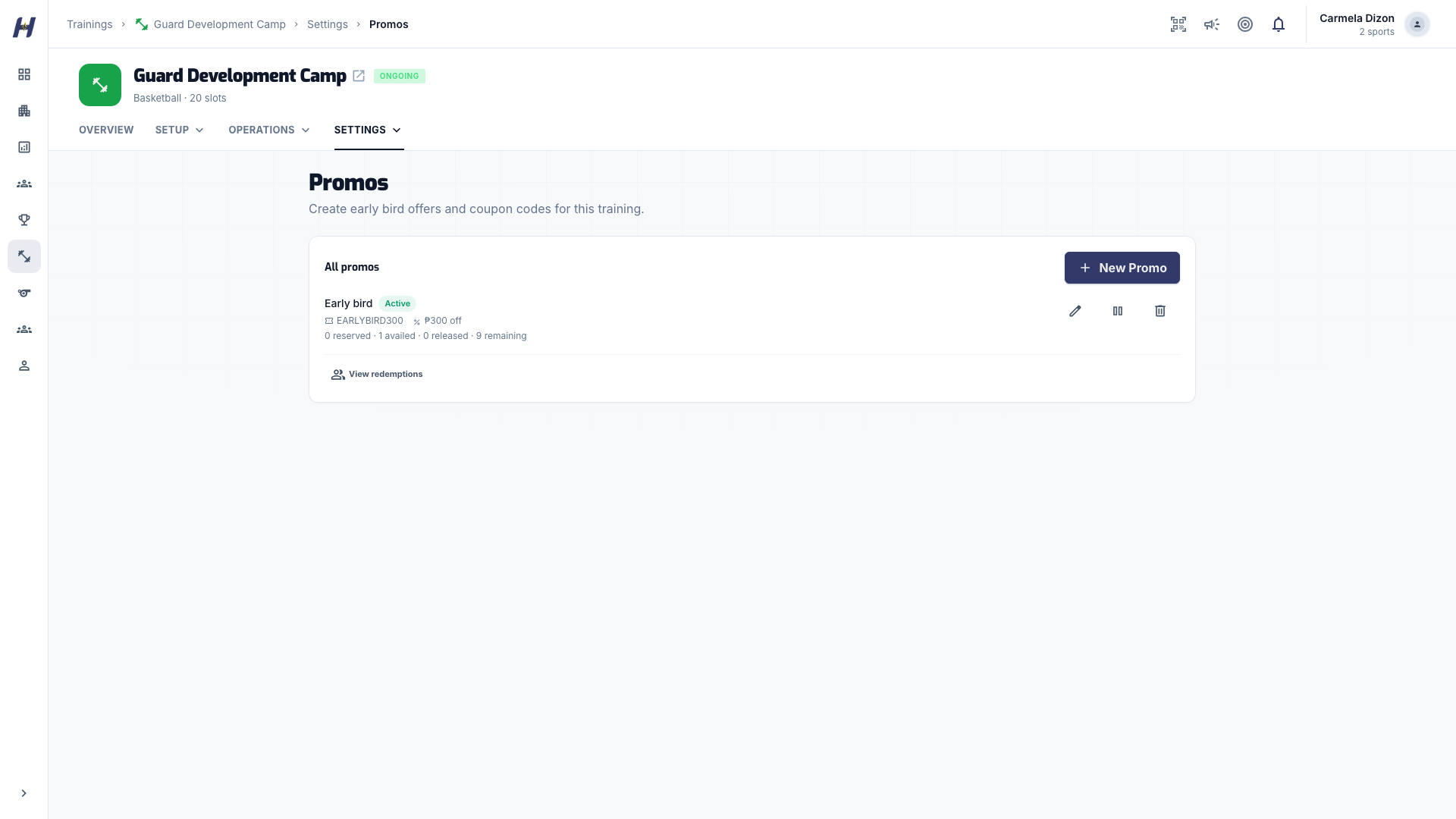
Open the training, select Manage, then Promos under Settings. Select New Promo in All promos (or Create Promo on an empty list).
Choose the kind
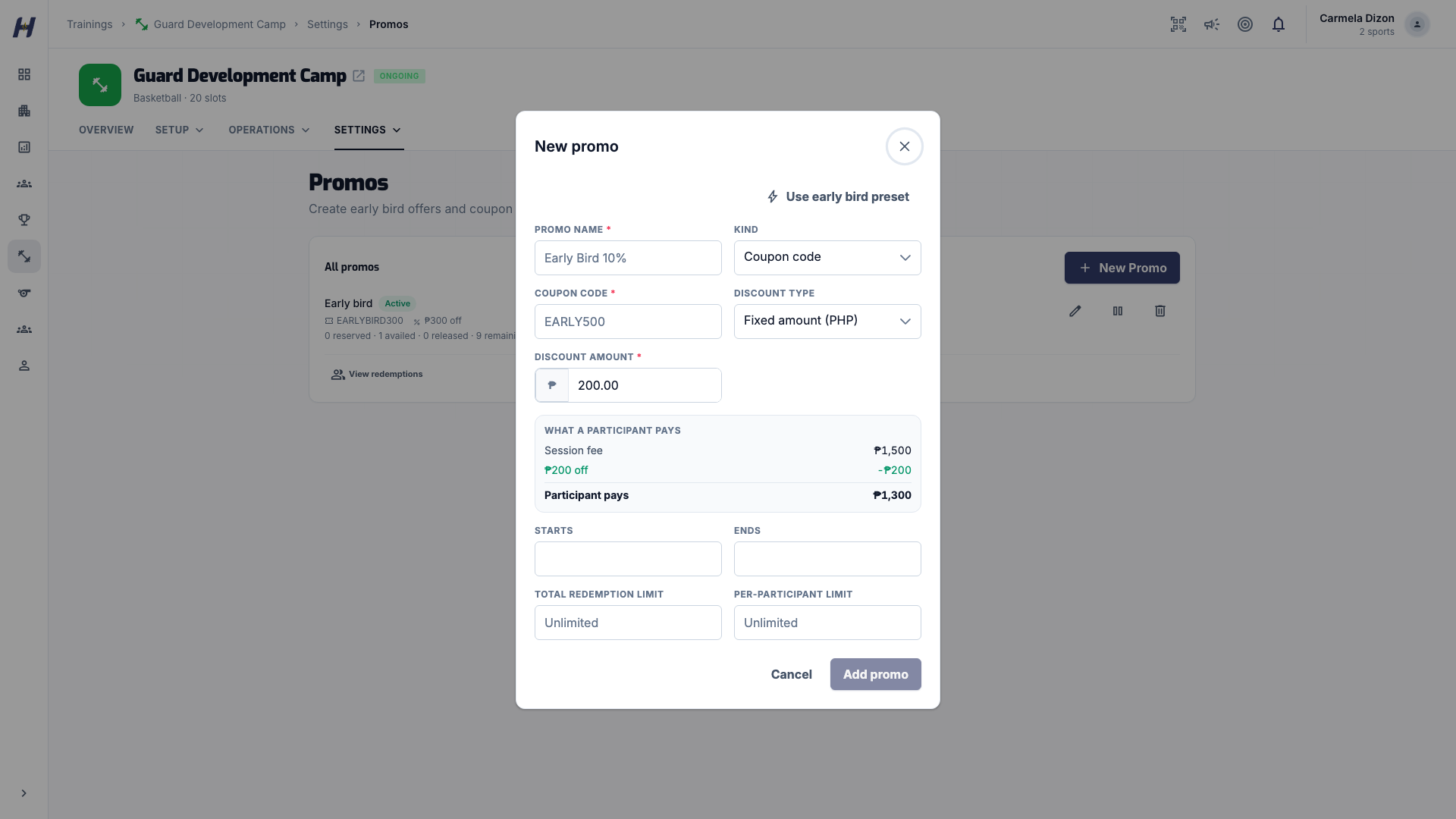
Enter a Promo name, then set Kind:
- Coupon code: enter a Coupon code, such as
EARLYBIRD300. - Automatic: no code. You can start from Use early bird preset, an automatic percentage offer.
Set the discount
Choose Discount type: Fixed amount (PHP) with a Discount Amount in pesos, or Percentage (%) with a Discount Percentage up to 100. Check What a participant pays to see the result.
For example, a ₱300 discount on a ₱1,500 fee leaves ₱1,200 due, and 10% off leaves ₱1,350. A discount never makes the total negative.
Set dates and limits
Optional Starts and Ends dates limit when the offer works; Ends must be after Starts. Set Total redemption limit and Per-participant limit if needed. A blank limit means no limit.
Save it
Select Add promo and check that the offer appears as active in All promos.
How codes and offers apply
- Codes ignore case and punctuation, so
earlybird-300andEARLYBIRD300are the same code. One training cannot have both. Different trainings can reuse a code with their own discount and limits. - Offers never stack. If several automatic offers qualify, HustlX uses the best one. A valid coupon replaces the automatic offer for that quote.
- A promo code cannot be combined with an installment plan.
Edit, pause, or delete an offer
Use the actions beside the offer in All promos:
| Action | What happens |
|---|---|
| Edit promo | Change the offer and select Save changes. Existing registrations keep the price they booked at. |
| Deactivate promo | Stops new uses. Its code stays reserved on this training. |
| Activate promo | Turns it back on, subject to its dates and remaining limits. |
| Delete promo | Removes it from available offers after you confirm. Usage history stays. The code is released for a new offer. |
You cannot lower a limit below the uses already reserved or availed. To stop new uses, deactivate the offer instead.
See who used a promo
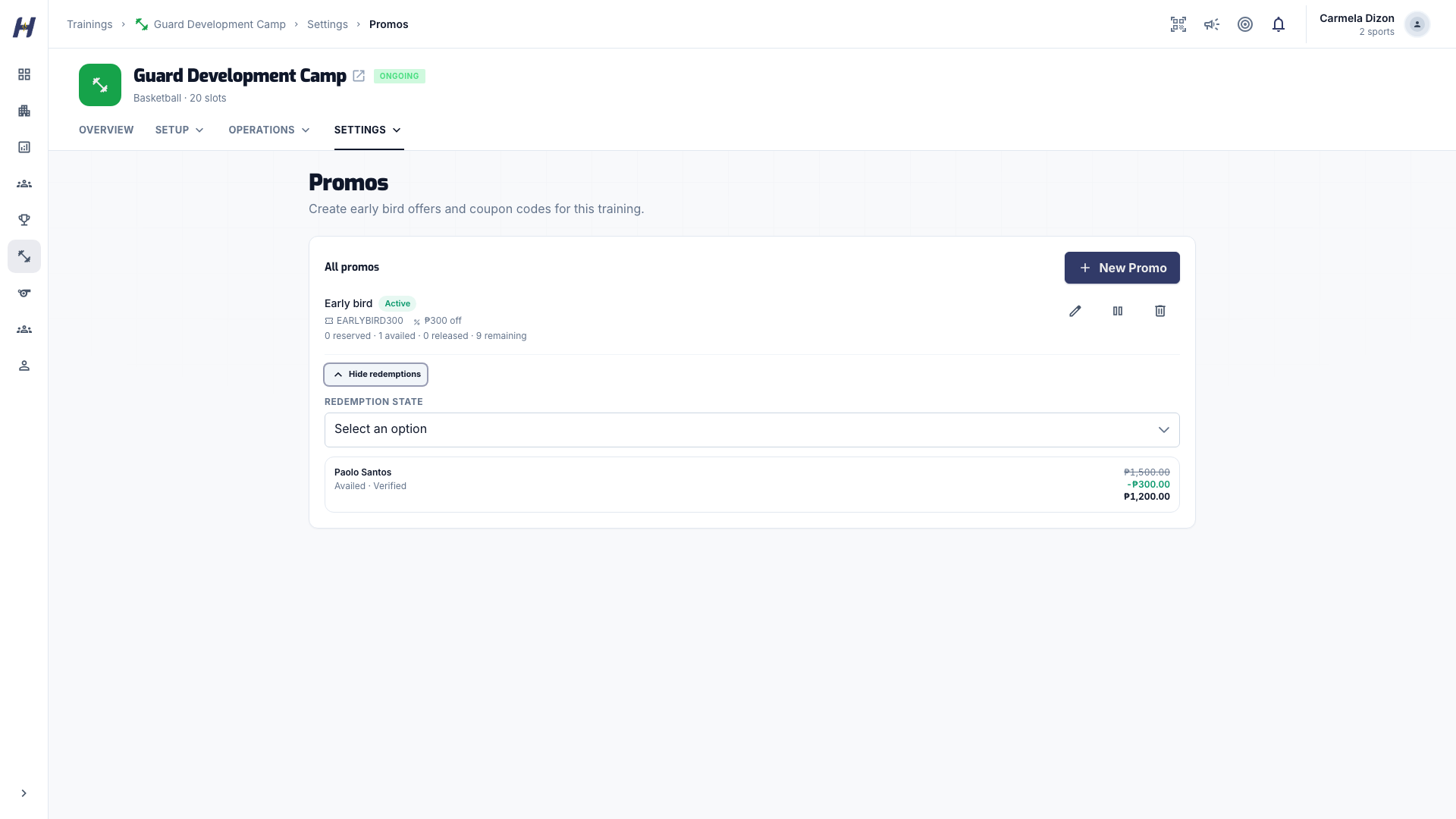
- Select View redemptions below the offer.
- Read each participant, payment status, original price, discount, and final amount.
- Filter with Redemption state, and select Load more for older records.
| State | Meaning |
|---|---|
| Reserved | A pending registration holds a use. It is not proof of payment or enrollment. |
| Availed | The registration was approved. |
| Released | The request no longer holds the offer, for example after a rejection. |
Reserved and availed uses both count against the limit.
What participants do
At Review Your Total in registration, participants select Have a promo code?, enter the code in Promo or coupon code, select Apply, and check Total due. Managers adding a player without an account use Enter promo code on Review and pay. See Join a training.
Troubleshooting
A participant's code does not apply
Check the spelling, that the offer is active and within its dates, and that the total and per-participant limits are not used up. The code must go in the promo field, not the registration message.
I cannot reuse a code
A deactivated offer still reserves its code. Edit and reactivate it, or delete it to free the code.