Prepare a match with readiness
Match readiness collects everything that has to be in place before the first play: venue, officials, table staff, equipment, team confirmations, and lineups. Use it in the days before a game and again on game day.
Before you start
- Create and publish the match with its date and venue.
- Know which officials and table staff you expect to cover the game.
Prepare the match
Open match readiness
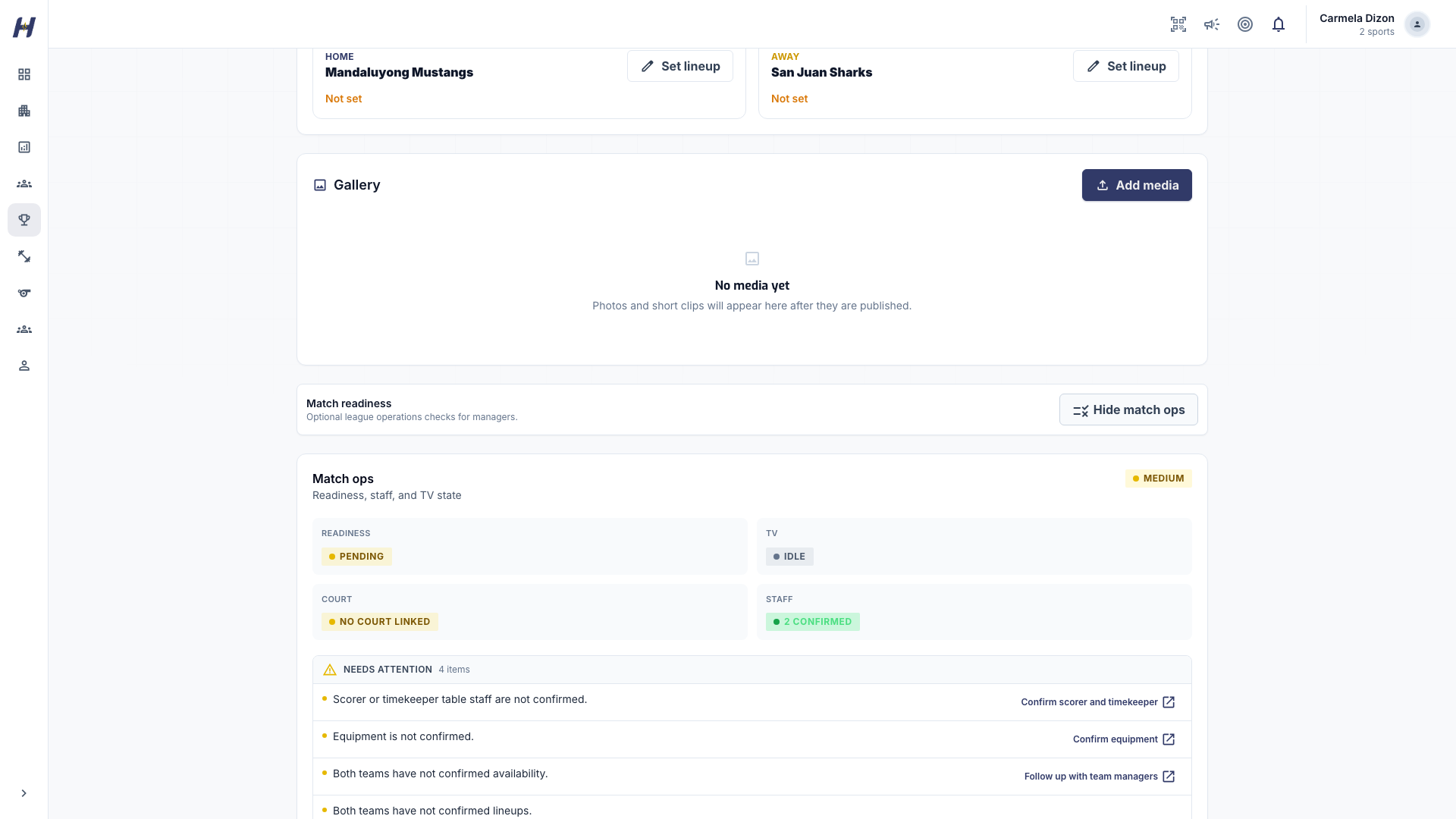
Open the league's Matches tab and select the match. Find Match readiness and select Show match ops. Follow an action such as Confirm venue or Confirm equipment to open the readiness page. Use Back to match when you finish.
Complete the checklist
Switch on each item once you have confirmed it:
| Switch | Confirm before switching it on |
|---|---|
| Venue confirmed | The venue, court, schedule, and access arrangements are correct. |
| Officials confirmed | The referee crew has agreed to the assignment. |
| Table staff confirmed | The scorer, timekeeper, and other table staff are covered. |
| Equipment confirmed | Balls, scorecards, clocks, and sport-specific equipment are ready. |
Each switch saves on its own. Wait for Saved beside it. If it shows Failed, it returns to its previous value; retry after reading the message. Use Notes for access instructions, crew replacements, or equipment issues. Notes save shortly after you stop typing.
Assign or replace crew
Under Staff assignments, select Manage crew slate to assign or replace officials. Return to readiness and review the assignment statuses, then switch on Officials confirmed yourself once coverage is confirmed. For basketball and volleyball, the Referees section also records walk-in referee names.
Follow up on teams and lineups
Review team confirmations and lineups separately from the checklist. In match operations, use Follow up with teams to see which team still needs to confirm, and Confirm lineups to open the lineup workflow. Basketball and volleyball have different lineup requirements; see Lineups and starting a game.
Readiness fields explained
The readiness page shows read-only Readiness signals:
- Checklist: whether all four switches are on.
- Team confirmations: how many teams have confirmed.
- Lineups: whether both sides have the lineup their sport and format need.
- Event review and Result proof: extra summaries when available.
The wider match operations panel can also show venue or court warnings, crew gaps, TV / livestream preparation, and result status. Profile proof comes from recorded participation and results after the game, not from any switch. Switching on Officials confirmed does not create a staff assignment or confirm a team.
Readiness states
- Pending: a checklist item, team confirmation, or lineup is still missing.
- At risk: the match is close and readiness is incomplete.
- Ready: the checklist, both team confirmations, and both lineups are complete.
For basketball, readiness reminders can alert organization admins and the admins of teams with missing confirmations about six hours before the match. Check readiness yourself too; do not wait for a notification.
Association bookings
For a booking with several crew positions, each named official accepts or declines their own position. One response does not confirm the whole crew. Accepted bookings help operations; public verified official proof depends on worked or completed participation.
After the event, close out protected association bookings: mark normal coverage completed, cancel an assignment that will not proceed, and use no-show review before confirming a no-show. Completed and cancelled protected bookings release the reserve hold; confirmed no-shows forfeit it after review.
Pending recovery and archived associations
During provider reconciliation, the booking, refund, and support case can remain pending until HustlX can reconcile provider records. Do not dispatch a replacement, mark a refund complete, or treat the amount as payout-ready while that review is pending.
Archived associations cannot take new crew dispatches. Existing booking and financial history remains available to authorized users and HustlX support for reconciliation and recovery.
Association payouts remain a manual Finance operation. A completed booking or resolved refund does not move money by itself, and the payout status does not promise when funds will arrive.
Troubleshooting
All switches are on but the match is Pending
Check team confirmations and lineups. They are separate signals.
Officials are assigned but the switch is off
Officials confirmed is a manual switch. Turn it on once you have confirmed coverage.
A change will not save
Check your connection and any email verification prompt, then retry until the switch shows Saved.
Readiness controls are missing
Sign in with an organization account that can manage the league's matches.