Run community pickups
A community is the home for a local pickup scene: its members, player records, teams, and open runs. Use it for pickup play outside a formal league. For seasons with standings and playoffs, create a league instead.
Before you start
- Create your account and verify your email.
- Decide which sports you play. Community pickups support basketball, volleyball, pickleball, football, futsal, tennis, table tennis, badminton, and padel.
- To charge for pickups, the community needs a payout destination. For an organization-backed community, an organization finance admin sets this up.
Create a community
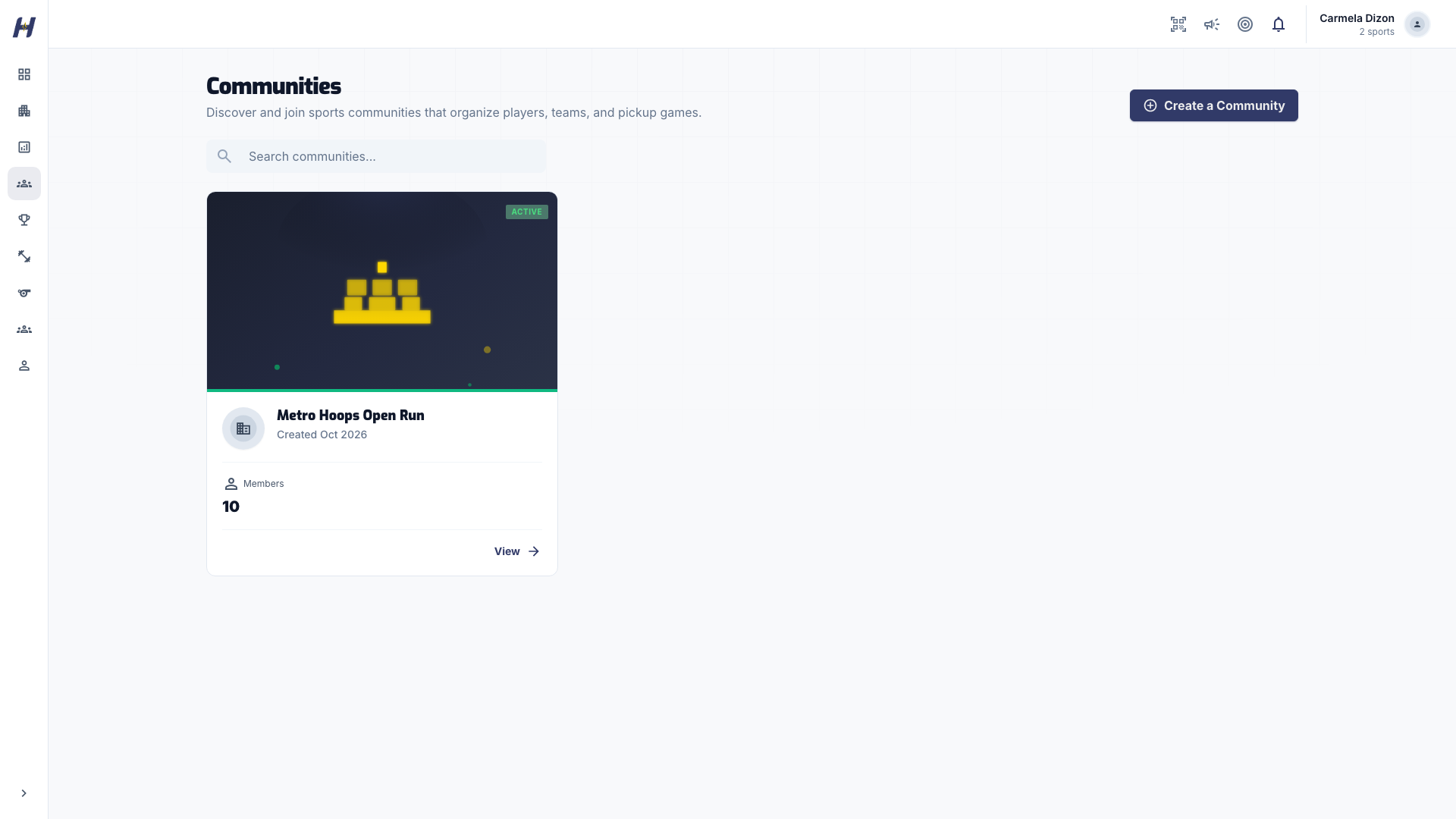
Open Communities
Go to Communities and select Create a Community.
Fill in the community details
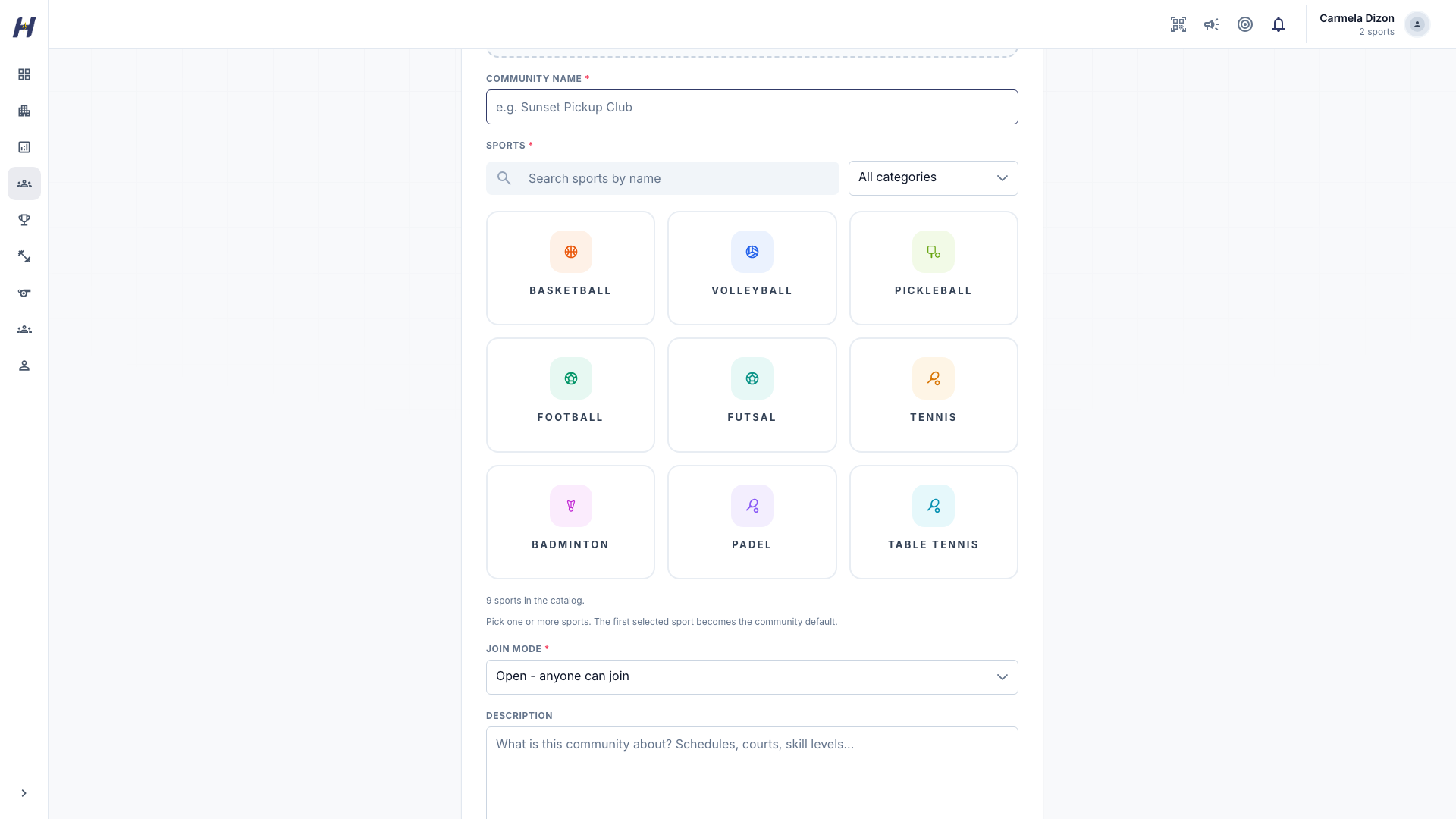
Enter a Community Name and pick one or more sports. The first sport you select becomes the community default. Choose a Join Mode:
- Open - anyone can join: players send a request that an admin approves.
- Invite only - admins approve members: players need an invitation from an admin.
Add an optional Description, Community Logo, and Community Cover.
Create it
Select Create Community. HustlX opens the new community page.
Schedule a pickup game
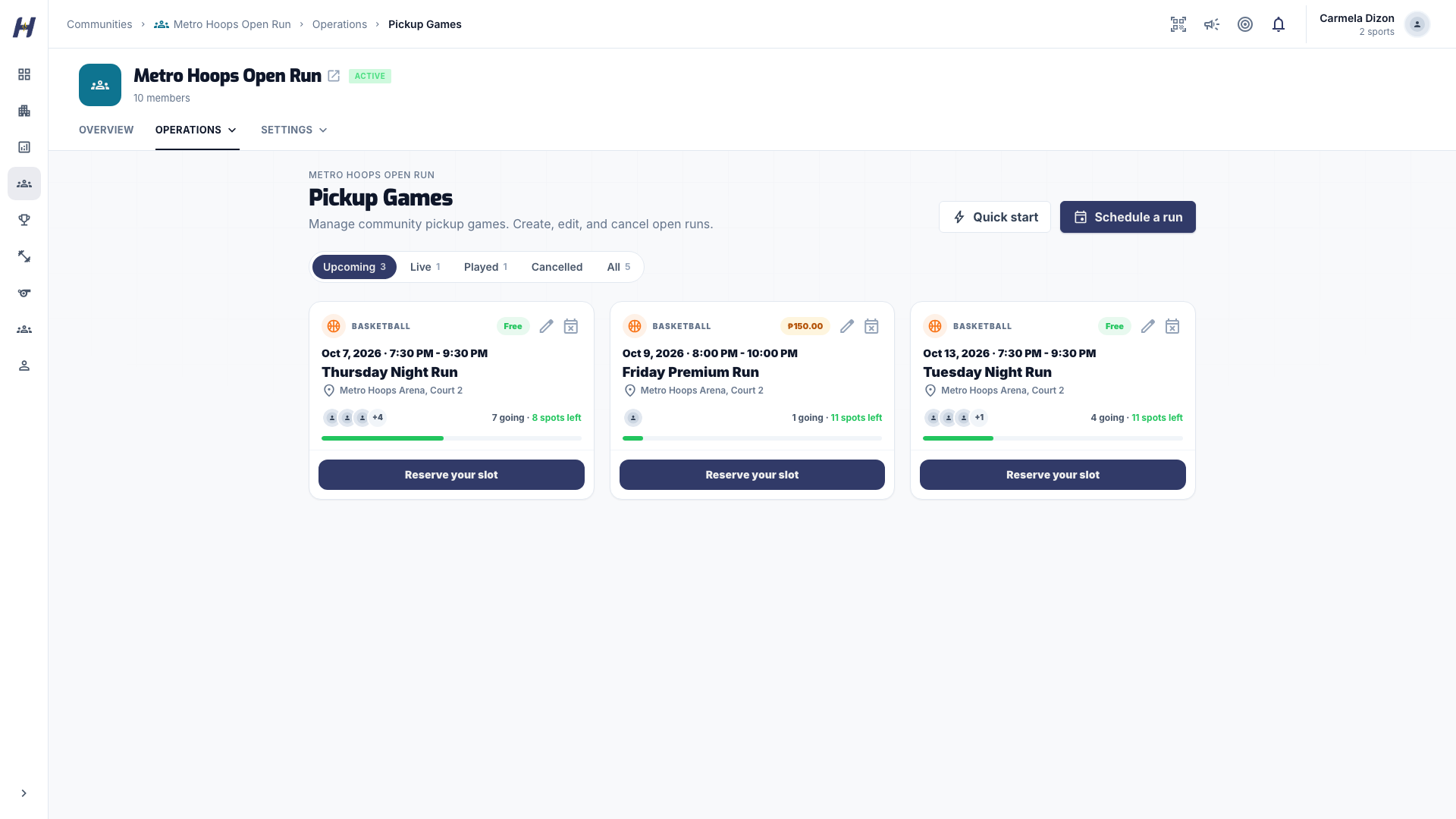
Open Pickup Games
On your community, select Manage > Pickup Games.
Choose how to create it
- Quick start opens New Pickup Game: draft two squads from your community roster, use Auto-balance if you like, then select Create or Create and start game day. Quick start makes free pickups only.
- Schedule a run opens Create Pickup Game with the full set of options below.
Fill in the game
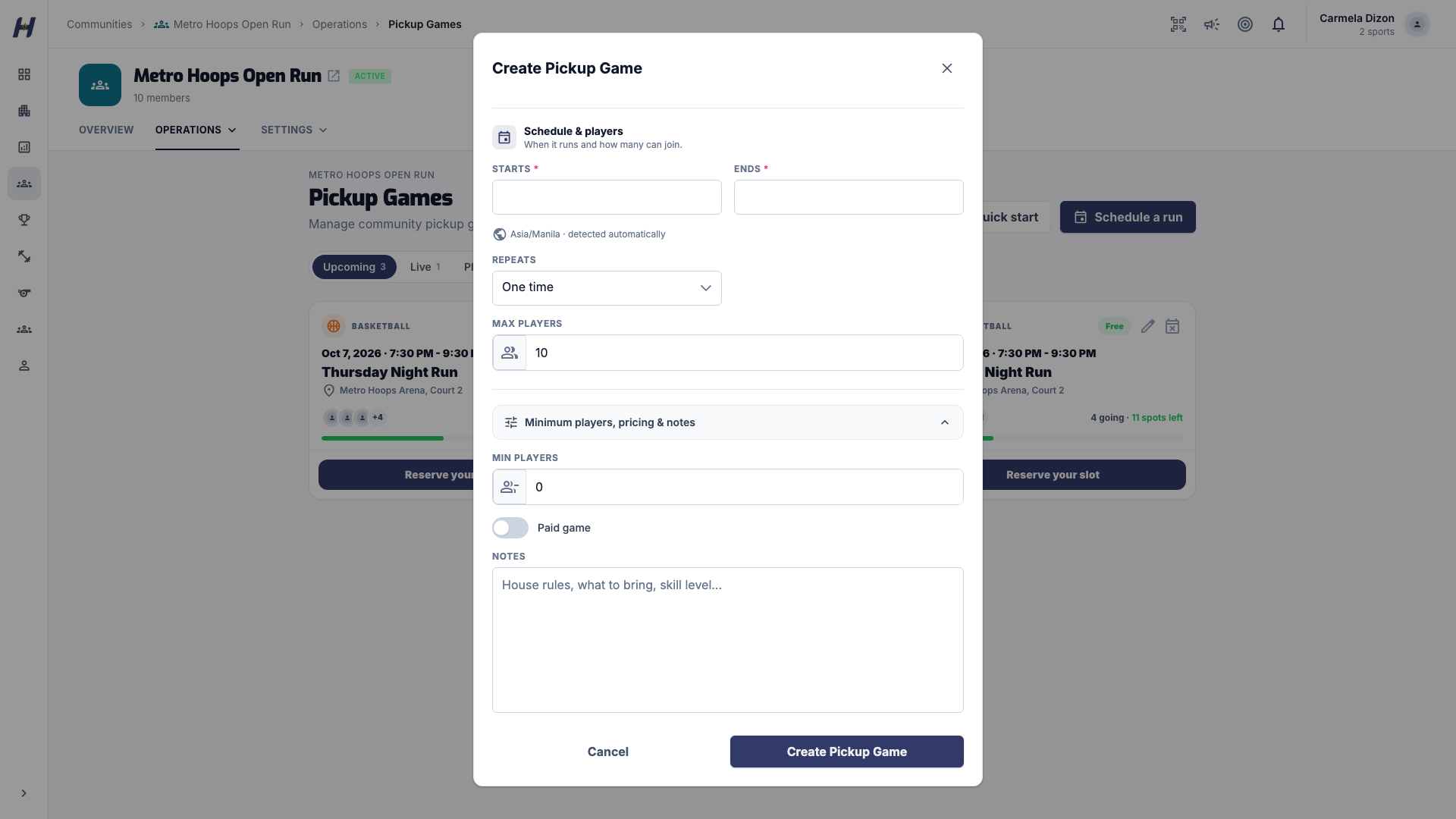
Under Game detail, set the Title, Sport, Venue, and for football or futsal the Players per side. Under Schedule & player, set Starts, Ends, Min Players, and Max Players.
To repeat the run, set Repeats to Weekly series or Monthly series, choose how often, and set a Series end date (optional) if the run should stop. HustlX creates each bookable occurrence for you.
Set the price
Turn on Paid game and enter a Fee per player, or leave it off for a free pickup. Paid games use HustlX online checkout when it is available for your community. If your community uses manual review instead, also pick a Payment Method.
For volleyball, you can turn on role booking and give each position (Setter, Outside Hitter, Opposite, Middle Blocker, Libero, Defensive Specialist) its own capacity and Role Fee. New roles start at PHP 0, and HustlX never suggests a price. The 6v6 setup button fills capacity for two six-player sides and keeps prices you already entered. Setup notes flag unusual capacity but never block saving.
Save it
Select Create Pickup Game, or Create Recurring Series for a repeating run. Members can now find it under Pickups.
To post bookable time slots instead of single games, use Manage > Pickup Schedules > New schedule. Set a venue window, then Slice into slots or keep a Single slot. Members claim slots first come, first served.
Manage a recurring series
The Recurring series panel on Pickup Games lists each series and its upcoming occurrences. Use Pause, Resume, or Cancel series for the whole run, Cancel occurrence for one date, and Edit future defaults to change what new occurrences inherit.
Manage members, players, and teams
- Join Requests: approve or reject people who asked to join.
- Members: use Invite Member to invite people, which is required for an invite-only community.
- Players: use Add Player to create player records, including people without a HustlX account. See Anonymous players and walk-ins. An admin can connect a record to the player's HustlX account with Claim Player Profile. The connection is permanent, so confirm the person first.
- Teams: build community teams and their rosters.
Review pickup requests and payments
Open Pickup Join Requests to see each game's Pending, Accepted, Waitlisted, and Declined players. Use Approve, Decline, or Promote from the waitlist.
Check payment before a paid player takes the court. Online checkout updates payment only after the provider verifies it. A reservation, a browser return, or a screenshot is not proof of payment, and you should never mark a hosted payment as paid yourself.
Manual reference submission and admin review are available only when that separate payment path is enabled for your community. When it is, Payment Methods appears under Settings, and Mark paid or Waive (with a Waiver Note) appear on accepted players. Older manual evidence can stay visible after new submissions are turned off.
A paid player keeps paid time through the scheduled end, plus a two-hour grace window. After grace ends, HustlX pulls the player from the live rotation without erasing recorded stats. Use Open renewal to let a player in grace or expired time pay again. The player stays renewal pending until payment is verified, and is not put back into the rotation automatically.
Know your monthly session allowance
Starting game day uses one session from your community's monthly allowance. Each booked time slot counts as one session, even if you start several games in it. A game without a time slot counts as one session on its own. The Free plan includes 2 sessions a month, and the count resets on the first of each month.
Owners of a standalone community can open Manage > Subscription to choose a paid plan with 10, 20, or unlimited monthly sessions. Paid plans also unlock the full Creator Studio poster set. Plan upgrades may not be available on every account.
What happens next
- Members find your games under Pickups and reserve a place. See Find a community.
- On the day, open the pickup and run it. See Run pickup game day.
Troubleshooting
Why are Quick start and Create Pickup disabled?
Free pickup games are turned on per community by HustlX. If you see "Free pickup games aren't enabled for this Community yet," contact Support. Paid pickups need a payout destination; use Set up payout destination when it appears.
Why can't I start game day?
You may have used all sessions for the month, or a subscription payment is still pending. Upgrade or wait for the monthly reset. Starting another game inside a slot that already started does not use a new session.
Can I run a season with standings here?
No. Communities have pickups, a player leaderboard, and teams, but no seasons or league standings. Use Leagues.