Issue and verify completion certificates
Officials seminars and trainings on HustlX Officials can award a Certificate of Completion. Each one names the issuing organization or association and the program organizer, carries a unique credential ID and QR code, and links to a public verification record.
What a certificate shows
- the recipient, program title, sport, and the official roles the program covers
- completion and issue dates, plus an expiry date when the certificate expires
- the organization or association that issued it and the organization that organized the program, which can be different
- the issuer's logo and up to two signatories with their titles
- a QR code and the exact credential ID, plus Powered by HustlX Officials
Set up the certificate
Open the Certification step
Create or edit a seminar or training in HustlX Officials. The program form has five steps: Basic Info, Logistics & Pricing, Certification, Sessions, and Review. Open Certification.
Turn on the award
Turn on This program awards a certificate upon completion and enter a Certificate title.
Choose the issuer
In Certificate issuer, select who stands behind the certificate:
- The organization running the program can issue its own certificate right away, using its current name and logo.
- An officials association: enter its name in Find association issuer, select Search associations, then pick it as the issuer. An association manager must approve this exact configuration before you can issue certificates under it.
Set validity and signatories
Under Certificate validity, turn on Set an expiry period if the certificate expires, and enter the Validity period. Under Approved signatories, select Add signatory and enter each person's Full name and Role or title. Saved signature artwork stays linked when you save. Use Remove saved signature artwork to drop it.
Review the preview and save
Check the preview, which uses a Sample recipient and a placeholder QR area, then save the program. The real QR code is added when a certificate is issued.
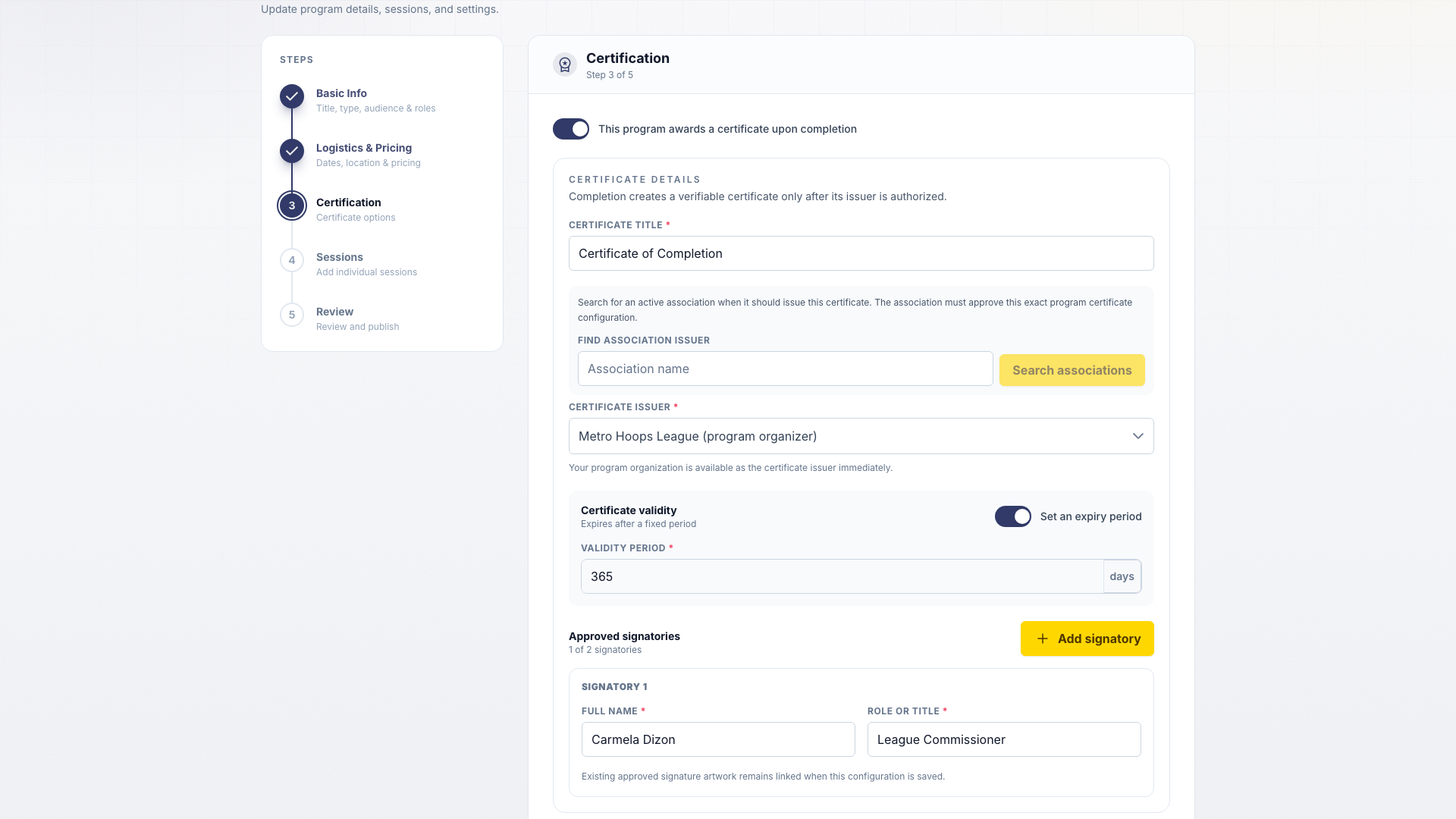
An association approval covers the details it reviewed: issuer, award, validity, signatories, title, program type, sport, and roles. Changing those details can require a new approval.
Approve an association-issued certificate
Association managers open the association's Manage area and select Certificates. On Association certificates, review the requesting organizer and the full configuration, then select Approve issuer. To stop new certificates under an approval later, select Revoke grant. Revoking does not remove certificates already issued.
Issue certificates
Record completion
Record each participant's attendance and completion from the program Roster.
Open Certificates
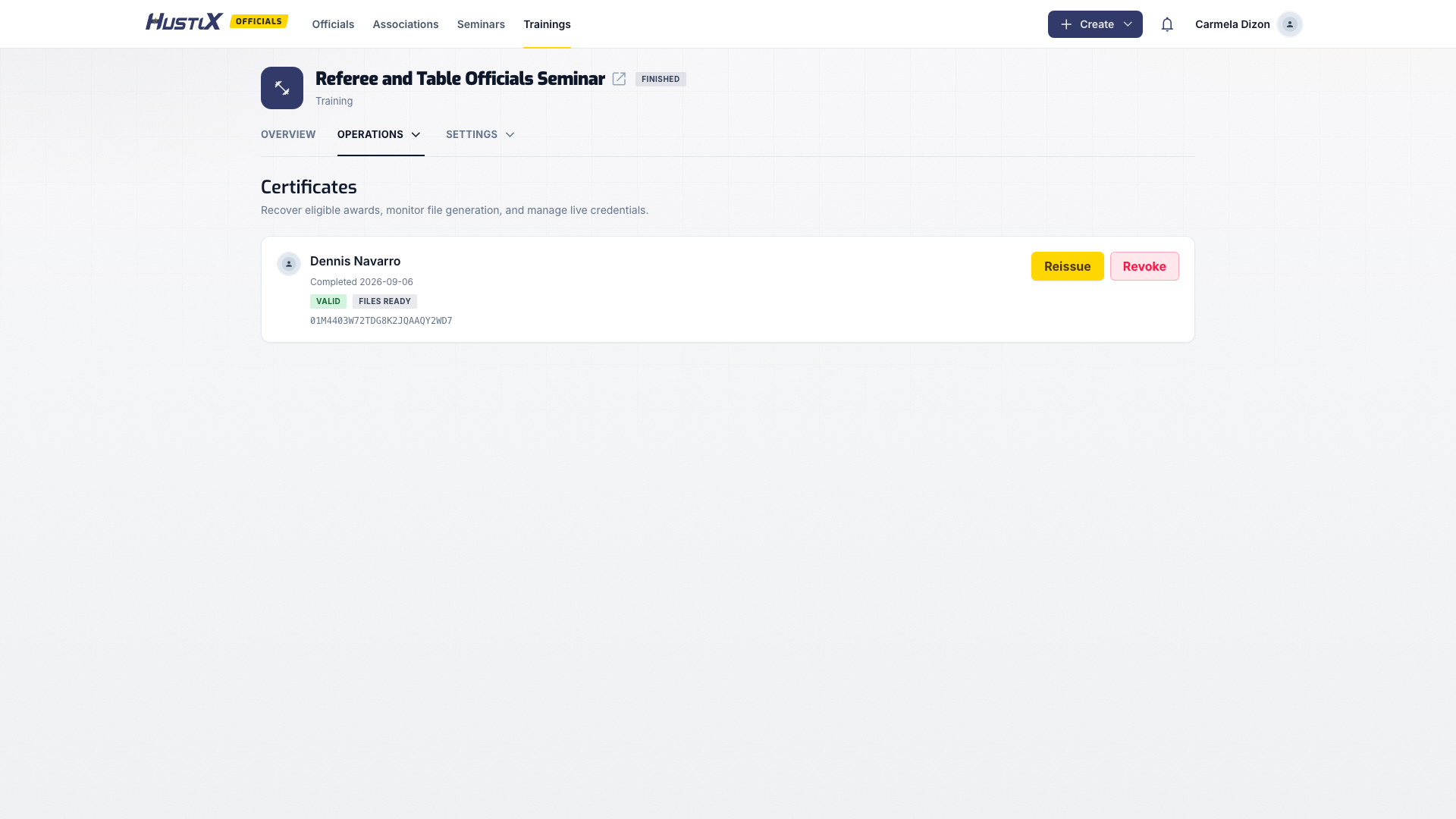
Open the program's Manage area and select Certificates. Each participant shows whether completion is recorded and whether they are eligible.
Issue a missing certificate
If an eligible participant has no certificate, select Issue certificate, enter a Private audit reason, and confirm with Issue certificate.
Wait for the files
HustlX renders a PDF and a PNG. The badge reads Files pending, Files processing, Files ready, or Files failed.
Completing a participant and rendering the files are separate. A participant stays completed even if rendering fails.
Correct an issued certificate
Issued certificates are never edited in place. Use the actions beside the certificate:
| Action | What it does |
|---|---|
| Retry files | Renders the files again for the same credential. Validity does not change. |
| Revoke | Withdraws the credential. Needs a Private audit reason. The verification page shows it at once. |
| Reissue | Marks the current credential Replaced and creates a new one with its own credential ID (Create replacement). |
| Resolve review | For a credential under review, choose Restore credential or Revoke credential, with a reason and optional private evidence. |
Find your certificates
Open My profile in HustlX Officials and go to your certifications. Program certificates are labeled Program verified. Certifications you uploaded yourself are labeled Self-reported.
For a program certificate you can check its status, select Verify credential, use Copy verification link, download the PDF or PNG when the files are ready, and open Credential history to see older revisions.
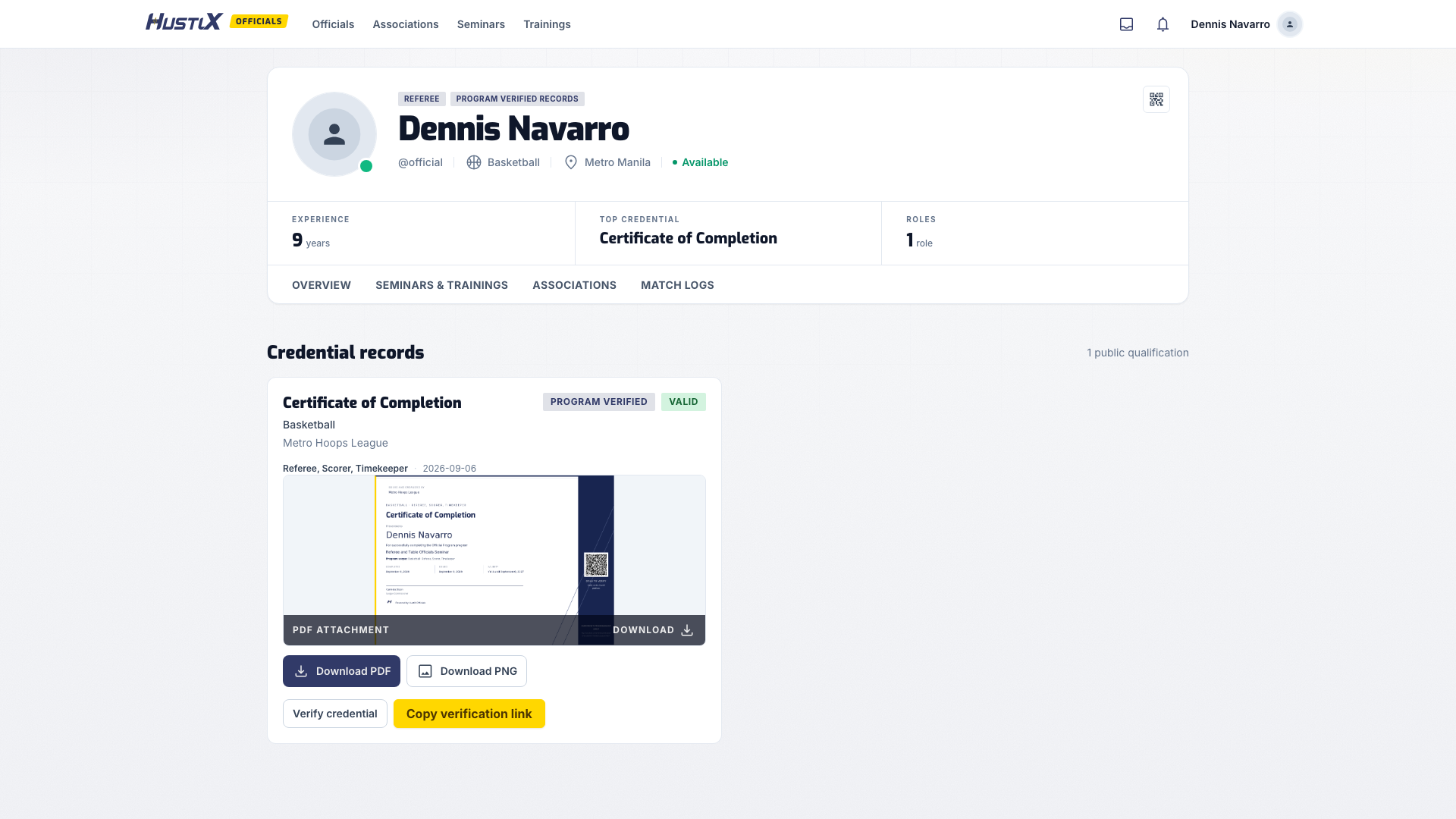
If your name, dates, or program details are wrong, contact the program manager or issuing association. They can reissue the certificate.
Verify a certificate
No account is needed.
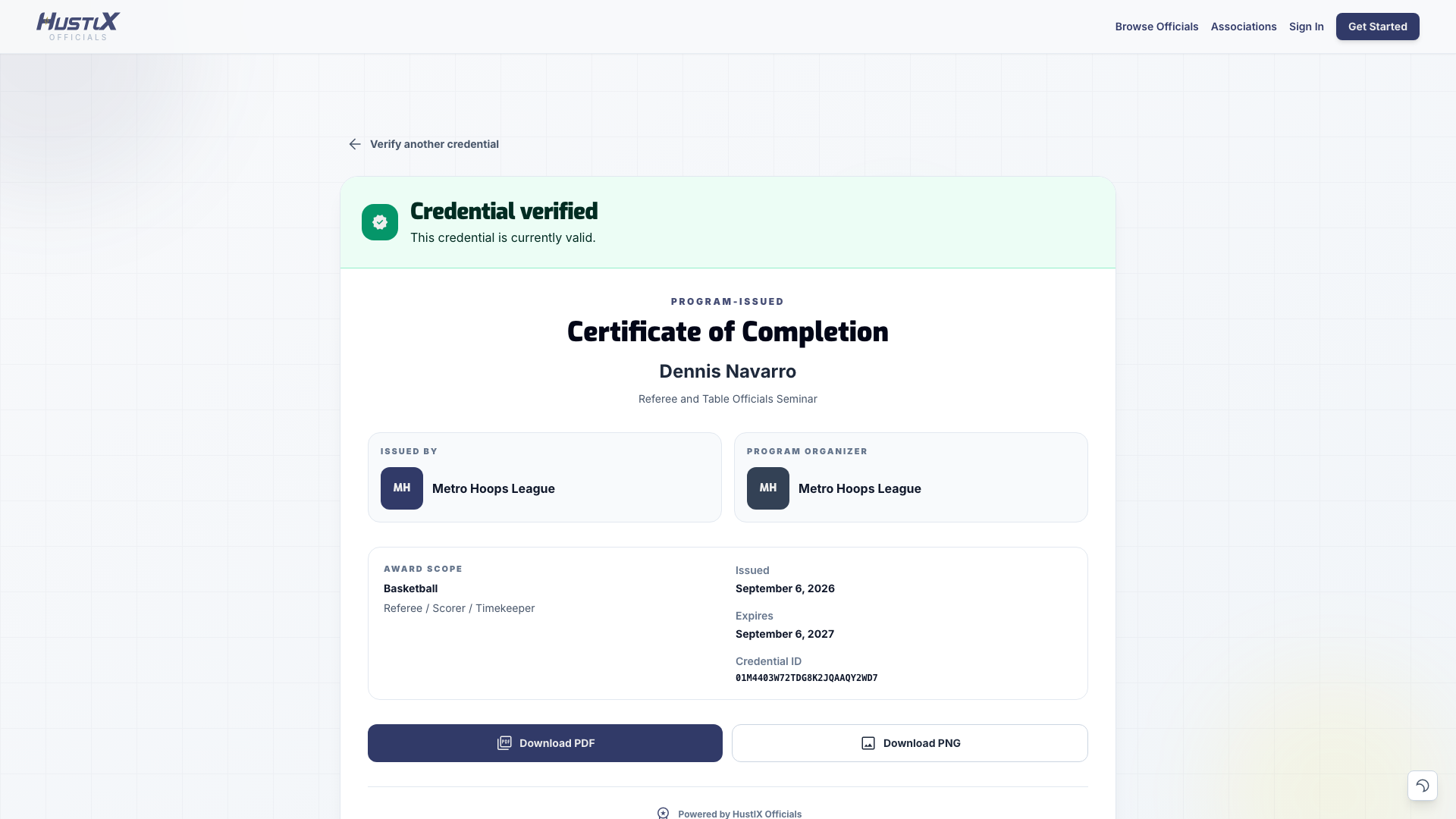
- Scan the QR code, or open Verify a Certificate, enter the Credential ID exactly as printed, and select Verify credential.
- Read the status banner first.
- Compare the recipient, award, program, sport and roles, dates, issuer, and organizer with the certificate you were shown.
| Banner | Meaning |
|---|---|
| Credential verified | The credential is currently valid. |
| Credential expired | Authentic, but its validity period has ended. |
| Credential revoked | The issuer withdrew it. |
| Certificate replaced | A newer revision exists. Open the replacement. |
| Credential under review | The issuer is investigating it. |
| Legacy certificate record | An older record whose original issuer details could not all be confirmed. |
The verification page shows only what is needed to check one credential. There is no public search or directory. Private audit reasons, review evidence, contact details, and management controls are never shown.
Troubleshooting
Certificate not found
Enter the ID exactly as printed, keeping letters, symbols, and capitalization. If it still fails, ask the recipient or issuer for the original verification link.
Files failed
A program manager selects Retry files on the Certificates page. The participant's completion is not affected.
I cannot issue under an association
The association must approve the program's current certificate configuration first. Edits to the award details can require a new approval.
The issuer or organizer looks wrong
Do not rely on the image alone. Compare it with the live verification page and contact the named issuer. For platform issues, use Support and contact and include the credential ID. Do not send signature files or review evidence through a public channel.