End a match and review awards
Ending a match saves the final result, updates standings, and records match awards. Take a moment to check the score and stats first, because the end steps are the last thing you do in the console.
Before you start
- Check the score, period or set, player stats, and fouls against the referee's scoresheet.
- Undo any wrong actions first. See Use subs, timeouts, and undo.
- Make sure you are online and the console header no longer shows Updating or Retry.
End the match
Select End Match
Select End Match under the clock. HustlX asks End the match? and explains that this stops the live clock. Select End Match to continue.
Confirm the winner
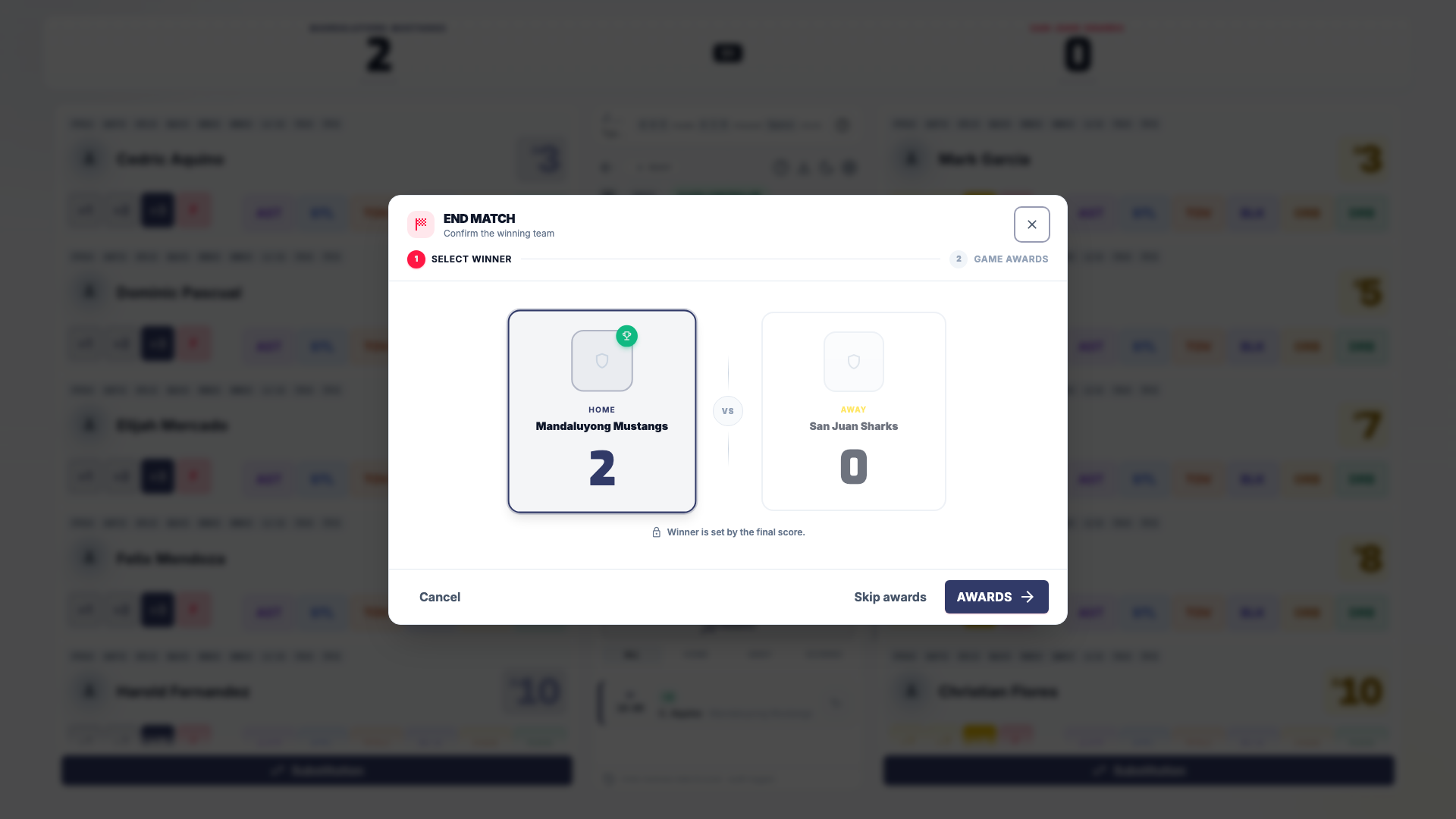
On Select Winner, the winner is set by the final score. If the score is tied, select the winning team. Select Awards to continue, or Skip awards to finish without a player of the game.
Review Game Awards
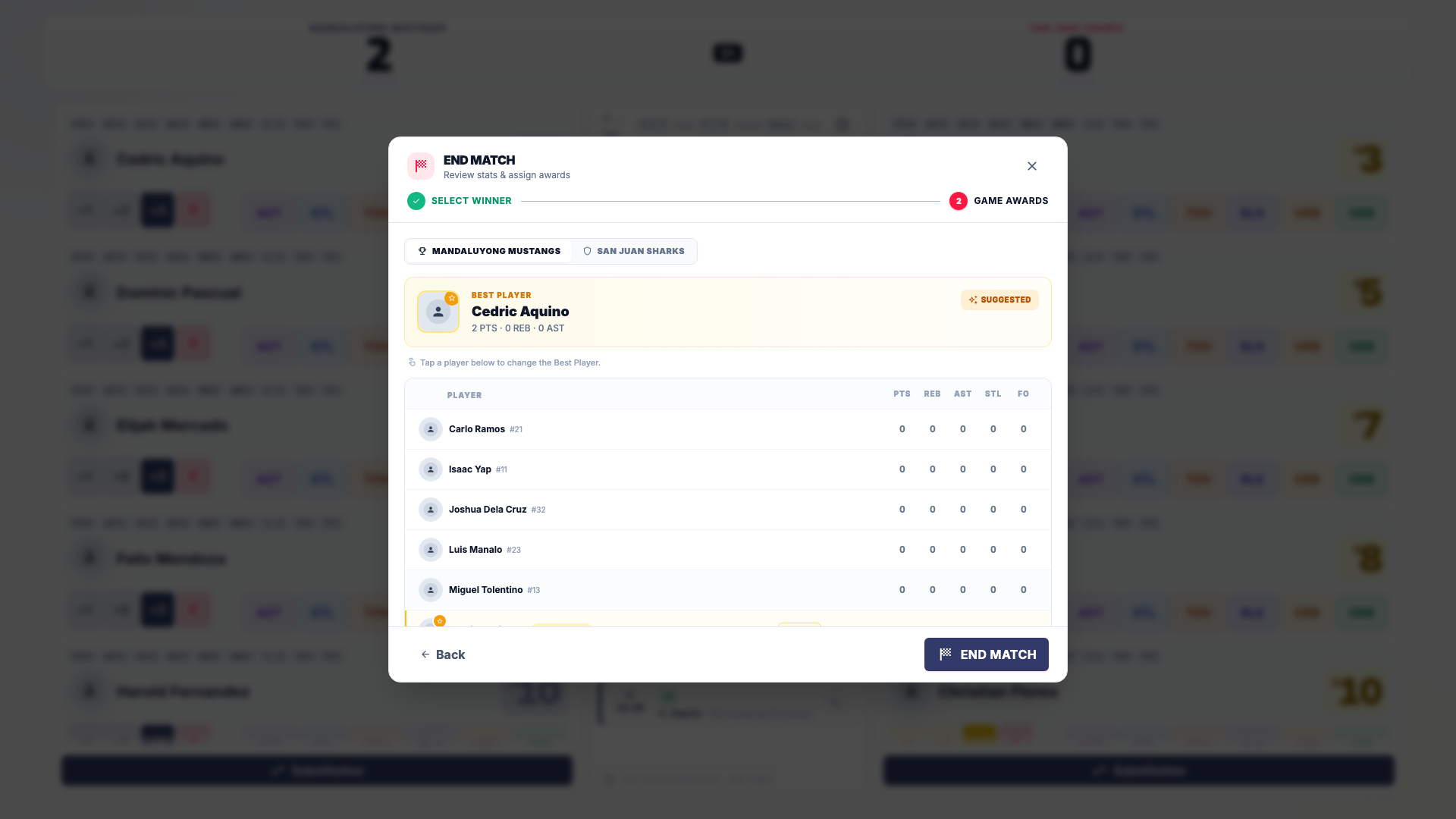
The winning team's tab shows the suggested Best Player, the player of the game. Tap another winning-team player to change it, or select Use suggested to go back to the suggestion. Check both team tabs, then select End Match to save the result.
Complete the deciding set
When the set score reaches the target and winning margin, select Complete Set. HustlX shows the set score to confirm. Select Complete Set again. The set locks and both teams' timeouts reset. HustlX never completes a set on its own.
Select Conclude Match
Once a team has won enough sets and no set is live, select Conclude Match. In Conclude the match?, select Conclude. You cannot score more sets after this.
Confirm the winner and awards
Confirm the winner (select one if the sets are tied), then select Awards. Review Best Player and the award tags (SCORER, ATTACKER, SERVER, BLOCKER, DIGGER). Select Conclude Match to save, or Skip awards on the winner step.
Check the result
The console shows Match Concluded. Select View Match Result to open the saved match.
Open the closeout
Select Conclude Match in the workflow bar. The Football/Futsal Closeout dialog shows the final score and how the match was decided, such as Decided in regulation, After extra time, or Decided on penalties.
Confirm and close out
Check I reviewed the event log and final score. and I confirmed the official report is ready., then select Close Out Match.
For a finals match, HustlX opens the league awards page right after you finish, so you can record season awards. See Standings, playoffs, and awards.
Record a default result
Use this when a team does not show up or forfeits.
- Basketball: select Default result under the clock, or in the starting lineup dialog. In Set basketball result by default, pick the Winner and Result type (No-show before the match starts, Default before or during it), review Winner score and Loser score, enter a Reason, check the Result preview, and select Set winner.
- Volleyball: select Default result on the set strip before the match starts.
Check and print the result
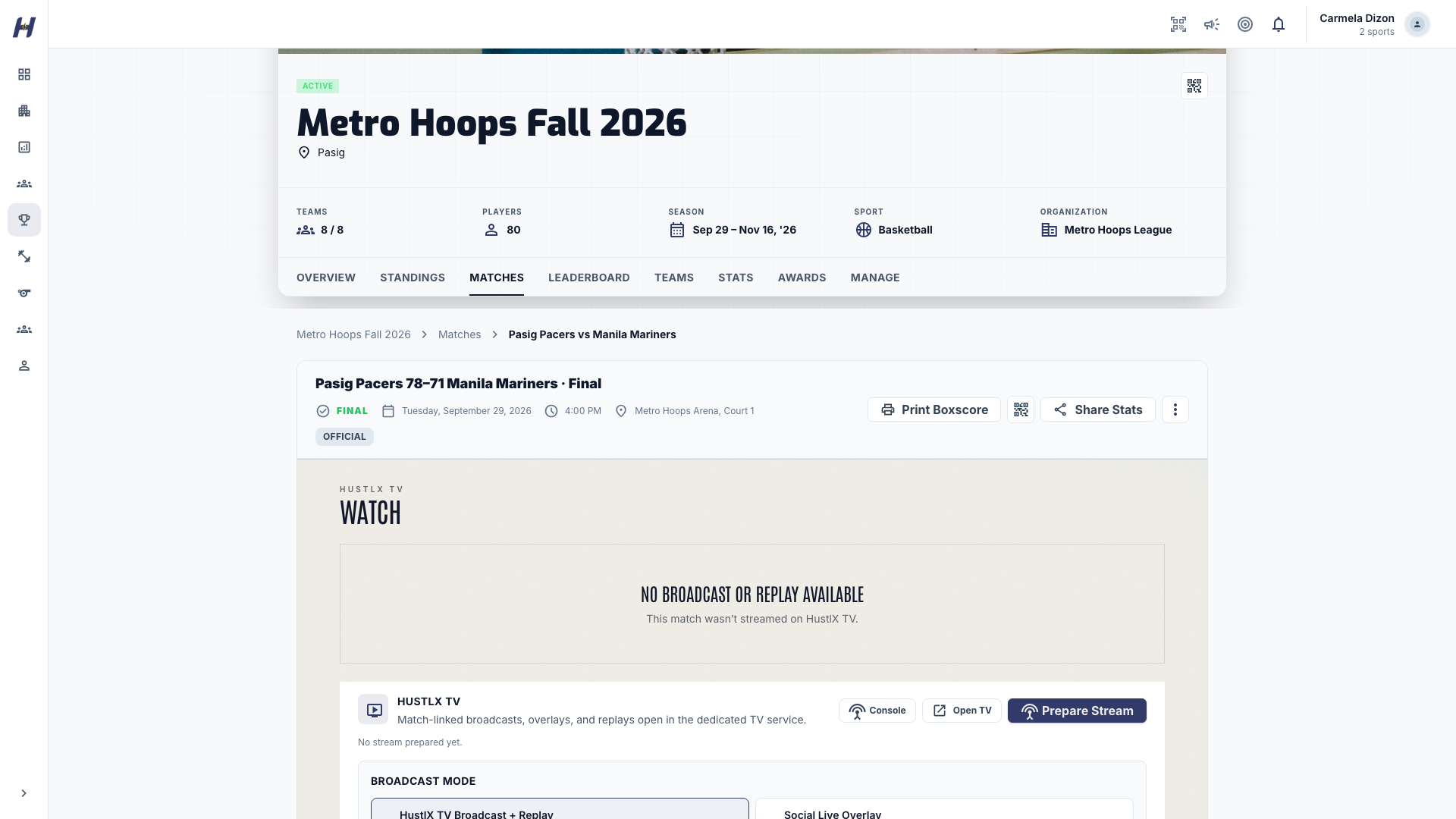
Open the match page to review the final score, box score, play-by-play, and updated standings. Select Print Boxscore for a printable one-page box score, then print or save it as a PDF from your browser. Printing does not change the result.
Fix stats after the match
On a basketball match page, select Edit stats above the box score to correct player stat lines. Use this for mistakes you find after the console is closed.
Troubleshooting
End Match shows a message instead of the dialog
Finish what it names first: reconnect, let queued updates sync, resolve a clock review, or switch to the tab that started the match.
The winner is wrong
Cancel, undo or correct the scoring actions, then end the match again. Never end a match to reset a score.
I skipped awards by mistake
Skip awards saves the result without a player of the game. League-level awards stay available on the league awards page.