Use subs, timeouts, and undo
This page covers the controls you use between scoring plays: substitutions, timeouts, the clock and periods, and undo. It also explains what to do when your connection drops mid-game.
Before you start
- Start the match. See Set lineups and start the match.
- Keep the venue clock and the on-screen clock in step during stoppages.
Make a substitution
Open Substitution
Select Substitution on the team's panel.
Swap players
Select the outgoing player under On Court, then the incoming player under Bench. You can queue several swaps. Review them under Pending changes, or use Undo all changes to start over.
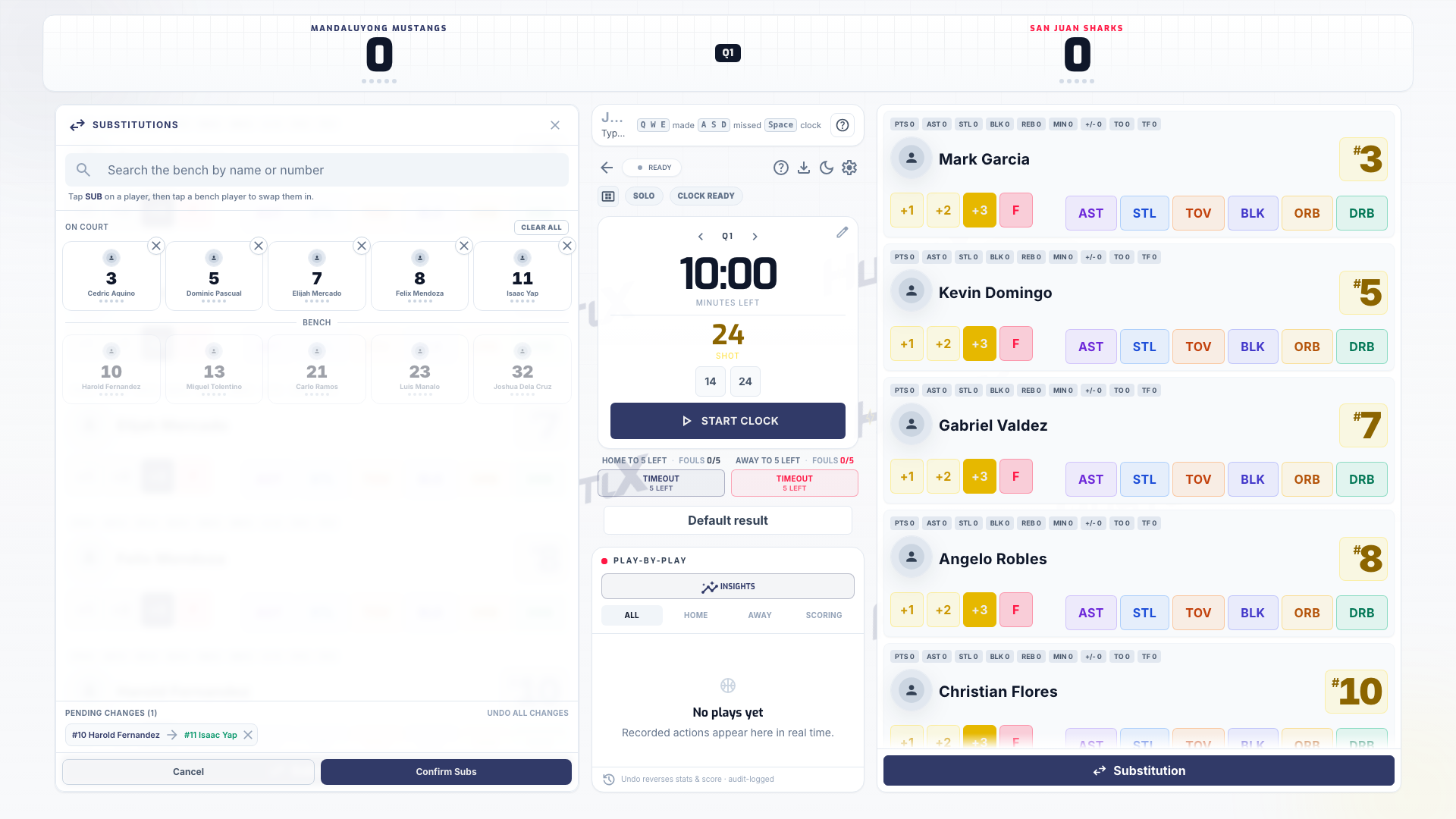
Confirm the swap
Select Confirm Subs. In 3x3, substitutions are off while the clock runs: stop the clock for a dead-ball substitution before the check-ball.
Record a timeout
- Basketball: each team's timeout buttons sit under the clock with the count left (for example Home TO 2 left). When a team has used its allowance, the button stays tappable: HustlX asks No timeouts left and you can select Record anyway.
- Volleyball: select Timeout on the team's panel. Timeouts reset when you complete a set.
- Futsal: record each team's timeout from the team actions.
Run the clock and periods (basketball)
- Start and stop: use play and pause to match the venue clock.
- Shot clock: use the reset buttons for a full or short reset (24 and 14 in a usual 5v5 setup).
- Correct the clock: select the clock to open Edit Clock. Adjust Game Time (MM:SS), Shot Clock, or Quarter, add a Shot Clock Note if needed, and save.
- Change period: use Next period or Previous period. HustlX asks Change period?, or Reset team fouls? when the move resets team fouls. Select Confirm or Reset & advance.
- Overtime: when regulation ends tied, the match button changes to Start Overtime.
For football and futsal, select Edit match clock to correct Clock (MM:SS) or Stoppage (MM:SS).
Undo an action
Select the undo button on the play in the play-by-play, or press Backspace with nothing typed to undo the latest play. Undo happens right away and shows Play undone. It reverses the score and stats, and every undo is logged. Undoing a timeout gives the timeout back.
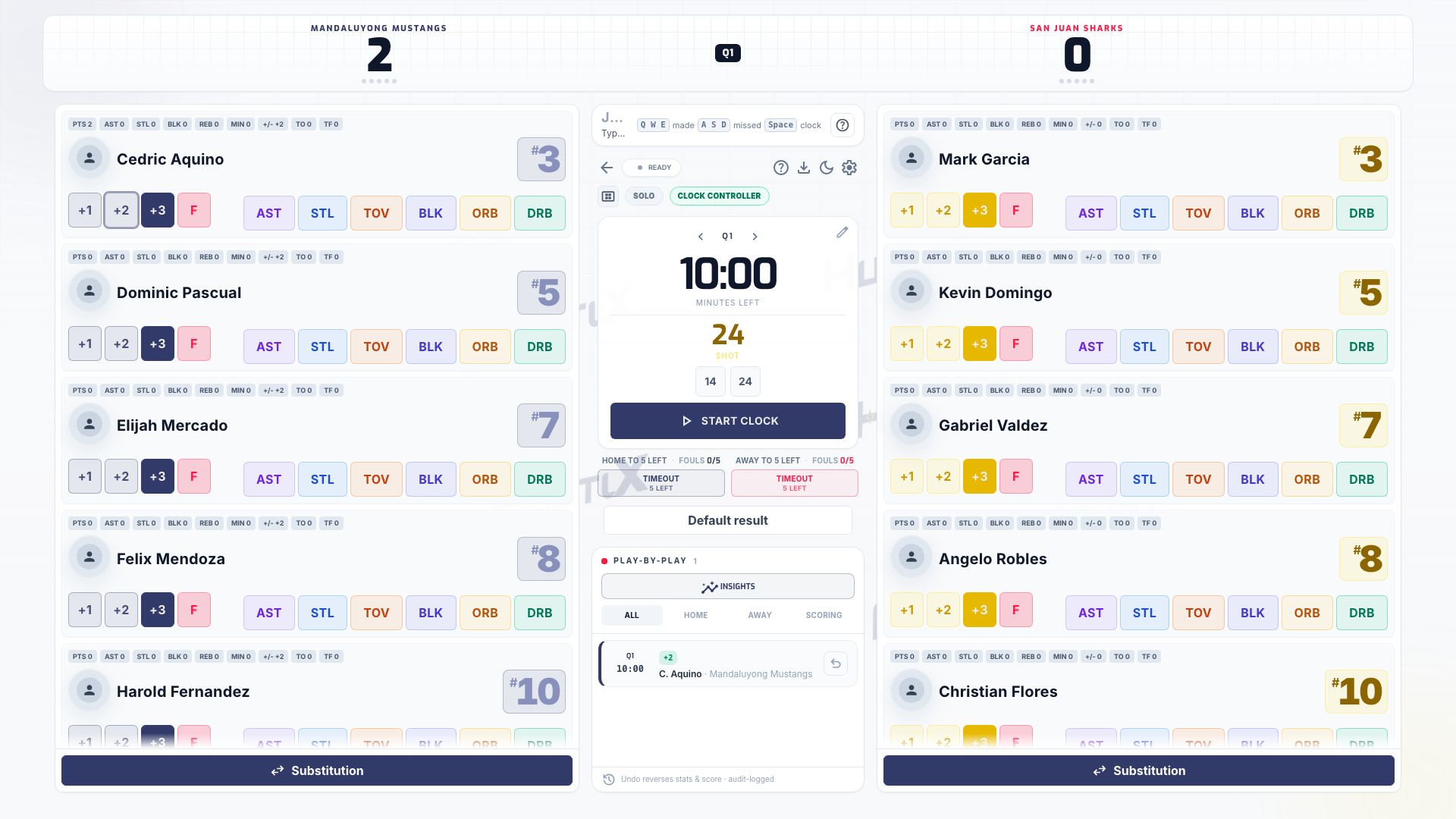
After undoing, record the correct action and check the score.
When the connection drops
Keep scoring. Actions you record while offline are saved on the device and sync when you reconnect. The status in the console header shows Ready, Updating, Live, or Retry.
- If a saved action is refused when it syncs, a Sync paused: banner appears. Select Resume to try again, or Discard blocked action to drop that one action.
- If the clocks disagree after you reconnect, HustlX shows both times. Choose Use backend time (the saved match clock) or Use frontend time (this device's clock).
- Starting and ending a match need a live connection. If you are offline, HustlX shows Reconnect to finish the match.
- Use one tab per device. A second tab of the same match can watch, but it cannot start or end the match.
Troubleshooting
Another device took the clock
The clock follows the last operator with the Clock or Lead Table focus who tapped a clock control. Tap a clock control on your device to take it back, and agree at the table who runs it.
The substitution button is disabled in 3x3
Stop the clock. 3x3 substitutions happen only in a dead ball.
I undid the wrong play
Record the play again. Undo does not have a redo.