Require training documents
Many programs need a medical clearance, waiver, parental consent, or ID before the first session. Training documents use a two-layer model: your organization keeps a reusable library, and each training decides which documents it requires, who signs, and by when. Document checks never stand in for payment.
Where each screen lives
| What you want to do | Where to go |
|---|---|
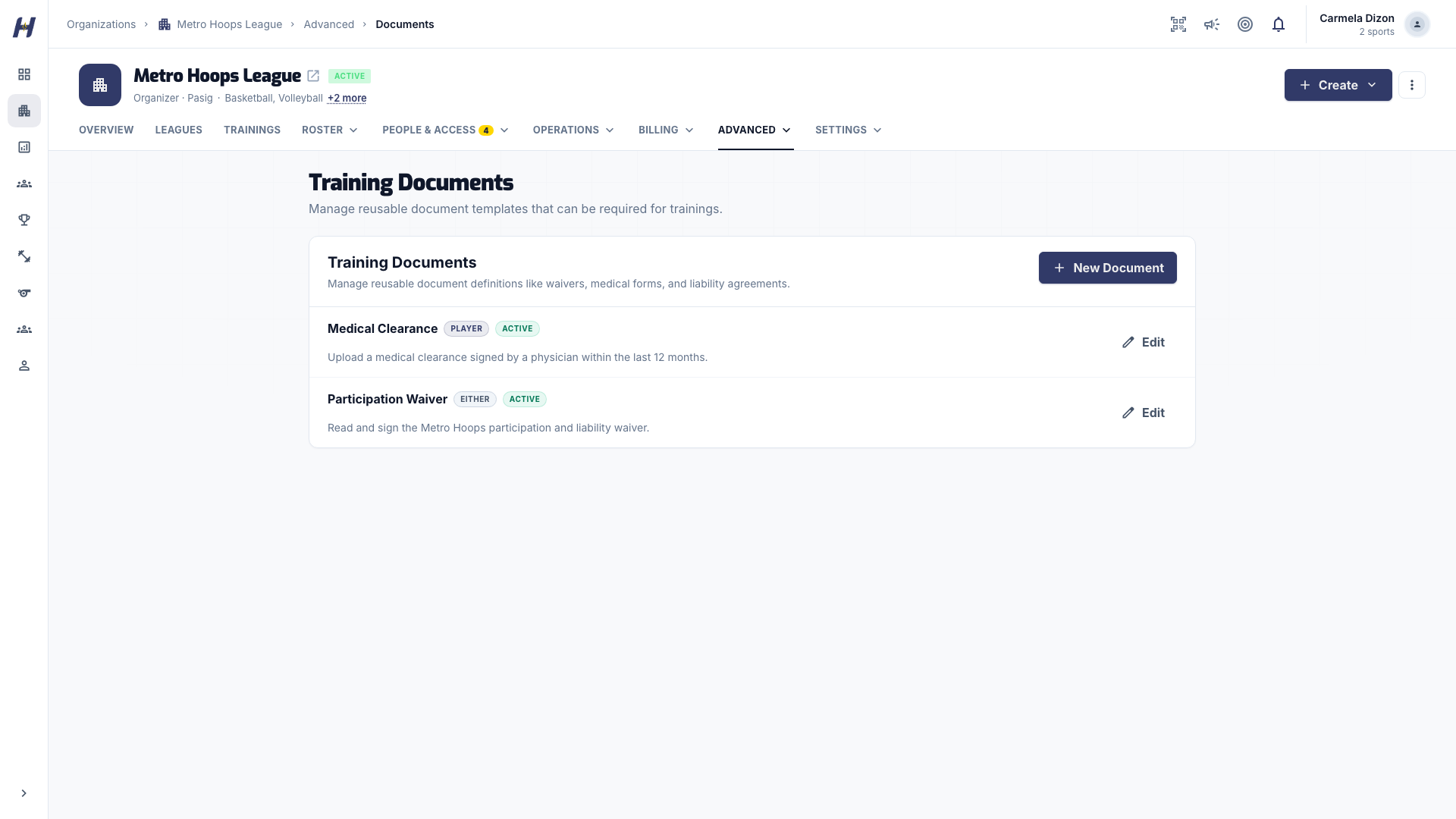
| Create a reusable document | Organization Manage > Advanced > Documents |
| Require a document on a training | Training Manage > Settings > Required Documents |
| Review uploads | Training Manage > Operations > Documents |
| Submit a document | Training Documents tab |
Set up a required document
Create the library document
In your organization's Manage area, open Documents under Advanced. The page is titled Training Documents. Select New Document (or Create Document on an empty library).
Fill in the document
Enter Title, Description, and Instructions, choose the Default Signer Role, and leave Active on. Under Required template, upload the blank form as Template file (PDF, DOC, or DOCX, up to 20 MB). Wait for the upload to finish, then select Create document.
If the details save but the file does not attach, select Retry attachment instead of creating a duplicate.
Attach it to the training
Open the training, select Manage, then Required Documents under Settings. Select Add Requirement and set:
- Document: pick one from your library, or use Upload a new document.
- Required for participation: leave it ticked for a hard requirement.
- Who signs: Player, Parent/Guardian, or Either.
- Deadline: No deadline, Before first session, or Fixed date with a Due date.
Select Add. Add one requirement per document so each can be reviewed and resubmitted on its own.
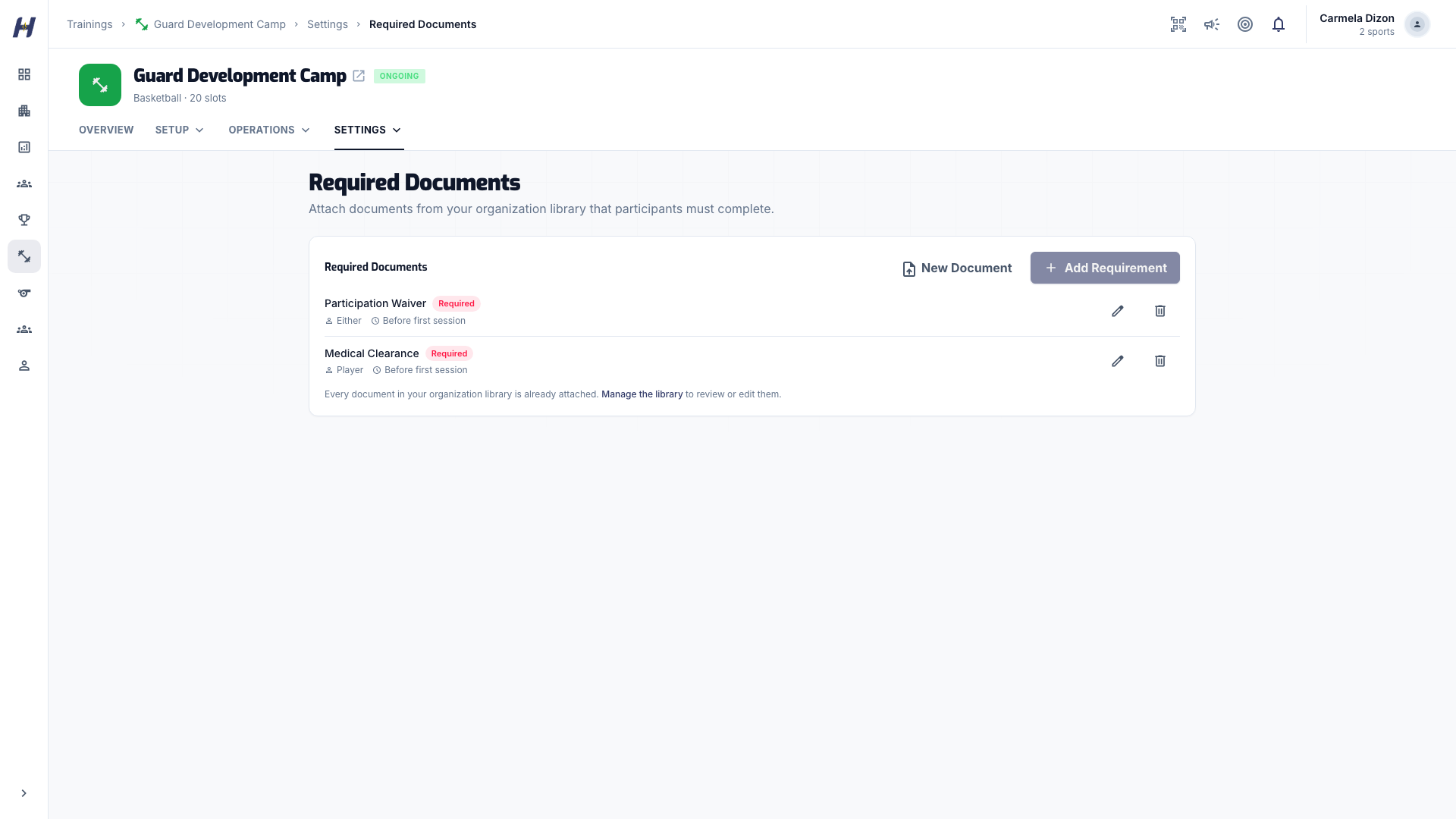
To change a requirement later, use the pencil on its row to edit the deadline, signer, or required status. To swap the document, remove the requirement and add a new one. Attach requirements before you open registration: adding one later prompts everyone already registered.
Submit a document
Participants and guardians do this from the training page.
- Open the training and select the Documents tab. It appears for approved participants and training staff. Check that the right participant is selected.
- Read the card and select Download Template when it is offered.
- Complete and sign the form with the signer the card shows under Signed by:.
- Select Upload Document, add the file under Upload Completed Document (PDF, DOC, DOCX, JPG, or PNG, up to 20 MB), and select Submit Document.
- Check that the card shows Submitted - Pending Review.
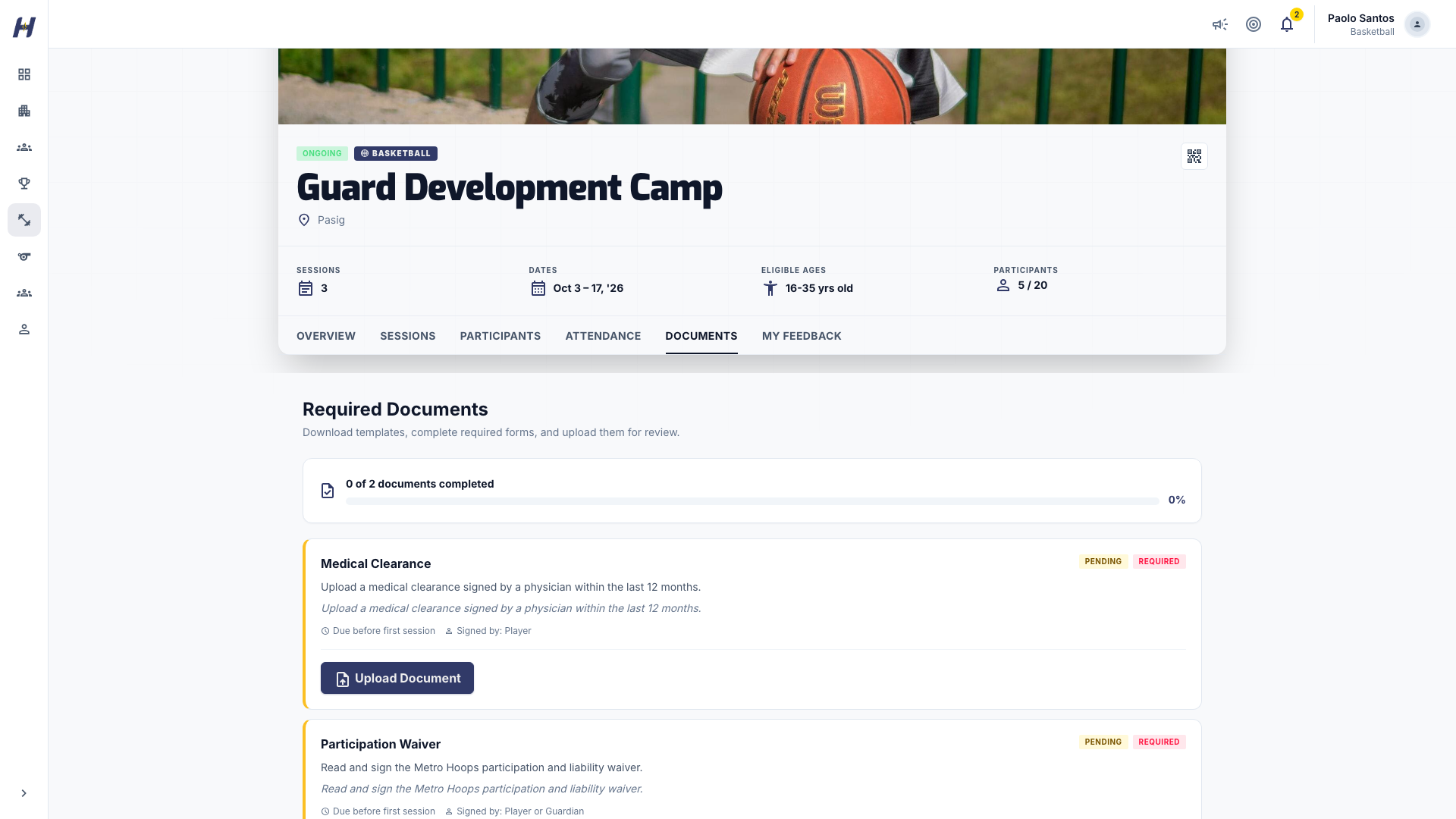
A guardian can submit for a managed child when Who signs is Parent/Guardian or Either. When it is Player, the athlete's own account must submit.
If a card shows Rejected, read Reviewer feedback, fix the file, select Re-upload, and submit again. Only approved documents count toward the progress bar.
Review submissions
Open the review queue
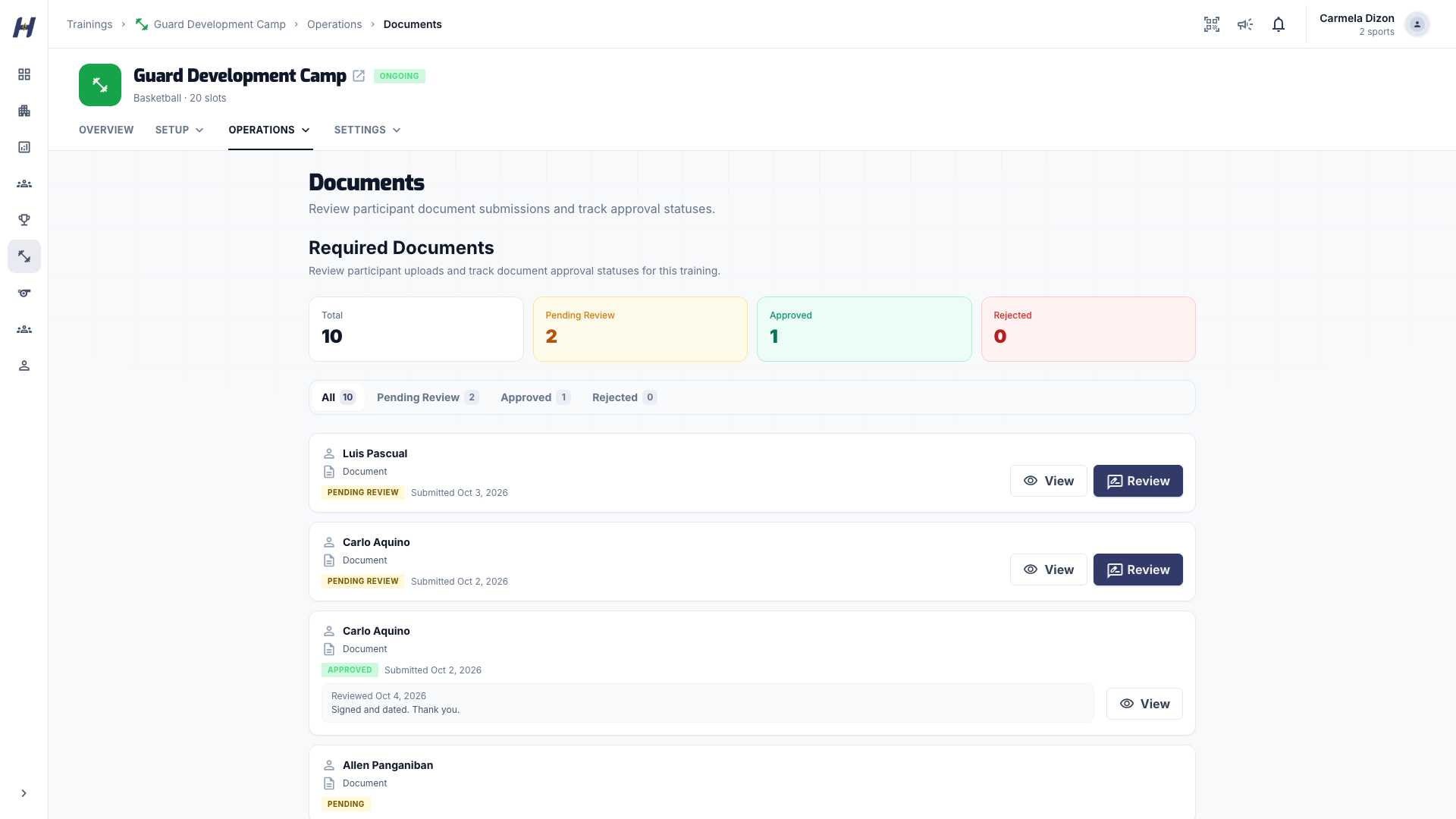
Open the training, select Manage, then Documents under Operations. Counters show Total, Pending Review, Approved, and Rejected, and you can filter by each.
Review a submission
Select Review on a row (or View to just open the file). In Review Document, select Open Uploaded Document and check the form, signatures, and dates.
Decide
Add Review Notes if the participant needs to know why, then select Approve or Reject. A rejected document reopens so the participant can fix and resubmit it.
Keep documents private
Documents can hold IDs and medical details. Only training staff with review access can open submissions. Avoid storing copies outside HustlX, give rejection reasons about the requirement rather than personal data, and follow your organization's retention policy.
Troubleshooting
I cannot find the document library
It lives on the organization, not the training: organization Manage > Advanced > Documents.
Add Requirement is greyed out
Either the library is empty or every library document is already attached to this training.
A guardian cannot submit for a child
Check Who signs. Player blocks guardian uploads; switch it to Parent/Guardian or Either.
An upload fails
Check the file type and the 20 MB limit. Library templates accept PDF, DOC, or DOCX; completed documents also accept JPG and PNG.