Livestream a match with HustlX TV
HustlX TV turns a league match into a broadcast. Your encoder (OBS or another RTMP encoder) sends video to HustlX TV, viewers watch in a HustlX watch room, a scoreboard overlay follows the match you score in Game Day, and the recording becomes a replay.
Before you start
- Your organization needs HustlX TV enabled and at least one live match credit. Credits come with your plan or add-ons, or HustlX staff can add them.
- The match must belong to a league in a sport HustlX TV supports, such as basketball or volleyball.
- Install OBS (or another RTMP encoder) on the computer that will stream.
Choose a broadcast mode
| Mode | Where the video goes | Replay |
|---|---|---|
| HustlX TV Broadcast + Replay | OBS streams to HustlX TV. Viewers use the HustlX watch room. | HustlX records it and creates a replay. |
| Social Live Overlay | OBS streams to your own platform, such as YouTube or Facebook. HustlX supplies only the overlay. | None. HustlX does not ingest, host, store, or replay the video. |
Each mode needs its matching TV capability on your organization. A mode your organization does not have shows Requires TV capability. and cannot be selected.
Prepare the stream
Open the match
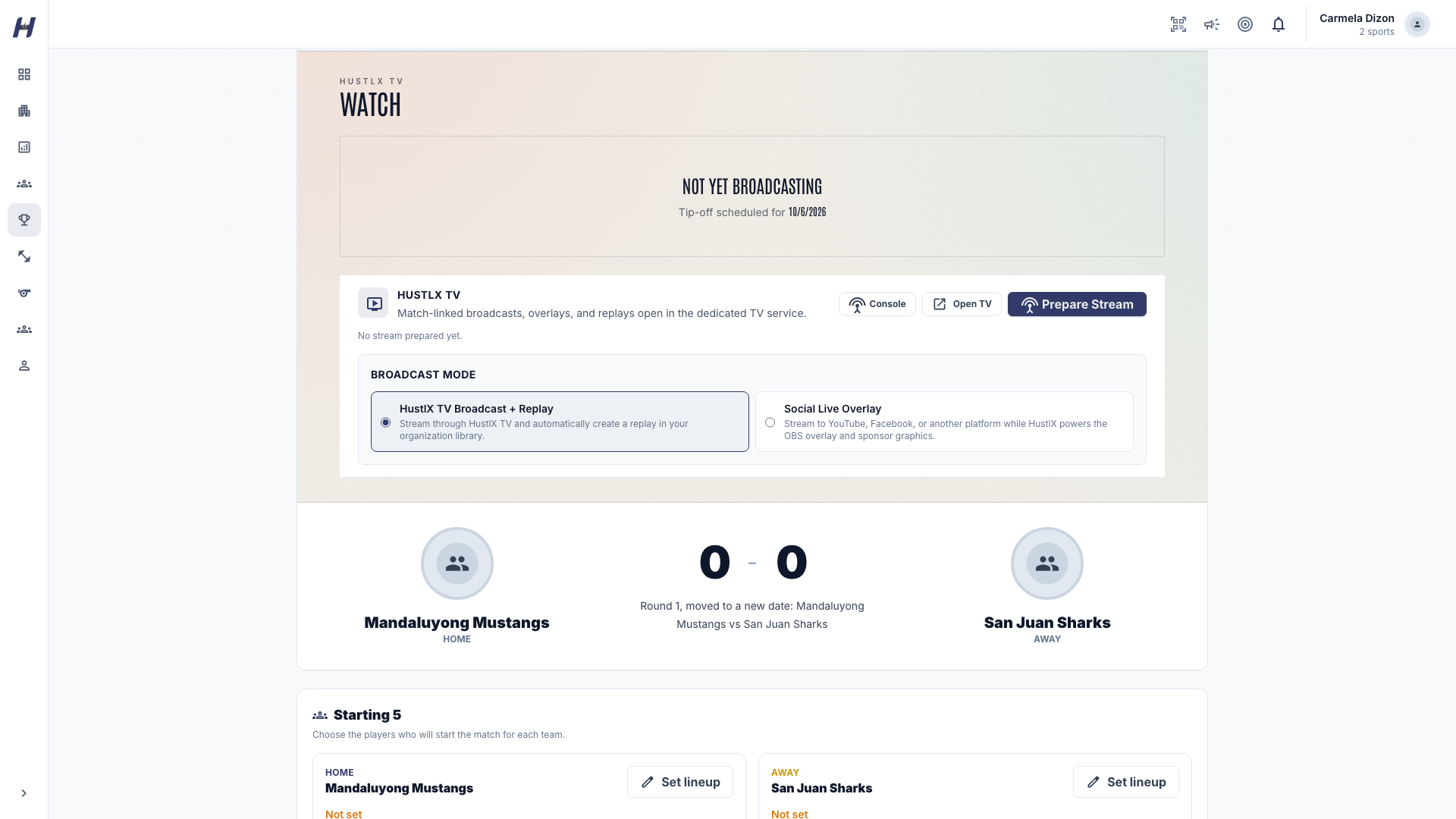
Open the league match. The Watch section (labeled HustlX TV) sits above the scoreboard and shows the operator panel to members with TV access.
Pick the mode
Under Broadcast mode, select HustlX TV Broadcast + Replay or Social Live Overlay. For Social Live Overlay you can add a Platform (optional) and a Watch URL (optional) for your external stream.
Select Prepare Stream
Select Prepare Stream. HustlX creates the live event and opens the Producer Console in a new tab.
If your organization has no live match credits, the panel shows Avail livestreaming credits instead, and you cannot prepare a new broadcast until HustlX support tops up your credits.
Connect OBS
Copy the ingest details
Open OBS setup in the match panel. Use Copy beside each value:
- RTMP server: the server address for OBS.
- Stream key: a one-time secret that lets your encoder publish.
- Overlay URL: the scoreboard graphic, added to OBS as a Browser Source.
The panel also lists recommended encoder presets (video, audio, and keyframe settings). Match your OBS output to the recommended preset.
Add the overlay
In OBS, add a Browser Source with the Overlay URL at the size shown in the panel. It renders on top of your video.
Start streaming in OBS
Start the stream in OBS. The Producer Console shows Waiting for encoder until video arrives. Use Pop out or Watch in the match panel to check the watch room.
Run the broadcast
- Scoreboard overlay: the overlay follows the live match state you record in Game Day, including team names, scores, period or set, clock, and possession or serve. You do not edit it by hand.
- Mark Highlight: saves a highlight moment while you are live.
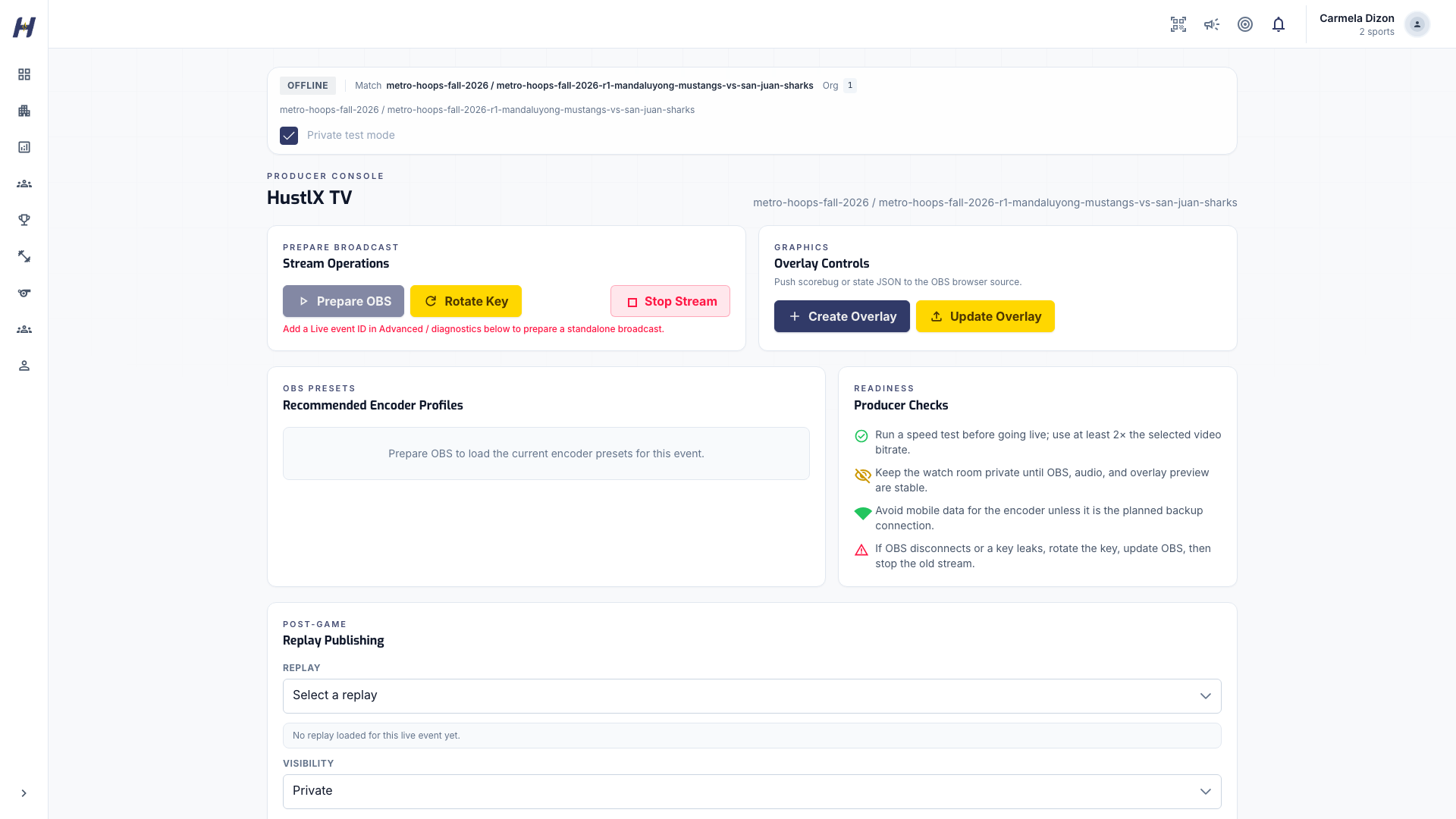
- Producer Console: the console tab has Prepare OBS, Rotate Key, and Stop Stream, Overlay Controls to push scoreboard state, recommended encoder profiles, and producer checks. Turn on Private test mode to rehearse before the real broadcast.
Post-game overlay
When results are in, the Post-Game Overlay section lets you show cards such as Final Score, Top Performers, Best Player of the Game, and Player Spotlight on the broadcast. Add its URL to OBS as a Browser Source at 1920 x 1080.
Stop the stream
Select Stop Stream, then Stop Stream again to confirm, or Keep Live to cancel. Viewers are disconnected immediately and HustlX stops accepting video from your encoder, so stop OBS too.
Publish the replay
After a HustlX TV Broadcast + Replay stream ends, the match shows Replay being prepared until HustlX TV finishes processing. The replay then appears on the match page and in your organization's Replay library.
In the Producer Console, Replay Publishing controls each replay:
- Set Visibility to Private, Unlisted (only people with the link), or Public (listed on HustlX TV), then select Publish.
- Unpublish hides a published replay.
- Retention Hold makes the replay private and exempts it from the normal replay retention period.
- Takedown hides the replay from viewers and unlinks it from public surfaces. Takedowns are logged.
You can also open Replay actions on a replay in your organization's TV tab and select Unpublish.
Your organization's TV hub
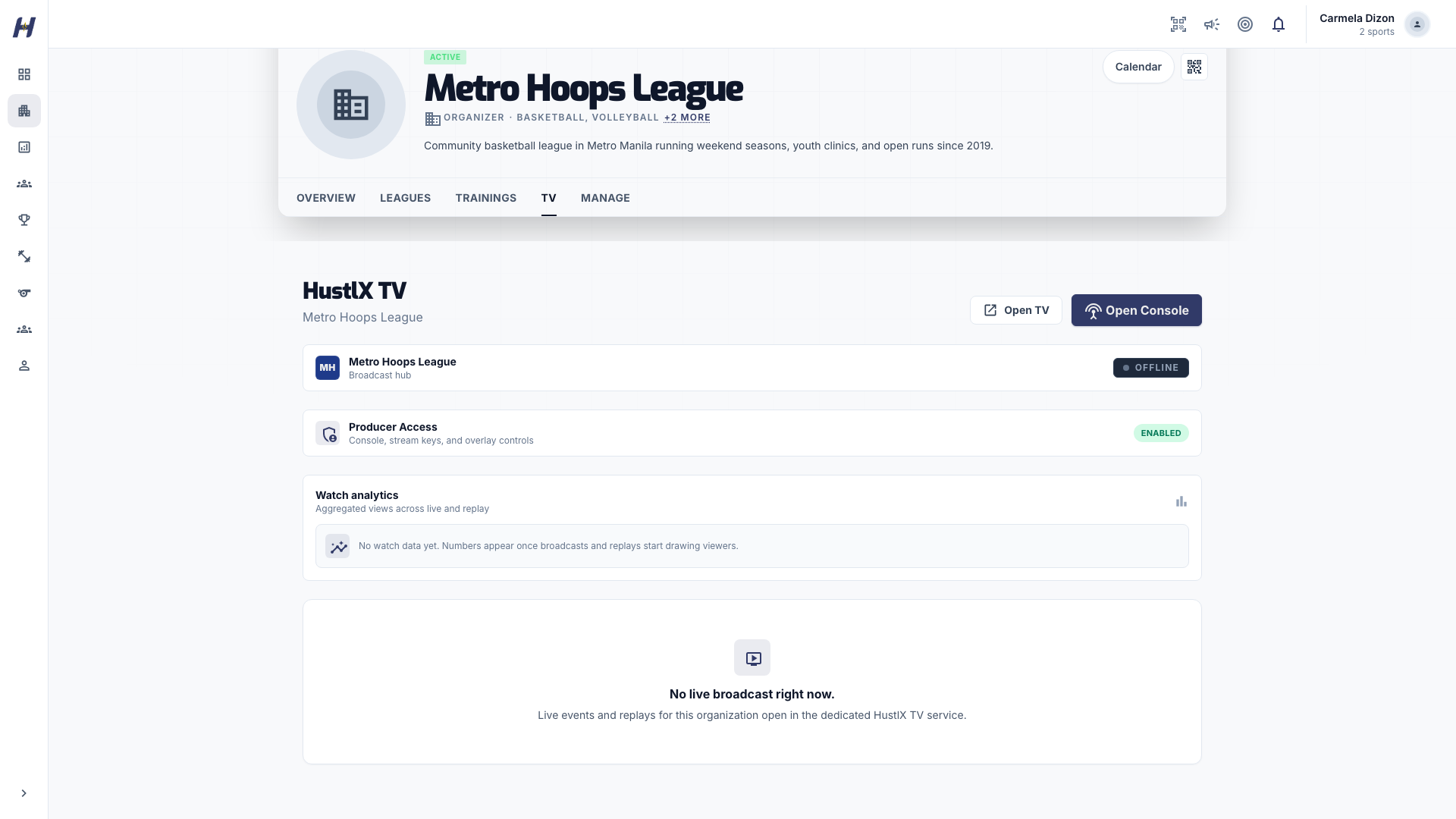
Open your organization and select the TV tab. It shows Producer Access (whether you can open the console), Live now, Upcoming / Prepared events, the Replay library, Highlights, and Watch analytics such as total views, unique viewers, and peak concurrent viewers. Select Open TV to view your public channel or Open Console to open the Producer Console.
Brand the overlay
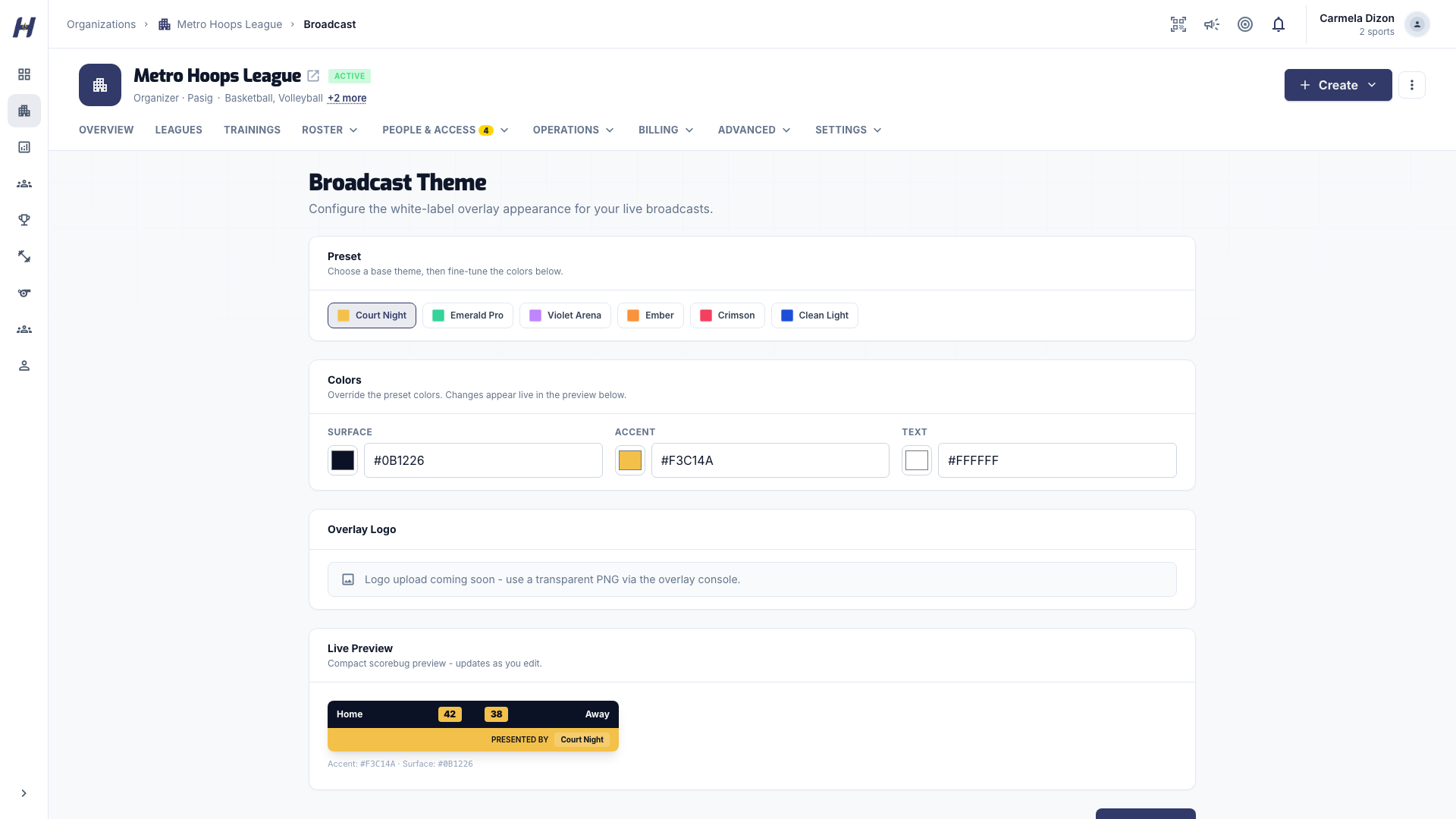
Organization owners and admins can set the overlay's look on the Broadcast Theme page. There is no menu link yet: add /manage/broadcast to your organization's address (for example /organizations/your-org/manage/broadcast). Choose a Preset, set the Colors (Surface, Accent, Text), add an Overlay Logo, check the Live Preview, and select Save Theme.
Troubleshooting
I do not see the TV tab or the Watch section
HustlX TV is not enabled for your environment or organization, or your role lacks TV permissions. Contact HustlX support to request access.
Prepare Stream is missing
You need all five TV operator permissions, and your organization needs live match credit. Members with view-only access see the panel without its actions.
OBS will not connect
Check that the RTMP server and stream key were copied exactly. If you rotated the key or stopped the stream, prepare again or paste the new key.
No replay appeared
Only HustlX TV Broadcast + Replay streams create replays. Social Live Overlay broadcasts are never recorded by HustlX.
Related guides
Finance & payouts
Use the Billing pages to review revenue, record expenses, download reports, set a payout destination, and request payouts of money collected for your organization.
Account settings
Change your profile, sports, location, family athletes, and password, confirm deletions safely, and switch the app theme.