Set lineups and start the match
Before play begins, Game Day asks you to confirm who starts and how the match is set up. This keeps every stat on the right player from the first possession, rally, or kickoff.
Before you start
- Open the match on Game Day. See Run a match on Game Day.
- Check each roster with the coaches. Claim status never matters: claimed, unclaimed, guest, and imported players can all start.
- Make sure you are online. Starting a match needs a live connection.
Set lineups and start
Set starters early (optional)
On the match page, the Starting 5 panel (Starting 3 for 3x3) shows each team's starters. Select Set lineup or Edit for a team while the match is still scheduled. You can skip this and do it in the console.
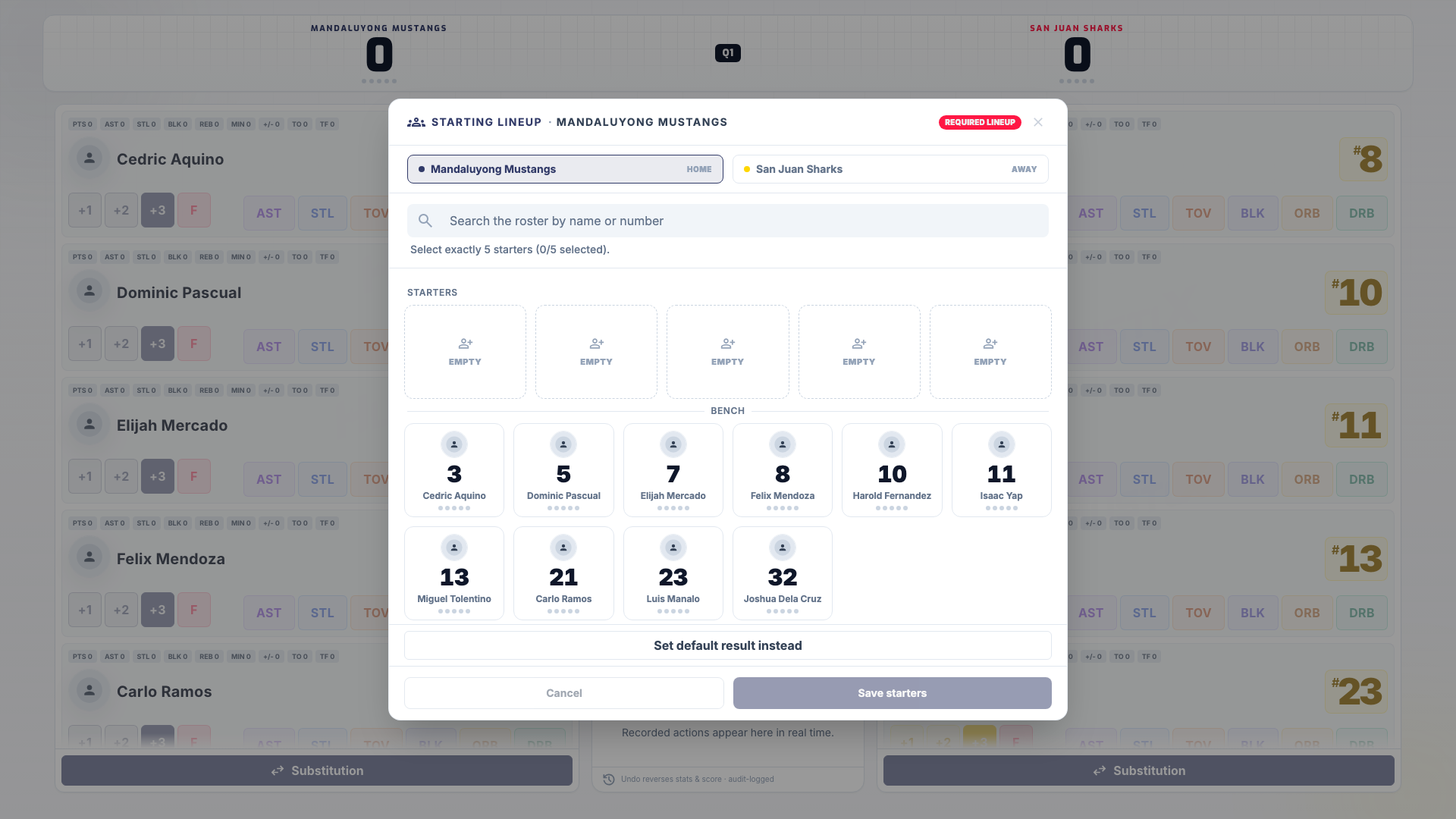
Confirm both starting lineups
When the console opens, HustlX asks you to confirm both starting lineups, even when starters were already picked. Each team has its own tab. Select players to move them between Starters and Bench, then select Save starters for a new lineup or Confirm starters when you are reviewing one that is already full.
Fill the court to the format's size (five for 5v5, three for 3x3), or with every available player when a roster is shorter than that. A player cannot start for both teams, and a fouled-out player cannot start.
Review the match setup
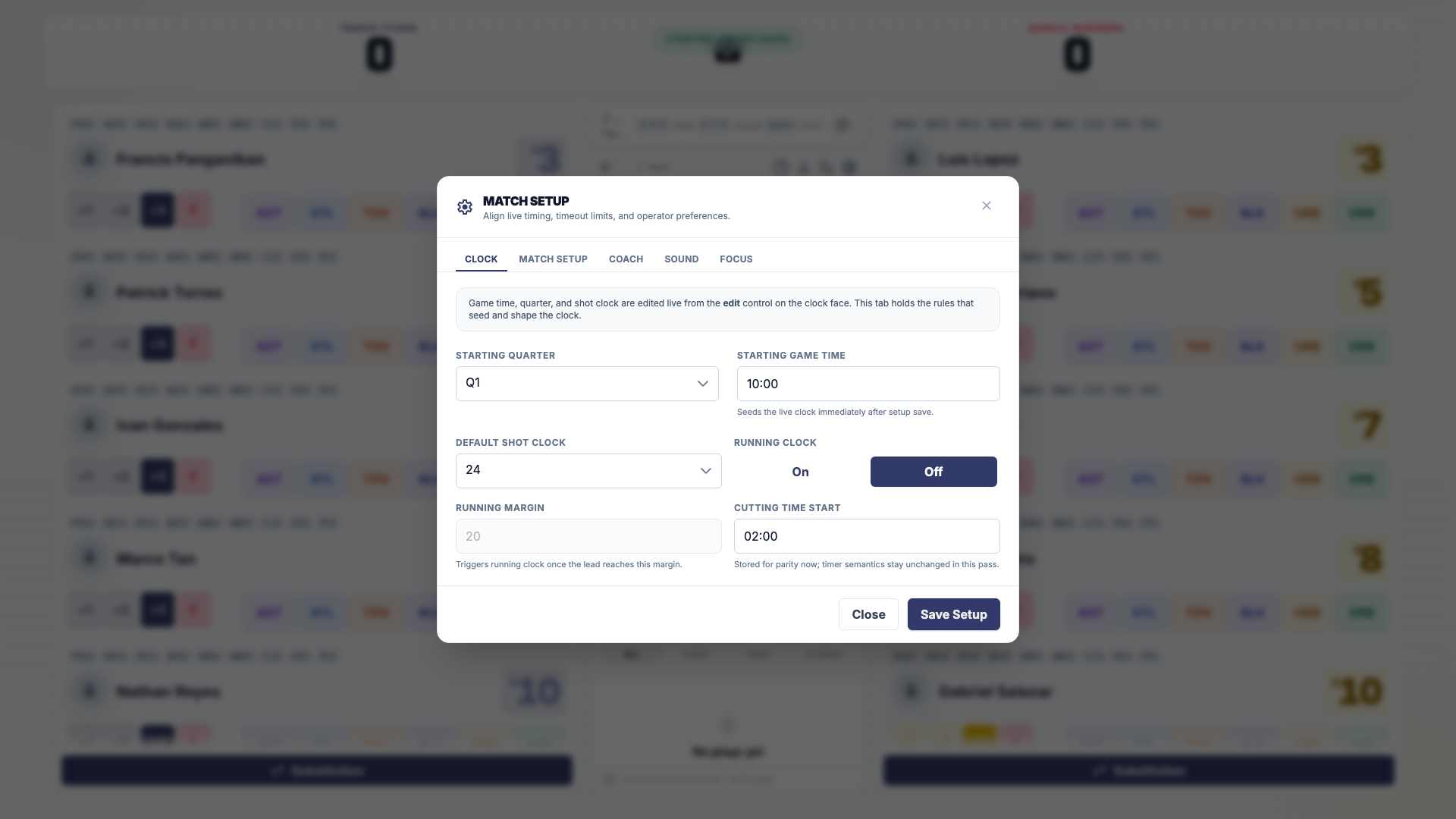
The first time you open a match, Match Setup opens after the lineups. Later, open it from the gear icon. Its tabs are:
- Clock: Starting Quarter, Starting Game Time, Default Shot Clock, and Running Margin for running-clock leagues.
- Match Setup: a League Rules summary, the assigned officials, Time per Quarter, and Time per OT.
- Coach: coach fouls for each bench.
- Sound: buzzer Volume and test sounds.
- Focus: your operator preset. See Share the table across devices.
Select Save Setup (or Save Settings when settings already exist). Once the match is under way, setup locks and the button reads Save Preferences.
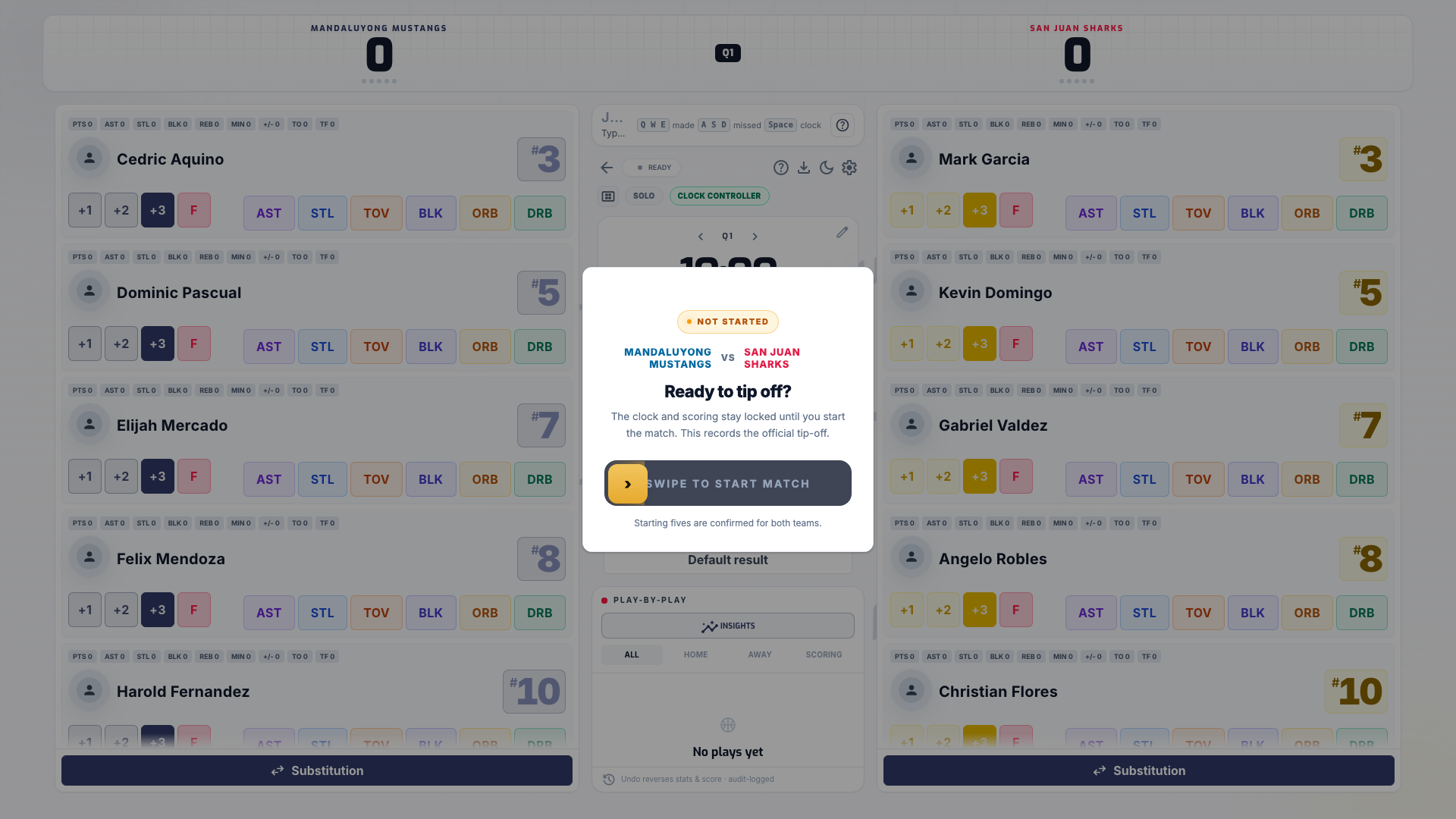
Swipe to start the match
Drag Swipe to start match to the end of the track. On a keyboard, focus the control and press Enter or Space. The match goes live and the clock is ready for tip-off.
Open Match Setup
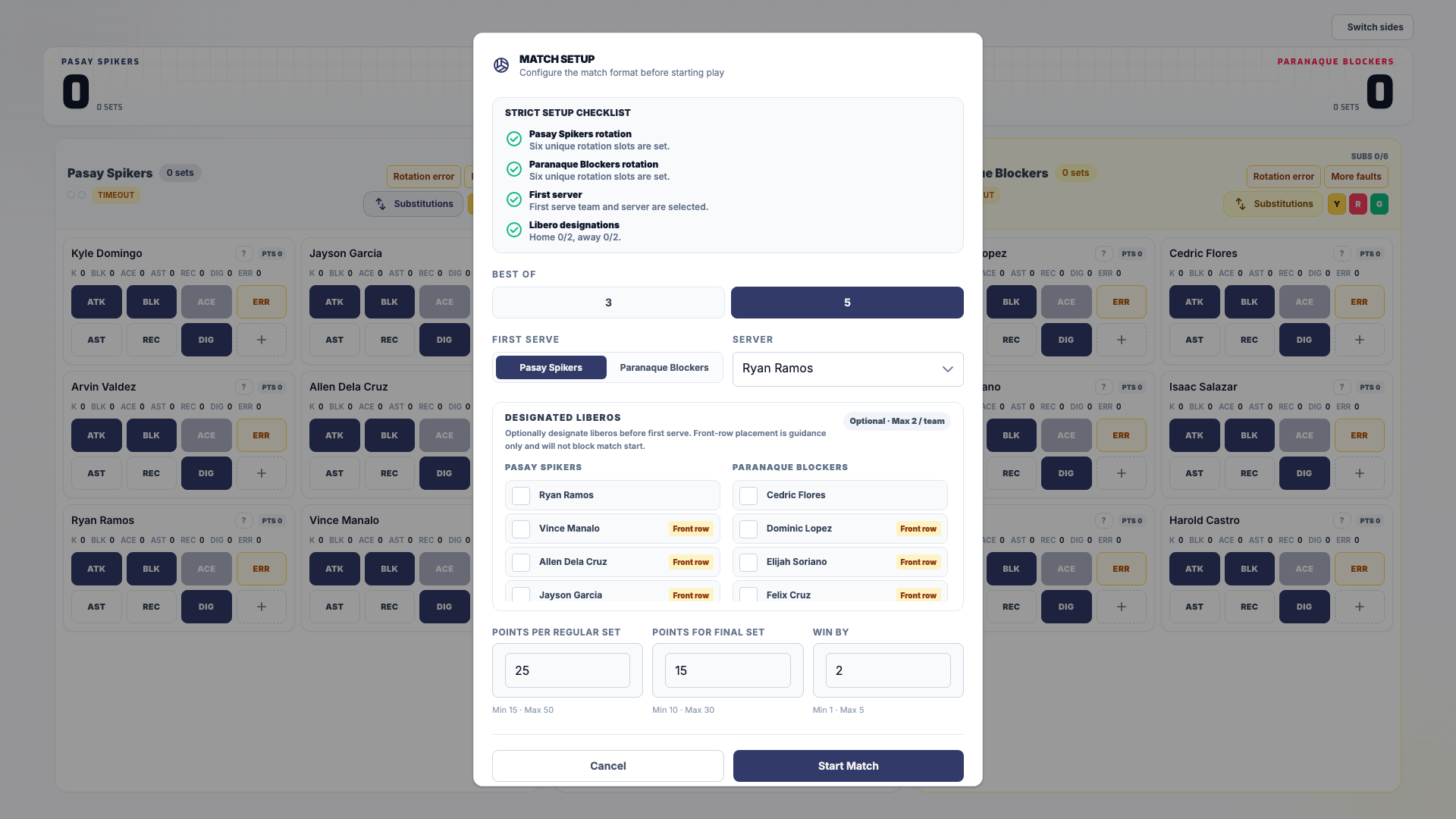
Select Start Game Day on the volleyball match. The console opens Match Setup.
Set the set rules
Choose Best Of (3 or 5 sets), then review Points per Regular Set, Points for Final Set, and Win By.
Choose the first serve
Pick the First Serve team and the Server. Mark liberos where your league uses them. When your league turns on strict rotation rules, a checklist shows each team's rotation, the First server, and Libero designations.
Start the match
Select Start Match. The button is ready once the set rules are valid and a first serve team and server are chosen.
Fill the team sheets
Before kickoff, select Edit team sheets. For each side, choose a formation, place starters in the slots, pick a captain with Make captain, and list substitutes. Select Save home or Save away for each side.
Start the match
Select Start Match in the workflow bar. If a team sheet has gaps, HustlX asks Start match with lineup warnings? and lists them. Select Start anyway to kick off and record the warnings, or Review lineups to fix them first.
What happens next
The match status changes to live, and scores and stats now count toward the box score. Continue with Record scores and stats.
Troubleshooting
Save starters stays disabled
Check that each team has as many starters as the format puts on the court (or every available player), that no player is in both lineups, and that no fouled-out player is in the starting lineup.
The swipe will not start the match
Read the message under the control. Common reasons: a starting lineup is not saved, you are offline, queued updates are still syncing, or you are using a second tab of the same match. Use one tab per device.
A team does not have enough players
Roster size is advisory. Save the lineup with the players you have, and record what the officials decide. If a team cannot play, use Default result. See End a match and review awards.